Creating a Highly Available Red Hat OpenStack Platform Configuration (OSP5 and RHEL 7)
Red Hat OpenStack Platform is a cloud computing platform made up of a set of interconnected projects. From the OpenStack Dashboard (Horizon project), administrators can manage components that include compute nodes (Nova project), block and object storage (Cinder and Swift projects), networking (Neutron or Nova projects), disk images (Glance project), and a variety of additional (and sometime, interchangeable) management and orchestration features.
This article provides a procedure for initially setting up a highly available Red Hat OpenStack Platform environment. The goal is to have an enterprise-quality OpenStack configuration that can quickly adapt to a failed service with little or no impact on those using the OpenStack configuration. Once completed, the configuration is one that you can build on to create an enterprise-quality, highly available Red Hat OpenStack configuration.
Understanding How HA RHEL OpenStack is Set Up
Before you begin configuring your highly available RHEL OpenStack set up, you should see how we set up the physical computer, networks and storage for this procedure, as well as how the services are deployed across those systems. The following paragraphs describe those items.
Understanding the Physical Setup (Computers and Networks)
To deploy a foundation for your OpenStack HA environment, as described in this document, we suggest you start with at least five physical computers. They include: one used as a RHEL OpenStack Platform Installer provisioning system, three as Controller nodes and at least one as a Compute Node. Each computer should have either two or three network interface cards. Those NICs should connect to some or all of the following networks: A provisioning network, a tenant network, and an external network.
Figure 1 shows an example of the physical computers and network interfaces used in this procedure:
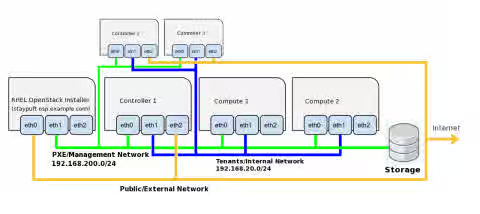
Figure 1: Computers and Network Interfaces for Highly Available Red Hat OpenStack Platform Configuration
The characteristics of the computers illustrated in Figure 1 are as follows:
-
RHEL OpenStack Platform Installer Computer: The RHEL OpenStack Platform Installer is a provisioning tool, based on Red Hat Satellite 6. This installer consists of a graphical provisioning tool (Foreman) that is combined with a plugin (Staypuft) that provides deployment scenarios for several regular and highly-available initial configurations. The installer then stays in place to manage OpenStack components (compute nodes, controller nodes, storage, and network configuration) in an on-going basis. Characteristics of the RHEL OpenStack Platform installer computer include:
- RHEL 6.5: Must be capable of running Red Hat Enterprise Linux 6.5.
- NICs: Must include two network interface cards.
-
Controller Nodes (3 physical computers): To make the OpenStack services highly available, three physical host systems need to be configured. Controller nodes need:
- RHEL 7: Each must be capable of running Red Hat Enterprise Linux 7.
- NICs: Each needs three network interface cards. The NIC on the PXE/Management network must be configured to PXE boot.
-
Compute Nodes (1 or more physical computers): To actually run the virtual machines (VMs) and other runnable objects, you need at least one Compute Node. To be able to migrate VMs, you will need at least two compute nodes. You can add as many compute nodes as you like to suit the demands of your workload. Each Compute node needs the following:
- RHEL 7: Each must be capable of running Red Hat Enterprise Linux 7.
- NICs: Each needs two network interface cards. The NIC on the PXE/Management network must be configured to PXE boot.
- Virtualization: Each must be capable of running KVM virtual machines.
Besides the computing resources just describe, you also need to have the following network and storage resources in place:
- Network resources:
- PXE/Management Network: The RHEL OpenStack Installer system deploys and manages the other systems in the OpenStack configuration on this network. This must be a private network because the RHEL OpenStack Installer runs its own DHCP and PXE services that you want to keep separate from systems outside of your OpenStack configuration.
- Public/External Network: Both the RHEL OpenStack Installer system and whatever system is running the Neutron Network node needs access to a Public/External network. All traffic from the Compute nodes is forwarded through the node running Neutron. Because in this highly available setup every Controller node can run Neutron, all Controller nodes must have a public network interface.
- Tenants/Internal Network: Traffic between Compute and Controller nodes that is related to managing tenant networks needs to be on its own private network.
- Storage: You need to assign storage for your Cinder and Glance services. For the Glance service, you need enough storage to provide the space needed to hold your images (such as qcow images that are perhaps a couple hundred MB and bootable installation ISO images such as a 4GB RHEL install image). For the Cinder service, you need enough storage to provide the block storage needed for your VMs to run. For our example, we started out with a 25GB NFS share for Glance and a 100GB NFS share for Cinder.
Understanding Service Configuration (OpenStack Services, HA proxy and Pacemaker Clustering)
The Red Hat OpenStack services are spread across the physical systems described in the previous section. During and after deployment, the Red Hat OpenStack Installer acts as a Web-based deployment manager, a router and a DHCP server for the Controller and Compute nodes. Controller nodes run all the services and databases needed to manage the Red Hat OpenStack environment. Compute nodes run those services necessary to support the nova service (nova-compute), including services for networking (neutron) and virtualization (qemu-kem).
Because the deployment described here is a highly available Red Hat OpenStack configuration, the OpenStack services and databases are spread across the three Controller nodes. To make the services highly available, Pacemaker is used to ensure that IP addresses representing each service can be brought up on another Controller node if the one where is resides goes down. HAproxy manages and balances traffic among OpenStack services across Controller nodes. So the process actually fulfilling a service request may not be on the same Controller node that receives the original service request.
The following sections provide details on which services are available from each of the nodes in the highly available RHEL OpenStack configuration described in this document.
Services on the Red Hat OpenStack Installer
The primary job of the Red Hat OpenStack Installer is to manage the computing infrastructure. The services the installer offers are there to serve that purpose. Figure 2 illustrates the services and network interfaces associated with the Red Hat OpenStack Installer:
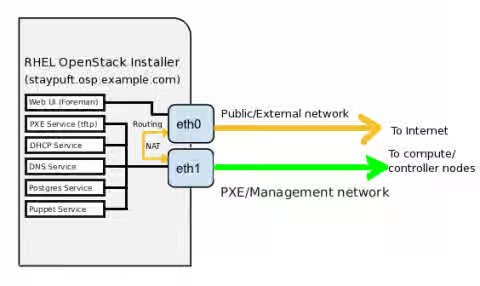
Figure 2: Services and network interfaces on the Red Hat OpenStack Platform Installer
Here are descriptions of the services running on the Red Hat OpenStack Installer computer:
-
Web-based Interface: From the Red Hat OpenStack Installer web-based interface (HTTP port 80), you can create a deployment configuration that provisions all the Controller and Compute nodes in your OpenStack setup. Once the set of host
nodes is deployed, you can keep track of those hosts through this interface. You can monitor the status of each host, as well as view hardware configuration information and see how each was provisioned. -
PXE Service: The PXE boot service (via tftpd) allows the Installer to discover the location of potential Controller and Compute nodes from the network, then deploy to those nodes (from bare metal) without further intervention from an administrator.
-
DHCP Service: The DHCP server on the Installer allows the Controller and Compute nodes on the PXE/Management network to automatically pick up IP addresses from the Installer. The DHCP server also identifies the Installer node as the router from nodes on the PXE/Management network to the Red Hat software repositories containing the RPM packages needed to deploy the nodes.
-
DNS Service: Using the DNS name you entered for the Red Hat OpenStack Installer, the Installer runs a BIND DNS server (named service) that dynamically adds the names and IP addresses of all hosts in the OpenStack configuration into the DNS server so each host can be referenced by name or IP address. Node names are assigned by the MAC address of the NIC from each provisioned host on the PXE/Management network.
-
Postgres database: Deployment information you enter through the Web user interface is stored in a Postgres database on the Installer system.
-
Puppet Service: Changes to deployed systems are managed by the puppet service.
-
Routing: Requests for packages to install on the controller and compute nodes are routed through the OpenStack Installer. During deployment, the Installer computer acts as a router between the provisioning and external networks.
Keep in mind that the services just describe here are not used to manage Red Hat OpenStack services themselves for deploying VMs or managing tenants. Instead they are there to manage the host systems (Controller and Compute nodes) on which the OpenStack services are deployed.
Services on Controller Nodes
There are several ways in which Red Hat OpenStack services are made highly available across a set of Controller nodes in the configuration described in this document:
-
Pacemaker clustering service: Using Pacemaker, Red Hat OpenStack is able to monitor the health of each service, restart services as needed, and have services failover to another Controller if a Controller is down.
-
HAProxy proxy service: Using the HAProxy service, demand for OpenStack services can be spread across multiple service daemons running on multiple Controller nodes. HAProxy can do load balancing to make sure that requests are serviced in a timely way by making the best use of the available service daemons.
When an HA Red Hat OpenStack configuration is deployed, Virtual IP addresses are assigned to each of the services. You can see those assignments from the Installer Web user interface by selecting OpenStack Installer -> Deployments, choosing the Deployment name, then (if it is deployed) selecting the "Access all details" button.
Figure 3 shows an example of these assignments:

Figure 3: Accessing details about virtual IP addresses for each service
Because these services are deployed on the PXE/Management network, in this example, each service is assigned a virtual IP address in the 192.168.200.0/32 address range. In particular, the 13 IP addresses range from 192.168.200.242 to 192.168.200.254.
Requests for each of these services is made through each one's virtual IP address, and can then be serviced by service daemons on that Controller node or on other nodes. Also, the IP address itself can be moved to a different Controller if necessary.
When we set up the HA Red Hat OpenStack configuration described in this document, here's how the virtual IP address for each service was assigned across the Controllers:
-
Controller 1 (192.168.200.3):
- amqp: 192.168.200.253
- loadbalancer: 192.168.200.250
- glance: 192.168.200.245
- heat: 192.168.200.246
-
Controller 2 (192.168.200.4):
- neutron: 192.168.200.252
- db: 192.168.200.244
- nova: 192.168.200.251
- cinder: 192.168.200.243
-
Controller 3 (192.168.200.5):
- horizon: 192.168.200.248
- keystone: 192.168.200.249
- heat_cfn: 192.168.200.247
-
Not Assigned to a Controller:
- ceilometer: 192.168.200.242
- swift: 192.168.200.254
Although the initial request for a service is made to the assigned virtual IP address, services to handle those requests may be running on multiple Controller nodes. In most cases, the haproxy service listens on the virtual IP addresses for requests for specific port numbers (listed below), and then directs the requests to an appropriate daemon process.
All of the services managed by the haproxy service are listed in the /etc/haproxy/haproxy.cfg file on each Controller. Each service in that file is indicated by a separate listen line, followed by the virtual IP address and port number of the service, mode (such as tcp or http), and each server where the service is ultimately running (on server lines by hostname and IP address).
If you look in the haproxy.cfg file, you will notice that all the services have service daemons launched on all three Controller nodes that are set to respond to requests on the same port numbers. The following is a list of OpenStack services running on each Controller, along with the port number they are responding to:
- RabbitMQ messaging (rabbitmq on TCP port 5672)
- cinder-api (TCP port 8776)
- galera (TCP port 3306)
- glance-api (TCP port 9292)
- glance-registry (TCP port 9191)
- heat-api (TCP port 8004)
- heat-cfn (TCP port 8000)
- heat-cloudwatch (TCP port 8003)
- horizon (HTTP port 80)
- keystone-admin (TCP port 35357)
- keystone-public (TCP port 5000)
- neutron-api (TCP port 9696)
- nova-api (TCP port 8774)
- nova-metadata (TCP port 8775)
- nova-novncproxy (TCP port 6080)
- nova-xvpncproxy (TCP port 6081)
- haproxy stats (HTTP port 81)
Services on Compute Nodes
Service administration on the Compute nodes are much simpler than they are on the Controller nodes. The primary job of the Compute nodes is to have the services in place needed to run virtual machines and provide the underlying network configurations that those virtual machines need. These services include:
- Nova compute service: The Nova compute service manages virtual machine instances, along with related images, volumes, snapshots, tenant and possibly network information.
- Neutron networking service: For our example, we used the Neutron networking service with the openvswitch plugin. The Neutron service allows for more complex and precise networking configurations than can be done with the networking service available with Nova.
- Libvirtd: Communications between the virtual machines and the components that manage those virtual machines is handled by the libvirtd service.
- Qemu: Individual virtual machines are launched and managed by the qemu-kvm service.
Configuring your Highly Available Red Hat OpenStack Setup
This procedure consists of the following steps:
- Step 1: Prepare the RHEL OpenStack Hardware
- Step 2: Install the RHEL OpenStack Installer
- Step 3: Set up the RHEL OpenStack Installer
- Step 4: Configure your OpenStack Deployment via the RHEL OpenStack Installer
- Step 5: Configure RHEL OpenStack Services
Step 1: Prepare the RHEL OpenStack Hardware
Before you start deploying your new Highly Available RHEL OpenStack software, you need to do some setup on the hardware. In particular you need to:
- NICs: Make sure the proper number of network interface cards are installed on each computer.
- Networks: The PXE/Management network must be in place and connected. The external network from the Installer computer must also be available, since access to Red Hat repositories are required from that system when other systems are deployed.
- PXE Boot: It is important that all the Controller and Compute nodes are configured to PXE boot from the NIC connected to the PXE/Management network.
- Unformatted hard drives: If the hard drives are configured on the computers you use as your Controller or Compute nodes, the deployment will pause to tell you that there is no disk available to use. If you see this happen on the console of a computer you are deploying, you can go to a virtual console (Ctrl-Alt-F2) and erase the disk (something like: dd if=/dev/zero of=/dev/sda and let it run a while). Then reboot and try the deployment again.
The main point here is that the deployment is dependent on your computers booting from the proper NIC and having a blank hard disk. If your deployment seems to stop progressing, go to the console of each host computer and make sure the deployment hasn't stalled there.
Step 2: Install the RHEL OpenStack Installer
On the RHEL OpenStack Installer computer, you are going to install RHEL 6.5, then install the RHEL OpenStack Installer provisioning service. That service will provision the services to all the other systems in your OpenStack configuration. In this example, the RHEL OpenStack Installer computer will have:
- RHEL 6.5 installed on it
- A valid Red Hat Enterprise OpenStack 5.0 Platform entitlement
- A network interface to a Public/External network (eth0) and a network address of 192.168.200.2 (eth1) on a private, internal PXE/Management system.
-
Install RHEL 6.5: On the RHEL OpenStack Installer system, install Red Hat Enterprise Linux 6.5 Server. For this example, we did a Server install with Basic Server and Desktop package groups added. For details on installing RHEL 6.5, see the following:
This content is not included.Red Hat Enterprise Linux Installation Guide
-
Firstboot: After the system reboots, go through the first boot program to accept the licensing.
Step 3: Set up the RHEL OpenStack Installer
In this step, you will install and configure the RHEL OpenStack Installer computer.
-
Log into the RHEL OpenStack Installer: Log into the RHEL OpenStack Installer system and gain root user access to a shell.
-
Configure network interfaces: For the two network interface cards on the RHEL OpenStack Installer computer, configure the first (eth0) to connect to a public/external network. Configure the second (eth1) to connect to the PXE/Management network. (For this example, we set up a separate, private network with the local system using the 192.168.200.2 IP address.)
-
Set hostname: When you later run the installer, it will look up the hostname for the OpenStack Installer and compare it to the hostname set locally. Make sure that you set the hostname for the RHEL OpenStack Installer system and that it matches the DNS hostname. To change the hostname, you can edit the /etc/hosts and /etc/sysconfig/network files. In our example, we use the hostname of staypuft.osp.example.com. Here's how those two files would appear (with the names you might want to change highlighted):
IMPORTANT: It is important that the forward and reverse lookups of your hostname, as well as the hostname set on your system and in the /etc/hosts file all match. This procedure will fail if the installer finds a mismatch in these names.
 # cat /etc/hosts
 127.0.0.1   localhost localhost.localdomain localhost4 localhost4.localdomain4
 ::1         localhost localhost.localdomain localhost6 localhost6.localdomain6
 192.168.200.2 staypuft.osp.example.com staypuft
 # cat /etc/sysconfig/network
 NETWORKING=yes
 HOSTNAME=staypuft.osp.example.com
-
Set up NTP: To ensure that time is synchronized between your OpenStack systems, they should all be using NTP and pointing to the same time sources. So, on the RHEL OpenStack Installer system, type the following as root:
# service ntpd stop
 # ntpdate clock.redhat.com
 # service ntpd start
 # chkconfig ntpd on
-
Subscribe the RHEL OpenStack Installer: On the RHEL OpenStack Installer system, type the following commands to enable the repositories needed to get the RHEL OpenStack Installer and related packages. Then run yum update to get the latest versions of all your RHEL packages.
# subscription-manager register
 # subscription-manager attach --pool=pool_id_that_includes_OSP_entitlements
 # subscription-manager repos --enable=rhel-6-server-rpms
 # subscription-manager repos --enable=rhel-6-server-openstack-foreman-rpms
 # subscription-manager repos --enable=rhel-server-rhscl-6-rpms
 # yum update -y
-
Enable firewall: You need open access to ports on the RHEL OpenStack Installer system that allow communications PXE Management network (192.168.200.0/24 in this example). To do this, you can either copy and paste the entire following text into the /etc/sysconfig/iptables file or at least make sure the entire filter and nat firewall rules from this text is added to your current /etc/sysconfig/iptables file. Once that is done, restart the firewall service:
# cat /etc/sysconfig/iptables
 *filter
 :INPUT ACCEPT [0:0]
 :FORWARD ACCEPT [0:0]
 :OUTPUT ACCEPT [17:1776]
 -A INPUT -m state --state RELATED,ESTABLISHED -j ACCEPT
 -A INPUT -p icmp -j ACCEPT
 -A INPUT -i lo -j ACCEPT
 -A INPUT -p tcp -m state --state NEW -m tcp --dport 22 -j ACCEPT
 -A INPUT -p tcp -m state --state NEW -m tcp --dport 80 -j ACCEPT
 -A INPUT -p tcp -m state --state NEW -m tcp --dport 443 -j ACCEPT
 -A INPUT -p tcp -m state --state NEW -m tcp --dport 53 -j ACCEPT
 -A INPUT -p udp -m state --state NEW -m udp --dport 53 -j ACCEPT
 -A INPUT -p tcp -m state --state NEW -m tcp --dport 111 -j ACCEPT
 -A INPUT -p udp -m state --state NEW -m udp --dport 111 -j ACCEPT
 -A INPUT -p tcp -m state --state NEW -m tcp --dport 32803 -j ACCEPT
 -A INPUT -p udp -m state --state NEW -m udp --dport 32769 -j ACCEPT
 -A INPUT -p tcp -m state --state NEW -m tcp --dport 2020 -j ACCEPT
 -A INPUT -p udp -m state --state NEW -m udp --dport 2020 -j ACCEPT
 -A INPUT -p tcp -m state --state NEW -m tcp --dport 662 -j ACCEPT
 -A INPUT -p udp -m state --state NEW -m udp --dport 662 -j ACCEPT
 -A INPUT -p tcp -m state --state NEW -m tcp --dport 892 -j ACCEPT
 -A INPUT -p udp -m state --state NEW -m udp --dport 892 -j ACCEPT
 -A INPUT -p tcp -m state --state NEW -m tcp --dport 875 -j ACCEPT
 -A INPUT -p udp -m state --state NEW -m udp --dport 875 -j ACCEPT
 -A INPUT -p tcp -m state --state NEW -m tcp --dport 2049 -j ACCEPT
 -A INPUT -p udp -m state --state NEW -m udp --dport 2049 -j ACCEPT
 -A INPUT -p udp -m state --state NEW -m udp --dport 69 -j ACCEPT
 -A INPUT -p udp -m state --state NEW -m udp --dport 8140 -j ACCEPT
 -A INPUT -p tcp -m state --state NEW -m tcp --dport 8140 -j ACCEPT
 -A INPUT -p tcp -m multiport --dports 3306,9200,4567,4568,4444 -j ACCEPT
 -A FORWARD -o eth+ -j ACCEPT
 -A FORWARD -s 192.168.200.0/24 -j ACCEPT
 -A FORWARD -d 192.168.200.0/24 -j ACCEPT
 -A FORWARD -i eth1 -j ACCEPT
 COMMIT
 *nat
 :PREROUTING ACCEPT [1:76]
 :POSTROUTING ACCEPT [0:0]
 :OUTPUT ACCEPT [0:0]
 -A POSTROUTING -s 192.168.200.0/255.255.0.0 -j MASQUERADE
 COMMIT
 # service iptables restart
-
Install RHEL OpenStack Installer packages: To install the necessary OpenStack installation packages and get the provisioning template, type the following:
# yum install rhel-osp-installer -y
Configure RHEL OpenStack Installer to Deploy OpenStack
To configure your OpenStack deployment through the RHEL OpenStack Installer, you use the rhel-osp-installer command. The steps for doing this on the RHEL OpenStack Installer system are outlined below.
-
Add port forwarding settings: The RHEL OpenStack Installer system acts as a gateway, routing requests from the provisioned systems to get packages from Red Hat. This requires a few steps:
- Edit /etc/sysctl.conf: Change the ip_forward setting in the /etc/sysctl.conf file on the Red Hat OpenStack Installer host from 0 to 1 to allow the system to forward IP packets through network interfaces on this host. Edit /etc/sysctl.conf so the ip_forward line appears as follows:
net.ipv4.ip_forward = 1 - Enable ip_forward: To enable the ip_forward line you just set, type the following command:
# sysctl -p
IMPORTANT: At some point, the ip_forward value might get reset back to 0. If that happens, requests for packages from the OpenStack systems being provisioned will begin to fail. To re-enable that setting from the RHEL OpenStack Installer computer, just retype the sysctl -p command.
- Set firewall rules: Assuming your firewall is started on your system, run the following commands to allow packet forwarding from the PXE/Management network to the Internet, via the RHEL OpenStack Installer system, then save those rules permanently with the service command as follows:
# iptables -t nat -A POSTROUTING -o eth0 -j MASQUERADE
 # iptables -I FORWARD 1 -s 192.168.200.0/24 -j ACCEPT
 # iptables -I FORWARD 1 -d 192.168.200.0/24 -j ACCEPT
 # service iptables save
- Edit /etc/sysctl.conf: Change the ip_forward setting in the /etc/sysctl.conf file on the Red Hat OpenStack Installer host from 0 to 1 to allow the system to forward IP packets through network interfaces on this host. Edit /etc/sysctl.conf so the ip_forward line appears as follows:
-
Run rhel-osp-installer: The rhel-osp-installer command configures the RHEL OpenStack Installer provisioning system that will deploy your OpenStack environment. Run the command as shown below and provide the highlighted answers given (output has been shortened for clarity and instructions are in italics):
# rhel-osp-installer
 Please select NIC on which you want Foreman provisioning enabled:
 1. eth1
 2. eth0
 ?  eth1          Choose eth1 as provisioning network interface
 ...
Figure 4 shows an example of the networking setup that is ready to be implemented. Enter a number from the list of options to change any of those settings:
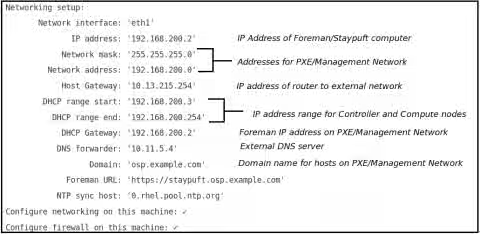
Figure 4: Reviewing and changing Networking settings for the PXE/Management network -
Modify networking setup: Review the networking setup values. If there are any you want to change, you may do so by typing a number shown after the "How would you like to proceed?" prompt. One setting you might want to change is the NTP sync host. To do that type 13 and change the sync host, then if all the settings are correct, type 1 to accept the networking settings:
13                  Type 13 to change NTP sync host
 new value for NTP sync host
 clock.redhat.com    Change NTP sync host to clock.redhat.com
 1                             Proceed with configuration
-
Change root password: You have the option of changing the SSH public key used to access the computers on the OpenStack setup or change the root password. For this example, we changed the root password, which will allow us to log in as root to any of the computer in the OpenStack configuration:
3 Type 3 to set the root password new value for root password ************ Type new root password (at least 8 characters) This sets the root password for all deployed systems 4 Type 4 to verify password Configure client authentication SSH public key: '' Root password: 'MyOld57Chevy' ... 1 Type 1 if you are sure the root password is correct. Installing... You will see red warnings as the Red Hat OpenStack Installer is set up (ignore them). -
Set RHEL repository path: You need to identify a path to a RHEL 7 repository that can be used to install the OpenStack Controller and Compute nodes. Type 1 to say you want to set the Web server (http or https) URL that holds the RHEL 7 software.
IMPORTANT: You can create your own RHEL 7 yum repository and point to that, as described in the This content is not included.Installation Source on a HTTPS, HTTP or FTP Server section of the RHEL 7 Installation Guide. Essentially, you need to copy the contents of a mounted RHEL 7 installation ISO to a Web server that is available to use for initially installing the Controller and Compute nodes.
1          Type 1 to set RHEL repository path
 Path:  http://myrepo.osp.example.com   Enter URL to RHEL 7 repo
 ...
 2          Type 2 to proceed with the chosen repo
 Enter your subscription manager credentials:
 1. Subscription manager username:
 2. Subscription manager password:
 3. Comma separated repositories:        rhel-7-server-openstack-5.0-rpms
 4. Subscription manager pool (optional):
 ...
 10. Skip this step (provisioning won't subscribe your machines)
-
Enter subscription information for OpenStack node: At this point you can enter the user name and password for the Red Hat Network account you use to manage your Red Hat subscriptions. You can enter a pool ID to identify a specific subscription you want to use (it must be one that includes OpenStack entitlements). You can also enter proxy information, if your Red Hat OpenStack Installer system must go through a proxy server to reach Red Hat Network.
1          Type 1 to add your subscription username
 Username: myusername
 2                         Type 2 to add the password for your username
 Password: **********
 4                         Type 4 to add pool ID that includes OpenStack subscription
 Pool: a3a1b2833e1239a901343cdef95a0500
 9                         Type 9 to proceed with the configuration
 Starting to seed provisioning data
 Use 'base_RedHat_7' hostgroup for provisioning
   Success!
   * Foreman is running at https://staypuft.osp.example.com
       Initial credentials are admin:changeme
   * Foreman Proxy is running at https://staypuft.osp.example.com:8443
   * Puppetmaster is running at port 8140
   The full log is at /var/log/rhel-osp-installer/rhel-osp-installer.log
The Red Hat OpenStack Installer installation is now complete. If you are interested in checking out details on how the installation went, refer to the log (noted in the output) that is located here in this example: /var/log/rhel-osp-installer/foreman-installer.log. Also take note of the URL you need to enter into your Web browser to access the Red Hat OpenStack Installer interface and the default credentials to log into that interface (admin user and changeme password).
You can now proceed to configuring your OpenStack deployment.
Step 4: Configure your OpenStack Deployment via the RHEL OpenStack Installer
The RHEL OpenStack Platform Installer provides a Web-based interface for configuring the systems and services that make up your OpenStack deployment. Two different types of highly available OpenStack configurations are available:
- OpenStack with Neutron networking
- OpenStack with Nova networking
The following procedure describes how to use Neutron networking to set up a highly available OpenStack configuration.
-
Access RHEL OpenStack Platform Installer GUI: Open a Web browser that has access to your Red Hat OpenStack Installer system and go to system's URL (or its IP address). For example:
Content from staypuft.osp.example.com is not included.https://staypuft.osp.example.com/
Figure 5 shows an example of the login screen:

Figure 5: RHEL OpenStack Installer Login Screen -
Log into Installer: Log into the installer GUI using admin username and changeme password. The Overview page appears.
Step 5: Configure RHEL OpenStack Services
With the RHEL OpenStack Installer configured and ready to use, you can now boot up all the Controller and Compute nodes. Once started, the four computers will boot from the PXE service that is available from the RHEL OpenStack Installer system. During the PXE boot process, the computers you boot will become available to the RHEL OpenStack Installer for provisioning. Here's what you do:
IMPORTANT: Deployment of software to Controller and Computer nodes depends on the computers running those nodes booting properly from the NIC of each computer on the provisioning network. For this to happen properly, you should check that the boot order will cause the computer to boot from the NIC. Any time a system needs to reboot, there is a potential for it to not come up properly if the boot order is not correct. We recommend you check the console for any system that seems to be hung during the deployment process.
-
Boot up the Controller and Compute Nodes: Go to the console for each Controller and Compute node and boot up the computer to the NIC (eth0) on each machine that is connected to the PXE/Management network. If it boots up properly, you should see Discovery on a PXE menu at each system's console, then after a few seconds each should boot up to a Discovery message, followed by interesting facts about the machine (manufacturer, IP addresses, MAC addresses, and so forth).
-
Discover hosts: Once the nodes have PXE booted properly (this can take a few minutes), you should be able to see that those systems have been "discovered" by the RHEL OpenStack Installer on the Discovered hosts page. From the browser where you accessed the RHEL OpenStack Installer earlier, select Hosts -> Discovered hosts. Figure 6 shows an example of the Discovered hosts page with the four computers discovered:
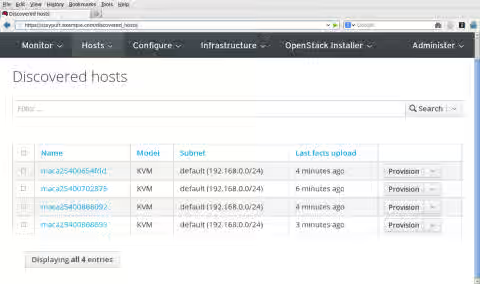
Figure 6: RHEL OpenStack Installer Discovered Hosts Page -
Select New Deployment: From the browser where you access the RHEL OpenStack Installer, select OpenStack Installer --> New Deployment. The New OpenStack Deployment page appears. Figure 7 show an example of the New OpenStack Deployment page:
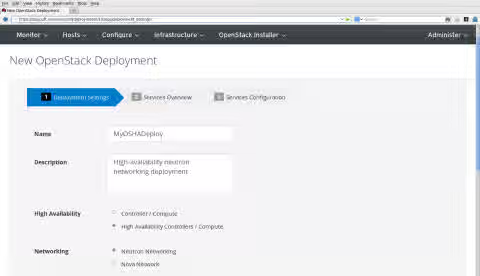
Figure 7: RHEL OpenStack Installer New Deployment Page -
Configure Deployment Settings: Fill in the following information to define the new Red Hat OpenStack deployment. The most critical choices here are whether this is a basic deployment (Controller/Compute) or highly available deployment (High Availability Controllers/Compute) and what type of networking to use (Neutron or Nova). For the purpose of this procedure, we want the High Availability selection and Neutron:
- Name: Any name you choose to describe the deployment
- Description: Brief description of the deployment
- High Availability: Choose High Availability Controllers/Compute for this procedure
- Networking: Choose Neutron Networking (more feature rich) or Nova Networking (more stable). We chose Neutron Networking for our example.
- Messaging Provider: Choose RabbitMQ or Qpid. We chose the default RabbitMQ for our example.
- Platform: Choose Red Hat Enterprise Linux OpenStack Platform 5 with RHEL 7
- Service Password: Choose to either "Generate random password for each service" or "Use single password for all services". We chose Use single password for all services, then typed the password to use.
Select Next to continue.
-
View Deployment Roles: Note the services running on controller and compute nodes. These are just for your information and cannot be modified at the moment. Click Next to continue to the Services page.
-
Configure Services: Services that need to be configured for this OpenStack deployment appear in the left column under the Services heading. With Neutron Networking chosen earlier, you need to configure Neutron, Glance and Cinder services. Here are examples:
- Neutron:
- Tenant Network Type: We chose GRE Segmentation.
- Network Nodes:
- Which interface to use for tenant networks: Type eth1 to use the eth1 interface for the tenant network for all systems running Neutron (which is all Controller nodes). (Refer to Figure 1 to see how network interfaces are assigned in this example.)
- Configure external interface on network node: Select this box, so a check mark appears next to its setting. All Neutron nodes require external interfaces.
- External interface connected to: Type eth2 to use the eth2 interface as the external network for the Neutron nodes.
- Compute Nodes:
- Which interface to use for tenant networks: As with the Neutron (Network) nodes, for our example the tenant networks all run on the eth1 interface.
- Glance:
- Choose Driver Backend: We selected NFS, to use an NFS share as Glance storage.
- network path: This is that path to the NFS share we want to provide storage for Glance (image) storage. For example, storage.osp.example.com:/share/glance.
- Cinder:
- Choose Driver Backend: We selected NFS, to use an NFS share as Cinder storage.
- NFS URI: This is path to the NFS share we will use to provide storage for Cinder (block) storage. For example, storage.osp.example.com:/share/cinder.
- Neutron:
-
Submit: When you have completed the three New OpenStack Deployment screens, select Submit. You should see the Overview screen for the new deployment.
-
Choose roles: Before you can start the deployment, you must select which of your discovered hosts are deployed as HA Controller nodes and which as Compute (Neutron) nodes. To select deployment roles, do the following:
- HA Controller: Select the plus sign (+) next to HA Controller. Then click the check boxes next to each free host you want to assign as an HA Controller. If you can't remember which to use, refer to Figure 1 and the console screen of each host (which should show you the IP address and Mac address). When the HA Controller nodes are selected, click Assign Hosts to assign the hosts. Figure 8 shows an example of HA Controller nodes being assigned to the new deployment:
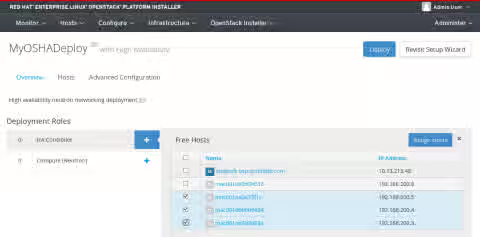
Figure 8: Assign hosts as HA Controller nodes for new deployment- Compute (Neutron): Select the plus sign (+) next to Compute (Neutron). Then click the check boxes next to each free host you want to assign as compute nodes. Click Assign Hosts to assign the selected hosts as Compute nodes.
-
Deploy: Think carefully if everything is in place to being the deployment (deployment settings, physical networking place, and so on). If so, to start deploying software to install and setup the hosts, click the Deploy button. Here's what happens next:
- HA Controller nodes deployed: RHEL OpenStack Installer will reboot each HA Controller node to PXE boot from its network interface card. It will then try to install and configure each HA Controller node.
- Compute nodes deployed: Once the HA Controller nodes have been deployed, the RHEL OpenStack Installer deploys each compute node.
During the deployment process, you can watch the progress in several ways:
- Deploying bar: A progress bar labeled "Deploying" appears on the deployment screen in the RHEL OpenStack Installer interface. The deployment's progress is measured on that bar. Click Show more details under that bar to see more information about the progress of the deployment.
- Consoles from each host: From the console of each host, you can watch as it is rebooted, as software packages are installed, and as the host is configured. When a host configuration is complete, you should see a RHEL plain-text login prompt from that host's console screen.
The deployment process takes a long time. However, if it seems to stall, check each host's console to make sure there wasn't a kernel crash or if the system is not otherwise hung (for example, perhaps it is unable to PXE boot). You might need to reboot the host for the deployment to continue. But make sure the host is truly hung and not just taking time for its steps to complete before you reboot.
-
Begin Using Red Hat OpenStack: Once the deployment reaches 100% you will see the URL for the Horizon dashboard interface to your Red Hat OpenStack configuration. Type that URL into the location box on your Web browser and begin using your OpenStack HA configuration as described in the following manual:
This content is not included.Red Hat Enterprise Linux OpenStack Platform 5 Administration User Guide