Gluster 3.x Quick Start Guide for Beginners
This quick start guide shows users with basic Linux administration knowledge how to set up and configure Red Hat Gluster Storage with the most commonly used features. This quick start takes about an hour to complete. It's based on the gluster.org quick start, with a little more explanation to help Red Hat Gluster Storage novices.
This guide covers:
- Lab requirements and setup
- Installing Red Hat Gluster Storage
- Configuring Gluster nodes
- Configuring Gluster volumes
- Configuring Gluster clients
- Taking a Gluster volume snapshot
- Appendix 1. Creating, cloning, and preparing virtual machines
- Appendix 2. Configuring logical volumes for thin provisioning
This guide does not cover:
- advanced configurations like tiering, geo-replication, NFS-Ganesha, CTDB, etc.
- advanced troubleshooting
- Red Hat Gluster Storage Console configuration
- Deploying using gdeploy
Lab requirements and setup ↩
For the gluster nodes, you need 4 bare-metal or virtual machines with:
- 1GHz CPU
- 1024MB RAM
- 16GB OS disk
- separate1 10GB disk to use as a gluster brick
- Red Hat Enterprise Linux 6.5 or higher
The client connecting to Red Hat Gluster Storage can have any of the following operating systems:
- Red Hat Enterprise Linux 6.5 or higher
- Fedora 22 or higher
- CentOS 6.x or higher
1. Separate disks for the operating system and the gluster bricks and volumes simplify configuration. Using the same disk is supported as long as the operating system and the gluster bricks are on separate partitions and logical volumes.↩
Installing Red Hat Gluster Storage ↩
Install Red Hat Gluster Storage on all four nodes. You can either install Red Hat Gluster Storage from an ISO, or install Red Hat Gluster Storage on an existing Red Hat Enterprise Linux installation.
- Installation Guide, Section 2.2. Installing from an ISO Image
- Installation Guide, Section 2.3. Installing Red Hat Gluster Storage Server on Red Hat Enterprise Linux (Layered Install)
When your installations are complete, ensure that your firewall settings do not prevent access to the ports listed in Installation Guide, Section 1.4. Port Information.
Configuring Gluster Nodes ↩
1. Edit /etc/hosts
Configure each node with an IP address and a hostname.
192.168.XX.11  rhs31-a (Primary)
192.168.XX.12  rhs31-b
192.168.XX.13  rhs31-c
192.168.XX.14  rhs31-d
192.168.XX.15 rhs-client
2. Configure passwordless SSH between the nodes
From the primary node:
# sudo su -
# ssh-keygen
# ssh-copy-id rhs31-b
# ssh-copy-id rhs31-c
# ssh-copy-id rhs31-d
3. Verify that your trusted storage pool is empty
From the primary node:
# gluster peer status
No peers present
4. Add your nodes to the trusted storage pool
From the primary node:
# gluster peer probe rhs31-b
peer probe: success.
# gluster peer probe rhs31-c
peer probe: success.
# gluster peer probe rhs31-d
peer probe: success.
Verify that the nodes were added.
# gluster peer status
Number of Peers: 3

Hostname: rhs31-b
Uuid: 847623c6-9f39-4ea1-a5a7-f4cb89f47de5
State: Peer in Cluster (Connected)

Hostname: rhs31-c
Uuid: 254fdc9a-901c-428e-90ad-589dee2a4820
State: Peer in Cluster (Connected)

Hostname: rhs31-d
Uuid: 3f2ad138-61eb-4d4b-be65-8343749ac20b
State: Peer in Cluster (Connected)
5. Configure a distributed volume on two nodes (rhs31-a and rhs31-b) ↩
Important: This is an example only. Distribute-only nodes are not recommended in production, since they involve a greater risk of data becoming unavailable.
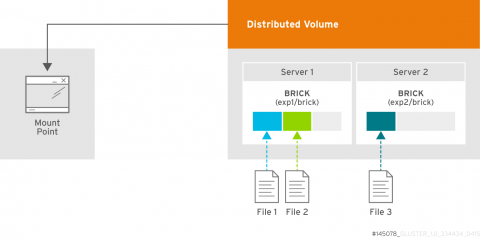
5.a. Create underlying logical volumes
Run the following commands on rhs31-a and rhs31-b. When you see 'brickN', use 'brick1' for rhs31-a, and 'brick2' for rhs31-b. If you haven't yet configured partitions and volume groups, refer to Appendix A2.
- Check your current logical volume status.
# lvs
LV        VG     Attr       LSize  Pool Origin Data%  Meta%  Move Log Cpy%Sync Convert
lvol0     bricks -wi-a----- 12.00m
thin-pool bricks twi-a-tz--  9.80g             0.00   0.59
- Create a logical volume in the thin-pool volume group.
# lvcreate -V 2G -T bricks/thin-pool -n brickN
Logical volume "brickN" created.
- Create the file system on your new brick.
# mkfs.xfs -i size=512 /dev/bricks/brickN
- Create the mount point.
# mkdir -p /bricks/brickN
- Edit /etc/fstab so that your new file system mounts on boot.
/dev/bricks/brickN /bricks/brickN xfs rw,noatime,inode64,nouuid 1 2
- Mount the new file system, and ensure it mounted correctly.
# mount -a
# df -h /bricks/brickN
Filesystem                 Size  Used Avail Use% Mounted on
/dev/mapper/bricks-brickN  2.0G   33M  2.0G   2% /bricks/brickN
- Create a 'brick' directory on the mounted file system.
# mkdir /bricks/brickN/brick
5.b. Create the Distributed Volume
# gluster volume create dist-vol    \
rhs31-a:/bricks/brick1/brick        \
rhs31-b:/bricks/brick2/brick
volume create: dist-vol: success: please start the volume to access data
# gluster volume list
dist-vol
# gluster volume start dist-vol
volume start: dist-vol: success
# gluster volume status dist-vol
Status of volume: dist-vol
Gluster process                             TCP Port  RDMA Port  Online  Pid
------------------------------------------------------------------------------
Brick rhs31-a:/bricks/brick1/brick          49152     0          Y       6433
Brick rhs31-b:/bricks/brick2/brick          49152     0          Y       5271
NFS Server on localhost                     2049      0          Y       6453
NFS Server on rhs31-d                       2049      0          Y       5031
NFS Server on rhs31-c                       2049      0          Y       5340
NFS Server on rhs31-b                       2049      0          Y       5291

Task Status of Volume dist-vol
------------------------------------------------------------------------------
There are no active volume tasks
# gluster volume info dist-vol
Volume Name: dist-vol
Type: Distribute
Volume ID: 9df2f2f6-29c1-41aa-a4ee-e28ddbdc8165
Status: Started
Number of Bricks: 2
Transport-type: tcp
Bricks:
Brick1: rhs31-a:/bricks/brick1/brick
Brick2: rhs31-b:/bricks/brick2/brick
Options Reconfigured:
performance.readdir-ahead: on
6. Create a replicated volume on two nodes (rhs31-c and rhs31-d)
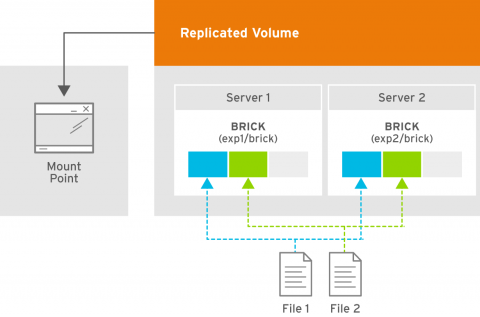
6.a. Create underlying logical volumes
Run the following commands on rhs31-c and rhs31-d. When you see 'brickN', use 'brick3' for rhs31-c, and 'brick4' for rhs31-d. If you haven't yet configured partitions and volume groups, refer to Appendix A2.
- Create a logical volume in the thin-pool volume group.
# lvcreate -V 2G -T bricks/thin-pool -n brickN
Logical volume "brickN" created.
- Create the file system on your new brick.
# mkfs.xfs -i size=512 /dev/bricks/brickN
- Create the mount point.
# mkdir -p /bricks/brickN
- Edit /etc/fstab so that your new file system mounts on boot.
/dev/bricks/brickN /bricks/brickN xfs rw,noatime,inode64,nouuid 1 2
- Mount the new file system, and ensure it mounted correctly.
# mount -a
# df -h /bricks/brickN
Filesystem                 Size  Used Avail Use% Mounted on
/dev/mapper/bricks-brickN  2.0G   33M  2.0G   2% /bricks/brickN
- Create a 'brick' directory on the mounted file system.
# mkdir /bricks/brickN/brick
6.b. Create the replicated volume
# gluster volume create rep-vol replica 2   \
rhs31-c:/bricks/brick3/brick                \
rhs31-d:/bricks/brick4/brick
volume create: rep-vol: success: please start the volume to access data
# gluster volume list
dist-vol
rep-vol
# gluster volume start rep-vol
volume start: rep-vol: success
# gluster volume status rep-vol
Status of volume: rep-vol
Gluster process                             TCP Port  RDMA Port  Online  Pid
------------------------------------------------------------------------------
Brick rhs31-c:/bricks/brick3/brick          49152     0          Y       6270
Brick rhs31-d:/bricks/brick4/brick          49152     0          Y       5949
NFS Server on localhost                     2049      0          Y       7290
Self-heal Daemon on localhost               N/A       N/A        Y       7298
NFS Server on rhs31-c                       2049      0          Y       6290
Self-heal Daemon on rhs31-c                 N/A       N/A        Y       6298
NFS Server on rhs31-b                       2049      0          Y       6168
Self-heal Daemon on rhs31-b                 N/A       N/A        Y       6176
NFS Server on rhs31-d                       2049      0          Y       5969
Self-heal Daemon on rhs31-d                 N/A       N/A        Y       5977

Task Status of Volume rep-vol
------------------------------------------------------------------------------
There are no active volume tasks
# gluster volume info rep-vol
Volume Name: rep-vol
Type: Replicate
Volume ID: 689300c3-d36c-4e48-95d6-bb80069ca6c3
Status: Started
Number of Bricks: 1 x 2 = 2
Transport-type: tcp
Bricks:
Brick1: rhs31-c:/bricks/brick3/brick
Brick2: rhs31-d:/bricks/brick4/brick
Options Reconfigured:
performance.readdir-ahead: on
7. Configure a distributed-replicated volume on four nodes (rhs31-a through rhs31-d)
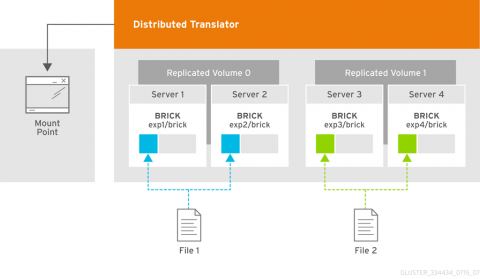
7.a. Create underlying logical volumes
Run the following commands on all four nodes. When you see 'brickN', use 'brick5' for rhs31-a, 'brick6' for rhs31-b, 'brick7' for rhgs31-c, and 'brick8' for rhgs31-d. If you haven't yet configured partitions and volume groups, refer to Appendix A2.
- Create a logical volume in the thin-pool volume group.
# lvcreate -V 2G -T bricks/thin-pool -n brickN
Logical volume "brickN" created.
- Create the file system on your new brick.
# mkfs.xfs -i size=512 /dev/bricks/brickN
- Create the mount point.
# mkdir -p /bricks/brickN
- Edit /etc/fstab so that your new file system mounts on boot.
/dev/bricks/brickN /bricks/brickN xfs rw,noatime,inode64,nouuid 1 2
- Mount the new file system, and ensure it mounted correctly.
# mount -a
# df -h /bricks/brickN
Filesystem                 Size  Used Avail Use% Mounted on
/dev/mapper/bricks-brickN  2.0G   33M  2.0G   2% /bricks/brickN
- Create a 'brick' directory on the mounted file system.
# mkdir /bricks/brickN/brick
7.b. Create the distributed-replicated volume
# gluster volume create dis-rep replica 2 \
rhs31-a:/bricks/brick5/brick              \
rhs31-b:/bricks/brick6/brick              \
rhs31-c:/bricks/brick7/brick              \
rhs31-d:/bricks/brick8/brick
volume create: dis-rep: success: please start the volume to access data
# gluster volume list
dis-rep
dist-vol
rep-vol
# gluster volume start dis-rep
volume start: dis-rep: success
# gluster volume status dis-rep
Status of volume: dis-rep
Gluster process                             TCP Port  RDMA Port  Online  Pid
------------------------------------------------------------------------------
Brick rhs31-a:/bricks/brick5/brick          49153     0          Y       14404
Brick rhs31-b:/bricks/brick6/brick          49153     0          Y       14359
Brick rhs31-c:/bricks/brick7/brick          49153     0          Y       13977
Brick rhs31-d:/bricks/brick8/brick          49153     0          Y       13978
NFS Server on localhost                     2049      0          Y       14424
Self-heal Daemon on localhost               N/A       N/A        Y       14432
NFS Server on rhs31-b                       2049      0          Y       14379
Self-heal Daemon on rhs31-b                 N/A       N/A        Y       14387
NFS Server on rhs31-c                       2049      0          Y       13997
Self-heal Daemon on rhs31-c                 N/A       N/A        Y       14005
NFS Server on rhs31-d                       2049      0          Y       13998
Self-heal Daemon on rhs31-d                 N/A       N/A        Y       14006

Task Status of Volume dis-rep
------------------------------------------------------------------------------
There are no active volume tasks
# gluster volume info dis-rep

Volume Name: dis-rep
Type: Distributed-Replicate
Volume ID: 856e6d2d-bbd3-4e01-9db9-b7ad34ea5d28
Status: Started
Number of Bricks: 2 x 2 = 4
Transport-type: tcp
Bricks:
Brick1: rhs31-a:/bricks/brick5/brick
Brick2: rhs31-b:/bricks/brick6/brick
Brick3: rhs31-c:/bricks/brick7/brick
Brick4: rhs31-d:/bricks/brick8/brick
Options Reconfigured:
performance.readdir-ahead: on
Configuring a Gluster Client ↩
Configuring a Gluster Native Client using Fuse Client
- On your client machine, install the required packages.
# yum install glusterfs-fuse -y
This installs glusterfs-libs, glusterfs, glusterfs-client-xlators, and glusterfs-fuse.
2. Mount the gluster file system.
You can either do this manually like so:
# mount -t glusterfs -o acl rhs31-a:/dist-vol /gmount/fuse
Or configure the gluster file system to mount on boot by adding an entry similar to the following to the /etc/fstab file:
rhs31-a:/dist-vol /gmount/fuse glusterfs _netdev 0 0
Configuring a Gluster Client using NFS
You can either mount the gluster file system manually, like so:
# mount -t nfs -o vers=3 rhs31-a:/dis-rep /gmount/nfs/
Or configure the gluster file system to mount on boot by adding an entry similar to the following to the /etc/fstab file:
rhs31-a:/dis-rep /gmount/nfs nfs vers=3 0 0
Taking a Gluster Volume Snapshot ↩
You can take a snapshot of a gluster volume with the gluster snapshot create command:
# gluster snapshot create snap-dis-rep dis-rep
snapshot create: success: Snap snap-dis-rep_GMT-2016.05.09-06.31.16 created successfully
To find out what snapshots have already been made, use gluster snapshot list:
# gluster snapshot list
snap-dis-rep_GMT-2016.05.09-06.31.16
snap-dis-rep_GMT-2016.05.09-06.33.18
snap-dis-rep_GMT-2016.05.09-06.34.14
To delete a previously taken snapshot, use gluster snapshot delete:
# gluster snapshot delete snap-dis-rep_GMT-2016.05.09-06.31.16
Deleting snap will erase all the information about the snap. Do you still want to continue? (y/n) y
snapshot delete: snap-dis-rep_GMT-2016.05.09-06.31.16: snap removed successfully
Appendix
A.1. Creating nodes from a base virtual machine with virsh clone and virt-sysprep ↩
- Create a virtual machine to use as the base for your clones. We created rhs-3.1-u2-7.
# virsh list --all
 Id    Name                           State
 -     rhs-3.1-u2-7                   shut off
- Clone your base machine to create four identical nodes.
# virt-clone --original rhs-3.1-u2-7  --name rhs31-a --auto-clone
Allocating 'rhs-3-clone.1-u2-7'                                                                                                                                                             |  20 GB  00:00:04
Allocating 'rhs3.1-master-d1-clone'                                                                                                                                                         |  10 GB  00:00:00
Clone 'rhs31-a' created successfully.
# virt-clone --original rhs-3.1-u2-7 --name rhs31-b --auto-clone
# virt-clone --original rhs-3.1-u2-7 --name rhs31-c --auto-clone
# virt-clone --original rhs-3.1-u2-7 --name rhs31-d --auto-clone
- Use virt-sysprep to configure your clones with individual hostnames.
# virt-sysprep --hostname rhs31-a -d rhs31-a
[   0.0] Examining the guest ...
[omitted]
[  11.4] Setting the hostname: rhs31-a
[omitted]
# virt-sysprep --hostname rhs31-b -d rhs31-b
# virt-sysprep --hostname rhs31-c -d rhs31-c
# virt-sysprep --hostname rhs31-d -d rhs31-d
- Verify that your clones are available.
# virsh list --all
 Id    Name                           State
 -     rhs-3.1-u2-7                   shut off
 -     rhs31-a                        shut off
 -     rhs31-b                        shut off
 -     rhs31-c                        shut off
 -     rhs31-d                        shut off
A.2. Logical Volume Manager configuration for Gluster include ThinProvison Volumes ↩
- Create a partition using fdisk.
  # fdisk /dev/sdb
  [omitted]
  Command (m for help): n
  Partition type:
     p   primary (0 primary, 0 extended, 4 free)
     e   extended
  Select (default p): p
  Partition number (1-4, default 1):
  First sector (2048-20971519, default 2048):
  Using default value 2048
  Last sector, +sectors or +size{K,M,G} (2048-20971519, default 20971519):
  Using default value 20971519
  Partition 1 of type Linux and of size 10 GiB is set

  Command (m for help): t
  Selected partition 1
  Hex code (type L to list all codes): 8e
  Changed type of partition 'Linux' to 'Linux LVM'

  Command (m for help): p
  [omitted]

  Disk identifier: 0x0d26a47a

     Device Boot      Start         End      Blocks   Id  System
  /dev/sdb1            2048    20971519    10484736   8e  Linux LVM

  Command (m for help): w
  The partition table has been altered!

  Calling ioctl() to re-read partition table.
  Syncing disks.
- Create a physical volume with your new partition.
# pvcreate /dev/sdb1
Physical volume "/dev/sdb1" successfully created
Verify that the physical volume is available.
# pvs
PV         VG     Fmt  Attr PSize  PFree
/dev/sda2  rhgs   lvm2 a--  19.51g  40.00m
/dev/sdb1  -      lvm2 a--  10.00g 164.00m
- Create a volume group on your new physical volume.
# vgcreate bricks /dev/sdb1
Volume group "bricks" successfully created
Verify that the volume group is available.
# vgs
VG     #PV #LV #SN Attr   VSize  VFree
bricks   1   2   0 wz--n- 10.00g 164.00m
rhgs     1   2   0 wz--n- 19.51g  40.00m
- Create a logical volume in your new volume group. Use the -T option to create a thinly-provisioned volume.
# lvcreate -L 9.8G -T bricks/thin-pool
Rounding up size to full physical extent 9.80 GiB
Logical volume "thin-pool" created.
Verify that the logical volume was created successfully.
# lvs
LV        VG     Attr       LSize  Pool Origin Data%  Meta%  Move Log Cpy%Sync Convert
lvol0     bricks -wi------- 12.00m
thin-pool bricks twi-a-tz--  9.80g             0.00   0.59
root      rhgs   -wi-ao---- 17.47g
swap      rhgs   -wi-ao----  2.00g
For further information, check the man pages for fdisk, pvcreate, vgcreate, and lvcreate, or refer to the RHEL6 Logical Volume Manager Administration Guide or the RHEL7 Logical Volume Manager Administration Guide.