Using RHEL subscriptions (2013 packaging): Scenario 1 - Basic RHEL server
The new Red Hat Enterprise Linux (RHEL) 2013 packaging model provides a more flexible and intuitive way of managing your RHEL system entitlements. This is one of a set of articles (all available at Overview of Red Hat Enterprise Linux 2013 Packaging Model) that describes different RHEL configurations and how to use tools to entitle your RHEL systems and view the results with the 2013 packaging model.
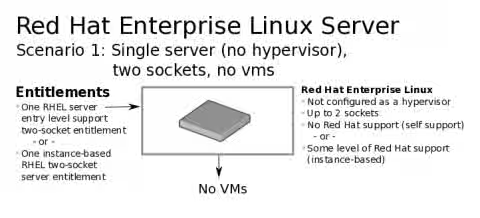
This scenario includes a single, two-socket computer where you want to run RHEL with no additional virtual machines. The following figure illustrates this type of RHEL configuration:
Basic RHEL 2013 Subscription Types
You could use one of the following two types of two-socket subscriptions to entitle the RHEL configuration described here:
-
Red Hat Enterprise Linux Entry Level Subscription
- Not stackable (must change to instance-based to support more than two sockets)
- Web support: Access to customer portal, software fixes, and upgrades.
- Call-in support: Cannot open cases or call for support.
- No virtual machine entitlements are included
-
Red Hat Enterprise Linux Instance-based Subscription
- Stackable (add more instance-based entitlements to support more than two sockets)
- Web support: Access to customer portal, software fixes, and upgrades.
- Call-in support: Can open cases and call for support. (Different levels of support available.)
- In this scenario, a single instance-based entitlement provides no entitlements to extra virtual machines (however, the same entitlement could be reused for virtual machines)
Registering with RHEL 2013 Subscriptions
Follow this procedure to register your system with Red Hat Network, assign entitlements, and view consumed entitlements in different ways:
-
Log into RHEL: On the RHEL system you want to entitle, open a shell and log in as the root user.
-
Register RHEL: Run subscription-manager to register the system:
# subscription-manager register
 Username: your_username
 Password: your_password
 The system has been registered with id: 231c3a37-8e14-449c-a232-3de2d5c8fa8a
-
View subscriptions: List available subscriptions by typing the following:
# subscription-manager list --available | less
 Subscription Name:      Red Hat Enterprise Linux Server Entry Level, Self-support
 SKU:                    RH00005
 Pool Id:                8a01f9843eedf027013fd44d02c142f3
 Quantity:               8
 Service Level:          Self-support
 Service Type:           L1-L3
 Multi-Entitlement:      No
 Ends:                   04/06/2014
 System Type:            Physical

 Subscription Name:      Red Hat Enterprise Linux Server, Premium (Physical or Virtual Nodes)
 SKU:                    RH00003
 Pool Id:                8a01f9843ecdf027013fd44d02da5243
 Quantity:               16
 Service Level:          Premium
 Service Type:           L1-L3
 Multi-Entitlement:      Yes
 Ends:                   04/06/2014
 System Type:            Physical

 Subscription Name:      Red Hat Enterprise Linux Server, Standard (Physical or Virtual Nodes)
 SKU:                    RH00004
 ...
-
Choose subscription: Choose which subscription to use. From the output above, you can see:
-
Subscription Name: The fact that the subscription names don't show socket numbers on this line indicates that these are from the new 2013 packaging model.
-
SKU: For the 2013 packaging model, the RH00005 represents the entry level, 2-socket subscription (non-stackable). RH00003 and RH00004 are the instance-based (stackable) SKU, with Premium or Standard support, respectively.
-
Pool ID: The Pool IDs are the numbers you use when you add a specific subscription to a RHEL system (in other words, you don't just have a subscription automatically selected when you register).
-
-
Subscribe the RHEL system. Here are examples of the commands you would run to subscribe to an entry level (non-stackable) or premium (instance-based/stackable), using the output above:
-
Entry-level
# subscription-manager subscribe --pool=8a01f9843eedf027013fd44d02c142f3
-
Instance-based
# subscription-manager subscribe --pool=8a01f9843ecdf027013fd44d02da5243
-
-
List subscriptions: Type the following to list the subscriptions you have consumed on this system:
# subscription-manager list --consumed +-------------------------------------------+ Consumed Subscriptions +-------------------------------------------+ Subscription Name: Red Hat Enterprise Linux Server, Self-support Provides: Red Hat Enterprise Linux Server Red Hat Beta SKU: RH00005 Contract: 13222325 Account: 1241834 Serial: 9095751365355400311 Pool ID: 8a01f9843eedf027013fd44d02c142f3m Active: True Quantity Used: 1 Service Level: Self-support Service Type: L1-L3 Status Details: Starts: 10/07/2013 Ends: 04/06/2014 -
View subscriptions in subscription-manager GUI:
If a desktop is installed on your system, you can run the graphical Subscription Manager window to view your installed products and subscriptions. To view the Subscription Manager window, select System -> Administration -> Red Hat Subscription Manager from the desktop. The following figure shows this window, displaying information on the system you subscribed in the previous steps: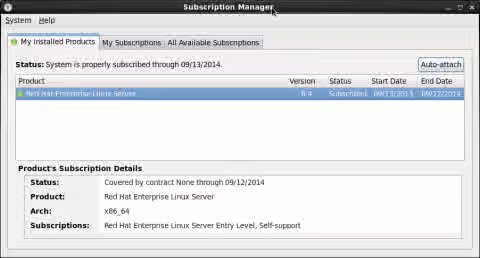
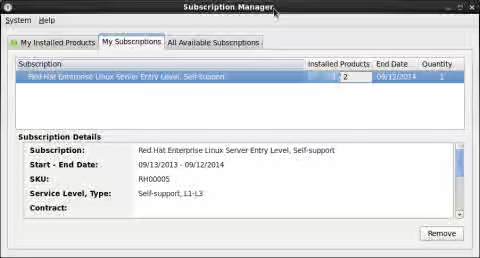
Select the My Subscriptions tab to see how many of this type of subscription you have consumed (1 of 2, in this case). This figure illustrates that:
-
View subscriptions from Red Hat Customer portal (https://access.redhat.com):
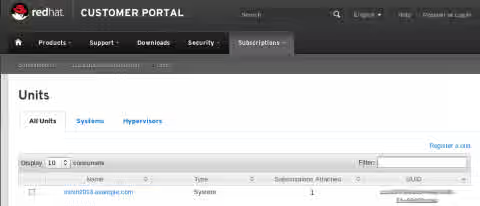
Using the same Red Hat Network user name and password that you used to subscribe your system earlier, login to the Red Hat Customer portal (https://access.redhat.com). Select Subscriptions -> Subscription Management -> Units, as shown in the figure below: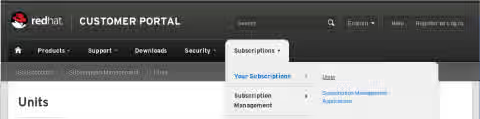
You can see the Name of the subscribed system and the number of Subscriptions Attached. In this case, as shown in the following figure, the host is named rhevh2013.example.com and it is consuming 1 subscription1: