Connect Red Hat Lightspeed (Insights) MCP with Claude Desktop
Red Hat Lightspeed (formerly Red Hat Insights) delivers proactive analytics, helping teams improve reliability, streamline operations, and reduce manual analysis. At the heart of this capability is the Model Context Protocol (MCP) server now in Developer Preview, which acts as a bridge to connect Red Hat Lightspeed functionality to your favorite AI/LLM client.
If you're using Claude Desktop as your AI-powered development environment, connecting it to the Red Hat Lightspeed MCP server unlocks the ability to interact with services like Advisor, Inventory, Vulnerability, and Image Builder using natural language.
To view our guidance for tooling other than Claude Desktop, please visit Integrate Red Hat Lightspeed with Model Context Protocol
Prerequisites
Important Before getting started, it is assumed that you have already completed the necessary foundational setup detailed in the This content is not included.prerequisite document.
Specifically, you should have already:
- Set up your Service Account on console.redhat.com and secure your Client ID (INSIGHTS_CLIENT_ID) and Client Secret (INSIGHTS_CLIENT_SECRET).
- Assigned the required Roles and Permissions to your service account (e.g., RHEL Advisor viewer).
- Ensured you have a container runtime like Podman installed and running.
Connecting Red Hat Lightspeed MCP to Claude Desktop
The Content from github.com is not included.Red Hat Lightspeed MCP server supports configuration via a Claude Desktop extension.
Extension setup & configuration
For Claude Desktop, the Red Hat Lightspeed MCP team has created a dedicated Desktop Extension file, which simplifies the entire installation into a few clicks and you do not need to manually edit the claude_desktop_config.json file.
1. Download the Extension File:
- Navigate to the "Content from github.com is not included.release section" of our This content is not included.GitHub repository to locate and download the MCP Desktop Extension file with the file name as
insights-mcp*.dxt(or the newer.mcpbformat). Save it to an easy-to-find location.
2. Install in Claude Desktop:
- Open your Claude Desktop application.
- Go to Settings (Click your profile picture/initials in the lower-left corner, then choose Settings).
- In the Settings window, navigate to Extensions.
- Click on Advanced Extensions Settings (or look for a similar developer-focused link).
- Select Install Extension...
- Browse to the location where you saved the downloaded extension file (
insights-mcp*.dxt) and select it.
3. Configure Credentials and Activate:
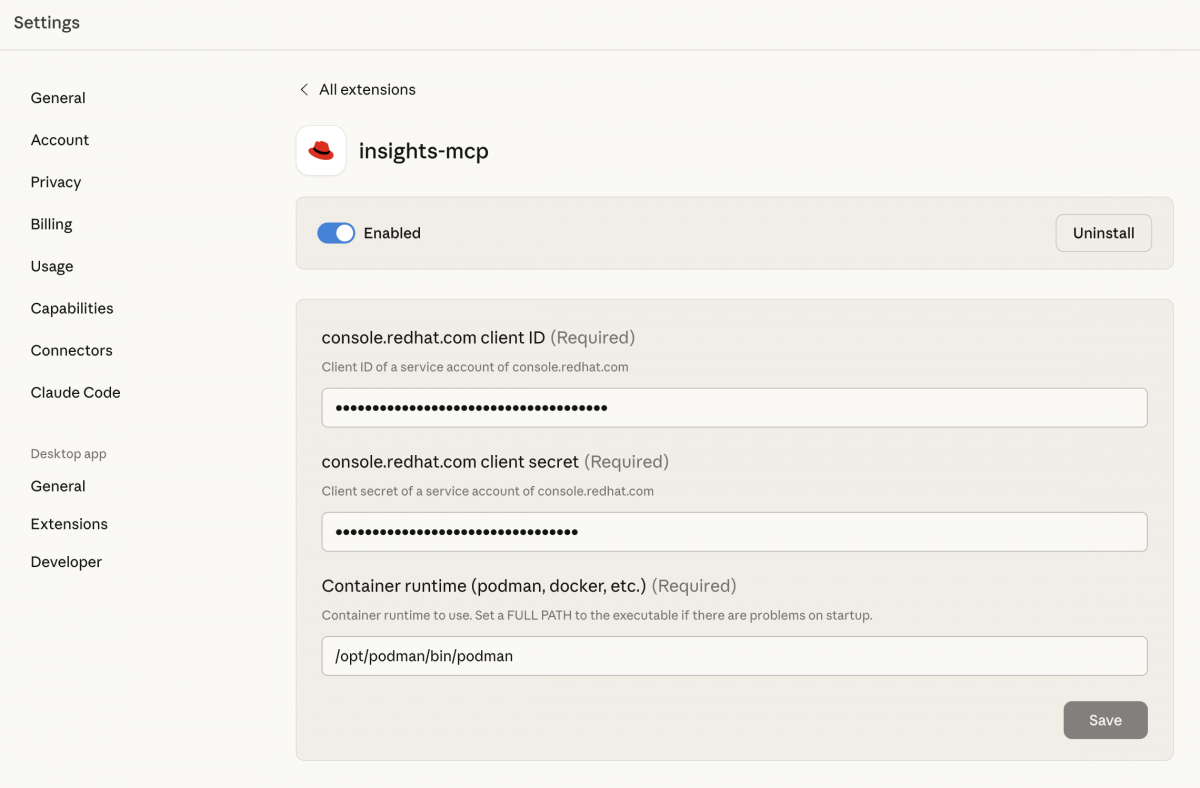
- Claude Desktop will guide you through the final configuration steps. This will typically involve entering your
INSIGHTS_CLIENT_IDandINSIGHTS_CLIENT_SECRETinto the secure prompt fields. - Confirm the installation and the extension will be activated.

Verifying the Connection
After the installation is complete, the Red Hat Lightspeed MCP toolset should be available to your Claude conversations.
What's Next?
This release offers early access to powerful, MCP-driven workflows within Red Hat Lightspeed. We strongly encourage your feedback, including bug reports, requests for additional toolsets, and enhancement ideas, through the This content is not included.Red Hat Issue Router - select "MCP" and by contributing to our Content from github.com is not included.GitHub repository. Your input will directly refine and shape the future of Red Hat Lightspeed MCP.