Overview of Additional Performance Tuning Utilities in Red Hat Enterprise Linux 7
Red Hat Enterprise Linux Performance-related Tools
With the release of Red Hat Enterprise Linux 7, monitoring and tuning for an enterprise workload has become more robust and efficient. Whether the necessity is to capture low-level load for a single system, many systems, or simply implement a tuning profile related to a particular workload the following tools can make the effort needed minimal. The new tools available include the following:
-
Performance Co-Pilot
-
TUNA
-
Tuned
With each of these additional utilities, a wealth of functionality is provided.
Performance Co-Pilot
Performance Co-Pilot, also known as PCP, is broken down into to two primary components as detailed in the man pages:
PCP Collectors
These are the parts of PCP that collect and extract performance data from various sources, e.g.
the operating system kernel.

PCP Monitors
These  are the parts of PCP that display data collected from hosts (or archives) that have the
PCP Collector installed.  Many monitor tools are available as part of the core PCP release, while
other (typically graphical) monitoring tools are available separately in the  PCP  GUI package.
As indicated above, a major component of this new capturing facility is the ability to breakup the system performance data capture and analysis functions. During normal operation, the PCP facilities, with the pmlogger collector enabled, can be used to capture a wealth of information about a system to the local disk for investigation at a later time.
pmloggerlog files:
$ ls -l /var/log/pcp/pmlogger/<hostname>/
-rw-r--r--. 1 pcp pcp 770000 Apr 10 10:51 20140410.10.25.0
-rw-r--r--. 1 pcp pcp    452 Apr 10 10:50 20140410.10.25.index
-rw-r--r--. 1 pcp pcp  30358 Apr 10 10:29 20140410.10.25.meta
-rw-r--r--. 1 pcp pcp    233 Apr 10 10:25 Latest
-rw-r--r--. 1 pcp pcp   2236 Apr 10 10:26 pmlogger.log
pmstatlogged data replay for only 5 entries starting at 11:05 AM:
# pmstat -a 20140410.10.25.0 -S @11:05 -s 5
@ Thu Apr 10 11:05:00 2014
 loadavg                      memory      swap        io    system         cpu
   1 min   swpd   free   buff  cache   pi   po   bi   bo   in   cs  us  sy  id
    0.00 524420 360788 346068 469344    1    0   34   61 1256 1379   9   2  89
    0.00 524316 358236 346140 470268    0    0    8   33 1211 1331   9   2  90
    0.00 524316 358236 346140 470268    0    0    0   23 1161 1272   9   1  90
    0.00 524316 358236 346140 470268    0    0    0   23 1161 1272   9   1  90
    0.00 524316 358236 346140 470268    0    0    0   23 1161 1272   9   1  90
Though the data captured is quite verbose, capturing a large amount of system data over the course of an execution day, it can be easily parsed down by only the particular metrics and the time range needed:
# pmval -a 20140410.10.25.0 -S @10:26:08.288 -T @10:26:13.288 mem.util.used

metric:    mem.util.used
archive:   20140410.10.25.0
host:      <hostname>
start:     Thu Apr 10 10:26:08 2014
end:       Thu Apr 10 10:26:13 2014
semantics: instantaneous value
units:     Kbyte
samples:   6
interval:  1.00 sec
10:26:08.288              2620100
10:26:09.288              2620100
10:26:10.288              2620100
10:26:11.288              2620100
10:26:12.288              2620100
10:26:13.288              2620100
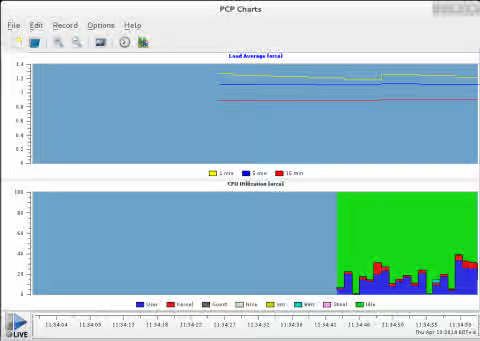
Installation of the pcp-gui package allows this wealth of data to be accessed via a realtime highly customizable graphing interface:
Getting started using Performance Co-Pilot
- Install the necessary packages
$ yum install pcp pcp-gui
- Enable the Collector and Monitoring Daemons:
$ chkconfig pmcd on; service pmcd start
$ chkconfig pmie on; service pmie start
$ chkconfig pmlogger on; service pmlogger start
For more information, see the man PCPIntro documentation.
By deploying Performance Co-Pilot across an environment, granular performance monitoring is readily available ongoing and in the generated archives.
TUNA
Tuna, though originally released with Red Hat Enterprise Linux 6, has now been rearchitected to not only allow graphical monitoring of resource use, but also allow a tuning profile to be created. Complex low-level kernel tunings can be altered and the outcome verified in realtime:
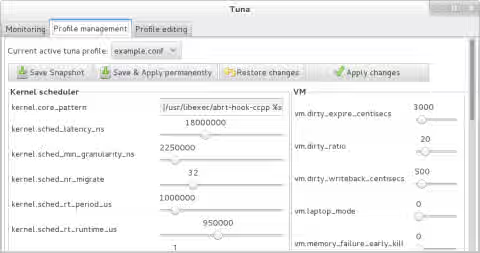
Through this new UI, multiple tuning profiles can be created altering system-wide behaviours such as the likelihood that processes will be migrated between CPUs within software migration interrupts, TCP RAM buffers, as well as the lowest levels of the virtual memory subsystem via the easy to use interface.
In addition, multiple tuning profiles can be tested sequentially against a particular workload by simply preparing them in advance. Once the particular tuning profiles needing to be evaluated have been developed, they can be simply loaded into Tuna and run a test cycle instead of having to maintain multiple sysctl.conf configuration files simultaneously.
Getting started with Tuna
- Install the necessary packages:
$ yum install tuna
- Start the tuning application
$ tuna
For more information, please see the man tuna documentation
Tuned and Tuned profiles
As introduced with Red Hat Enterprise Linux 6, tuned is a daemon that monitors the usage of various system components and uses that information to dynamically tune system settings. Tuned reacts to changes in CPU and network use and adjusts settings to improve performance in active devices and reduce power consumption in inactive devices.
Along with the tuned daemon, the installation allows the use of the tuned profiles, also known as ktune profiles, applicable to a particular workload. These profiles has been seen to have a beneficial effect on the indicated workload with minimal additional testing cycles.
With Red Hat Enterprise Linux 7, the number of tuning profiles have been reduced by consolidating similar profiles into a few system role profiles as opposed to the more generic Red Hat Enterprise Linux 6 profiles:
These include:
- Server/Compute Node/Database
- Workstation/Client/Web Applications
- Virtual Guest
- A maximum power savings
In reference to the maximum power savings profile, this can be used to enable low power consumption for systems during off-peak hours (resulting in up to a 27% potential power savings for deep sleep.) This would include power savings options for: CPU, Memory, and Storage.
Also, when installing tuned into a virtualized Red Hat Enterprise Linux system, the associated profile is automatically set to the "Virtual Guest" profile to maximize performance immediately on install.
Getting started with Tuned and Tuned profiles
- Install the necessary package
$ yum install tuned
- Select the desired tuned profile via the
tuned-admcommand:
$ tuned-adm list
Available profiles:
- balanced
- desktop
- latency-performance
- powersave
- sap
- throughput-performance
- virtual-guest
- virtual-host
Current active profile: balanced
For more information regarding Tuned, please see the following documentation:
By using Tuned, a system can benefit from a known-good tuning profile and minimize the amount of time spent in tuning a system for its final workload.
For more information regarding Latency Performance Tuning refer to: Low Latency Performance Tuning for Red Hat Enterprise Linux 7