Replacing devices
Instructions for safely replacing operational or failed devices
Abstract
Making open source more inclusive
Red Hat is committed to replacing problematic language in our code, documentation, and web properties. We are beginning with these four terms: master, slave, blacklist, and whitelist. Because of the enormity of this endeavor, these changes will be implemented gradually over several upcoming releases. For more details, see our CTO Chris Wright’s message.
Providing feedback on Red Hat documentation
We appreciate your input on our documentation. Do let us know how we can make it better. To give feedback:
For simple comments on specific passages:
- Make sure you are viewing the documentation in the Multi-page HTML format. In addition, ensure you see the Feedback button in the upper right corner of the document.
- Use your mouse cursor to highlight the part of text that you want to comment on.
- Click the Add Feedback pop-up that appears below the highlighted text.
- Follow the displayed instructions.
For submitting more complex feedback, create a Bugzilla ticket:
- Go to the This content is not included.Bugzilla website.
- In the Component section, choose documentation.
- Fill in the Description field with your suggestion for improvement. Include a link to the relevant part(s) of documentation.
- Click Submit Bug.
Preface
Depending on the type of your deployment, you can choose one of the following procedures to replace a storage device:
For dynamically created storage clusters deployed on AWS, see:
- For dynamically created storage clusters deployed on VMware, see Section 2.1, “Replacing operational or failed storage devices on VMware infrastructure”
- For dynamically created storage clusters deployed on Red Hat Virtualization, see Section 3.1, “Replacing operational or failed storage devices on Red Hat Virtualization installer-provisioned infrastructure”
- For dynamically created storage clusters deployed on Microsoft Azure, see Section 4.1, “Replacing operational or failed storage devices on Azure installer-provisioned infrastructure”
For storage clusters deployed using local storage devices, see:
OpenShift Container Storage does not support heterogeneous OSD sizes.
Chapter 1. Dynamically provisioned OpenShift Container Storage deployed on Amazon Web Services
To replace an operational or failed storage device on AWS user or installer provisioned infrastructures, follow the links in the respective sections.
1.1. Replacing operational or failed storage devices on AWS user-provisioned infrastructure
If you want to replace a device in a dynamically created storage cluster on an AWS user-provisioned infrastructure, you must replace the storage node. For more information about how to replace nodes, see:
1.2. Replacing operational or failed storage devices on AWS installer-provisioned infrastructure
If you want to replace a device in a dynamically created storage cluster on an AWS installer-provisioned infrastructure, you must replace the storage node. For more information about how to replace nodes, see:
Chapter 2. Dynamically provisioned OpenShift Container Storage deployed on VMware
To replace an operational or failed storage device on the VMWare infrastructure, perform the steps in the following section.
2.1. Replacing operational or failed storage devices on VMware infrastructure
If you want to replace one or more virtual machine disks (VMDK) in OpenShift Container Storage deployed dynamically on VMware infrastructure, perform the steps in the procedure. This procedure helps to create a new Persistent Volume Claim (PVC) on a new volume and removes the old object storage device (OSD).
Prerequisites
Ensure that the data is resilient.
- On the OpenShift Web console, navigate to Storage → Overview.
- Under Block and File in the Status card, confirm that the Data Resiliency has a green tick mark.
Procedure
Identify the OSD to be replaced and the OpenShift Container Platform node that has the OSD scheduled on it.
$ oc get -n openshift-storage pods -l app=rook-ceph-osd -o wide
Example output:
rook-ceph-osd-0-6d77d6c7c6-m8xj6    0/1    CrashLoopBackOff    0    24h   10.129.0.16   compute-2   <none>           <none>
rook-ceph-osd-1-85d99fb95f-2svc7    1/1    Running             0    24h   10.128.2.24   compute-0   <none>           <none>
rook-ceph-osd-2-6c66cdb977-jp542    1/1    Running             0    24h   10.130.0.18   compute-1   <none>           <none>
In this example,
rook-ceph-osd-0-6d77d6c7c6-m8xj6needs to be replaced andcompute-2is the OpenShift Container platform node on which the OSD is scheduled.NoteIf the OSD to be replaced is healthy, the status of the pod is Running.
Scale down the OSD deployment for the OSD to be replaced.
Each time you want to replace the OSD, repeat this step by updating the
osd_id_to_removeparameter with the OSD ID.$ osd_id_to_remove=0 $ oc scale -n openshift-storage deployment rook-ceph-osd-${osd_id_to_remove} --replicas=0where,
osd_id_to_removeis the integer in the pod name immediately after therook-ceph-osdprefix. In this example, the deployment name isrook-ceph-osd-0.Example output:
deployment.extensions/rook-ceph-osd-0 scaled
Verify that the
rook-ceph-osdpod is terminated.$ oc get -n openshift-storage pods -l ceph-osd-id=${osd_id_to_remove}Example output:
No resources found.
NoteIf the
rook-ceph-osdpod is in the terminating state, use theforceoption to delete the pod.$ oc delete pod rook-ceph-osd-0-6d77d6c7c6-m8xj6 --force --grace-period=0
Example output:
warning: Immediate deletion does not wait for confirmation that the running resource has been terminated. The resource may continue to run on the cluster indefinitely. pod "rook-ceph-osd-0-6d77d6c7c6-m8xj6" force deleted
Remove the old OSD from the cluster to add a new OSD.
Delete any old
ocs-osd-removaljobs.$ oc delete -n openshift-storage job ocs-osd-removal-job
Example output:
job.batch "ocs-osd-removal-job" deleted
Change to the
openshift-storageproject.$ oc project openshift-storage
Remove the old OSD from the cluster.
$ oc process -n openshift-storage ocs-osd-removal -p FAILED_OSD_IDS=${osd_id_to_remove} |oc create -n openshift-storage -f -You can remove more than one OSD by adding comma separated OSD IDs in the command. (For example: FAILED_OSD_IDS=0,1,2)
WarningThis step results in OSD being completely removed from the cluster. Ensure that the correct value of
osd_id_to_removeis provided.
Verify the OSD is removed successfully by checking the status of the
ocs-osd-removalpod. A status of Completed confirms that the OSD removal job succeeded.$ oc get pod -l job-name=ocs-osd-removal-job -n openshift-storage
NoteIf
ocs-osd-removalfails and the pod is not in the expected Completed state, check the pod logs for further debugging. For example:$ oc logs -l job-name=ocs-osd-removal-job -n openshift-storage --tail=-1'
If encryption was enabled at the time of install, remove
dm-cryptmanageddevice-mappermapping from the OSD devices that are removed from the respective OpenShift Container Storage nodes.Get PVC names of the replaced OSDs from the logs of
ocs-osd-removal-jobpod:$ oc logs -l job-name=ocs-osd-removal-job -n openshift-storage --tail=-1 |egrep -i ‘pvc|deviceset’
For example:
2021-05-12 14:31:34.666000 I | cephosd: removing the OSD PVC "ocs-deviceset-xxxx-xxx-xxx-xxx"
For each of the nodes identified in the previous step, perform the following:
Create a
debugpod andchrootto the host on the storage node.$ oc debug node/<node name> $ chroot /host
Find relevant device name based on the PVC names identified in the previous step.
sh-4.4# dmsetup ls| grep <pvc name> ocs-deviceset-xxx-xxx-xxx-xxx-block-dmcrypt (253:0)
Remove the mapped device.
$ cryptsetup luksClose --debug --verbose ocs-deviceset-xxx-xxx-xxx-xxx-block-dmcrypt
NoteIf the above command gets stuck due to insufficient privileges, run the following commands:
-
Press
CTRL+Zto exit the above command. Find the PID of the process that is stuck.
$ ps -ef | grep crypt
Terminate the process using the
killcommand.$ kill -9 <PID>
Verify that the device name is removed.
$ dmsetup ls
-
Press
Delete the
ocs-osd-removaljob.$ oc delete -n openshift-storage job ocs-osd-removal-job
Example output:
job.batch "ocs-osd-removal-job" deleted
When using an external key management system (KMS) with data encryption, the old OSD encryption key can be removed from the Vault server as it is now an orphan key.
Verification steps
Verify there is a new OSD running.
$ oc get -n openshift-storage pods -l app=rook-ceph-osd
Example output:
rook-ceph-osd-0-5f7f4747d4-snshw 1/1 Running 0 4m47s rook-ceph-osd-1-85d99fb95f-2svc7 1/1 Running 0 1d20h rook-ceph-osd-2-6c66cdb977-jp542 1/1 Running 0 1d20h
Verify there is a new PVC created which is in
Boundstate.$ oc get -n openshift-storage pvc
Example output:
NAME STATUS VOLUME CAPACITY ACCESS MODES STORAGECLASS AGE ocs-deviceset-0-0-2s6w4 Bound pvc-7c9bcaf7-de68-40e1-95f9-0b0d7c0ae2fc 512Gi RWO thin 5m ocs-deviceset-1-0-q8fwh Bound pvc-9e7e00cb-6b33-402e-9dc5-b8df4fd9010f 512Gi RWO thin 1d20h ocs-deviceset-2-0-9v8lq Bound pvc-38cdfcee-ea7e-42a5-a6e1-aaa6d4924291 512Gi RWO thin 1d20h
Optional: If cluster-wide encryption is enabled on the cluster, verify that the new OSD devices are encrypted.
Identify the nodes where the new OSD pods are running.
$ oc get -o=custom-columns=NODE:.spec.nodeName pod/<OSD pod name>
For example:
oc get -o=custom-columns=NODE:.spec.nodeName pod/rook-ceph-osd-0-544db49d7f-qrgqm
For each of the nodes identified in previous step, perform the following:
Create a
debugpod and open achrootenvironment for the selected hosts.$ oc debug node/<node name> $ chroot /host
Run
lsblkand check for thecryptkeyword next to theocs-devicesetnames.$ lsblk
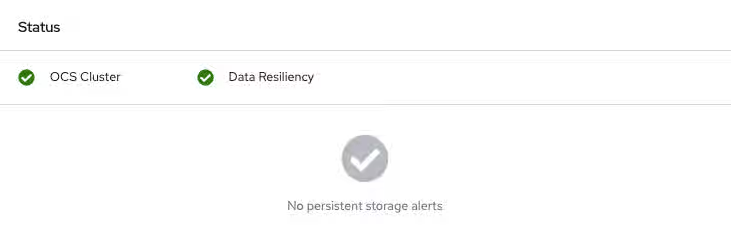
Log in to the OpenShift Web Console and view the storage dashboard.
Figure 2.1. OSD status in OpenShift Container Platform storage dashboard after device replacement
Chapter 3. Dynamically provisioned OpenShift Container Storage deployed on Red Hat Virtualization
To replace an operational or failed storage device on the Red Hat Virtualization installer provisioned infrastructure, perform the steps in the following section.
3.1. Replacing operational or failed storage devices on Red Hat Virtualization installer-provisioned infrastructure
If you want to replace one or more virtual machine disks (VMDK) in OpenSHift Container Storage deployed Red Hat Virtualization infrastructure, perform the steps in the procedure. This procedure helps to create a new Persistent Volume Claim (PVC) on a new volume and removes the old object storage device (OSD).
Prerequisites
Ensure that the data is resilient.
- On the OpenShift Web console, navigate to Storage → Overview.
- Under Block and File in the Status card, confirm that the Data Resiliency has a green tick mark.
Procedure
Identify the OSD to be replaced and the OpenShift Container Platform node that has the OSD scheduled on it.
$ oc get -n openshift-storage pods -l app=rook-ceph-osd -o wide
Example output:
rook-ceph-osd-0-6d77d6c7c6-m8xj6 0/1 CrashLoopBackOff 0 24h 10.129.0.16 compute-2 <none> <none> rook-ceph-osd-1-85d99fb95f-2svc7 1/1 Running 0 24h 10.128.2.24 compute-0 <none> <none> rook-ceph-osd-2-6c66cdb977-jp542 1/1 Running 0 24h 10.130.0.18 compute-1 <none> <none>
In this example,
rook-ceph-osd-0-6d77d6c7c6-m8xj6needs to be replaced andcompute-2is the OpenShift Container platform node on which the OSD is scheduled.NoteIf the OSD to be replaced is healthy, the status of the pod is Running.
Scale down the OSD deployment for the OSD to be replaced.
Every time you want to replace the OSD, repeat this step by updating the
osd_id_to_removeparameter with the OSD ID.$ osd_id_to_remove=0 $ oc scale -n openshift-storage deployment rook-ceph-osd-${osd_id_to_remove} --replicas=0where,
osd_id_to_removeis the integer in the pod name immediately after therook-ceph-osdprefix. In this example, the deployment name isrook-ceph-osd-0.Example output:
deployment.extensions/rook-ceph-osd-0 scaled
Verify the
rook-ceph-osdpod is terminated.$ oc get -n openshift-storage pods -l ceph-osd-id=${osd_id_to_remove}Example output:
No resources found.
NoteIf the
rook-ceph-osdpod is in the terminating state, use theforceoption to delete the pod.$ oc delete pod rook-ceph-osd-0-6d77d6c7c6-m8xj6 --force --grace-period=0
Example output:
warning: Immediate deletion does not wait for confirmation that the running resource has been terminated. The resource may continue to run on the cluster indefinitely. pod "rook-ceph-osd-0-6d77d6c7c6-m8xj6" force deleted
Remove the old OSD from the cluster to add a new OSD.
Delete any old
ocs-osd-removaljobs.$ oc delete -n openshift-storage job ocs-osd-removal-job
Example output:
job.batch "ocs-osd-removal-job"
Change to the
openshift-storageproject.$ oc project openshift-storage
Remove the old OSD from the cluster.
$ oc process -n openshift-storage ocs-osd-removal -p FAILED_OSD_IDS=${osd_id_to_remove} |oc create -n openshift-storage -f -You can remove more than one OSD by adding comma separated OSD IDs in the command. (For example: FAILED_OSD_IDS=0,1,2)
WarningThis step results in OSD being completely removed from the cluster. Ensure that the correct value of
osd_id_to_removeis provided.
Verify the OSD is removed successfully by checking the status of the
ocs-osd-removalpod. A status of Completed confirms that the OSD removal job succeeded.$ oc get pod -l job-name=ocs-osd-removal-job -n openshift-storage
NoteIf
ocs-osd-removalfails and the pod is not in the expected Completed state, check the pod logs for further debugging. For example:$ oc logs -l job-name=ocs-osd-removal-job -n openshift-storage --tail=-1'
If encryption was enabled at the time of install, remove
dm-cryptmanageddevice-mappermapping from the OSD devices that are removed from the respective OpenShift Container Storage nodes.Get PVC names of the replaced OSDs from the logs of
ocs-osd-removal-jobpod :$ oc logs -l job-name=ocs-osd-removal-job -n openshift-storage --tail=-1 |egrep -i ‘pvc|deviceset’
For example:
2021-05-12 14:31:34.666000 I | cephosd: removing the OSD PVC "ocs-deviceset-xxxx-xxx-xxx-xxx"
For each of the nodes identified in the previous step, perform the following:
Create a
debugpod andchrootto the host on the storage node.$ oc debug node/<node name> $ chroot /host
Find relevant device name based on the PVC names identified in the previous step
sh-4.4# dmsetup ls| grep <pvc name> ocs-deviceset-xxx-xxx-xxx-xxx-block-dmcrypt (253:0)
Remove the mapped device.
$ cryptsetup luksClose --debug --verbose ocs-deviceset-xxx-xxx-xxx-xxx-block-dmcrypt
NoteIf the above command gets stuck due to insufficient privileges, run the following commands:
-
Press
CTRL+Zto exit the above command. Find the PID of the process that is stuck.
$ ps -ef | grep crypt
Terminate the process using the
killcommand.$ kill -9 <PID>
Verify that the device name is removed.
$ dmsetup ls
-
Press
Delete the
ocs-osd-removaljob.$ oc delete -n openshift-storage job ocs-osd-removal-job
Example output:
job.batch "ocs-osd-removal-job" deleted
When using an external key management system (KMS) with data encryption, the old OSD encryption key can be removed from the Vault server as it is now an orphan key.
Verification steps
Verify there is a new OSD running.
$ oc get -n openshift-storage pods -l app=rook-ceph-osd
Example output:
rook-ceph-osd-0-5f7f4747d4-snshw 1/1 Running 0 4m47s rook-ceph-osd-1-85d99fb95f-2svc7 1/1 Running 0 1d20h rook-ceph-osd-2-6c66cdb977-jp542 1/1 Running 0 1d20h
Verify there is a new PVC created which is in
Boundstate.$ oc get -n openshift-storage pvc
Optional: If cluster-wide encryption is enabled on the cluster, verify that the new OSD devices are encrypted.
Identify the nodes where the new OSD pods are running.
$ oc get -o=custom-columns=NODE:.spec.nodeName pod/<OSD pod name>
For example:
oc get -o=custom-columns=NODE:.spec.nodeName pod/rook-ceph-osd-0-544db49d7f-qrgqm
For each of the nodes identified in previous step, perform the following:
Create a
debugpod and open achrootenvironment for the selected hosts.$ oc debug node/<node name> $ chroot /host
Run
lsblkand check for thecryptkeyword next to theocs-devicesetnames.$ lsblk
Log in to the OpenShift Web Console and view the storage dashboard.
Figure 3.1. OSD status in OpenShift Container Platform storage dashboard after device replacement
Chapter 4. Dynamically provisioned OpenShift Container Storage deployed on Microsoft Azure
To replace an operational or failed storage device on the Microsoft Azure installer provisioned infrastructure, perform the steps in the following section.
4.1. Replacing operational or failed storage devices on Azure installer-provisioned infrastructure
When you need to replace a device in a dynamically created storage cluster on an Azure installer-provisioned infrastructure, you must replace the storage node. For information about how to replace nodes, see:
Chapter 5. OpenShift Container Storage deployed using local storage devices
5.1. Replacing operational or failed storage devices on clusters backed by local storage devices
You can replace an object storage device (OSD) in OpenShift Container Storage deployed using local storage devices on the following infrastructures:
- Bare metal
- VMware
- Red Hat Virtualization
Use this procedure when one or more underlying storage devices need to be replaced.
Prerequisites
- Red Hat recommends that replacement devices are configured with similar infrastructure and resources to the device being replaced.
-
If you upgraded to OpenShift Container Storage version 4.8 from a previous version, and have not already created the
LocalVolumeDiscoveryandLocalVolumeSetobjects, perform the steps given in the procedure of Post-update configuration changes for clusters backed by local storage. Ensure that the data is resilient.
- On the OpenShift Web console, navigate to Storage → Overview.
- Under Block and File in the Status card, confirm that the Data Resiliency has a green tick mark.
Procedure
- Remove the underlying storage device from relevant worker node.
Verify that relevant OSD Pod has moved to CrashLoopBackOff state.
Identify the OSD that needs to be replaced and the OpenShift Container Platform node that has the OSD scheduled on it.
$ oc get -n openshift-storage pods -l app=rook-ceph-osd -o wide
Example output:
rook-ceph-osd-0-6d77d6c7c6-m8xj6 0/1 CrashLoopBackOff 0 24h 10.129.0.16 compute-2 <none> <none> rook-ceph-osd-1-85d99fb95f-2svc7 1/1 Running 0 24h 10.128.2.24 compute-0 <none> <none> rook-ceph-osd-2-6c66cdb977-jp542 1/1 Running 0 24h 10.130.0.18 compute-1 <none> <none>
In this example,
rook-ceph-osd-0-6d77d6c7c6-m8xj6needs to be replaced andcompute-2is the OpenShift Container platform node on which the OSD is scheduled.Scale down the OSD deployment for the OSD to be replaced.
$ osd_id_to_remove=0 $ oc scale -n openshift-storage deployment rook-ceph-osd-${osd_id_to_remove} --replicas=0where
osd_id_to_removeis the integer in the pod name immediately after therook-ceph-osdprefix. In this example, the deployment name isrook-ceph-osd-0.Example output:
deployment.extensions/rook-ceph-osd-0 scaled
Verify that the
rook-ceph-osdpod is terminated.$ oc get -n openshift-storage pods -l ceph-osd-id=${osd_id_to_remove}Example output:
No resources found in openshift-storage namespace.
NoteIf the
rook-ceph-osdpod is interminatingstate for more than a few minutes, use theforceoption to delete the pod.$ oc delete -n openshift-storage pod rook-ceph-osd-0-6d77d6c7c6-m8xj6 --grace-period=0 --force
Example output:
warning: Immediate deletion does not wait for confirmation that the running resource has been terminated. The resource may continue to run on the cluster indefinitely.
  pod "rook-ceph-osd-0-6d77d6c7c6-m8xj6" force deleted
Remove the old OSD from the cluster so that a new OSD can be added.
Delete any old
ocs-osd-removaljobs.$ oc delete -n openshift-storage job ocs-osd-removal-job
Example output:
job.batch "ocs-osd-removal-job" deleted
Change to the
openshift-storageproject.$ oc project openshift-storage
Remove the old OSD from the cluster.
$ oc process -n openshift-storage ocs-osd-removal -p FAILED_OSD_IDS=${osd_id_to_remove} |oc create -n openshift-storage -f -You can remove more than one OSD by adding comma separated OSD IDs in the command. (For example: FAILED_OSD_IDS=0,1,2)
WarningThis step results in OSD being completely removed from the cluster. Ensure that the correct value of
osd_id_to_removeis provided.
Verify that the OSD is removed successfully by checking the status of the
ocs-osd-removalpod. A status ofCompletedconfirms that the OSD removal job succeeded.$ oc get pod -l job-name=ocs-osd-removal-job -n openshift-storage
NoteIf
ocs-osd-removalfails and the pod is not in the expectedCompletedstate, check the pod logs for further debugging. For example:$ oc logs -l job-name=ocs-osd-removal-job -n openshift-storage --tail=-1
If encryption was enabled at the time of install, remove
dm-cryptmanageddevice-mappermapping from the OSD devices that are removed from the respective OpenShift Container Storage nodes.Get PVC name(s) of the replaced OSD(s) from the logs of
ocs-osd-removal-jobpod :$ oc logs -l job-name=ocs-osd-removal-job -n openshift-storage --tail=-1 |egrep -i ‘pvc|deviceset’
For example:
2021-05-12 14:31:34.666000 I | cephosd: removing the OSD PVC "ocs-deviceset-xxxx-xxx-xxx-xxx"
For each of the nodes identified in step #1, do the following:
Create a
debugpod andchrootto the host on the storage node.$ oc debug node/<node name> $ chroot /host
Find relevant device name based on the PVC names identified in the previous step
sh-4.4# dmsetup ls| grep <pvc name> ocs-deviceset-xxx-xxx-xxx-xxx-block-dmcrypt (253:0)
Remove the mapped device.
$ cryptsetup luksClose --debug --verbose ocs-deviceset-xxx-xxx-xxx-xxx-block-dmcrypt
NoteIf the above command gets stuck due to insufficient privileges, run the following commands:
-
Press
CTRL+Zto exit the above command. Find PID of the process which was stuck.
$ ps -ef | grep crypt
Terminate the process using
killcommand.$ kill -9 <PID>
Verify that the device name is removed.
$ dmsetup ls
-
Press
Find the persistent volume (PV) that need to be deleted by the command:
$ oc get pv -L kubernetes.io/hostname | grep localblock | grep Released local-pv-d6bf175b 1490Gi RWO Delete Released openshift-storage/ocs-deviceset-0-data-0-6c5pw localblock 2d22h compute-1
Delete the persistent volume.
$ oc delete pv local-pv-d6bf175b
- Physically add a new device to the node.
Use the following command to track provisioning of persistent volumes for devices that match the
deviceInclusionSpec. It can take a few minutes to provision persistent volumes.$ oc -n openshift-local-storage describe localvolumeset localblock
Example output:
[...] Status: Conditions: Last Transition Time: 2020-11-17T05:03:32Z Message: DiskMaker: Available, LocalProvisioner: Available Status: True Type: DaemonSetsAvailable Last Transition Time: 2020-11-17T05:03:34Z Message: Operator reconciled successfully. Status: True Type: Available Observed Generation: 1 Total Provisioned Device Count: 4 Events: Type Reason Age From Message ---- ------ ---- ---- ------- Normal Discovered 2m30s (x4 localvolumeset- node.example.com - NewDevice over 2m30s) symlink-controller found possible matching disk, waiting 1m to claim Normal FoundMatch 89s (x4 localvolumeset- node.example.com - ingDisk over 89s) symlink-controller symlinking matching diskOnce the persistent volume is provisioned, a new OSD pod is automatically created for the provisioned volume.
Delete the
ocs-osd-removaljob(s).$ oc delete -n openshift-storage job ocs-osd-removal-job
Example output:
job.batch "ocs-osd-removal-job" deleted
When using an external key management system (KMS) with data encryption, the old OSD encryption key can be removed from the Vault server as it is now an orphan key.
Verification steps
Verify that there is a new OSD running.
$ oc get -n openshift-storage pods -l app=rook-ceph-osd
Example output:
rook-ceph-osd-0-5f7f4747d4-snshw 1/1 Running 0 4m47s rook-ceph-osd-1-85d99fb95f-2svc7 1/1 Running 0 1d20h rook-ceph-osd-2-6c66cdb977-jp542 1/1 Running 0 1d20h
NoteIf the new OSD does not show as
Runningafter a few minutes, restart therook-ceph-operatorpod to force a reconciliation.$ oc delete pod -n openshift-storage -l app=rook-ceph-operator
Example output:
pod "rook-ceph-operator-6f74fb5bff-2d982" deleted
Verify that a new PVC is created.
$ oc get -n openshift-storage pvc | grep localblock
Example output:
ocs-deviceset-0-0-c2mqb Bound local-pv-b481410 1490Gi RWO localblock 5m ocs-deviceset-1-0-959rp Bound local-pv-414755e0 1490Gi RWO localblock 1d20h ocs-deviceset-2-0-79j94 Bound local-pv-3e8964d3 1490Gi RWO localblock 1d20h
(Optional) If cluster-wide encryption is enabled on the cluster, verify that the new OSD devices are encrypted.
Identify the node(s) where the new OSD pod(s) are running.
$ oc get -o=custom-columns=NODE:.spec.nodeName pod/<OSD pod name>
For example:
oc get -o=custom-columns=NODE:.spec.nodeName pod/rook-ceph-osd-0-544db49d7f-qrgqm
For each of the nodes identified in previous step, do the following:
Create a debug pod and open a chroot environment for the selected host(s).
$ oc debug node/<node name>
$ chroot /host
Run “lsblk” and check for the “crypt” keyword beside the
ocs-devicesetname(s)$ lsblk
Log in to OpenShift Web Console and check the OSD status on the storage dashboard.
Figure 5.1. OSD status in OpenShift Container Platform storage dashboard after device replacement
A full data recovery may take longer depending on the volume of data being recovered.
5.2. Replacing operational or failed storage devices on IBM Power Systems
You can replace an object storage device (OSD) in OpenShift Container Storage deployed using local storage devices on IBM Power Systems. Use this procedure when an underlying storage device needs to be replaced.
Prerequisites
- Red Hat recommends that replacement devices are configured with similar infrastructure and resources to the device being replaced.
-
If you upgraded to OpenShift Container Storage 4.8 from a previous version and have not already created the
LocalVolumeDiscoveryobject, perform the steps given in the procedure of Post-update configuration changes for clusters backed by local storage. Ensure that the data is resilient.
- On the OpenShift Web console, navigate to Storage → Overview.
- Under Block and File in the Status card, confirm that the Data Resiliency has a green tick mark.
Procedure
Identify the OSD that needs to be replaced and the OpenShift Container Platform node that has the OSD scheduled on it.
$ oc get -n openshift-storage pods -l app=rook-ceph-osd -o wide
Example output:
rook-ceph-osd-0-86bf8cdc8-4nb5t 0/1 crashLoopBackOff 0 24h 10.129.2.26 worker-0 <none> <none> rook-ceph-osd-1-7c99657cfb-jdzvz 1/1 Running 0 24h 10.128.2.46 worker-1 <none> <none> rook-ceph-osd-2-5f9f6dfb5b-2mnw9 1/1 Running 0 24h 10.131.0.33 worker-2 <none> <none>
In this example,
rook-ceph-osd-0-86bf8cdc8-4nb5tneeds to be replaced andworker-0is the RHOCP node on which the OSD is scheduled.NoteIf the OSD to be replaced is healthy, the status of the pod will be
Running.Scale down the OSD deployment for the OSD to be replaced.
$ osd_id_to_remove=0 $ oc scale -n openshift-storage deployment rook-ceph-osd-${osd_id_to_remove} --replicas=0where
osd_id_to_removeis the integer in the pod name immediately after therook-ceph-osdprefix. In this example, the deployment name isrook-ceph-osd-0.Example output:
deployment.apps/rook-ceph-osd-0 scaled
Verify that the
rook-ceph-osdpod is terminated.$ oc get -n openshift-storage pods -l ceph-osd-id=${osd_id_to_remove}Example output:
No resources found in openshift-storage namespace.
NoteIf the
rook-ceph-osdpod is interminatingstate, use theforceoption to delete the pod.$ oc delete -n openshift-storage pod rook-ceph-osd-0-86bf8cdc8-4nb5t --grace-period=0 --force
Example output:
warning: Immediate deletion does not wait for confirmation that the running resource has been terminated. The resource may continue to run on the cluster indefinitely. pod "rook-ceph-osd-0-86bf8cdc8-4nb5t" force deleted
Remove the old OSD from the cluster so that a new OSD can be added.
Identify the
DeviceSetassociated with the OSD to be replaced.$ oc get -n openshift-storage -o yaml deployment rook-ceph-osd-${osd_id_to_remove} | grep ceph.rook.io/pvcExample output:
ceph.rook.io/pvc: ocs-deviceset-localblock-0-data-0-64xjl ceph.rook.io/pvc: ocs-deviceset-localblock-0-data-0-64xjlIn this example, the PVC name is
ocs-deviceset-localblock-0-data-0-64xjl.Identify the PV associated with the PVC.
$ oc get -n openshift-storage pvc ocs-deviceset-<x>-<y>-<pvc-suffix>
where,
x,y, andpvc-suffixare the values in theDeviceSetidentified in an step 4(a).Example output:
NAME STATUS VOLUME CAPACITY ACCESS MODES STORAGECLASS AGE ocs-deviceset-localblock-0-data-0-64xjl Bound local-pv-8137c873 256Gi RWO localblock 24h
In this example, the associated PV is
local-pv-8137c873.Identify the name of the device to be replaced.
$ oc get pv local-pv-<pv-suffix> -o yaml | grep path
where,
pv-suffixis the value in the PV name identified in an earlier step.Example output:
path: /mnt/local-storage/localblock/vdc
In this example, the device name is
vdc.Identify the
prepare-podassociated with the OSD to be replaced.$ oc describe -n openshift-storage pvc ocs-deviceset-<x>-<y>-<pvc-suffix> | grep Used
where,
x,y, andpvc-suffixare the values in theDeviceSetidentified in an earlier step.Example output:
Used By: rook-ceph-osd-prepare-ocs-deviceset-localblock-0-data-0-64knzkc
In this example the
prepare-podname isrook-ceph-osd-prepare-ocs-deviceset-localblock-0-data-0-64knzkc.Delete any old
ocs-osd-removaljobs.$ oc delete -n openshift-storage job ocs-osd-removal-job
Example output:
job.batch "ocs-osd-removal-job" deleted
Change to the
openshift-storageproject.$ oc project openshift-storage
Remove the old OSD from the cluster
$ oc process -n openshift-storage ocs-osd-removal -p FAILED_OSD_IDS=${osd_id_to_remove} | oc -n openshift-storage create -f -You can remove more than one OSD by adding comma separated OSD IDs in the command. (For example: FAILED_OSD_IDS=0,1,2)
WarningThis step results in OSD being completely removed from the cluster. Make sure that the correct value of
osd_id_to_removeis provided.
Verify that the OSD is removed successfully by checking the status of the
ocs-osd-removalpod. A status ofCompletedconfirms that the OSD removal job completed successfully.$ oc get pod -l job-name=ocs-osd-removal-job -n openshift-storage
NoteIf
ocs-osd-removalfails and the pod is not in the expectedCompletedstate, check the pod logs for further debugging. For example:$ oc logs -l job-name=ocs-osd-removal-job -n openshift-storage --tail=-1
If encryption was enabled at the time of install, remove
dm-cryptmanageddevice-mappermapping from the OSD devices that are removed from the respective OpenShift Container Storage nodes.Get PVC name(s) of the replaced OSD(s) from the logs of
ocs-osd-removal-jobpod :$ oc logs -l job-name=ocs-osd-removal-job -n openshift-storage --tail=-1 |egrep -i ‘pvc|deviceset’
For example:
2021-05-12 14:31:34.666000 I | cephosd: removing the OSD PVC "ocs-deviceset-xxxx-xxx-xxx-xxx"
For each of the nodes identified in step #1, do the following:
Create a
debugpod andchrootto the host on the storage node.$ oc debug node/<node name> $ chroot /host
Find relevant device name based on the PVC names identified in the previous step
sh-4.4# dmsetup ls| grep <pvc name>
ocs-deviceset-xxx-xxx-xxx-xxx-block-dmcrypt (253:0)
Remove the mapped device.
$ cryptsetup luksClose --debug --verbose ocs-deviceset-xxx-xxx-xxx-xxx-block-dmcrypt
NoteIf the above command gets stuck due to insufficient privileges, run the following commands:
-
Press
CTRL+Zto exit the above command. Find PID of the process which was stuck.
$ ps -ef | grep crypt
Terminate the process using
killcommand.$ kill -9 <PID>
Verify that the device name is removed.
$ dmsetup ls
-
Press
Replace the old device and use the new device to create a new OpenShift Container Platform PV.
Log in to OpenShift Container Platform node with the device to be replaced. In this example, the OpenShift Container Platform node is
worker-0.$ oc debug node/worker-0
Example output:
Starting pod/worker-0-debug ... To use host binaries, run `chroot /host` Pod IP: 192.168.88.21 If you don't see a command prompt, try pressing enter. # chroot /host
Record the
/dev/diskthat is to be replaced using the device name,vdc, identified earlier.# ls -alh /mnt/local-storage/localblock
Example output:
total 0 drwxr-xr-x. 2 root root 17 Nov 18 15:23 . drwxr-xr-x. 3 root root 24 Nov 18 15:23 .. lrwxrwxrwx. 1 root root 8 Nov 18 15:23 vdc -> /dev/vdc
Find the name of the
LocalVolumeCR, and remove or comment out the device/dev/diskthat is to be replaced.$ oc get -n openshift-local-storage localvolume NAME AGE localblock 25h
# oc edit -n openshift-local-storage localvolume localblock
Example output:
[...] storageClassDevices: - devicePaths: # - /dev/vdc storageClassName: localblock volumeMode: Block [...]Make sure to save the changes after editing the CR.
Log in to OpenShift Container Platform node with the device to be replaced and remove the old
symlink.$ oc debug node/worker-0
Example output:
Starting pod/worker-0-debug ... To use host binaries, run `chroot /host` Pod IP: 192.168.88.21 If you don't see a command prompt, try pressing enter. # chroot /host
Identify the old
symlinkfor the device name to be replaced. In this example, the device name isvdc.# ls -alh /mnt/local-storage/localblock
Example output:
total 0 drwxr-xr-x. 2 root root 17 Nov 18 15:23 . drwxr-xr-x. 3 root root 24 Nov 18 15:23 .. lrwxrwxrwx. 1 root root 8 Nov 18 15:23 vdc -> /dev/vdc
Remove the
symlink.# rm /mnt/local-storage/localblock/vdc
Verify that the
symlinkis removed.# ls -alh /mnt/local-storage/localblock
Example output:
total 0 drwxr-xr-x. 2 root root 6 Nov 18 17:11 . drwxr-xr-x. 3 root root 24 Nov 18 15:23 ..
ImportantFor new deployments of OpenShift Container Storage 4.5 or later, LVM is not in use,
ceph-volumeraw mode is in play instead. Therefore, additional validation is not needed and you can proceed to the next step.
Find the persistent volume (PV) that needs to be deleted using the command:
$ oc get pv -L kubernetes.io/hostname | grep localblock | grep Released local-pv-8137c873 256Gi RWO Delete Released openshift-storage/ocs-deviceset-localblock-0-data-0-64xjl localblock 2d22h worker-0
Delete the persistent volume.
$ oc delete pv local-pv-8137c873
- Replace the device with the new device.
Log back into the correct OpenShift Cotainer Platform node and identify the device name for the new drive. The device name must change unless you are reseating the same device.
# lsblk
Example output:
NAME MAJ:MIN RM SIZE RO TYPE MOUNTPOINT vda 252:0 0 40G 0 disk |-vda1 252:1 0 4M 0 part |-vda2 252:2 0 384M 0 part /boot `-vda4 252:4 0 39.6G 0 part `-coreos-luks-root-nocrypt 253:0 0 39.6G 0 dm /sysroot vdb 252:16 0 512B 1 disk vdd 252:32 0 256G 0 disk
In this example, the new device name is
vdd.After the new
/dev/diskis available, a new disk entry can be added to the LocalVolume CR.Edit LocalVolume CR and add the new /dev/disk. In this example the new device is /dev/vdd.
# oc edit -n openshift-local-storage localvolume localblock
Example output:
[...] storageClassDevices: - devicePaths: # - /dev/vdc - /dev/vdd storageClassName: localblock volumeMode: Block [...]Make sure to save the changes after editing the CR.
Verify that there is a new PV in
Availablestate and of the correct size.$ oc get pv | grep 256Gi
Example output:
local-pv-1e31f771 256Gi RWO Delete Bound openshift-storage/ocs-deviceset-localblock-2-data-0-6xhkf localblock 24h local-pv-ec7f2b80 256Gi RWO Delete Bound openshift-storage/ocs-deviceset-localblock-1-data-0-hr2fx localblock 24h local-pv-8137c873 256Gi RWO Delete Available localblock 32m
Create new OSD for new device.
Delete the deployment for the OSD to be replaced.
# osd_id_to_remove=0 # oc delete -n openshift-storage deployment rook-ceph-osd-${osd_id_to_remove}Example output:
deployment.extensions/rook-ceph-osd-0 deleted
Deploy the new OSD by restarting the
rook-ceph-operatorto force operator reconciliation.Identify the name of the
rook-ceph-operator.$ oc get -n openshift-storage pod -l app=rook-ceph-operator
Example output:
NAME READY STATUS RESTARTS AGE rook-ceph-operator-85f6494db4-sg62v 1/1 Running 0 1d20h
Delete the
rook-ceph-operator.$ oc delete -n openshift-storage pod rook-ceph-operator-85f6494db4-sg62v
Example output:
pod "rook-ceph-operator-85f6494db4-sg62v" deleted
In this example, the rook-ceph-operator pod name is
rook-ceph-operator-85f6494db4-sg62v.Verify that the
rook-ceph-operatorpod is restarted.$ oc get -n openshift-storage pod -l app=rook-ceph-operator
Example output:
NAME READY STATUS RESTARTS AGE rook-ceph-operator-85f6494db4-wx9xx 1/1 Running 0 50s
Creation of the new OSD may take several minutes after the operator restarts.
Delete the
ocs-osd-removaljob(s).$ oc delete -n openshift-storage job ocs-osd-removal-job
Example output:
job.batch "ocs-osd-removal-job" deleted
When using an external key management system (KMS) with data encryption, the old OSD encryption key can be removed from the Vault server as it is now an orphan key.
Verfication steps
Verify that there is a new OSD running.
$ oc get -n openshift-storage pods -l app=rook-ceph-osd
Example output:
rook-ceph-osd-0-76d8fb97f9-mn8qz 1/1 Running 0 23m rook-ceph-osd-1-7c99657cfb-jdzvz 1/1 Running 1 25h rook-ceph-osd-2-5f9f6dfb5b-2mnw9 1/1 Running 0 25h
Verify that a new PVC is created.
$ oc get -n openshift-storage pvc | grep localblock
Example output:
ocs-deviceset-localblock-0-data-0-q4q6b Bound local-pv-8137c873 256Gi RWO localblock 10m ocs-deviceset-localblock-1-data-0-hr2fx Bound local-pv-ec7f2b80 256Gi RWO localblock 1d20h ocs-deviceset-localblock-2-data-0-6xhkf Bound local-pv-1e31f771 256Gi RWO localblock 1d20h
(Optional) If cluster-wide encryption is enabled on the cluster, verify that the new OSD devices are encrypted.
Identify the node(s) where the new OSD pod(s) are running.
$ oc get -o=custom-columns=NODE:.spec.nodeName pod/<OSD pod name>
For example:
oc get -o=custom-columns=NODE:.spec.nodeName pod/rook-ceph-osd-0-76d8fb97f9-mn8qz
For each of the nodes identified in previous step, do the following:
Create a debug pod and open a chroot environment for the selected host(s).
$ oc debug node/<node name>
$ chroot /host
Run “lsblk” and check for the “crypt” keyword beside the
ocs-devicesetname(s)$ lsblk
Log in to OpenShift Web Console and view the storage dashboard.
Figure 5.2. OSD status in OpenShift Container Platform storage dashboard after device replacement
A full data recovery may take longer depending on the volume of data being recovered.
5.3. Replacing operational or failed storage devices on IBM Z or LinuxONE infrastructure
You can replace operational or failed storage devices on IBM Z or LinuxONE infrastructure with new SCSI disks.
IBM Z or LinuxONE supports SCSI FCP disk logical units (SCSI disks) as persistent storage devices from external disk storage. A SCSI disk can be identified by using its FCP Device number, two target worldwide port names (WWPN1 and WWPN2), and the logical unit number (LUN). For more information, see Content from www.ibm.com is not included.https://www.ibm.com/support/knowledgecenter/SSB27U_6.4.0/com.ibm.zvm.v640.hcpa5/scsiover.html
Prerequisites
Ensure that the data is resilient.
- On the OpenShift Web console, navigate to Storage → Overview.
- Under Block and File in the Status card, confirm that the Data Resiliency has a green tick mark.
Procedure
List all the disks with the following command.
$ lszdev
Example output:
TYPE         ID
zfcp-host    0.0.8204                                        yes  yes
zfcp-lun     0.0.8204:0x102107630b1b5060:0x4001402900000000 yes  no    sda sg0
zfcp-lun     0.0.8204:0x500407630c0b50a4:0x3002b03000000000  yes  yes   sdb sg1
qeth         0.0.bdd0:0.0.bdd1:0.0.bdd2                      yes  no    encbdd0
generic-ccw  0.0.0009                                        yes  no
A SCSI disk is represented as a
zfcp-lunwith the structure<device-id>:<wwpn>:<lun-id>in theIDsection. The first disk is used for the operating system. If one storage device fails, it can be replaced with a new disk.Remove the disk.
Run the following command on the disk, replacing
scsi-idwith the SCSI disk identifier of the disk to be replaced.$ chzdev -d scsi-idFor example, the following command removes one disk with the device ID
0.0.8204, the WWPN0x500507630a0b50a4, and the LUN0x4002403000000000with the following command:$ chzdev -d 0.0.8204:0x500407630c0b50a4:0x3002b03000000000
Append a new SCSI disk with the following command:
$ chzdev -e 0.0.8204:0x500507630b1b50a4:0x4001302a00000000
NoteThe device ID for the new disk must be the same as the disk to be replaced. The new disk is identified with its WWPN and LUN ID.
List all the FCP devices to verify the new disk is configured.
$ lszdev zfcp-lun
TYPE         ID                                              ON   PERS  NAMES
zfcp-lun     0.0.8204:0x102107630b1b5060:0x4001402900000000 yes  no    sda sg0
zfcp-lun     0.0.8204:0x500507630b1b50a4:0x4001302a00000000  yes  yes   sdb sg1