Red Hat Partner Validation Guide
For Use with Red Hat Partner Programs
Abstract
Making open source more inclusive
Red Hat is committed to replacing problematic language in our code and documentation. We are beginning with these four terms: master, slave, blacklist, and whitelist. Due to the enormity of this endeavor, these changes will be gradually implemented over upcoming releases. For more details on making our language more inclusive, see our CTO Chris Wright’s message.
Chapter 1. Introduction to Partner Validation
Use this guide to validate your software product on the Red Hat Enterprise Linux and Red Hat OpenShift platforms.
1.1. Understanding Partner Validation
Independent Software Vendors (ISVs) and other Red Hat partners can use Partner Validation to promote their products on Red Hat platforms such as Red Hat Enterprise Linux (RHEL) and Red Hat OpenShift.
You can use your own test suites and criteria. This streamlined process accelerates the publication of partner offerings on the Red Hat Ecosystem Catalog through a dedicated product page.
While Partner Validation helps verify basic compatibility, validated workloads may not fulfill all Red Hat integration requirements or best practices. For full interoperability and support, we recommend pursuing Red Hat Certification.
It is critical for partners to understand the distinction between Partner Validation and Red Hat Certification. The following table shows a clear differentiation between Validation and Certification programs:
| Feature | Partner Validation | Red Hat Certification |
| Testing Criteria | Determined by Partner, with additional Red Hat criteria for hardware | Determined by both Red Hat and Partner |
| Testing Tools | Provided by Partner | Provided by both Red Hat and Partner |
| Red Hat Review | Partner statements, supportive documentation and test results for hardware | Test results, partner statements, and documentation |
| Scope | Quicker market entry, initial presence on the Red Hat Ecosystem Catalog | Comprehensive compliance with Red Hat platform requirements, best practices such as interoperability, security, and support |
Additional resources
- This content is not included.Red Hat Ecosystem Catalog
- This content is not included.Announcing Partner Validation
- This content is not included.Red Hat partner validation
- Red Hat Software Certification Quick Start Guide
- Red Hat OpenShift Software Certification Policy Guide
- Red Hat Enterprise Linux Software Certification Policy Guide
- This content is not included.Red Hat Software Certification Workflow Guide
1.2. Partner Validation workflow
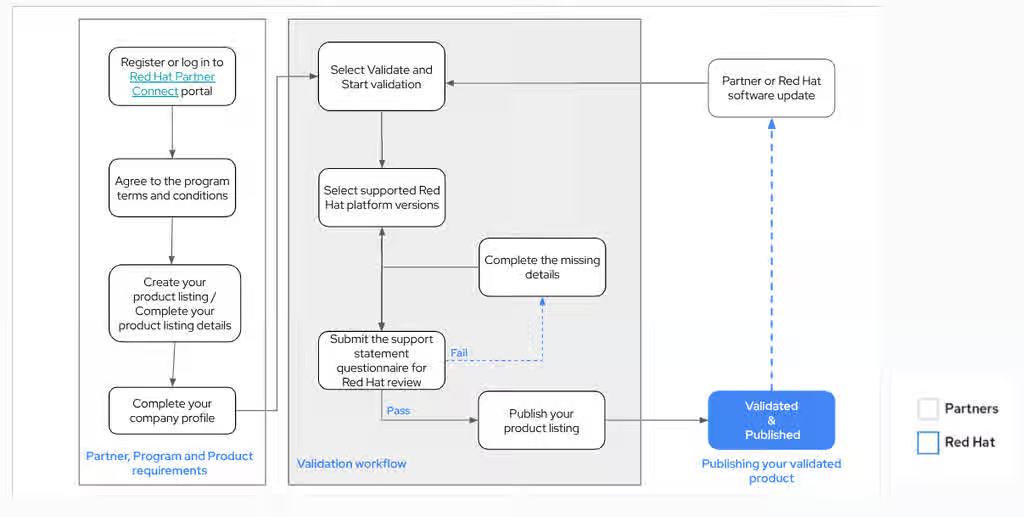
To prepare for validation, review the partner validation workflow. This high-level overview outlines the primary steps required to successfully validate your product.
Figure 1.1. Partner Validation workflow
1.3. Getting help and giving feedback
If you experience difficulty during the validation process with a Red Hat product, or with a procedure described in this documentation, visit the Red Hat documentation portal. There you can access Red Hat product documentation as well as solutions and technical articles about Red Hat products.
Giving feedback
You can open a support case to report issues and get help with the validation process, to submit feedback and request enhancements in the validation questionnaire and documentation, or to receive assistance on the Red Hat platform on which your product is being validated.
To receive Red Hat product assistance, you must have the required product entitlements or subscriptions. These can be separate from the partner program and validation program memberships.
Opening a support case
To open a support case for any validation issue, complete the Support Case Form for the Technology Partner Success Desk. Ensure that the following fields are filled in correctly.
Procedure
- From the Issue Category, select Product Validation.
- From the Product field, select OpenShift Container Platform.
- From the Product Version field, select the Red Hat OpenShift product version on which your product is being validated.
-
In the Problem Statement field, type a problem statement, issue, or feedback using the following format:
{Partner Validation} (The Issue, Problem or Feedback) Replace (The Issue, Problem or Feedback) with either the issue or problem faced in the validation process or feedback on the validation questionnaire or documentation.
For example: {Partner Validation} Error occurred while submitting the validation questionnaire by using the Red Hat Connect portal.To open a support case specific to a Red Hat product, see How do I open and manage a support case?
Chapter 2. Onboarding partners
Use the Red Hat Partner Connect Portal to create a new corporate account if you are a new partner, or use your existing Red Hat corporate account if you are a current partner to onboard with Red Hat for validating your products.
2.1. Onboarding existing partners
To onboard as an existing certification partner, log in to the Red Hat Customer Portal with your corporate account to verify your account details. Once verified, you can access Red Hat Partner Connect to complete the validation process.
If you think your company has an existing Red Hat corporate account but are not sure who is the Organization Administrator for your company, contact the Red Hat Connect team at connect@redhat.com. Red Hat can add you to your company’s existing corporate account.
Prerequisites
You have an existing Red Hat corporate account.
Procedure
- Access Red Hat Customer Portal and click Log in.
Enter your Red Hat login or email address and click Next.
Then, use either of the following options:
- Log in with company single sign-on
- Log in with Red Hat account
From the menu bar on the header, click your avatar to view the account details.
- If an account number is associated with your Red Hat corporate account, log in to the Red Hat Partner Connect portal to proceed with the validation process.
If an account number is not associated with your Red Hat corporate account, contact the Red Hat global customer service team to raise a request for creating a new account number.
After you receive an account number for your Red Hat corporate account, log in to the Red Hat Partner Connect portal. Agree to the program terms and conditions to proceed with the validation process.
2.2. Onboarding new partners
To onboard as a new certification partner, create a new corporate account on the Red Hat Customer Portal. After creating your account, log in to Red Hat Partner Connect and accept the program terms.
Procedure
- Access Red Hat Customer Portal and click Login.
- Click Register for a Red Hat account.
Enter the following details to create a new Red Hat corporate account:
Choose a Red Hat login and password.
ImportantIf your login ID is associated with multiple corporate accounts, do not use your contact email as the login ID. Using your contact email as the login ID can cause issues during login. You cannot change your login ID once created.
- Enter your Personal information and Company information.
Select Corporate for the Account Type field.
If you have created a Corporate type account and require an account number, contact the Red Hat global customer service team.
NoteEnsure that you create a company account and not a personal account. The account created during this step is also used to sign in to the Red Hat Ecosystem Catalog.
- Enter your Contact information.
Click Create My Account.
A new Red Hat corporate account is created.
- After creating a Red Hat corporate account, log in to the Red Hat Partner Connect portal and agree to the program terms and conditions to proceed with the validation process.
2.3. Exploring the Partner landing page
After logging in to Red Hat Partner Connect, the partner landing page opens. This page serves as a centralized hub for partner services and capabilities that you can use to start working on opportunities.
The Partner landing page offers the following services:
- Software products validation and certification
- Hardware certification
- Red Hat Partner Training Portal
- Access library of marketing, sales & technical content
- Partner help and support
- Email preference center
- Partner subscriptions
- User account
As part of the Red Hat partnership, partners receive access to various Red Hat systems and services. These resources help partners create shared value with Red Hat for joint customers.
Procedure
- Go to the Software products tile and click Add a new product.
- Create a new product to begin your product validation journey.
Additional resources
Chapter 3. Managing product validation
To begin the certification process and showcase your software to potential customers, manage your product listings in the Red Hat Partner Connect portal.
3.1. Creating a product
To lay the foundation for adding necessary validation components, create a product listing. This listing provides essential marketing and technical information to showcase your product’s advantages to potential customers.
Prerequisites
- Verify the functionality of your product on the target Red Hat platform. If running your product on the targeted Red Hat platform results in a substandard experience then you must resolve the issues before validation.
- Prepare comprehensive details about your product documentation, internal testing, and the Red Hat environment used for testing.
Red Hat does not test the partner’s product, its functionality, or its performance on the chosen platform. All aspects of product quality assurance remain the partner’s sole responsibility.
Red Hat recommends completing all the optional fields in the listing tabs for a comprehensive product listing. More information helps mutual customers make informed choices.
Red Hat suggests that you collaborate with your product manager, marketing representative, or other product experts when entering product listing information.
Fields marked with an asterisk (*) are mandatory.
Procedure
- Log in to the Red Hat Partner Connect Portal.
- On the partner landing page from the header, go to the Product certification tab and click Certify your software.
- On the header bar, click Product management.
- From the Listing and certification tab click Manage products.
From the My Products page, click Create Product.
A Create New Product dialog opens.
- Enter the Product name.
From the What kind of product would you like to certify? drop-down, select the required product category and click Create product. For example, select Standalone Application for creating a non-containerized product listing.
A new page with your Product name opens. It comprises the Overview, Product Information, Validations and certifications, and Support tabs.
Along with these tabs, the page header provides the Product Score details. Product Score evaluates your product information and displays a score of Fair, Good, Excellent, or Best.
Click How do I improve my score? to improve your product score.
- After providing the product listing details, click Save.
3.2. Overview
This tab consists of a series of tasks that you must complete to publish your product.
Procedure
Complete product listing details:
To complete your product listing details, click Start.
The Product Information tab opens.
- Enter all the essential product details and click Save.
Complete company profile information:
- To complete your company profile information, click Start.
- After entering all the details, click Submit.
- To modify the existing details, click Review. The Account Details page opens.
- Review and modify the Company profile information and click Submit.
Accept legal agreements:
- Click Start.
To preview or download the agreement, click Review.
The Red Hat Partner Connect Container Appendix document displays. Read the document to know the terms related to the distribution of container images.
Certify or validate your product:
Click Certify or Validate your product and then click Start.
It is not possible to validate a product that already has a certified component. Certifying a component is not required in order to validate a product.
To validate your product, from the Validation or Certification Status tile, click Start validation or certification.
You’re navigated to the Validations & certifications tab.
After completing all these tasks, you see a green tick mark corresponding to all the options.
The Overview tab also provides the following information:
Product contacts - Provides Product marketing and Technical contact information.
- Click Add contacts to product to provide the contact information
Click Edit to update the information.
After publishing the product listing, you can view your Product Readiness Score and Ways to raise your score on the Overview tab.
3.3. Product Information
Through this tab you can provide all the essential information about your product. Red Hat publishes the product details along with your product on the Red Hat Ecosystem catalog.
Procedure
In the General tab, provide basic details of the product, including product name and description.
- Enter the Product Name.
- Optional: Upload the Product Logo according to the defined guidelines.
- Enter a Brief description and a Long description.
- Click Save.
In the Features & Benefits tab, provide important features of your product.
- Optional: Enter the Title and Description.
- Optional: To add additional features for your product, click Add new feature.
- Click Save.
In the Quick start & Config tab, add links to any quick start guide or configuration document to help customers deploy and start using your product.
- Optional: Enter Quick start & configuration instructions.
- Click Save.
- Select Hide default instructions check box, if you don’t want to display them.
In the Linked resources tab, add links to supporting documentation to help our customers use your product. The information maps to and appears in the Documentation section on the catalog page for the product.
NoteIt is mandatory to add a minimum of three resources. Red Hat encourages you to add more resources, if available.
- Select the Type drop-down menu, and enter the Title and Description of the resource.
- Enter the Resource URL.
- Optional: To add additional resources for your product, click Add new Resource.
- Click Save.
In the FAQs tab, add frequently asked questions and answers about the purpose, operation, installation, or other attribute details of the product. You can include common customer queries about your product and services.
- Enter Question and Answer.
- Optional: To add additional FAQs for your product, click Add new FAQ.
- Click Save.
In the Support tab, provide contact information of your support team.
- Optional: Support description
- Support website - This field is mandatory
- Optional: Support phone number
- Optional: Support email address
- Click Save.
In the Contacts tab, provide contact information of your marketing and technical team.
- Enter the Marketing contact email address and Technical contact email address.
- Optional: To add additional contacts, click Add another.
- Click Save.
In the Legal tab, provide the product related license and policy information.
- Enter the License Agreement URL for the product and Privacy Policy URL.
- Click Save.
In the SEO tab:
- Select the Product Category.
Enter the Key and Value to set up Search aliases.
NoteAdd at least one Search alias for your product. Red Hat encourages you to add more aliases, if available.
- Click Save.
Optional: To add additional key-value pair, click Add new key-value pair.
This tab is used to improve the discoverability of your product for our mutual customers, enhancing visibility both within the Red Hat Ecosystem Catalog search and on internet search engines. Providing a higher number of search aliases (key and value pairs) increases the discoverability of your product.
3.4. Validations and certifications
Use this tab to validate your product on the supported Red Hat platform versions.
Procedure
- Click Start validation.
- For What Red Hat products are you validating for? select either or both available options: Red Hat OpenShift and Red Hat Enterprise Linux (RHEL).
- Select the current Red Hat OpenShift or RHEL major and minor platform versions on which you want to validate your products.
- Select the All future versions of Red Hat OpenShift or RHEL check box if you want to validate your product on future minor Red Hat platform versions.
- Click Start validation.
Complete all the information requested in the support questionnaire. Provide the following details:
- Links to your product documentation,
- Whether you have verified and tested the interoperability of your product on the selected Red Hat platform minor versions,
- Confirmation that you support the product when used with the selected Red Hat platforms.
- Click Submit. You can see the selected Red Hat platform versions under Approved supported versions tile.
- Click Update support statement to modify the selected Red Hat platform minor versions.
- Click Update validation. The Approved supported versions tile updates with the newer Red Hat platform minor versions.
Click Next to proceed with product certification.
After submitting the support questionnaire, the Red Hat ecosystem team carefully reviews and verifies the entered details.
3.5. Support
The Red Hat Partner Acceleration Desk (PAD) is a Products and Technologies level partner help desk service that allows the current and prospective partners a central location to ask non-technical questions pertaining to Red Hat offerings, partner programs, product validation, product certification, engagement process, and so on.
You can also contact the Red Hat Partner Acceleration Desk for any technical questions you may have regarding the validation and certification process. Technical help requests are redirected to the Red Hat ecosystem team.
By using the Partner Subscriptions program, Red Hat offers free, not-for-resale software subscriptions that you can use to certify your product on the target Red Hat platform. To request access to the program, follow the instructions on the Partner Subscriptions site.
Procedure
- To request support, click Open a support case. Refer PAD - How to open & manage PAD cases, to open a PAD ticket.
- When generating your Support Statement, select the "Cloud-Native Network Function (CNF)" checkbox if your product involves a Cloud-Native Network Function.
- Selecting this checkbox prompts the CNF-specific questionnaire to appear. Fill out the required CNF details within this questionnaire.
- To view the list of existing support cases, click View support cases.
Additional resources
3.6. Removing a product
Delete a product listing that is no longer needed. You must unpublish a published product before you can delete it. Red Hat retains information related to deleted products even after you delete the product.
Procedure
To Remove the product listing:
- Go to the Overview tab.
- Click Delete.
Chapter 4. Publishing on the catalog
After submitting your product for validation, the Red Hat ecosystem team reviews and verifies the details of the support questionnaire. After successful verification, you receive an email notification from the Red Hat ecosystem team either with Red Hat’s approval or further questions. If you have any questions or require clarifications, contact the Red Hat ecosystem team.
Perform the following steps to publish your product on the catalog after receiving Red Hat’s approval:
Procedure
- Navigate to the Overview tab.
Click Publish.
Your product listing is published on the Red Hat Ecosystem Catalog. In future, if you want to certify your validated product, complete the Certification details.
Providing feedback on Red Hat documentation
Your feedback on Red Hat documentation is appreciated. Provide suggestions for improvement
Submitting feedback through Jira (account required)
Procedure
- Log in to the This content is not included.Jira website.
- Select Create in the top navigation bar.
- Enter a descriptive title in the Summary field.
- Enter your suggestion for improvement in the Description field. Include links to the relevant parts of the documentation.
- Select Create at the bottom of the dialogue.