How to display more verbose boot-related messages during system startup
Environment
- Red Hat Enterprise Linux
Issue
- How to display the boot log and other service start up messages on the display permanently.
- How to disable the boot progress splash screen.
- How to enable verbose kernel boot messages.
- My system won't boot! What data can I provide Red Hat Support to troubleshoot this issue?
Resolution
For General Debugging
In most cases, simply removing rhgb and quiet from the boot options will show sufficiently verbose boot messages to show where the system is failing to boot.
For RHEL 7 and newer
-
During boot, wait until you see the
GRUBmenu, similar to the following: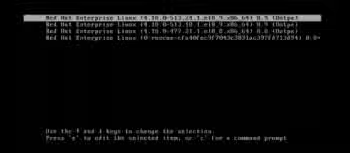
-
Press any key to halt the countdown so the system does not continue booting.
-
Press the "e" key to edit the boot options. You will see a new screen with output similar to the following:
load_video set gfx_payload=keep insmod gzio linux ($root)/vmlinuz-4.18.0-513.24.1.el8_9.x86_64 root=/dev/mapper/rhel-root ro crashkernel=auto resume=/dev/mapper/rhel-swap rd.lvm.lv=rhel/root rd.lvm.lv=rhel/swap rhgb quiet initrd ($root)/initramfs-4.18.0-513.24.1.el8_9.x86_64.img -
Use the arrow keys to navigate down to the line beginning with "linux". On that line, remove all instances of "rhgb" and "quiet". In the example above, the resulting "linux" line would look like this:
linux ($root)/vmlinuz-4.18.0-513.24.1.el8_9.x86_64 root=/dev/mapper/rhel-root ro crashkernel=auto resume=/dev/mapper/rhel-swap rd.lvm.lv=rhel/root rd.lvm.lv=rhel/swap -
Press ctrl+x to boot with that change.
For RHEL 6 and older
-
During boot, wait until the GRUB splash screen comes up,
Now booting Red Hat Enterprise Linux..is displayed on the screen. -
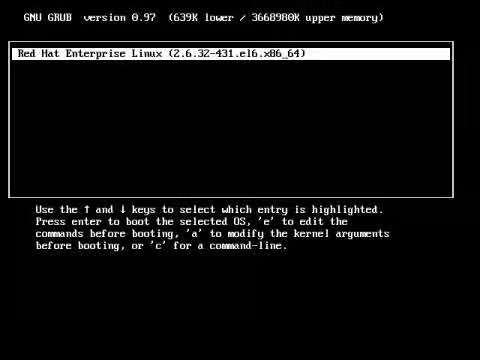
Press any key to halt the countdown so the system does not continue to boot. This will present a list of kernel versions similar to the following:
-
Press the "e" key to edit the boot options. You will see a new screen with output similar to the following:
root (hd0,0) kernel /vmlinuz-2.6.32-431.el6.x86_64 ro root=/dev/mapper/vg_hostname-lv_root rd_NO_LUKS LANG=en_US.UTF-8 rd_LVM_LV=vg_hostname/lv_swap rd_NO_MD SYSFONT=latarcyrheb-sun16 crashkernel=auto KEYBOARDTYPE=pc KEYTABLE=us rd_NO_DM rd_LVM_LV=vg_hostname/lv_root rhgb quiet console=ttyS0 initrd /initramfs-2.6.32-431.el6.x86_64.img -
Use the arrow keys to navigate down to the line beginning with "kernel", then press "e" again to edit that line.
-
Remove all instances of "rhgb" and "quiet" from that line. The resulting "kernel" line in this example should look like this:
kernel /vmlinuz-2.6.32-431.el6.x86_64 ro root=/dev/mapper/vg_hostname-lv_root rd_NO_LUKS LANG=en_US.UTF-8 rd_LVM_LV=vg_hostname/lv_swap rd_NO_MD SYSFONT=latarcyrheb-sun16 crashkernel=auto KEYBOARDTYPE=pc KEYTABLE=us rd_NO_DM rd_LVM_LV=vg_hostname/lv_root console=ttyS0 -
Press "enter", then press "b" to boot with those changes.
For Extensive Debugging
If additional debug messages are needed, follow the steps below.
-
First ensure serial console logging is configured for the system in question.
-
During boot, wait until the GRUB splash screen comes up,
Now booting Red Hat Enterprise Linux..is displayed on the screen, press any key. This will present a list of kernel versions similar to the following: -
Modify the kernel parameters to produce debugging logs on boot.
- Select the target kernel to boot into. Use the Up/Down arrow keys to select the kernel that is desired for booting into, ordinarily this will be the originally selected kernel. Once selected, use the
ekey to edit this entry. You will then be presented with output similar to the following:
      	root (hd0,0)
      	kernel /vmlinuz-2.6.32-431.el6.x86_64 ro root=/dev/mapper/vg_hostname-lv_root rd_NO_LUKS LANG=en_US.UTF-8 rd_LVM_LV=vg_hostname/lv_swap rd_NO_MD SYSFONT=latarcyrheb-sun16 crashkernel=auto  KEYBOARDTYPE=pc KEYTABLE=us rd_NO_DM rd_LVM_LV=vg_hostname/lv_root rhgb quiet console=ttyS0
      	initrd /initramfs-2.6.32-431.el6.x86_64.img
- **Note** Red Hat Enterprise Linux 7 generally has many more lines of output here than other versions. Make sure to use the arrow keys to navigate all the lines produced to ensure you find lines similar to the above.-
Use the Up/Down arrow keys to select the line the kernel parameters and remove all
rhgbandquietentries and adddebug ignore_loglevel print_fatal_signals=1 printk.time=1 initcall_debug log_buf_len=10Mfor Red Hat Enterprise Linux 6 and below or addrd.debug initcall_debug log_buf_len=10Mfor Red Hat Enterprise Linux 7 and above as shown in the output below:# Example kernel parameters for Red Hat Enterprise Linux 6 and below
        kernel /vmlinuz-2.6.32-431.el6.x86_64 ro root=/dev/mapper/vg_hostname-lv_root \
        rd_NO_LUKS LANG=en_US.UTF-8 rd_LVM_LV=vg_hostname/lv_swap rd_NO_MD \
        SYSFONT=latarcyrheb-sun16 crashkernel=auto  KEYBOARDTYPE=pc KEYTABLE=us \
        rd_NO_DM rd_LVM_LV=vg_hostname/lv_root console=ttyS0 console=ttyS0,115200 \
        debug ignore_loglevel print_fatal_signals=1 printk.time=1 initcall_debug \
        log_buf_len=10M
# Example kernel parameters for Red Hat Enterprise Linux 7linux16 /vmlinux-3.10.0-1160.el7.x86_64 root=/dev/mapper/rhel-root ro crashker\ nel=auto spectre_v2=retpoline rd.lvm.lv=rhel/root rd.lvm.lv=rhel/swap console=\ tty0 console=ttyS0,115200 rd.debug initcall_debug log_buf_len=10M systemd.log_\ level=debug# Example kernel parameters for Red Hat Enterprise Linux 8 and abovelinux ($root)/vmlinux-4.18.0-348.7.1.el8_5.x86_64 root=/dev/mapper/rhel-root r\ o crashkernel=auto resume=/dev/mapper/rhel-swap rd.lvm.lv=rhel/root rd.lvm.lv=\ rhel/swap console=tty0 console=ttyS0,115200 rd.debug initcall_debug log_buf_le\ n=10M systemd.log_level=debug- For Red Hat Enterprise Linux 6 and below, the kernel parameter line starts with `kernel`. - For Red Hat Enterprise Linux 7, the kernel parameter line starts with `linux16`. - For Red Hat Enterprise Linux 8, the kernel parameter line starts with `linux`. - Select the target kernel to boot into. Use the Up/Down arrow keys to select the kernel that is desired for booting into, ordinarily this will be the originally selected kernel. Once selected, use the
-
Boot the system with the temporary kernel parameter changes.
- For Red Hat Enterprise Linux 6 and below, use the
enterkey to accept the changes, and thebkey to boot that kernel entry. - For Red Hat Enterprise Linux 7 and above, press
CTRL+xto accept the changes.
- For Red Hat Enterprise Linux 6 and below, use the
-
Record the console.
- For Linux clients, the
scriptcommand can be used to record the terminal where the console logs are being produced. - For PuTTY clients, go to "Logging", select "Printable output" and input the "Log file name".
- For Linux clients, the
Notes and Additional resources
-
For z/VM hosted systems, instead, add
PARM debugto the IPL command. -
For additional information on temporarily changing boot parameters and how to make those changes persist across reboots, please refer to the following article;
-
For additional information on setting up serial terminal/console, please refer to the following article;
-
For additional details on the boot process for Red Hat Enterprise Linux 5, see the article below:
This solution is part of Red Hat’s fast-track publication program, providing a huge library of solutions that Red Hat engineers have created while supporting our customers. To give you the knowledge you need the instant it becomes available, these articles may be presented in a raw and unedited form.