How to capture serial console logs from a Hyper-V environment ?
Environment
- Red Hat Enterprise Linux 5
- Red Hat Enterprise Linux 6
- Red Hat Enterprise Linux 7
- Hyper-V Host
Issue
- Kdump is failing.
- Unable to generate a vmcore on a Hyper-V guest.
- Need to capture serial console logs from a Hyper-V environment.
- Also helpful in debugging the cant boot situation of guest RHEL.
Resolution
-
Serial console need to be configured on Red Hat Enterprise Linux by referring the below article :
How to set up a serial terminal and/or console in Red Hat Enterprise Linux -
Add the "COM" port to the guest server from Hyper-V configuration and provide any name under "Pipe Name".
Below are examples where the name provided is "test" (refer any one) :
From Power-Shell
PS C:\Users\Administrator> Get-VMComPort -VMName rhel7

VMName      Name  Path
------      ----  ----
rhel7       COM 1
rhel7       COM 2

PS C:\Users\Administrator> Set-VMComPort -VMName rhel7 -Path \\.\pipe\test -Number 1

PS C:\Users\Administrator> Get-VMComPort -VMName rhel7

VMName      Name  Path
------      ----  ----
rhel7 	    COM 1 \\.\pipe\test
rhel7       COM 2
From Hyper-V configuration panel
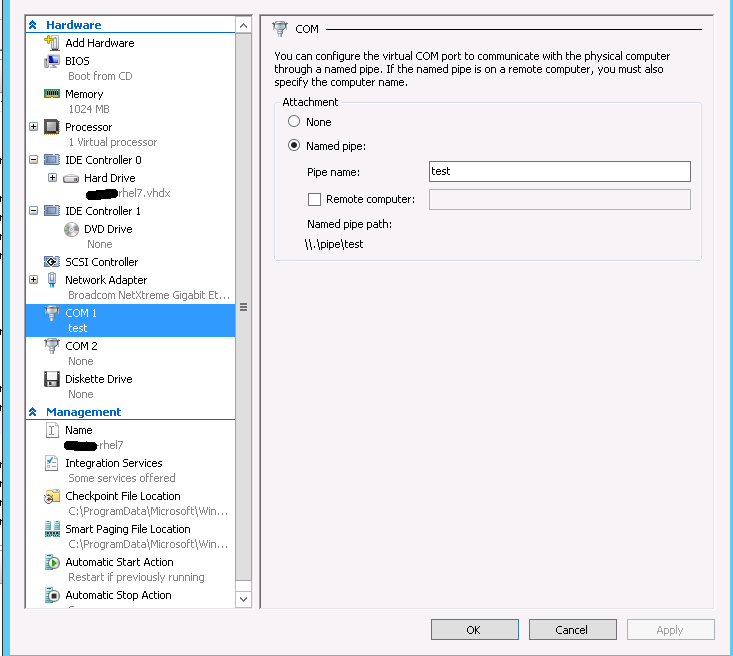
- Open the "Putty" application over Hyper-V server and select "Serial" under
Connection type.
After this, the full pipe name need to be entered inSerial lineand "115200" inSpeeddialog box.
The pipe name will be reflected in very last line over COM port configuration dialog box after saving it or under "Path" in power-shell.
Below is continued example where pipe name is provided as\\.\pipe\test:
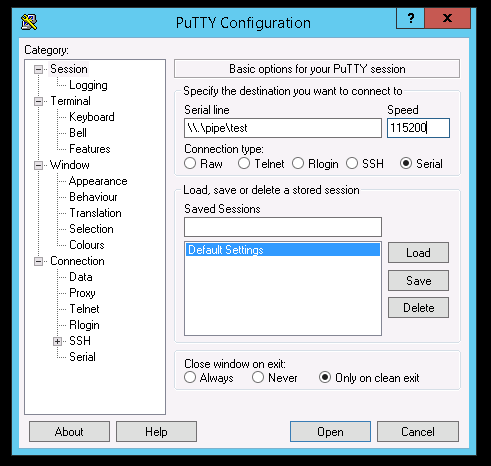
- Finally click "Open" so as to collect serial logs from respective RHEL guest.
Note : The guest machine should be in power-on state while configuring "Putty" for collecting serial logs.
Root Cause
- When kdump fails to save vmcore file, serial console logs are required for further troubleshooting.
- As the guest is built over Hyper-V, serial logs need to be collected over hypervisor.
This solution is part of Red Hat’s fast-track publication program, providing a huge library of solutions that Red Hat engineers have created while supporting our customers. To give you the knowledge you need the instant it becomes available, these articles may be presented in a raw and unedited form.