How to configure RHEV-M fencing for Red Hat Enterprise Linux cluster nodes running as virtual guests on RHEV
Environment
- Red Hat Enterprise Linux Server 5.7 and 5.8 with High Availability or Resilient Storage Add-ons using iSCSI storage
- Red Hat Enterprise Linux Server 5.9+ with High Availability or Resilient Storage Add-ons
- Red Hat Enterprise Linux Server 6.2+ with High Availability or Resilient Storage Add-ons
- Red Hat Enterprise Virtualization 3.0 and later
Issue
- We have virtual guests on a Red Hat Enterprise Virtualization hosts that will be nodes in a Red Hat high availability cluster. How can we configure the cluster to use fence_rhevm as its fencing agent?
Resolution
This solution provides a consolidated procedure for configuring fence_rhevm in your cluster. For details on troubleshooting your fence configuration, be sure to see the Cluster Administration and Fence Configuration Guide This content is not included.documents for the version of RHEL that you are using.
This procedure written and tested in RHEL 6.5 nodes using rgmanager. It should translate to your supported RHEL 6 guests, and RHEL 5 guests running RHEL 5.8 and later, provided that the host is running RHEV 3.0 and later.
1. Check your versions of RHEV, RHEL, and cluster software against the This content is not included.Fence Support Matrix for Red Hat Enterprise Linux High Availability/Clustering and Red Hat Enterprise Virtualization.
2. Make sure that cluster nodes can communicate with the RHEV host over the network, either by IP address or hostname as desired.
3. Create a fence device in the cluster configuration (/etc/cluster/cluster.conf).
Below are the steps for configuring with Luci and by editing the cluster.conf manually. You need follow only one of the two.
Luci
-
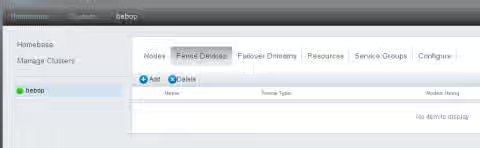
3a. After selecting your cluster to manage, click the "Fence Devices" tab at the top, and click "Add".
-
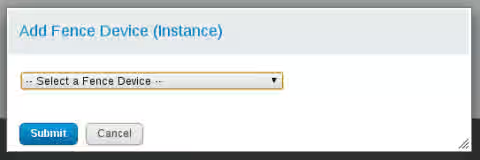
3b. Use the drop-down menu in the dialog box to select "RHEV-M fencing" for the fence device type.
-
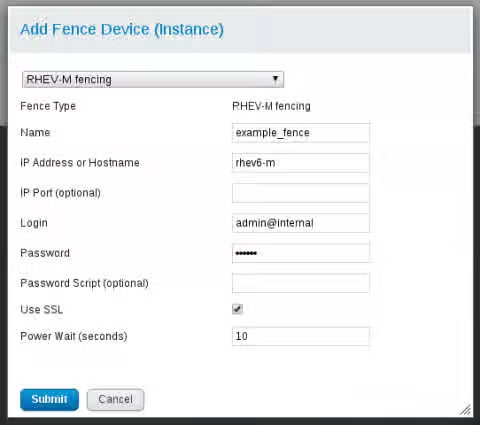
3c. In the form that appears under the drop-down menu, complete the fence device configuration as follows and click "Submit":
- Name - An identifying name for this fence device in your cluster configuration
- IP Address or Hostname - The IP address or resolvable hostname of the RHEV-M host
- Login - In the form "
@ ", type the RHEV-M username and that user's authentication domain on the RHEV-M host. This user must have permission to power manage the virtual machines in RHEV that represent these cluster nodes. - Password - The RHEV-M password for that user in the given authentication domain.
- Use SSL - Check this. See later steps for more information.
- Power Wait (seconds) - Give this 10 seconds to start with. You can adjust it later when fine-tuning your configuration.
-
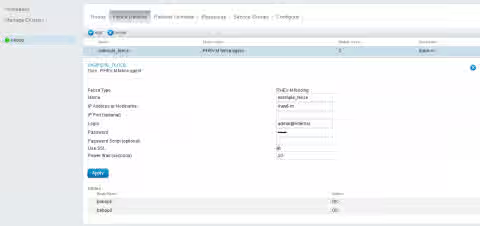
3d. Click the linked fence device name at any time to view the current configuration.
Manual Edit
If you are editing the /etc/cluster/cluster.conf directly, or viewing it after using Luci, here is what the example cluster configuration would look like at this step. Note that the fence device is configured, but there are no fence methods configured for each node:
<?xml version="1.0"?>
<cluster config_version="2" name="bebop">
    <clusternodes>
        <clusternode name="bebop1" nodeid="1"/>
        <clusternode name="bebop2" nodeid="2"/>
    </clusternodes>
    <cman expected_votes="1" two_node="1"/>
    <fencedevices>
        <fencedevice agent="fence_rhevm" ipaddr="rhev6-m" login="admin@internal" name="example_fence" passwd="password" power_wait="10" ssl="on" />
    </fencedevices>
</cluster>
4. Add a fence method for each node in the cluster configuration (/etc/cluster/cluster.conf).
If you are using Luci, use the following steps:
-
4a. Click the "Nodes" tab at the top, and click to select the cluster node you want to edit. There, click the "Add Fence Method" button in the bottom part of the page.
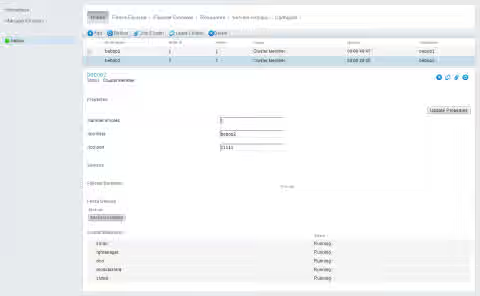
-
4b. Type a unique name to use for this method within your cluster configuration and click "Submit".
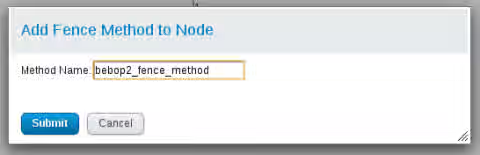
-
4c. Click "Add Fence Instance" to associate a fence device with this method.
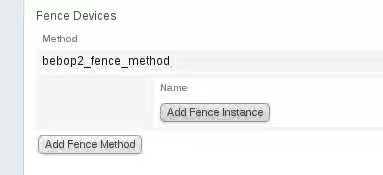
-
4d. Select the fence device previously configured, then enter the virtual machine name in RHEV-M as the "Port (Outlet) Number", and click "Submit". The example shown intentionally uses a different VM name and hostname to show the distinction between them in configuration. However, users often use the same name for both the VM and the hostname.
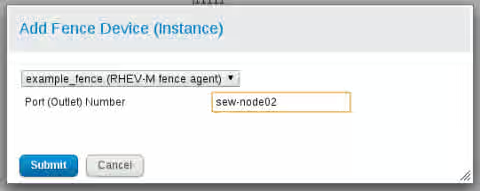
-
4e. Confirm that the fence method shows the fence agent.
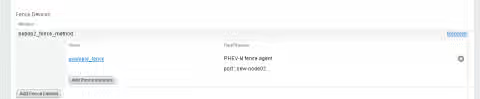
Repeat these steps on each node, using the corresponding VM names from RHEV-M for each method.
If you are editing the /etc/cluster/cluster.conf directly, or viewing it after using Luci, here is what the cluster nodes would look like at this step:
<clusternodes>
    <clusternode name="bebop1" nodeid="1">
        <fence>
            <method name="example_fence_method_1">
                <device name="example_fence" port="sew-node01"/>
            </method>
        </fence>
    </clusternode>
    <clusternode name="bebop2" nodeid="2">
        <fence>
            <method name="example_fence_method_2">
                <device name="example_fence" port="sew-node02"/>
            </method>
        </fence>
    </clusternode>
</clusternodes>
5. Make a direct edit of /etc/cluster/cluster.conf to add a shell_timeout value to the configuration, which is helpful to counter a known issue in which RHEV-M might hang up when multiple fence events are launched against the same node. Also, add verbose="on" for an added level of output when troubleshooting. The following example shows the shell_timeout value at 20:
    <fencedevices>
        <fencedevice agent="fence_rhevm" ipaddr="rhev6-m" login="admin@internal" name="example_fence" passwd="password" power_wait="10" ssl="on" shell_timeout="20" verbose="on"/>
    </fencedevices>
Then, increment the config_version number in the second line of the file before saving and closing that file:
<cluster config_version="3" name="bebop">
After saving the file, synchronize the cluster to use that new cluster configuration. See the following solution for the command to use for your version of RHEL: How can I propagate changes I've made to /etc/cluster/cluster.conf to all the nodes in my cluster?
6. Test the fence_rhevm calls from each cluster. Using this command bypasses cluster configuration to confirm that the fence agent will work when called. In the following example, node 1 is fencing node 2:
[root@bebop1 ~]# fence_rhevm -o status -z -a rhev6-m -l 'admin@internal' -p 'password' -n sew-node02
Status: ON
[root@bebop1 ~]# fence_rhevm -z -a rhev6-m -l 'admin@internal' -p 'redhat' -n sew-node02
Success: Rebooted
7. Test the fencing from the cluster configuration using the fence_node command. In the following example, node 1 is fencing node 2:
[root@bebop1 ~]# fence_node bebop2
[root@bebop1 ~]# clustat
Cluster Status for bebop @ Sun Feb  2 17:54:03 2014
Member Status: Quorate

 Member Name                                                     ID   Status
 ------ ----                                                     ---- ------
 bebop1                                                              1 Online, Local
 bebop2                                                              2 Online

[root@bebop1 ~]# fence_node bebop2
fence bebop2 success
Additional notes:
- The
fence_rhevmagent relies on REST API support in Red Hat Enterprise Virtualization 3.0. This fence agent only works in conjunction with RHEVM 3.0, and it would not work with RHEV 2.2 or below (as those versions do not have a supported REST API).
Root Cause
Fence device options for virtual guests running on a RHEV host are limited to fence_rhevm and fence_scsi as noted in Virtualization Support for High Availability in Red Hat Enterprise Linux 5 and 6.
This solution is part of Red Hat’s fast-track publication program, providing a huge library of solutions that Red Hat engineers have created while supporting our customers. To give you the knowledge you need the instant it becomes available, these articles may be presented in a raw and unedited form.