How to Upgrade OpenShift 4 between different minor versions via "oc" cli
Environment
- Red Hat OpenShift Container Platform (RHOCP)
- 4.1 -> 4.2
- 4.2 -> 4.3
- 4.3 -> 4.4
- 4.4 -> 4.5
- 4.5 -> 4.6
- 4.6 -> 4.7
Issue
- Upgrading OpenShift4 to the next minor version via
occli tool.
NOTE: For fully supported releases (GA), you must use only
fast,stableoreus(Red Hat OpenShift Extended Update Support) channels, more info This page is not included, but the link has been rewritten to point to the nearest parent document.here if needed.
Resolution
NOTE: This solution uses
4.xand4.yversions as examples, please change them accordingly. For example, if upgrading from 4.1 to 4.2, thenx=1andy=2.
IMPORTANT: If for some reason you don't see the proper upgrade path, double check the channel modification step and/or raise a case asking support, never use
oc adm upgrade --forceto upgrade production environments unless it was recommended by Red Hat due to some specific workaround, it could leave the cluster completely unusable/broken.
-
Login into your desired cluster via
occli command:$ oc login -u <userid> -p <password> https://api.<clusterid>.<domain>:6443
NOTE: The recommendation is to use the same version of
occommand than the version of the cluster you want to upgrade. Theocbinary (and installer) can be downloaded from Content from mirror.openshift.com is not included.here (for x86_64), Content from mirror.openshift.com is not included.here (for s390x) or Content from mirror.openshift.com is not included.here (for ppc64le).
-
Confirm the general cluster status, no degraded or progressing
operators, allpodsrunning, allnodesready, etc:$ oc get clusterversion $ oc get clusteroperators $ oc get nodes -o wide $ oc get pods -A | grep -v "Running\|Completed\|Terminated|\Succeeded" -
Confirm that there are no paused
mcp(refer to Disable autoreboot after a change with the machine-config-operator in OCP 4 for additional information). Thepausedfield must befalse:$ oc get mcp -o yaml | grep -i pause paused: false paused: false -
If the cluster status is ok, as expected, let's proceed to check which upgrade possibilities do we have on the
fast-4.ychannel(the target one) using this Content from github.com is not included.script, this will give us information about the maximum 4.x.z version that we should be running if we want to be able to proceed with the upgrade, because not always the latest 4.x version is upgradable, for example:$ ocp4upc.sh 4.6.15 [INFO] Checking prerequisites (curl jq dot)... [SUCC] [INFO] Checking if '4.6.15' (amd64) is a valid release... [SUCC] [INFO] Detected mode '4.x.z', targeting channels '4.7' for upgrade path generation. [WARN] Skipping channel 'eus-4.7_amd64', it's empty. [WARN] Skipping channel 'stable-4.7_amd64', version not found. [INFO] Result exported as 'fast-4.7_4.6.15_amd64_20210316.svg'
IMPORTANT: The following graph is just a static photo for example purposes, don't rely on it and generate your own one, the paths can change daily.
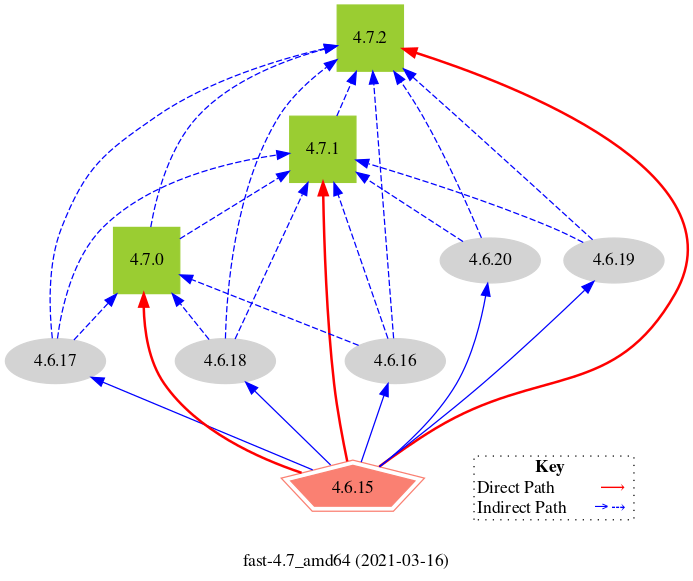
NOTE: There are more recent tools that provide a dynamic graph like This content is not included.ocpupgradegraph or Content from ctron.github.io is not included.openshift-update-graph if needed.
-
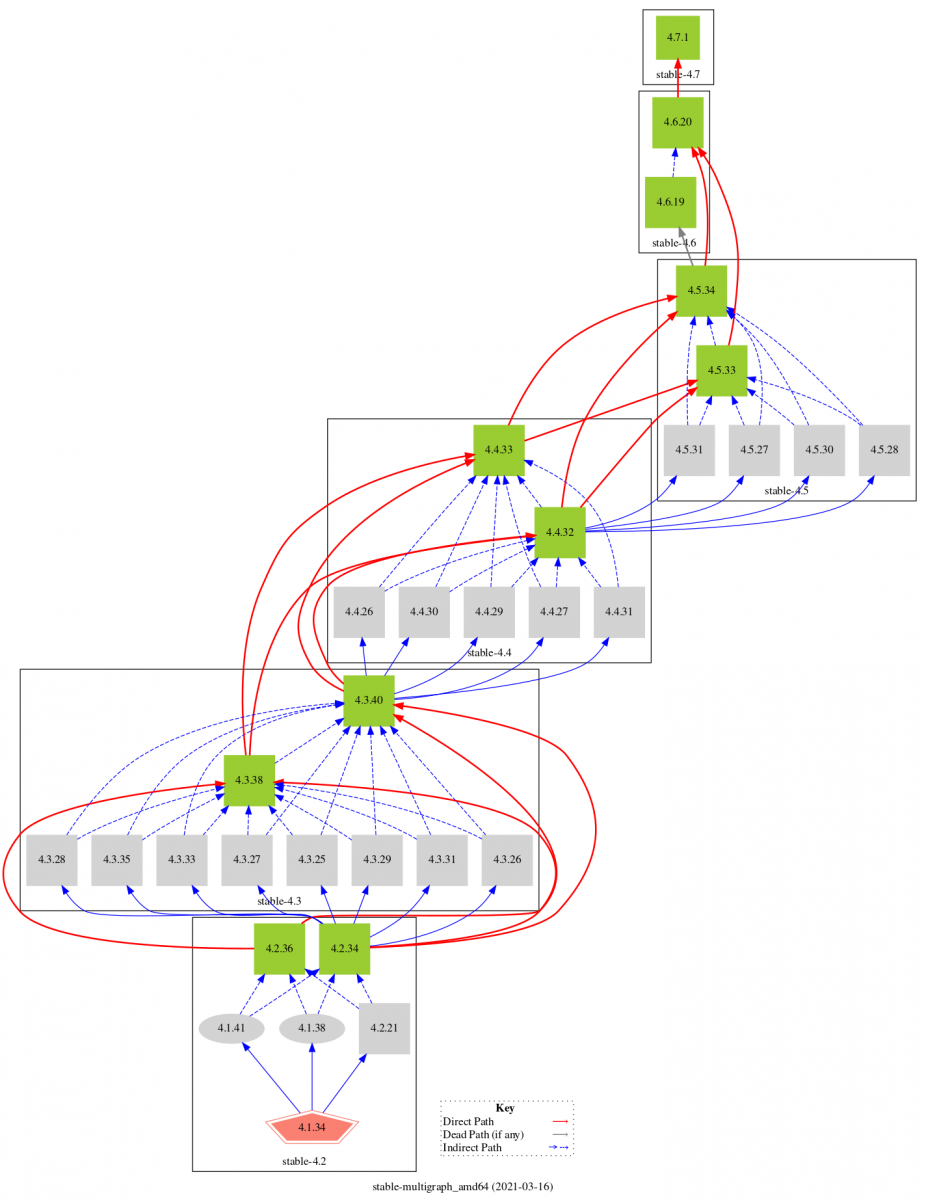
(Optional) If needed, the same Content from github.com is not included.script can now also provide a multigraph result that goes across all the intermediate versions as follows:
$ ocp4upc.sh 4.1.34-4.7
[INFO] Checking prerequisites (curl jq dot)... [SUCC]
[INFO] Checking if '4.1.34' (amd64) is a valid release... [SUCC]
[INFO] Detected mode '4.x.z-', targeting channels '4.2 4.3 4.4 4.5 4.6 4.7' for multigraph generation.
[INPT] Select channel from [stable fast eus], press Enter for default value (stable):
[INPT] Select max depth between [1-9], press Enter for default value (2):
[WARN] Targeting '6' diff minor versions with '2' releases per target (12 edges), please be patient.
[INFO] Processing 'stable-4.2' edges...
[INFO] Processing 'stable-4.3' edges...
[INFO] Processing 'stable-4.4' edges...
[INFO] Processing 'stable-4.5' edges...
[INFO] Processing 'stable-4.6' edges...
[INFO] Processing 'stable-4.7' edges...
[WARN] Skipping file 'stable-4.7_4.6.19.gv', version not found.
[INFO] Result exported as 'stable-multigraph_4.1.34-4.7_amd64_20210316.svg'
-
Once determined in the graph which 4.x.z version we need to have in order to reach the desired 4.y (usually the latest one), let's proceed with the upgrade without changing your current 4.x channel (the 4.x.z versions showed in the
fast-4.ychannel are also available in your currentstable-4.xchannel at this point), for example:$ oc adm upgrade --to=4.x.z- OR (recommended):
$ oc adm upgrade --to-latest
NOTE: The recommended operation is to use
oc adm upgrade --to-latest, but sometimes the upgrade paths can be temporarily disabled due to issues with specific versions. If you must update to the next minor version as quickly as possible, check the current graph to determine your best path (and hope that no further problems lead to updates along your path being pulled). If you end up in a dead end due to pulled edges, it's likely that the next release will restore a path to the next minor version, and for fast and stable channels, Red Hat is committed to providing a path to the next minor version at some point.
-
Wait until the upgrade finish, my personal recommendation to supervise the upgrade from the
occli is to use the following command combination, this will give you a general cluster status every 10 seconds:$ watch -n10 "oc get clusterversion && echo && oc get co && echo && oc get nodes -o wide"
NOTES: During some upgrade steps, the previous command can output the message
error: You must be logged in to the server (Unauthorized), this is expected, it will properly refresh on the next run. Also, the percentage showed byoc adm upgradecommand can start again from 1% during some upgrade steps likemachine-config, this is also an expected behaviour, don't worry about that.
-
(Important) Once the cluster is successfully upgraded to desired 4.x.z version, confirm again the cluster general status before continuing.
-
(Required) Change now the cluster
channelas follows (remember to properly change4.ywith your target version):$ oc patch clusterversion/version -p '{"spec":{"channel":"stable-4.y"}}' --type=merge- OR
$ oc patch clusterversion/version -p '{"spec":{"channel":"fast-4.y"}}' --type=merge
NOTE: The channel selection will depend on the previous generated graphs and the upgrade path you prefer or need to take, while the
fast-4.ychannel contains releases as soon as their errata are published, releases are added to thestable-4.ychannel after a few days, on this manner, more data is collected from Red Hat SRE teams, Red Hat support services, and pre-production and production environments that participate in connected customer program about the stability of the release, more info here.
-
(Optional) Confirm the new upgrade paths visibility:
$ oc adm release info $ oc adm upgrade -
Upgrade now to desired version 4.y.z:
$ oc adm upgrade --to=4.y.z- OR (recommended)
$ oc adm upgrade --to-latest
NOTE: This upgrade can take much longer than previous 4.x.z (specially the
machine-configpart), please be patient and properly monitor the cluster status with the command combination posted above if needed.
-
Once the cluster is successfully upgraded to version 4.y.z, confirm again the cluster general status.
-
(Optional but recommended) If upgraded using
fast-4.yto take advantage of a newer path not yet available withinstable-4.y, you can also return to stable after that if you prefer (default channel), the newer versions within fast will also be available in stable after a few days.$ oc patch clusterversion/version -p '{"spec":{"channel":"stable-4.y"}}' --type=merge
NOTE: Remember to properly change
4.ywith your target version.
Root Cause
There is no oc cli upgrade documentation when using different upgrade channels and this could be useful.
General cli upgrade documentation
Diagnostic Steps
How to cancel an upgrade once started:
$ oc adm upgrade --clear
NOTE: An upgrade can only be canceled if it's still in the download phase, which usually lasts a few seconds (depending on your network bandwidth).
How to confirm which channel we have configured:
$ oc get clusterversion/version -o jsonpath={.spec.channel}
How to see the release info:
$ oc adm release info
How to check which upgrades are available in the current channel (without upgrading):
$ oc adm upgrade
This solution is part of Red Hat’s fast-track publication program, providing a huge library of solutions that Red Hat engineers have created while supporting our customers. To give you the knowledge you need the instant it becomes available, these articles may be presented in a raw and unedited form.