How to enable and sync a repository in Satellite 6.12+ via the Web UI
Environment
Satellite 6.12+
Issue
Targeted release versions are not available.
Resolution
1. Navigate to Content > Red Hat Repositories

2. Search for the required repositories
In this example, we require RHEL 8.8 BaseOS and AppStream repos
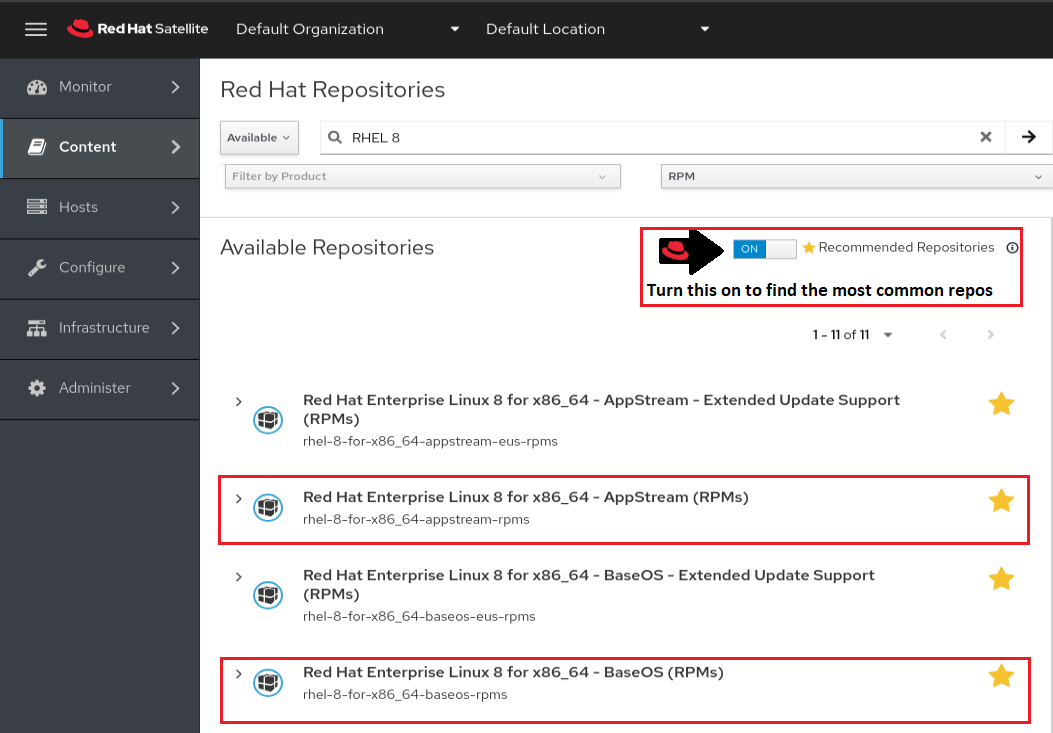
3. Expand the repository by clicking on it to view all available releases
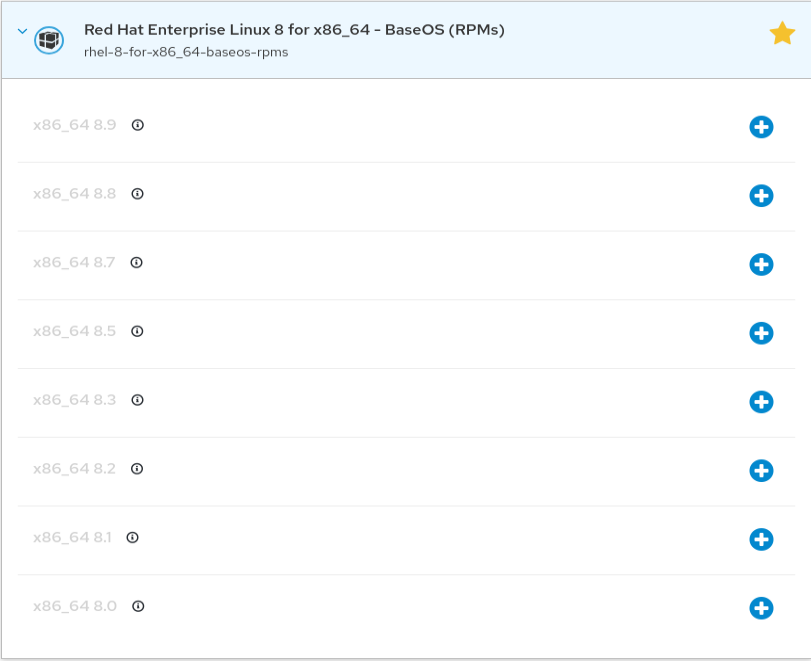
4. Click the "plus" icon to enable the repository
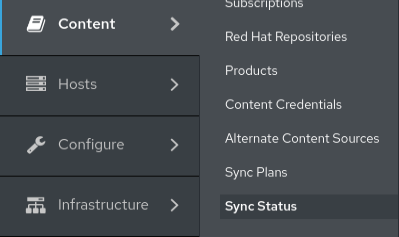
5. Navigate to Content > Sync Status
6. Expand the product by clicking the arrow until the repositories are visible
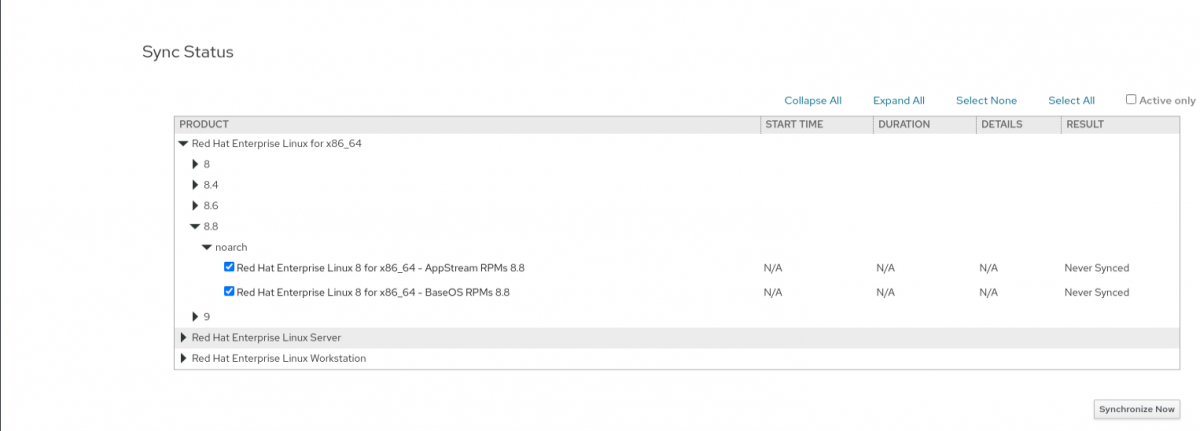
7. Select the checkbox for each repository
8. Click "Synchronize Now"
Root Cause
Repositories are not enabled or synchonized.
Diagnostic Steps
- Check Content > Red Hat Repositories to see if the repositories are enabled.
- Check Content > Sync status to ensure the repository has been synced.
- If the Content Host belongs to a Content View, ensure the repository has been added and the Content View published and promoted.
Refer to this article for detailed instructions on adding a repository to a Content View:
CLI Procedure
In a Content View:
# hammer content-view list              (Note the "CONTENT VIEW ID" # of the Content View)
# hammer content-view info --id X       (Replace X with the CV ID # from previous command)
In the Library:
# hammer repository list                (Note the repo id)
# hammer repository info --id X         (Replace X with the repo id from previous command)
This solution is part of Red Hat’s fast-track publication program, providing a huge library of solutions that Red Hat engineers have created while supporting our customers. To give you the knowledge you need the instant it becomes available, these articles may be presented in a raw and unedited form.