Building a Ceph Storage Cluster Manually
Manual Deployment
All Ceph clusters require at least one monitor, and at least as many OSDs as copies of an object stored on the cluster. Bootstrapping the initial monitor(s) is the first step in deploying a Ceph storage Cluster. Monitor deployment also sets important criteria for the entire cluster, such as the number of replicas for pools, the number of placement groups per OSD, the heartbeat intervals, whether authentication is required, and so on. Most of these values are set by default, so it is useful to know about them when setting up your cluster for production.
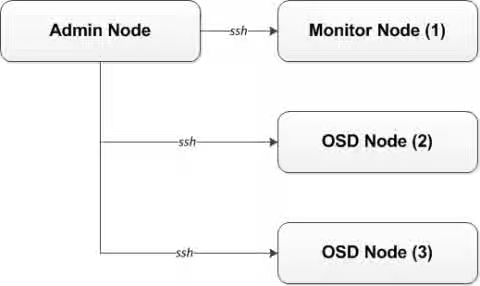
Monitor Bootstrapping
Bootstrapping a monitor (a Ceph Storage Cluster, in theory) requires a number of things :
-
Unique Indentifier : The
fsidis a unique identifier for the cluster, and stands for File System ID from the days when the Ceph Storage Cluster was principally for the Ceph Filesystem. Ceph now supports native interfaces, block devices, and object storage gateway interfaces too, sofsidis a bit of a misnomer. -
Cluster Name : Ceph clusters have a cluster name, which is a simple string without spaces. The default cluster name is
ceph, but you may specify a different cluster name. Overriding the default cluster name is especially useful when you are working with multiple clusters and you need to clearly understand which cluster your are working with.For example, when you run multiple clusters in a This content is not included.federated architecture, the cluster name (for example,
us-west,us-east) identifies the cluster for the current CLI session.
Note : To identify the cluster name on the command line interface, specify the Ceph configuration file with the cluster name (for example,ceph.conf,us-west.conf,us-east.conf, and so on). Also see CLI usage (ceph --cluster {cluster-name}). -
Monitor Name : Each monitor instance within a cluster has a unique name. In common practice, the Ceph Monitor name is the host name (we recommend one Ceph Monitor per host, and no commingling of Ceph OSD daemons with Ceph Monitors). You may retrieve the short hostname with
hostname -s. -
Monitor Map : Bootstrapping the initial monitor(s) requires you to generate a monitor map. The monitor map requires the
fsid, the cluster name (or uses the default), and at least one host name and its IP address. -
Monitor Keyring : Monitors communicate with each other via a secret key. You must generate a keyring with a monitor secret and provide it when bootstrapping the initial monitor(s).
-
Administrator Keyring : To use the
cephCLI tools, you must have aclient.adminuser. So you must generate the admin user and keyring, and you must also add theclient.adminuser to the monitor keyring.
The foregoing requirements do not imply the creation of a Ceph configuration file. However, as a best practice, we recommend creating a Ceph configuration file and populating it with the fsid, the mon initial members and the mon host settings at minimum.
You can get and set all of the monitor settings at runtime as well. However, a Ceph configuration file may contain only those settings that override the default values. When you add settings to a Ceph configuration file, these settings override the default settings. Maintaining those settings in a Ceph configuration file makes it easier to maintain your cluster.
The bootstrapping procedure is as follows :
-
On your initial monitor node, verify you have installed all the packages for
ceph-monand a directory for the Ceph configuration file exists. By default, Ceph uses/etc/ceph/. When you install Ceph, the installer will create the/etc/ceph/directory automatically. For more details on how to install Ceph, please see the This content is not included.Ceph Installation Guide :$ ls /etc/cephNote : Deployment tools may remove this directory when purging a cluster (for example,
ceph-deploy purgedata {node-name}, andceph-deploy purge {node-name}). -
Create a Ceph configuration file. By default, Ceph uses
ceph.conf, wherecephreflects the cluster name :$ sudo touch /etc/ceph/ceph.conf -
Generate a unique ID (that is,
fsid) for your cluster and add the unique ID to your Ceph configuration file :$ sudo echo "[global]" > /etc/ceph/ceph.conf $ sudo echo "fsid = `uuidgen`" >> /etc/ceph/ceph.conf -
View your current Ceph configuration file :
For example :
$ cat /etc/ceph/ceph.conf [global] fsid = a7f64266-0894-4f1e-a635-d0aeaca0e993 -
Add the initial monitor(s) to your Ceph configuration file :
$ sudo echo "mon_initial_members = {hostname}[,{hostname}]" >> /etc/ceph/ceph.confFor example :
$ sudo echo "mon_initial_members = node1" >> /etc/ceph/ceph.conf -
Add the IP address(es) of the initial monitor(s) to your Ceph configuration file and save the file :
$ echo "mon_host = {ip-address}[,{ip-address}]" >> /etc/ceph/ceph.confFor example :
$ echo "mon_host = 192.168.0.120" >> /etc/ceph/ceph.confNote : You may use IPv6 addresses too, but you must set the
ms bind ipv6option totrue. Please see the This content is not included.Network Configuration Guide for more details. -
Create a keyring for your cluster and generate a monitor secret key :
For example :
$ sudo ceph-authtool --create-keyring /tmp/ceph.mon.keyring --gen-key -n mon. --cap mon 'allow *' creating /tmp/ceph.mon.keyring -
Generate an administrator keyring, generate a
client.adminuser and add the user to the keyring :For example :
$ sudo ceph-authtool --create-keyring /etc/ceph/ceph.client.admin.keyring --gen-key -n client.admin --set-uid=0 --cap mon 'allow *' --cap osd 'allow *' --cap mds 'allow' creating /etc/ceph/ceph.client.admin.keyring -
Add the
client.adminkey to theceph.mon.keyring:For example :
$ sudo ceph-authtool /tmp/ceph.mon.keyring --import-keyring /etc/ceph/ceph.client.admin.keyring importing contents of /etc/ceph/ceph.client.admin.keyring into /tmp/ceph.mon.keyring -
Generate a monitor map using the hostname(s), host IP address(es) and the File System Identifier (FSID). Save it as
/tmp/monmap:$ monmaptool --create --add {hostname} {ip-address} --fsid {uuid} /tmp/monmapFor example :
$ monmaptool --create --add node1 192.168.0.120 --fsid a7f64266-0894-4f1e-a635-d0aeaca0e993 /tmp/monmap monmaptool: monmap file /tmp/monmap monmaptool: set fsid to a7f64266-0894-4f1e-a635-d0aeaca0e993 monmaptool: writing epoch 0 to /tmp/monmap (1 monitors) -
Create a default data directory (or directories) on the monitor host(s) :
$ sudo mkdir /var/lib/ceph/mon/{cluster-name}-{hostname}For example :
$ sudo mkdir /var/lib/ceph/mon/ceph-node1Please see the This content is not included.Monitor Configuration Reference section for more details.
-
Populate the monitor daemon(s) with the monitor map and keyring :
$ sudo ceph-mon [--cluster {cluster-name}] --mkfs -i {hostname} --monmap /tmp/monmap --keyring /tmp/ceph.mon.keyringFor example :
$ ceph-mon --mkfs -i node1 --monmap /tmp/monmap --keyring /tmp/ceph.mon.keyring ceph-mon: set fsid to a7f64266-0894-4f1e-a635-d0aeaca0e993 ceph-mon: created monfs at /var/lib/ceph/mon/ceph-node1 for mon.node1 -
View your current
/etc/ceph/ceph.conffile :$ cat /etc/ceph/ceph.conf [global] fsid = a7f64266-0894-4f1e-a635-d0aeaca0e993 mon_initial_members = node1 mon_host = 192.168.0.120Please see the This content is not included.Ceph Configuration Guide for more details on Ceph configuration settings. Consider these other possible settings for a Ceph cluster. Here are some of the most common settings in the
/etc/ceph/ceph.conffile :[global] fsid = {cluster-id} mon initial members = {hostname}[, {hostname}] mon host = {ip-address}[, {ip-address}] public network = {network}[, {network}] cluster network = {network}[, {network}] auth cluster required = cephx auth service required = cephx auth client required = cephx osd journal size = {n} filestore xattr use omap = true osd pool default size = {n} # Write an object n times. osd pool default min size = {n} # Allow writing n copy in a degraded state. osd pool default pg num = {n} osd pool default pgp num = {n} osd crush chooseleaf type = {n} -
Create the
donefile :Mark that the monitor is created and ready to be started :
$ sudo touch /var/lib/ceph/mon/ceph-node1/done -
Start the monitor(s) :
For Ubuntu, use Upstart :
$ sudo start ceph-mon id=node1 [cluster={cluster_name}]In this case, to allow the start of the daemon at each reboot you must create two empty files like this :
$ sudo touch /var/lib/ceph/mon/{cluster_name}-{hostname}/upstartFor example :
$ sudo touch /var/lib/ceph/mon/ceph-node1/upstartFor Debian/CentOS/Red Hat Enterprise Linux, use sysvinit script :
$ sudo touch /var/lib/ceph/mon/{cluster_name}-{hostname}/sysvinit
$ sudo /etc/init.d/ceph start mon.{hostname}
For example :
$ sudo touch /var/lib/ceph/mon/ceph-node1/sysvinit $ sudo /etc/init.d/ceph start mon.node1 -
Verify that Ceph created the default pools :
$ sudo ceph osd lspoolsYou should see output like this :
0 rbd, -
Verify that the monitor is running :
$ sudo ceph -sYou should see output that the monitor you started is up and running, and you should see a health error indicating that placement groups are stuck inactive. It should look something like this :
cluster a7f64266-0894-4f1e-a635-d0aeaca0e993
health HEALTH_ERR 192 pgs stuck inactive; 192 pgs stuck unclean; no osds
monmap e1: 1 mons at {node1=192.168.0.120:6789/0}, election epoch 1, quorum 0 node1
osdmap e1: 0 osds: 0 up, 0 in
pgmap v2: 192 pgs, 3 pools, 0 bytes data, 0 objects
0 kB used, 0 kB / 0 kB avail
192 creating
Note : Once you add OSDs and start them, the placement group health errors should disappear. See the next section for details.
Adding OSDs
Once you have your initial monitor(s) running, you can add the OSDs. Your cluster cannot reach an active + clean state until you have enough OSDs to handle the number of copies of an object. The default number of copies is 3. In our example, we will be using only 2 OSDs, and therefore only 2 copies of an object. After bootstrapping your monitor, your cluster has a default CRUSH map; however, the CRUSH map does not have any Ceph OSD daemons mapped to a Ceph node. Verify you have all the required ceph-osd packages installed on your Ceph OSD node(s) before you start. Please see the This content is not included.OSD Configuration Reference for more details. Choose your preferred method of OSD installation: short or long form.
-
On the monitor node, update the Ceph configuration file :
$ sudo echo "osd_pool_default_size = 2" >> /etc/ceph/ceph.conf $ sudo echo "osd_pool_default_min_size = 1" >> /etc/ceph/ceph.conf -
Copy the
/etc/ceph/ceph.conffile to the OSD node
Short Form
Ceph provides the ceph-disk utility, which prepares a disk, partition or directory for use with Ceph. The ceph-disk utility creates the OSD ID by incrementing the index. Additionally, ceph-disk adds the new OSD to the CRUSH map under the host for you. Execute the ceph-disk -h command for CLI details. The ceph-disk utility automates the steps of the Long Form below. The recommended minimum disk (or partition) size is 10GB. To create the OSDs with the short form procedure, execute the following commands on each OSD node :
-
On your OSD node(s), prepare the OSD disk :
$ sudo ceph-disk prepare --cluster {cluster_name} --cluster-uuid {uuid} --fs-type {ext4|xfs|btrfs} {data-path} [{journal-path}]For example :
$ sudo ceph-disk prepare --cluster ceph --cluster-uuid a7f64266-0894-4f1e-a635-d0aeaca0e993 --fs-type xfs /dev/sdb -
Activate the OSD :
$ sudo ceph-disk activate {data-path} [--activate-key {path}]For example :
$ sudo ceph-disk activate /dev/sdb1Note : Use the
--activate-keyargument if you do not have a copy of/var/lib/ceph/bootstrap-osd/{cluster}.keyringon the OSD node.
Long Form
Creating and adding an OSD to the cluster and updating the CRUSH map, without the benefit of any helper utilities, do the following procedure. To create the first two OSDs with the long form procedure, execute the following on each OSD node :
-
On the OSD node(s), create the OSD. If no UUID is given, it will be set automatically when the OSD starts up. The following command outputs the OSD number needed for subsequent steps :
$ sudo ceph osd create [{uuid} [{id}]]For example :
$ uuidgen b367c360-b364-4b1d-8fc6-09408a9cda7a $ sudo ceph osd create b367c360-b364-4b1d-8fc6-09408a9cda7a 0 -
Create the default directory for your new OSD :
$ sudo mkdir /var/lib/ceph/osd/{cluster_name}-{osd_number}For example :
$ sudo mkdir /var/lib/ceph/osd/ceph-0 -
Prepare the drive for use as an OSD, and mount it to the directory you just created. Create a partition for the Ceph data and journal. This example is using a 10GB disk :
$ sudo parted {path-to-disk} mklabel gpt
$ sudo parted {path-to-disk} mkpart primary 1 10000
$ sudo mkfs -t {fstype} {path-to-data-partition}
$ sudo mount -o noatime {path-to-data-partition} /var/lib/ceph/osd/{cluster_name}-{osd_number}
For example :
$ sudo parted /dev/sdb mklabel gpt $ sudo parted /dev/sdb mkpart primary 1 10000 $ sudo mkfs -t xfs /dev/sdb1 $ sudo mount -o noatime /dev/sdb1 /var/lib/ceph/osd/ceph-0 -
Initialize the OSD data directory :
$ sudo ceph-osd -i {osd_number} --mkfs --mkkey --osd-uuid {uuid}For example :
$ sudo ceph-osd -i 0 --mkfs --mkkey --osd-uuid b367c360-b364-4b1d-8fc6-09408a9cda7a
... auth: error reading file: /var/lib/ceph/osd/ceph-0/keyring: can't open /var/lib/ceph/osd/ceph-0/keyring: (2) No such file or directory
... created new key in keyring /var/lib/ceph/osd/ceph-0/keyring
The directory must be empty before you can run
ceph-osdwith the--mkkeyoption. If you have a custom cluster name, theceph-osdtool requires the--clusteroption. -
Register the OSD authentication key. If your cluster name differs from "ceph", insert your cluster name instead :
$ sudo ceph auth add osd.{osd_number} osd 'allow *' mon 'allow profile osd' -i /var/lib/ceph/osd/{cluster_name}-{osd_number}/keyringFor example :
$ sudo ceph auth add osd.0 osd 'allow *' mon 'allow profile osd' -i /var/lib/ceph/osd/ceph-0/keyring added key for osd.0 -
Add your OSD node to the CRUSH map :
$ sudo ceph [--cluster {cluster-name}] osd crush add-bucket {hostname} hostFor example :
$ sudo ceph osd crush add-bucket node2 host -
Place the OSD node under the
defaultCRUSH tree :$ sudo ceph osd crush move node2 root=default -
Add the OSD disk to the CRUSH map so that the OSD can begin receiving data. You may also decompile the CRUSH map, and add the OSD to the device list. If the host is not already in the CRUSH map, add the host as a bucket, add the device as an item in the host, assign it a weight, recompile it and set it :
$ sudo ceph [--cluster {cluster-name}] osd crush add {id-or-name} {weight} [{bucket-type}={bucket-name} ...]For example :
$ sudo ceph osd crush add osd.0 1.0 host=node2 add item id 0 name 'osd.0' weight 1 at location {host=node2} to crush map -
After you add an OSD to the Ceph cluster, the OSD is in your configuration. However, it is not yet running. The OSD is
downandin. You must start your new OSD before it can begin receiving data :For Ubuntu, use Upstart :
$ sudo start ceph-osd id={osd_number} [cluster={cluster_name}]For example :
$ sudo start ceph-osd id=0For Debian/CentOS/Red Hat Enterprise Linux, use sysvinit :
$ sudo touch /var/lib/ceph/osd/{cluster_name}-{osd_number}/sysvinit
$ sudo /etc/init.d/ceph start osd.{osd_number} [--cluster {cluster_name}]
For example :
$ sudo touch /var/lib/ceph/osd/ceph-0/sysvinit
$ sudo /etc/init.d/ceph start osd.0
Once you start your OSD, it is
upandin.
Summary
Once you have your monitor and two OSDs up and running, you can watch the placement groups peer by executing the following command :
ceph -w
To view the tree, execute the following :
ceph osd tree
You should see output that looks something like this :
ID  WEIGHT    TYPE NAME        UP/DOWN  REWEIGHT  PRIMARY-AFFINITY
-1       2    root default
-2       2        host node2
 0       1            osd.0         up         1                 1
-3       1        host node3
 1       1            osd.1         up         1                 1
Please see the Ceph Administration Guide to This content is not included.add or This content is not included.remove monitors. Also see the Ceph Administration Guide to This content is not included.add or This content is not included.remove OSDs.