How do I join a remote support session via Beyond Trust (f.k.a. Bomgar)?
Purpose: This document outlines the necessary steps to join a remote session specifically through the Beyond Trust (formeraly known as: Bomgar) tool. If you are attempting to join/initiate a remote session via another tool, please refer to What is a Remote Support Session and how to acknowledge the Remote Access Rider? for further guidance.
What is a Remote Support Session?
A remote support session can be used to view and/or access a customer's computer to troubleshoot and allow collaboration between multiple support engineers on a technical support issue. However, remote access to your systems is not a standard Red Hat problem resolution process and Red Hat is not obligated to remotely access your systems to provide Support Services.
Red Hat may agree to remotely access your systems if:
- Such access will help diagnose, debug or lead to the resolution of a software defect
- When agreed upon by both Red Hat and you, the end user
Red Hat will not remotely access your systems in scenarios where there is no software defect. Such scenarios include, but are not limited to:
- Performing system administration functions
- Standing by during migrations or upgrades
- Debugging non-Red Hat software
- Monitoring your environment
- Walking through documentation, installations or configurations
This tool should not be considered for remote consultancy. Your Red Hat support representative can get you in contact with our Professional Services team if you need additional IT resources. Or, you can visit This content is not included.Red Hat Consulting for information.
NOTE: It is preferable that remote support sessions be planned in advance to confirm availability of all necessary attendees/resources.
How Can I Join a Remote Support Session Initiated by Red Hat?
-
Before Red Hat can engage in a remote support session, the Remote Access Rider must be acknowledged to authorize Red Hat's access to their environment. Please refer to What is a Remote Support Session and how to acknowledge the Remote Access Rider? for details and instructions for this process.
-
Navigate to This content is not included.remotesupport.redhat.com and enter the session key received from Red Hat Support. You can also use the URL you received via email or instructions posted as a comment in the Red Hat Support Portal case.
NOTE: Ports 80 and 443 need to be opened on customer firewall. While not required, Port 8200 is also recommended to be opened as it is used as a rollover for port 443. See "What communication ports are required to initiate a remote session using Bomgar" for additional information.
- Click on the Click Here button from the This content is not included.remotesupport.redhat.com page to start the remote support session.
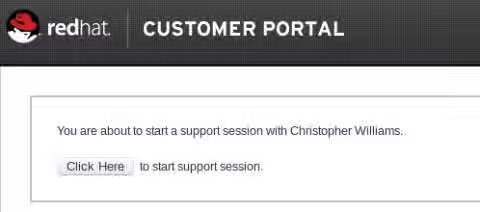
- When clicked, you will be prompted to start a remote session. Click “Yes” to initiate downloading an executable file that will launch the BeyondTrust app.
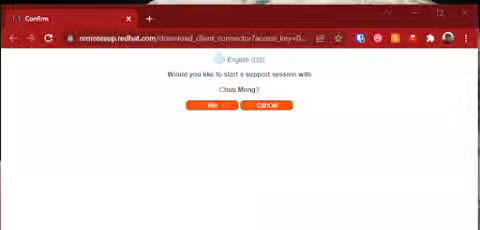
5)Once the executable file is downloaded, run the file. When the executable is run, you will see a confirmation window.
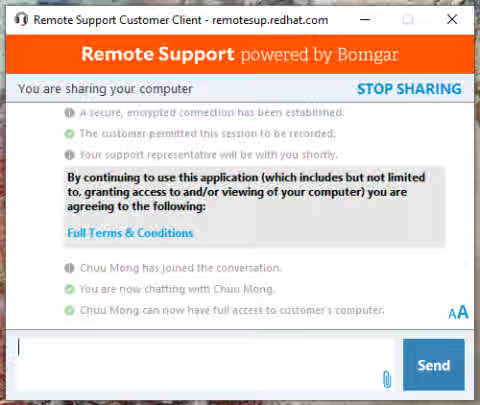
- At this point, the Red Hat support engineer will request access to your system. You should receive a message in your chat window similar to the following:
<Support_Tech_Name> is requesting to elevate to full remote support, which will allow more features like screen sharing and file transfer.
Would you like to Allow or Refuse?
-
Click Allow to continue.
-
After allowing, you should see the following message in the BeyondTrust app’s chat window:
<Support_Tech_Name> can now view and control the customer’s reen.
Note: If you do not wish to allow control of your computer by the Red Hat support engineer, select Refuse and notify the support engineer via the chat window and discuss other tooling options.
- Once troubleshooting/diagnosis is complete, you can end the remote support session.
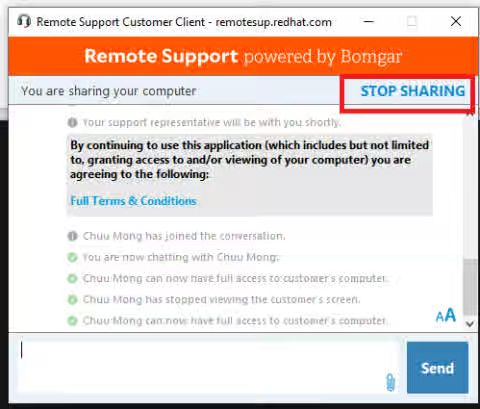
If you have any concerns about security during your remote session, please see the following Beyond Trust documentation:
Content from www.beyondtrust.com is not included.Content from www.beyondtrust.com is not included.https://www.beyondtrust.com/docs/remote-support/getting-started/deployment/cloud/security/index.htm