Administrative Procedures for RHEL High Availability Clusters - Presenting a Watchdog Device to RHV Virtual Machines to Use for sbd Fencing
Contents
Overview
Applicable Environments
- Red Hat Enterprise Linux (RHEL) 7 with the High Availability Add-On
- Using Red Hat Virtualization (RHV) 4.x virtual machines running RHEL 7 as High Availability cluster members
- Intending to use
sbdfencing in this cluster
Situations Where This Procedure May Be Useful
- A RHEL High Availability cluster is being created from RHV virtual machines, and STONITH configuration needs to be completed
- It is preferred that
sbdfencing be used, utilizing a watchdog device
What This Procedure Accomplishes
This procedure will result in the cluster members having access to their own RHV-provided watchdog device, which can be utilized by sbd fencing in a High Availability cluster. sbd configuration is outside the scope of this document, with this guide focusing specifically on presentation of the watchdog device.
Procedure: Presenting a RHV watchdog device to a virtual machine
NOTE: This procedure should typically be completed on every VM which will participate in the High Availability cluster and require fencing. Instructions will cover the steps from the perspective of a single VM, and those steps can be repeated on each VM.
Task: Access RHV-Manager Web Administration portal and create or edit VM
Visit the URL of the RHV-Manager Web Administration portal. Log in as a user account that has administration privileges for the virtual machine(s) that will operate in the High Availability cluster.
Proceed to either New VM if the VM needs to be created, or select an existing VM that will operate in the cluster and select Edit from the right-click menu.
Task: Go to Advanced Options and High Availability
At the bottom of the Edit window, click Show Advanced Options.
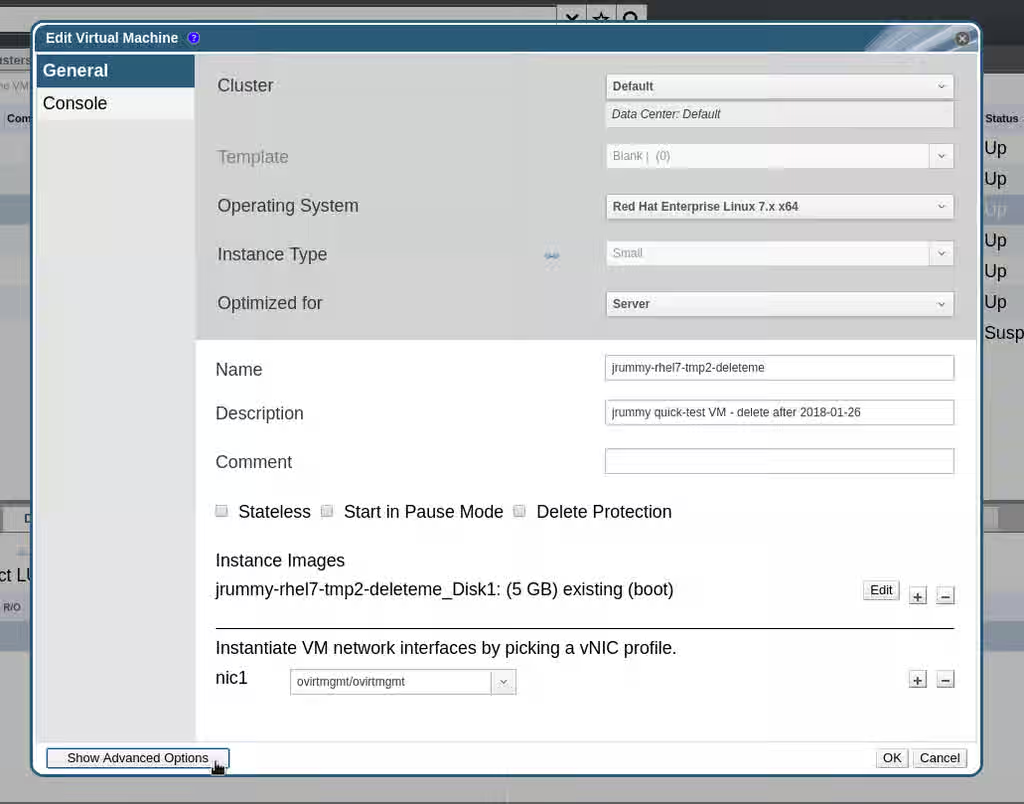
This will reveal a High Availability option in the left-side menu. Select that option.
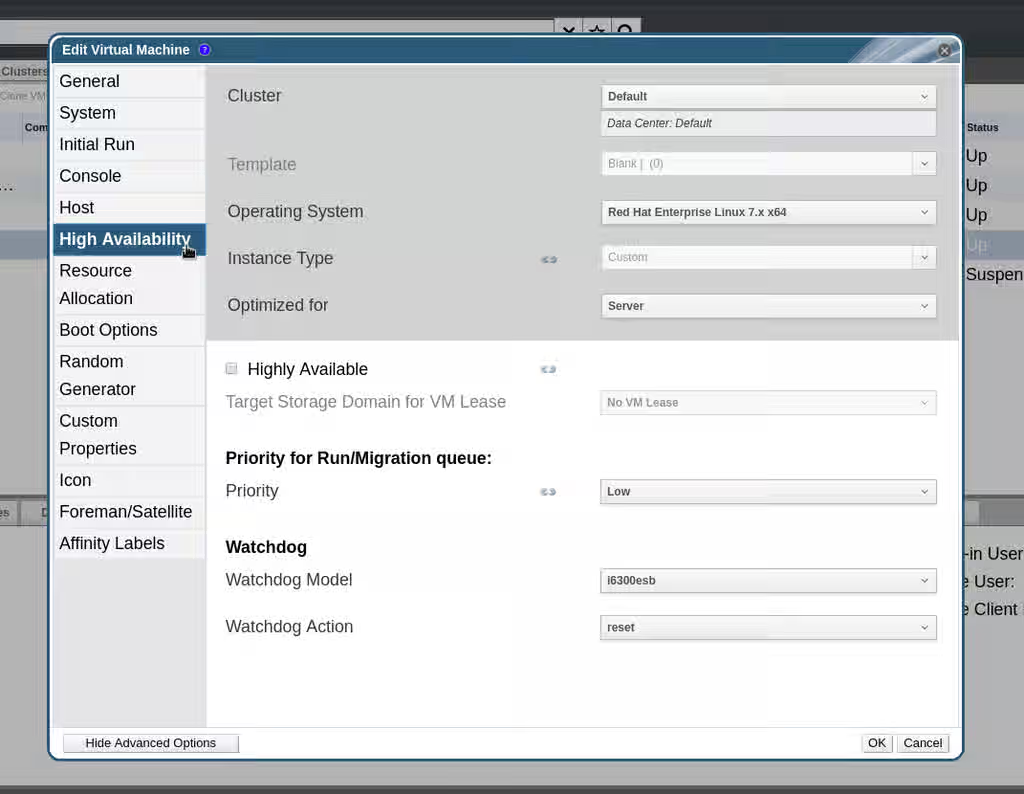
Task: Set watchdog options
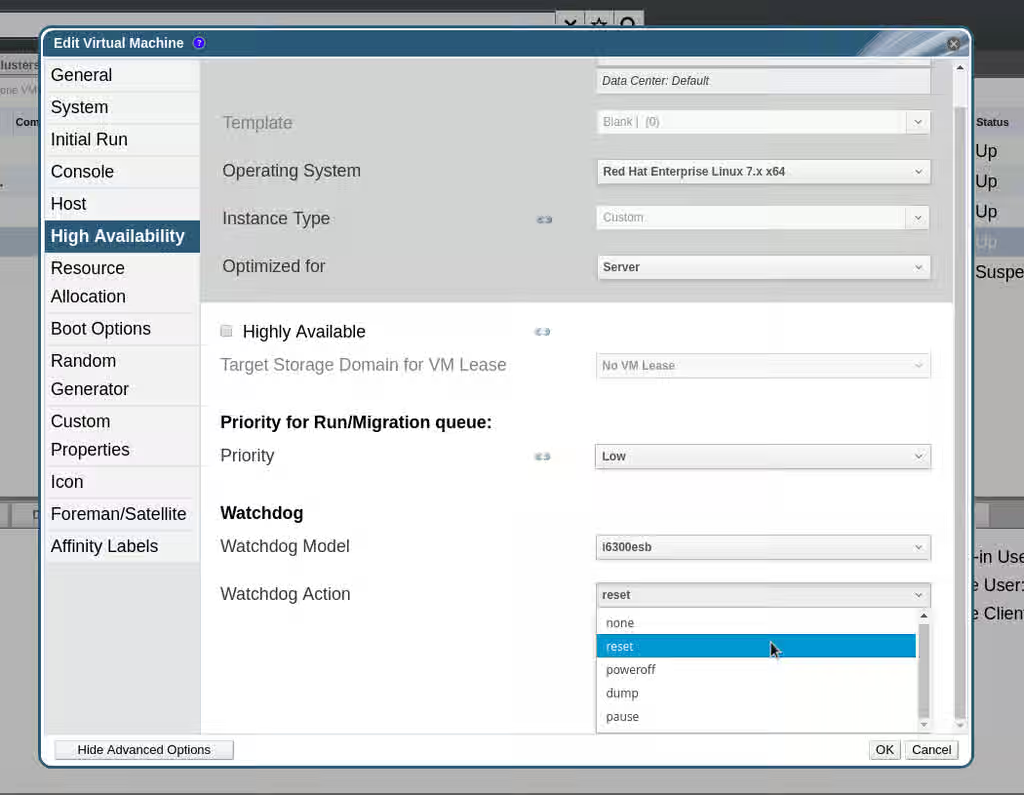
In the Watchdog Model setting, choose i6300esb. In the Watchdog Action setting, choose either reset or poweroff, depending on whether you want fenced nodes to reboot automatically (reset) or stay off until an administrator intervenes (poweroff). reset is the value recommended by Red Hat for most situations.
Task: Configure other VM settings as needed and power-on / install RHEL (if needed)
Finish configuring the VM as needed, and hit the OK button to save. Run the VM from the RHV administration portal, and if the VM has yet to be installed with RHEL, proceed to complete the installation as needed for your organization.
Task: Verify watchdog functionality
Once RHEL is installed and the VM is booted, log in via ssh or the console. Verify the watchdog functionality by checking for /dev/watchdog and triggering a watchdog-reset.
For detailed instructions, see: Diagnostic procedure - Validating a Watchdog Timer Device (WDT) for Usage with sbd
For example:
[root@rhvvm-hanode1 ~]# ls -l /dev/watchdog
crw-------. 1 root root 10, 130 Jan 26 11:59 /dev/watchdog
[root@rhvvm-hanode1 ~]# dmesg | grep -i watchdog
[    7.957207] i6300esb: Intel 6300ESB WatchDog Timer Driver v0.05
[root@dhcp181-216 ~]# modinfo i6300esb
filename:       /lib/modules/3.10.0-693.el7.x86_64/kernel/drivers/watchdog/i6300esb.ko.xz
alias:          char-major-10-130
license:        GPL
description:    Watchdog driver for Intel 6300ESB chipsets
author:         Ross Biro and David Härdeman
rhelversion:    7.4
srcversion:     8296B12AC239294E2E67E67
alias:          pci:v00008086d000025ABsv*sd*bc*sc*i*
depends:
intree:         Y
vermagic:       3.10.0-693.el7.x86_64 SMP mod_unload modversions
signer:         Red Hat Enterprise Linux kernel signing key
sig_key:        4F:FD:D6:3C:93:7E:B4:A7:A1:14:BC:5E:89:1A:CB:DE:50:20:65:21
sig_hashalgo:   sha256
parm:           heartbeat:Watchdog heartbeat in seconds. (1<heartbeat<2046, default=30) (int)
parm:           nowayout:Watchdog cannot be stopped once started (default=0) (bool)
[root@rhvvm-hanode1 ~]# timeout=30; echo; echo; echo "Opening watchdog device to start countdown from $timeout"; e
cho start > /dev/watchdog; echo "Counting down.  The system should halt near 0 if the watchdog is functional.";
while true; do if [ $timeout -le 0 ]; then echo "Timeout expired.  System should be halting."; else echo "$timeo
ut..."; fi; timeout=$((timeout-1)); sleep 1; done;

Opening watchdog device to start countdown from 30
Counting down.  The system should halt near 0 if the watchdog is functional.
30...
29...
[...]
3...
2...
1...
Timeout expired.  System should be halting.
The session should become unresponsive at this point and the console and RHV-M web administration portal should show the VM rebooting or powered off (in accordance with the earlier watchdog settings).
If the system doesn't reset or poweroff, further investigation is required before setting up sbd. If the system did follow the configured action, this device is ready to be used with sbd.