Administrative Procedures for RHEL High Availability Clusters: Configuring VMware VMs to be Compatible with the fence_scsi or fence_mpath STONITH Method
Contents
Overview
Applicable Environments
- Red Hat Enterprise Linux (RHEL) 7 with the High Availability Add-On
- Using VMware guests running RHEL 7 as High Availability cluster members
- All applications managed by the cluster rely on data from one or more shared storage devices.
fence_scsicannot serve its purpose in clusters managing applications that do not use shared storage.
Recommended Prior Reading
- Support policies - VMware virtual machines as cluster members
- Support policies -
fence_scsiandfence_mpath
Useful References and Guides
- This content is not included.Administrative procedures for RHEL High Availability clusters
- Design guidance - VMware virtual machines as cluster members
Situations Where This Procedure May Be Useful
- A RHEL High Availability cluster is being created from VMware guests, and STONITH configuration needs to be completed
- It is preferred that the cluster manage these members via storage-device fencing, having the cluster control member access to shared storage
What This Procedure Accomplishes
This procedure will guide the user through configure a VMware virtual machine and its storage devices up for it to be compatible with the fence_scsi STONITH method. When these tasks are complete, configuration of fence_scsi's management of the cluster's shared storage devices can proceed.
The configuration of fence_scsi itself is covered in separate documentation. This procedure only focuses on the host-side configuration of VM and storage devices.
Procedure: Configure VMs for compatibility with fence_scsi or fence_mpath
Task: Review support policies for compatibility with your configuration
Determine if your configuration is compatible with these agents. See: Support policies - fence_scsi and fence_mpath
If the cluster's storage needs can be met with iSCSI devices presented directly to VMs (not through VMware virtualization layers) - then the rest of this procedure is not needed.
If the cluster's storage will be configured through RDM, meeting the conditions in the above support policy reference - follow these steps.
If the cluster's storage needs to be a different configuration that does not meet the supported conditions - consider if storage configuration can be modified, or if another STONITH method is more appropriate. This procedure is not applicable unless those conditions can be met.
Task: Present cluster's storage LUNs to hosts
RDM devices will need to be backed by LUNs presented to all the hosts that VMs in this cluster will run from. Present those LUNs to the hosts - if they are not already - using your storage administration tools, in whatever configuration is needed for this cluster.
Task: Access host and VM configuration with vSphere client
Either connect to the vCenter Server if one is available, or to each ESXi host individually. Log in with administrator credentials that have access to the hosts and VMs in question.
With DRS clusters - Task: Configure VM placement
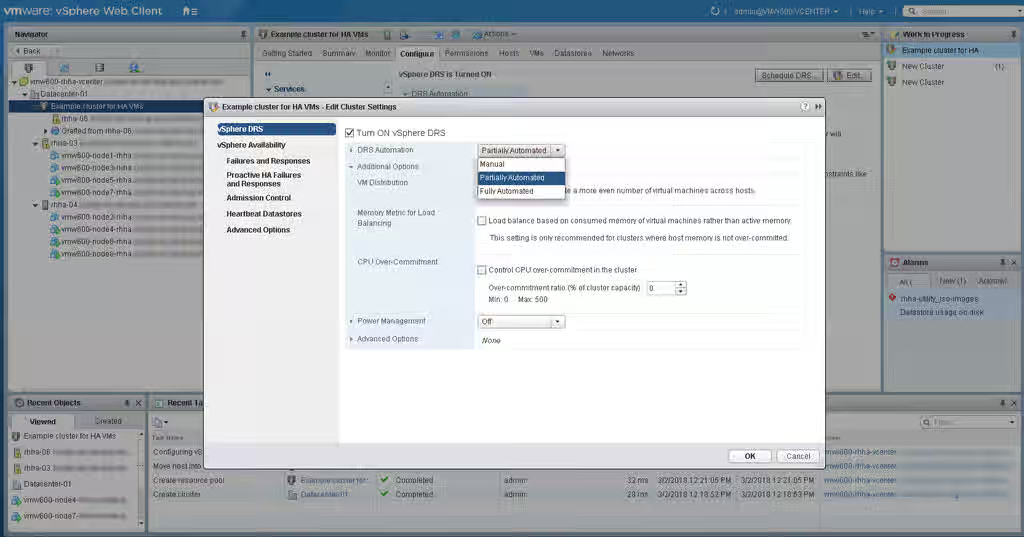
First, make sure the vSphere DRS DRS Automation setting is not set to Fully Automated - this setting could result in live migration of VMs that are cluster members, which is not supported by Red Hat. Either Manual or Partially Automated is fine.
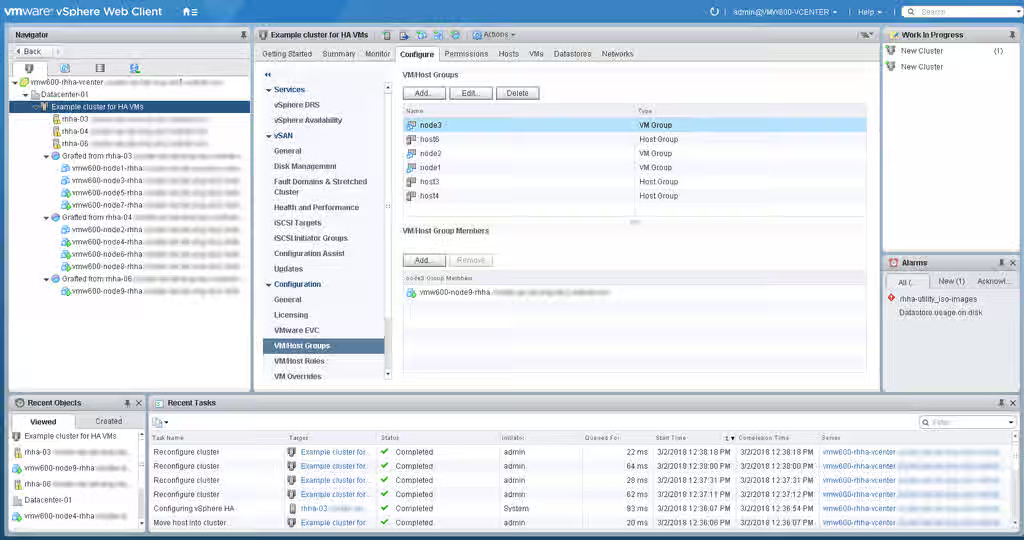
Now set up DRS VM/host groups, and VM/host rules to ensure every VM of the cluster always runs on a separate host. If any VM could failover to the same host, it may invalidate the reservations/registrations used for STONITH. There are various strategies that could work here - having each VM assigned to group with exclusive memberships with multiple hosts in each one provides many recovery options; or each VM could be assigned to a different group with a single host.
To start, create the VM/host groups if they don't already exist - go to the DRS cluster in the list -> Configure -> VM/host groups. Each VM of the cluster will need to be in a separate group from each other, and then the host groups should be laid out as preferred - ensuring there is no overlap in host group members.
Now create the VM/host rules to assign the VM groups to their respective groups - using DRS cluster -> Configure -> VM/host rules. Use Type: Virtual Machines to Hosts and select Must run on hosts in group.
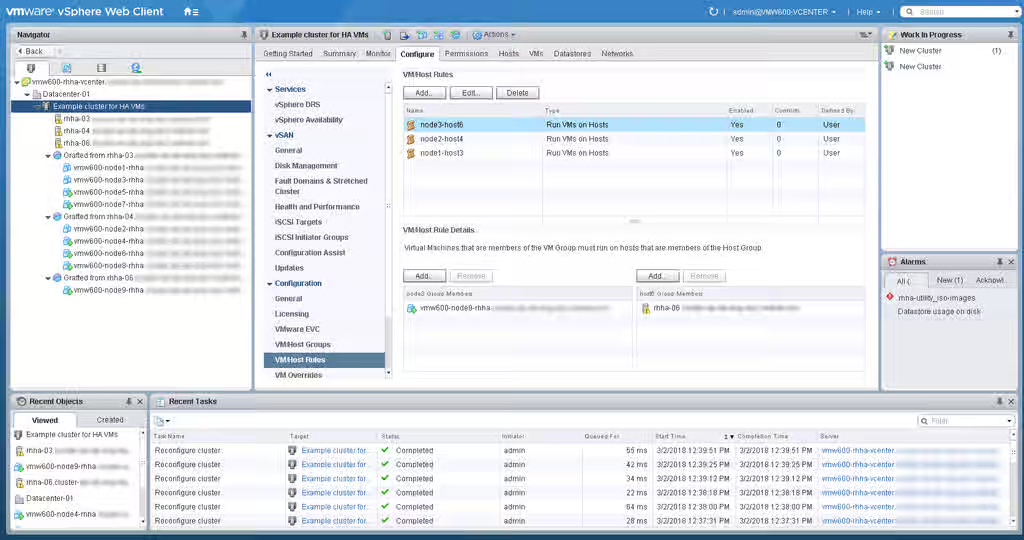
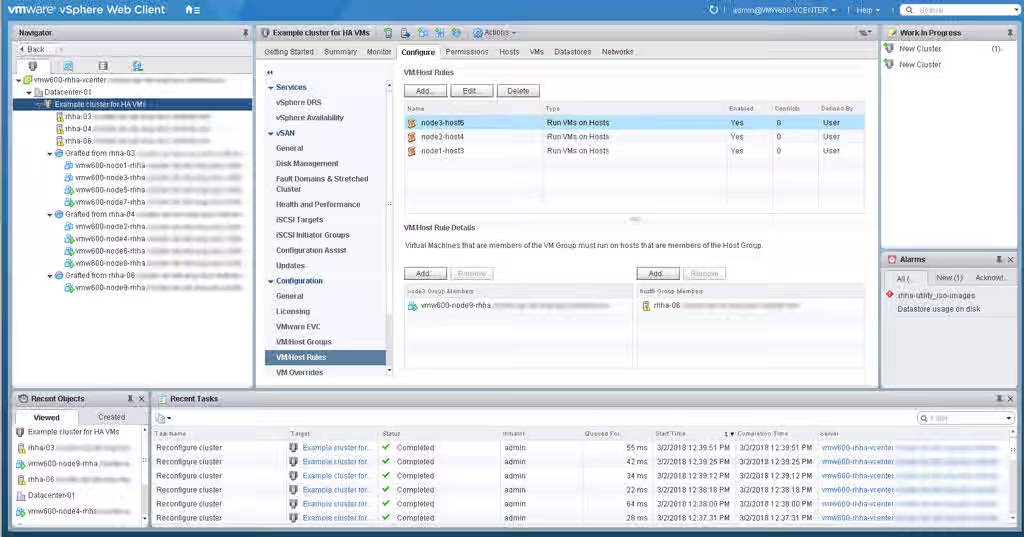
This example shows a simple 1:1 configuration of a VM group to a single host in a group.
Without DRS Clusters - Task: VM Placement
Using vSphere client or whatever management tool you administer VMs with, move the VMs of the cluster to separate hosts.
Adjust any tools, administrative practices, internal documentation, or other elements that could influence these VMs to end up the same host - making sure that is prevented in all situations.
Task: Create/Edit VMs' virtual SCSI controller
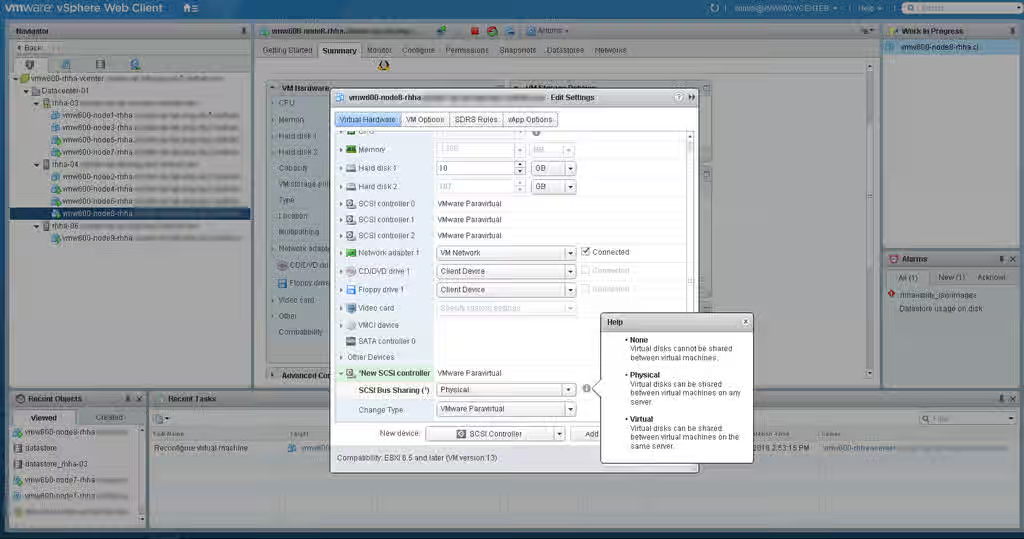
Each storage device that the cluster members will share needs to be accessed through the VM's SCSI controller configured with SCSI Bus Sharing mode Physical. So we either need to add a SCSI controller to each VM with this setting, or ensure that the controller to be used on each VM has it set properly.
NOTE: This should not be the same controller used for the primary hard disk that the VM uses for its OS installation; a separate controller is needed for sharing storage throughout the cluster.
Select the VM in the left-hand menu, then go to Configure -> Edit. Either select the SCSI controller that will be used, or add a new one by setting the New Device dropdown to SCSI controller and hitting Add. Edit the SCSI Bus Sharing mode of the selected/created SCSI controller to read Physical, and hit OK. (NOTE: VM may need to be powered off to make this change).
Repeat for each VM.
Task: Configure advanced setting for SCSI controller(s)
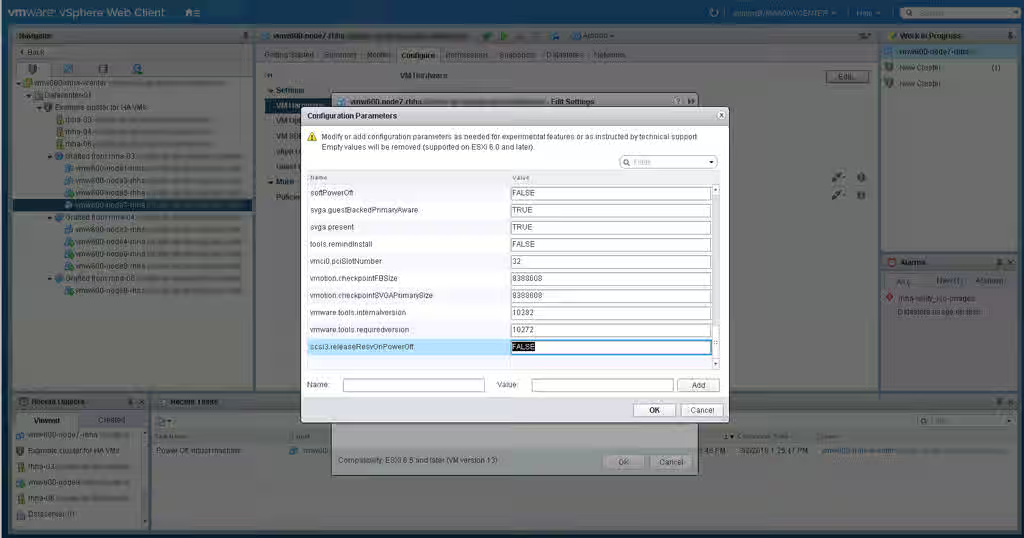
For each SCSI controller that provides a cluster-shared storage device to a VM, we need to configure a special advanced setting called releaseResvOnPowerOff to FALSE.
First, shutdown or power off the VMs (either all at once, or do this in a rolling manner). This setting cannot be set while a VM is operational.
Next, identify the SCSI controller number(s) that we need to work with - again, thats every SCSI controller that provides a shared storage device to the VM. The previous step's Edit screen can help identify these numbers.
Now, still in the VM -> Configure -> Edit screen, choose the VM Options tab. Expand Advanced, and hit Edit Configuration next to Configuration Parameters.
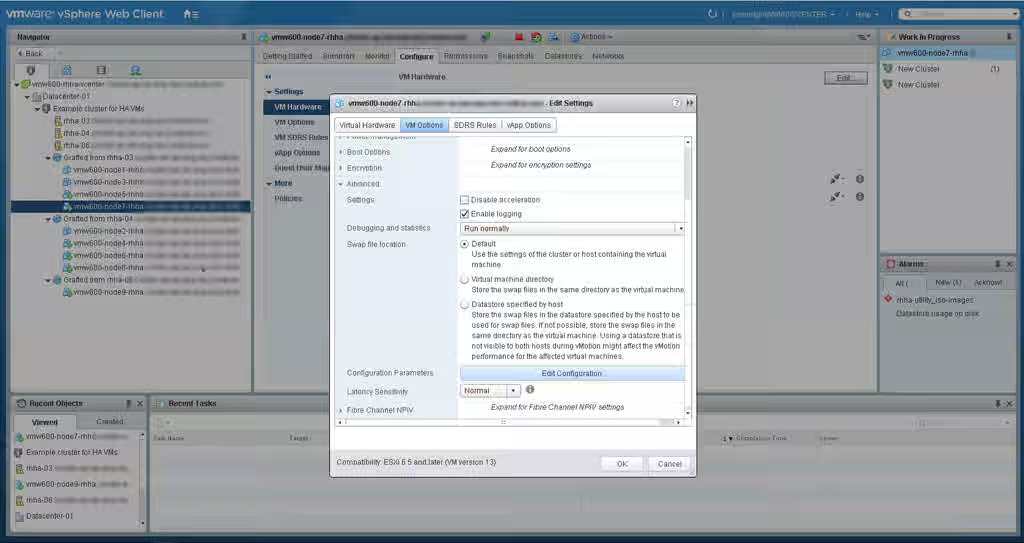
Now we will need to set scsiX.releaseResvOnPowerOff to value FALSE for each SCSI controller providing shared devices - where scsiX is the SCSI controller and number (such as scsi1, scsi2, etc). You can search the list first to make sure this setting is not already configured (it isn't by default). If not, then use the Name and Value fields to set this for each controller.
Repeat for each VM.
Task: Create/Edit RDM storage device(s)
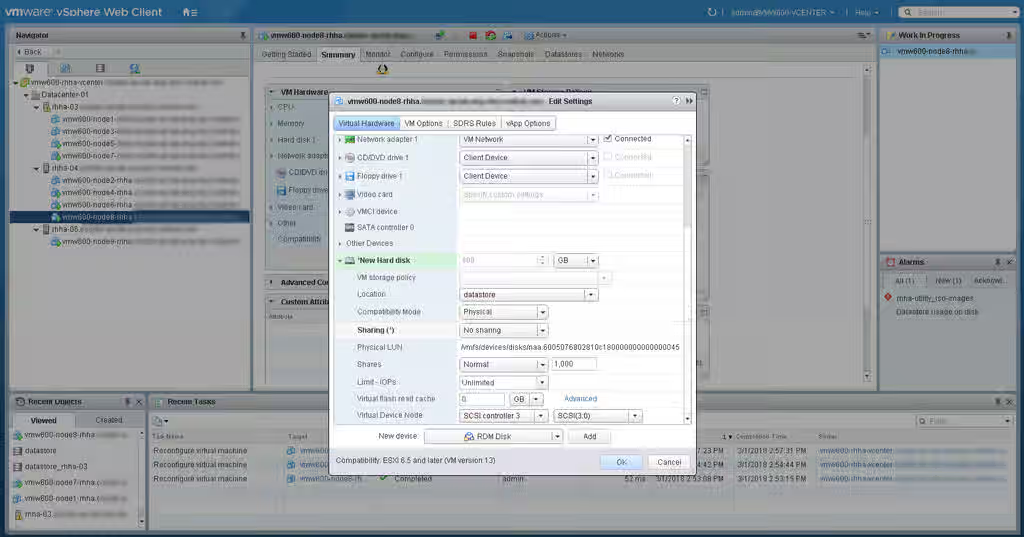
Each shared storage device that the cluster will use needs to be created as an RDM Disk, with certain properties set. If a shared device was created with other properties already, it will need to be deleted and recreated as RDM.
In the VM -> Configure -> -> Edit, set New Device: to RDM Disk and hit Add. Select the LUN that will back this device. Go to the new Hard disk in the list and expand it to see the settings. The important settings here are:
Compatibility Modemust be set toPhysicalVirtual Device Nodeshould have a SCSI controller that we configured the proper sharing and advanced settings for.
Repeat with each shared storage device that is required, on each VM.
Follow-up procedure: Configure fence_scsi or fence_mpath
The VMs should now all have these storage device accessible from within their OS when booted. Inspect storage devices in /dev, the dmesg command, fdisk -l, or other utilities to make sure it looks correct and that the properties of the device(s) match across all VMs.
Now fence_scsi or fence_mpath can be configured to manage these shared devices.
See: Procedure - Using fence_scsi with pacemaker