Deploy Red Hat Data Grid 8 in OpenShift 4 using Operator
This is a step-by-step procedure to deploy Data Grid 8 in an OpenShift 4 cluster using the Data Grid Operator and NFS storage.
Table of Contents
- 1. Create an OpenShift project and Install the Data Grid Operator
- 2. Create Persistence
- 3. Create the Data Grid Cluster via Operator
- 4. Verifying the Cluster Creation process
1. Create an OpenShift project and Install the Data Grid Operator
1.1. Log in OCP cluster and create a new project
-
In OCP left panel, navigate to the Projects tab then click the Create button and fill the project's name:
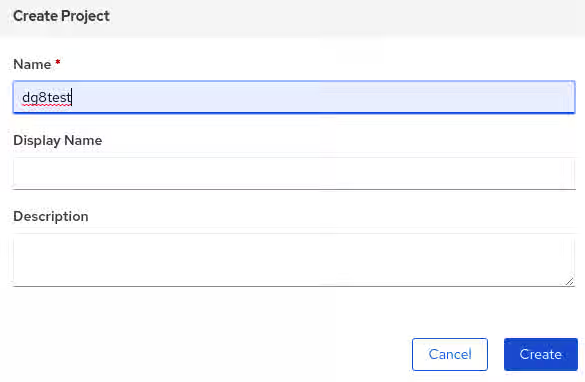
-
In a success creation, the web console will redirect to the project's Overview details:
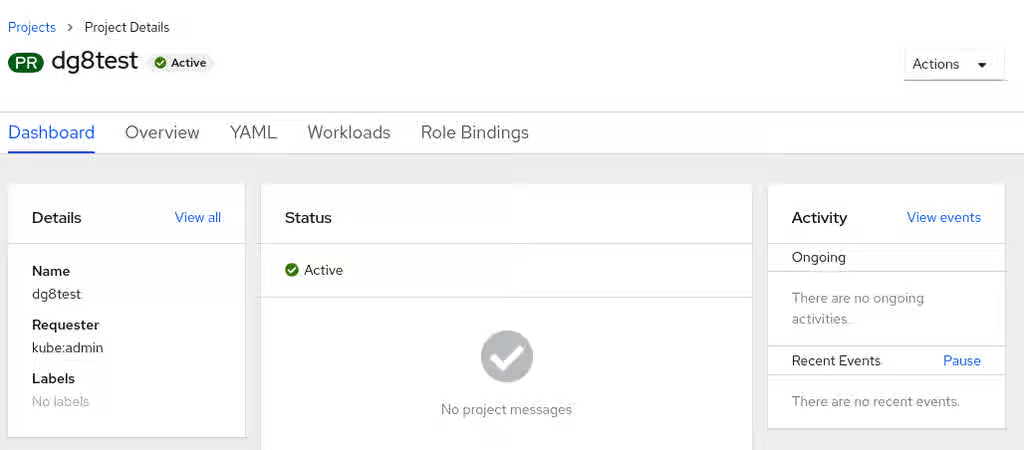
1.2. Search and Install the Data Grid Operator
-
In the left panel, expand the Operator tab then choose OperatorHub. This opens a panel that allows searching the available Operator's catalog. There type datagrid to start the searching. Chose the first option Data Grid provided by Red Hat:
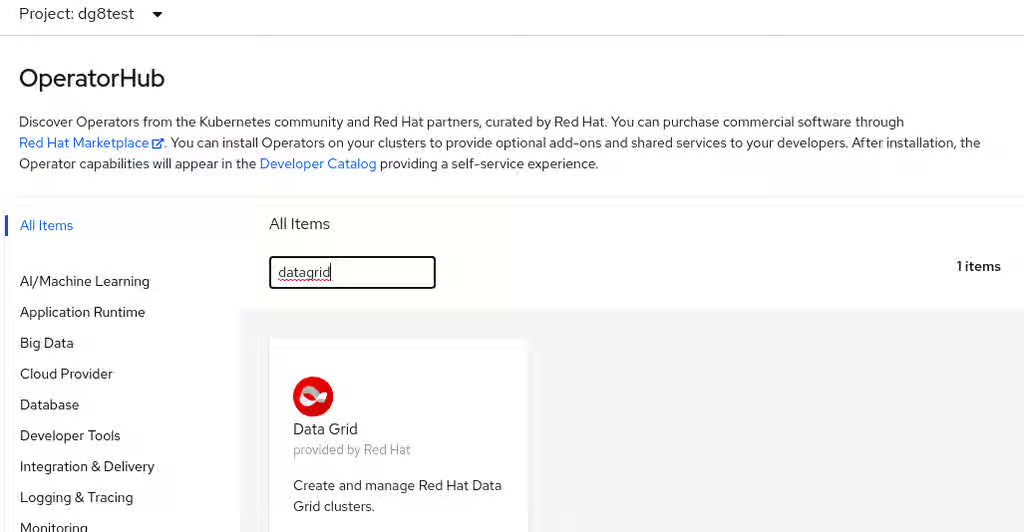
-
Click Install button in the opened panel view. There is also showing details about the selected Operator:
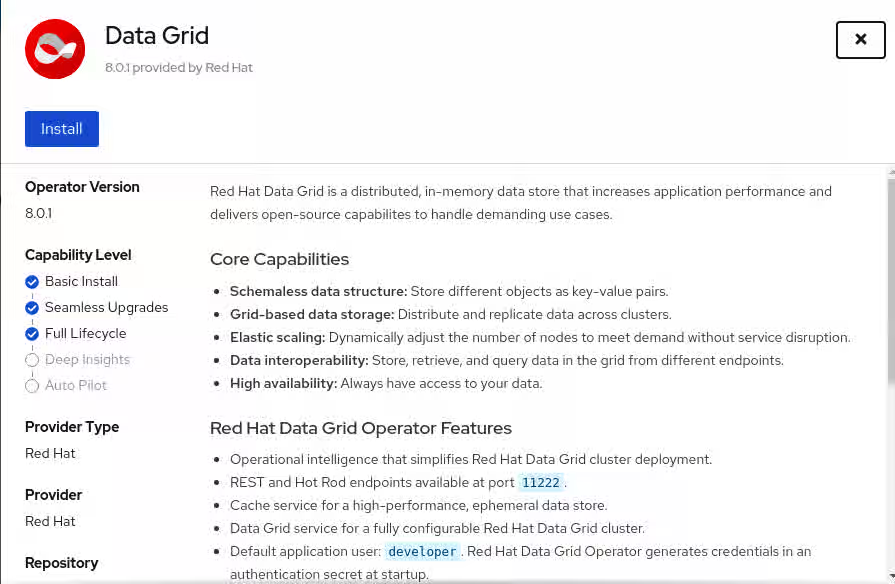
-
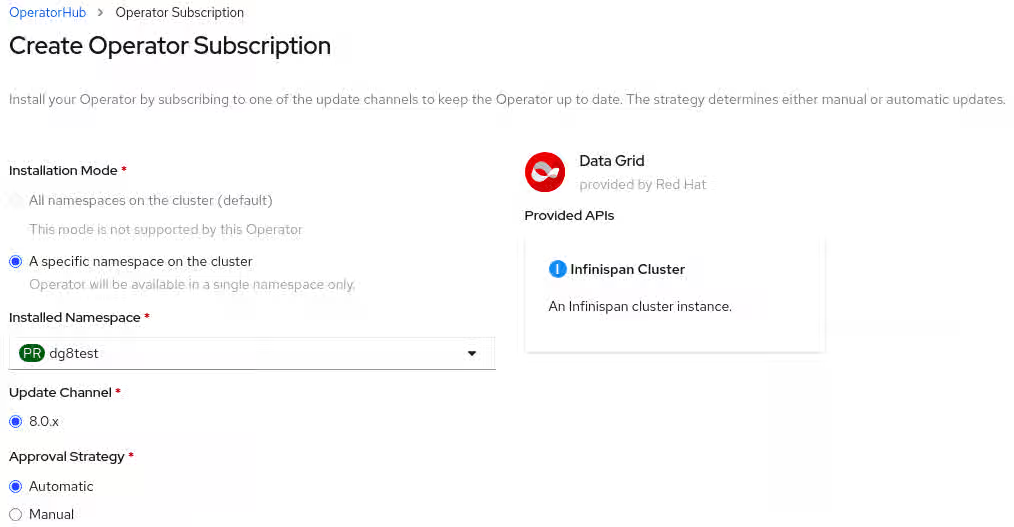
When selecting the Install option, it will send to the Operator Subscription view, there need to set the namespace operator (In this case dg8test) and left the other options as default, then click the Subscribe button:
-
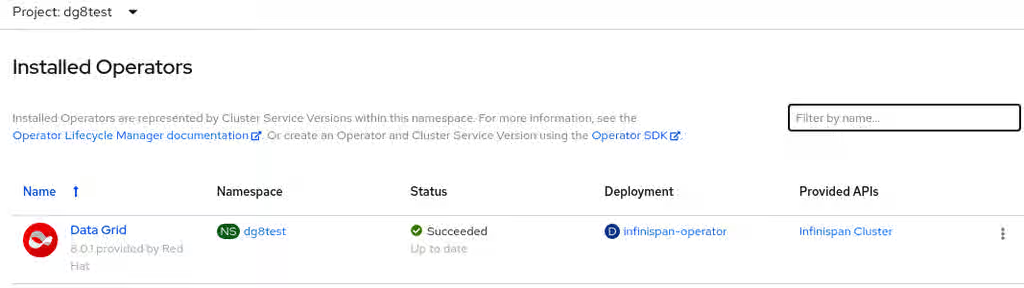
Now, it's possible to check the Operator installation status, navigating in the left panel to Operators tab and Installed Operators:
2. Create Persistence
IMPORTANT: One must have configured an NFS server or cloud storage (AZURE, AWS, etc.). In this example, is configured a classic bare-metal NFS server using an LVM mounted in a directory named /shares - see RHEL 7 NSF Server Configuration guide.
Also, the Data Grid operator takes the default storage class to Persistence creation, if the infrastructure has already a default storage class defined, this step can be skipped.
2.1. Create the Storage Class
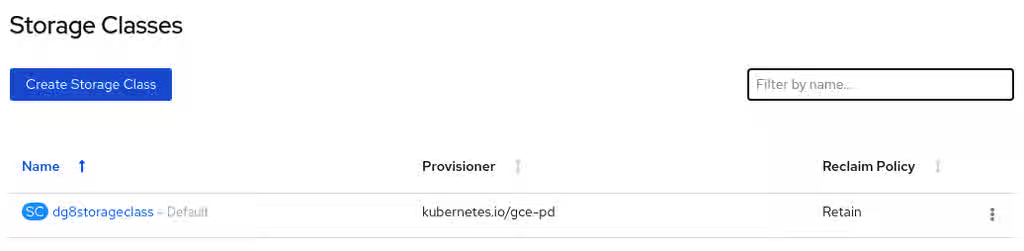
- Storage class helps to dynamically assign Storages (PV) when the PVC is created. To create it, navigate in the left panel to the Storage tab and choose the Storage Classes option, it opens a new panel view where should click the Create Storage Class button, on the top right corner open the YAML editor, where one can create the storage class similar to the below:
kind: StorageClass
apiVersion: storage.k8s.io/v1
metadata:
 name: dg8storageclass
 annotations:
   storageclass.kubernetes.io/is-default-class: 'true'
provisioner: kubernetes.io/gce-pd
reclaimPolicy: Retain
volumeBindingMode: Immediate
-
The YAML structure above creates a Storage Class named dg8storageclass to use as a default storage class (see annotation). The provisioner used is
gce, which means Google Cloud provisioner and only works if one is using Google's cloud platform. For other environments use otherprovisioners, such asthinand/orthis-csistorageclass's for vSphere. Finally, it hasreclaimPolicyreclaimPolicy. -
To get more details about it review the Openshift Documentation - Dynamic provisioning section
2.2. Create the Persistence Volumes (PV)
IMPORTANT: this step only should be executed if there are not dynamic storage provisioning in the Openshift environment
- Navigate in the Web Console left panel in the Storage option, then choose Persistent Volumes option, then click the Create Persistent Volume button. That opens directly the YAML editor where can define the PV configuration and then create each of the PVs.
The example bellow create two Data Grid Pods, the operator will create automatically two Persistent Volume Claims (PVC), so it's important to have prepared the infrastructure to bound those PVCs, performing correctly the previous steps. The below configuration will use the StorageClass dg8storageclass to make possible bound automatically the mentioned PVCs, referencing the PVs. Furthermore, the PVs will reference the NFS server and directory.
- PV1
apiVersion: v1
kind: PersistentVolume
metadata:
 name: example
spec:
 capacity:
   storage: 2Gi
 accessModes:
   - ReadWriteOnce
 persistentVolumeReclaimPolicy: Retain
 storageClassName: dg8storageclass
 nfs:
   path: /shares/node1
   server: 192.168.0.1
- PV2:
apiVersion: v1
kind: PersistentVolume
metadata:
 name: example1
spec:
 capacity:
   storage: 2Gi
 accessModes:
   - ReadWriteOnce
 persistentVolumeReclaimPolicy: Retain
 storageClassName: dg8storageclass
 nfs:
   path: /shares/node2
   server: 192.168.0.1
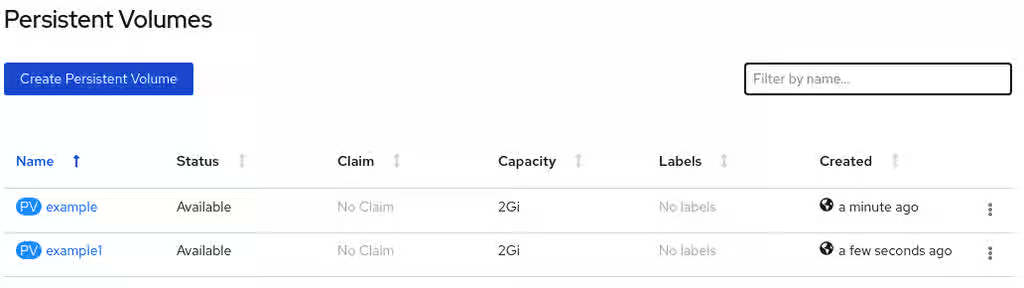
- The created PVs on the Storage tab clicking in
PersistenceVolumes, and can be verified after finish the above described steps:
3. Create the Data Grid Cluster via Operator
Navigate in the Openshift Web Console left panel to the option Operators and choose Installed Operators. Then, open the Data Grid operator and select the Create instance option, it will create the Stateful Set to the Dat Grid nodes that will be created and centralized all the configurations to the pod creation. In this case, will be created 2 Data Grid nodes into the Stateful Set named dgtest:
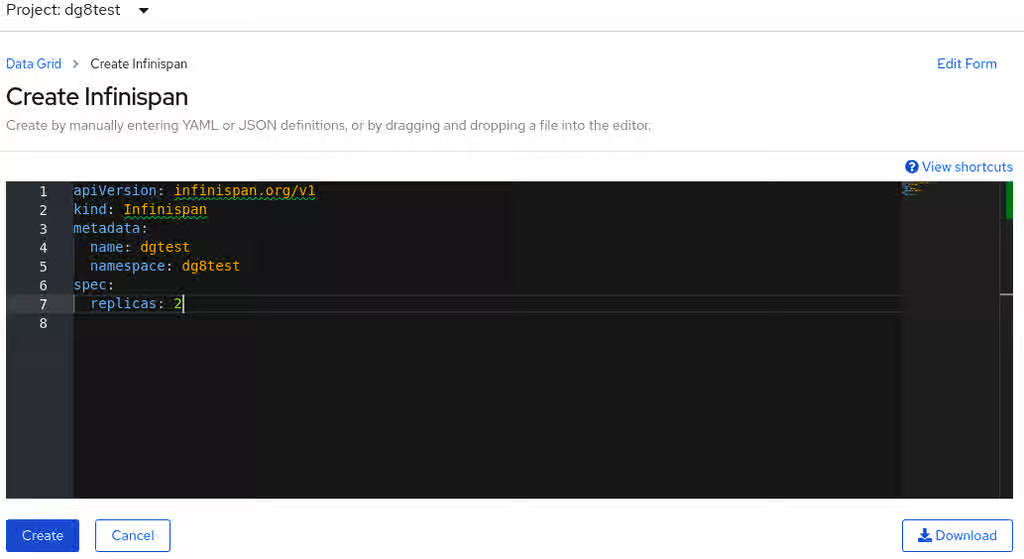
To get more details about the Create Data Grid Cluster options can verify the Running Data Grid on OpenShift - Creating Data Grid Clusters documentation.
4. Verifying the Cluster Creation process
- After the Data Grid cluster is created using the Operator, it's possible to verify the progress and the generated logs. This will include the operator's pod and the cluster's pods. The cluster will be ready to use once both pods are in Running Status:
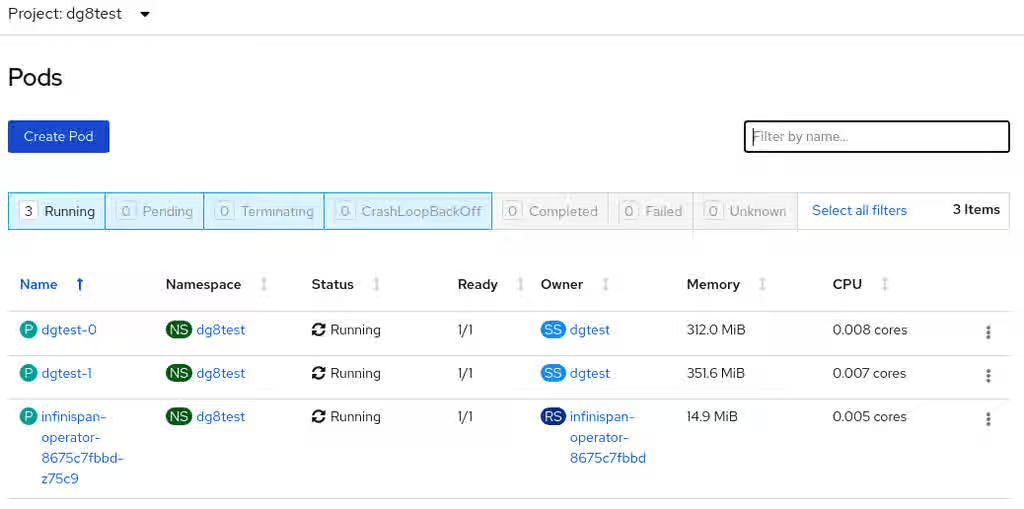
- Also can verify the generated logs via CLI
[user@server ~]$ oc login -u OCP_USER -p OCP-PASSWORD https://OCP_CLUSTER_URL:6443
[user@server ~]$ oc project dg8test
[user@server ~]$ oc get pods
NAME                                   READY     STATUS    RESTARTS   AGE
dgtest-0                               1/1       Running   0          41m
dgtest-1                               1/1       Running   1          38m
infinispan-operator-8675c7fbbd-z75c9   1/1       Running   0          2d23h
- Check the pod's generated logs and verify the cluster formation:
[user@server ~]$ oc logs -f dgtest-0
...
15:49:02,086 INFO  (remote-thread--p3-t2) [org.infinispan.CLUSTER] [Context=default]ISPN100010: Finished rebalance with members [dgtest-0-28799, dgtest-1-4700], topology id 5
15:49:03,795 INFO  (remote-thread--p3-t2) [org.infinispan.CLUSTER] [Context=___hotRodTopologyCache_hotrod]ISPN100002: Starting rebalance with members [dgtest-0-28799, dgtest-1-4700], phase READ_OLD_WRITE_ALL, topology id 2
15:49:03,875 INFO  (remote-thread--p3-t1) [org.infinispan.CLUSTER] [Context=___hotRodTopologyCache_hotrod]ISPN100009: Advancing to rebalance phase READ_ALL_WRITE_ALL, topology id 3
15:49:03,962 INFO  (remote-thread--p3-t1) [org.infinispan.CLUSTER] [Context=___hotRodTopologyCache_hotrod]ISPN100009: Advancing to rebalance phase READ_NEW_WRITE_ALL, topology id 4
15:49:04,095 INFO  (remote-thread--p3-t1) [org.infinispan.CLUSTER] [Context=___hotRodTopologyCache_hotrod]ISPN100010: Finished rebalance with members [dgtest-0-28799, dgtest-1-4700], topology id 5
[user@server ~]$ oc logs -f dgtest-1
...
15:48:50,364 INFO  (main) [org.infinispan.CLUSTER] ISPN000078: Starting JGroups channel infinispan
15:48:53,006 INFO  (main) [org.infinispan.CLUSTER] ISPN000094: Received new cluster view for channel infinispan: [dgtest-0-28799|1] (2) [dgtest-0-28799, dgtest-1-4700]
15:48:53,099 INFO  (main) [org.infinispan.CLUSTER] ISPN000079: Channel infinispan local address is dgtest-1-4700, physical addresses are [10.128.2.32:7800]
15:48:57,137 INFO  (main) [org.infinispan.CONTAINER] ISPN000104: Using EmbeddedTransactionManager
15:49:04,376 INFO  (ForkJoinPool.commonPool-worker-3) [org.infinispan.SERVER] ISPN080018: Protocol HotRod (internal)
15:49:05,086 INFO  (main) [org.infinispan.SERVER] ISPN080018: Protocol REST (internal)
15:49:07,189 INFO  (main) [org.infinispan.SERVER] ISPN080004: Protocol SINGLE_PORT listening on 172.0.0.2:11222
15:49:07,190 INFO  (main) [org.infinispan.SERVER] ISPN080034: Server 'dgtest-1-4700' listening on http://172.0.0.2:11222
15:49:07,190 INFO  (main) [org.infinispan.SERVER] ISPN080001: Red Hat Data Grid Server 8.0.1.GA started in 29292ms
- Also can be checked (in both Web Console and CLI) the PV an PVC status, respectively. Both should be Bounded Status if the Storage is set correctly:
[user@server ~]$ oc get pv
NAME       CAPACITY   ACCESS MODES   RECLAIM POLICY   STATUS    CLAIM                     STORAGECLASS      REASON    AGE
example    2Gi        RWO            Retain           Bound     dg8test/dgtest-dgtest-0   dg8storageclass             35m
example1   2Gi        RWO            Retain           Bound     dg8test/dgtest-dgtest-1   dg8storageclass             34m
[user@server ~]$ oc get pvc
NAME              STATUS    VOLUME     CAPACITY   ACCESS MODES   STORAGECLASS      AGE
dgtest-dgtest-0   Bound     example    2Gi        RWO            dg8storageclass   33m
dgtest-dgtest-1   Bound     example1   2Gi        RWO            dg8storageclass   23m
Following all the steps above, the cluster is ready to use.
More information about the usage and configuration of the Data Grid 8 cluster can be found in the official documentation Running Data Grid on OpenShift.