Support for token-based authentication via Service Account for Red Hat Lightspeed (Insights) in Ansible Automation Platform
Overview
Ansible Automation Platform (AAP) 2.5-10 now supports token-based authentication via service account for integration with Red Hat Lightspeed (formerly Red Hat Insights). This replaces Basic Authentication, which is no longer supported for connecting to Hybrid Cloud Console and Red Hat Lightspeed APIs. Users must transition to token-based authentication by updating their configuration and automation.
More information about the integration can be found in the product documentation. More information about the transition from basic to token-based authentication can be found on the Red Hat Customer Portal.
Creating a Service Account in Hybrid Cloud Console
To use token-based authentication, you must create a Red Hat service account to generate a Client ID and Client Secret. Additionally, this service account must be assigned to the appropriate User Access group with necessary permissions. You must be an Organization Administrator to perform the following steps.
Steps to create a service account
- Login to This content is not included.Red Hat Hybrid Cloud Console.
- Click on the Settings icon, and navigate to Service Accounts.
- Click Create service account.
- Enter a name and a short description then click Create.
- Copy the generated Client ID and Client Secret and store them securely. These credentials will be required for configuring Insights credentials in AAP.
Assigning the service account to a user access group
To enable integration between AAP and Insights, the service account must be assigned the following permissions:
- inventory:hosts:read (included in the Inventory Hosts viewer role)
- patch:*:read (included in the Patch viewer role)
- remediations:remediation:read and playbook-dispatcher:run:read (included in the Remediations User role)
You may consider associating your service account to an existing user access group with required permissions, or creating a new one.
Note: In adherence to security guidelines, service accounts are not automatically included in the default access group. To grant access, it is necessary to manually add them to the appropriate user access groups.
Steps to create a user access group
- Login to This content is not included.Red Hat Hybrid Cloud Console.
- Navigate to Settings > User Access > Groups.
- Click Create group.
- Enter a name and description then click Next.
- Select Inventory Hosts viewer, Patch viewer and Remediations User roles, then click Next.
- Skip the Add members step by clicking Next.
- In Add service accounts, select your service account and click Next.
- Review the details and click Submit.
Note: If your organization uses Workspaces, ensure that the necessary permissions are granted to your user group for full visibility into your inventory in AAP. More information about Workspaces is available in the This content is not included.product documentation.
Configuring an Red Hat Lightspeed credential in Ansible Automation Platform
Once your service account is created and assigned the necessary permissions, configure the Red Hat Lightspeed credentials in AAP.
Steps to create an Red Hat Lightspeed credential
- Login to Ansible Automation Platform.
- Navigate to Automation Execution - Automation Controller, then select Infrastructure > Credentials.
- Click Create credential.
- Enter a name and description.
- Select the organization the credential belongs to.
- Choose Insights as the Credential Type.
- Paste the generated Client ID and Client Secret from the Hybrid Cloud Console.
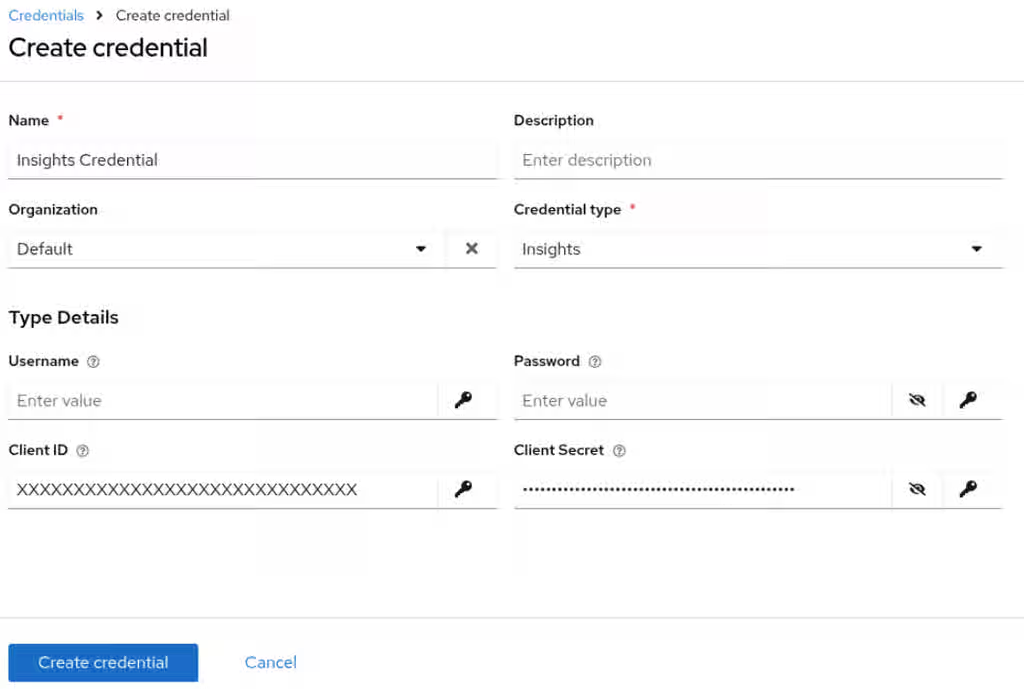
- Click Create credential.
You can now use this credential in:
- Red Hat Lightspeed (Insights) inventory source plugin, as documented in AAP product documentation.
- Red Hat Lightspeed (Insights) projects, as documented in AAP product documentation.
Important notes
- Existing credentials must be recreated and reassociated with existing projects and inventory sources to support token-based authentication.
- Only remediations created using the service account will be visible in AAP for that account. This aligns with the current policy, which does not allow a user to view remediations created by other users.
- More information about the Red Hat Lightspeed (Insights) inventory source plugin is available on the This content is not included.Ansible Automation Hub.
For further details on service accounts, refer to the following resources:
- Red Hat Lightspeed product documentation.
- Demonstration video: Content from www.youtube.com is not included.How to use Service Accounts on the Hybrid Cloud Console.