Installing Red Hat AI Enterprise using AWS Marketplace
Deploy Red Hat AI Enterprise (RHAIE) through the AWS Marketplace to create self-managed RHAIE cluster deployments. Your deployments are billed on a pay-per-use basis with your AWS subscription but are still supported by Red Hat directly.
RHAIE provides a custom environment for developing and deploying AI-driven applications and includes these products:
- Red Hat OpenShift AI (RHOAI)
- Self-managed Red Hat OpenShift Container Platform (OCP)
- AI Accelerator Entitlements
How the installation process works
Installing RHAIE on AWS has two parts:
- Set up an OpenShift Container Platform cluster using AWS Marketplace
- Install the Red Hat OpenShift AI Operator
Deployments of Red Hat OpenShift Container Platform (OCP) on AWS Marketplace are similar to self-managed installations. Both installer-provisioned (IPI) and user-provisioned infrastructure (UPI) scenarios are supported. You should already have experience in the AWS cloud environment. But installing RHAIE requires a customized installation to enable marketplace billing integration.
Additional resources
Supported and unsupported installations
Both installer-provisioned (IPI) and user-provisioned infrastructure (UPI) scenarios are supported.
Red Hat AI Enterprise on AWS Marketplace does not support the following scenarios:
- Single-node deployments. These are not supported for AWS Marketplace billing and are not supported as an RHOAI production topology.
- Three-node deployments. Compact clusters are not supported for AWS Marketplace billing, and RHOAI requires dedicated worker capacity.
- Disconnected or air-gapped clusters. AWS Marketplace billing requires outbound reachability to AWS metering endpoints. For a disconnected RHOAI install, see the official disconnected installation guide.
Set up an OpenShift Container Platform cluster on AWS Marketplace
The OCP cluster provides the infrastructure foundation for your Red Hat AI Enterprise deployment.
Prerequisites for installing OCP on AWS
- For the cluster to use AWS Marketplace images, you must have the following utilities available:
- AWS Command Line Interface (aws), authenticated with permissions to your target AWS account.
- This content is not included.OpenShift installation program (openshift-install), same version as the AWS Marketplace AMI that you are installing.
- OpenShift CLI (oc).
- You should have experience in the AWS environment.
- You must have accepted the AWS Marketplace terms of service for the Red Hat AI Enterprise offering.
- You must verify that your AWS account has sufficient On-Demand service quotas allocated for high-performance accelerated instances (such as the
PorGfamilies) in your targeted region before beginning installation.
Select the OpenShift Marketplace AMI in AWS
Use the AWS CLI to locate and select the correct Amazon Machine Image (AMI) ID for your deployment. Selecting the correct base image is critical for performance and compatibility with your hardware.
Prerequisites
- The correct base image for the OCP minor release that you are targeting (see Red Hat OpenShift AI: Supported Configurations for 3.x)
- Active terms acceptance on the official Content from aws.amazon.com is not included.RHAIE prodview offering (Product ID prod-4nlby453bwsc4)
Procedure
- In the AWS CLI, display all authorized RHAIE OpenShift images.
Example
This example searches for authorized RHAIE OpenShift images on the US east coast.
aws ec2 describe-images \
  --region us-east-1 \
  --owners aws-marketplace \
  --filters \
    "Name=name,Values=*prod-4nlby453bwsc4*" \
    "Name=architecture,Values=x86_64" \
    "Name=state,Values=available" \
  --query 'sort_by(Images,&CreationDate)[*].[Name,ImageId,CreationDate]' \
  --output table
- Select the
ImageIdstring (for example,ami-0b9620e51a0f7930b) that corresponds to the OCP minor release that you are using. You use thatImageIDdirectly in your cluster configuration file.
Specify the single-node GPU bootstrap and scaling topology on AWS Marketplace
To configure your Red Hat AI Enterprise (RHAIE) cluster successfully on AWS Marketplace using the prodview offering (prod-4nlby453bwsc4), deploy the initial worker infrastructure in a specialized, two-stage architectural flow. This helps prevent resource scheduling conflicts during the bootstrap phase.
Standard general-purpose EC2 compute types (such as m5.4xlarge) cannot be initialized against the marketplace asset path and return an immediate UnsupportedOperation exception. Launching a full three-node high-performance GPU pool directly during the initial installer-provisioned infrastructure (IPI) bootstrap can stall the installation program because of localized placement timeouts or service quota limits.
To ensure a functional and stable deployment, break the installation into two distinct phases:
- The initial bootstrap phase. Modify the
install-config.yamlfile to provision exactly 1 metered GPU worker node (for example,p4d.24xlarge) in a single designated availability zone: - The dynamic infrastructure scaling phase. After the installation program successfully completes the core cluster setup and verifies the master control plane nodes, use a tailored
MachineSetcustom resource to scale out the remaining two GPU worker nodes across separate availability zones. This ensures high availability and satisfies the cluster's quorum requirements:
Create a configuration file for the initial GPU worker node
To set up pay-per-use billing automatically, specify the AWS Marketplace AMI details directly in the install-config.yaml file. To prevent the installation program from failing during initial resource allocation, restrict the initial compute replica count to 1 (one).
Not all AWS data centers contain the correct hardware for a high-performance GPU instance. As part of creating the install-config.yaml file, you must determine which availability zones have the correct hardware.
Procedure
- Check which AWS availability zones have high-performance GPU hardware. Use a command similar to this example.
Example
This command searches the US east coast data centers for availability zones that contain p4d.24xlarge.
aws ec2 describe-instance-type-offerings --location-type availability-zone --filters Name=instance-type,Values=p4d.24xlarge --region us-east-1 --output table
Example output
--------------------------------------------------------------
|                DescribeInstanceTypeOfferings               |
+------------------------------------------------------------+
||                   InstanceTypeOfferings                  ||
+-------------------+---------------+------------------------+
|   InstanceType    |   Location    |     LocationType       |
+-------------------+---------------+------------------------+
|  p4d.24xlarge     |  us-east-1b   |  availability-zone     |
|  p4d.24xlarge     |  us-east-1c   |  availability-zone     |
+-------------------+---------------+------------------------+
- To specify AWS Marketplace images in the
install-config.yamlconfiguration file, edit theplatform.aws.amiIDfield to match the following sample, ensure your replica count is set to 1, and save your changes.
Example install-config.yaml file
This example is for a deployment in the US on the east coast. You must explicitly indicate which availability zone that the GPU machine targets (for example, us-east-1b). This ensures you use a zone that contains the correct hardware for the deployment.
apiVersion: v1
baseDomain: <your_base_domain>
compute:
- hyperthreading: Enabled
  name: worker
  platform:
    aws:
      type: p4d.24xlarge
      amiID: <your_marketplace_ami_id>
      zones:
      - us-east-1b
  replicas: 1
controlPlane:
  hyperthreading: Enabled
  name: master
  platform:
    aws:
      type: m5.4xlarge
  replicas: 3
metadata:
  name: <your_metadata_name>
networking:
  clusterNetwork:
  - cidr: 10.128.0.0/14
    hostPrefix: 23
  machineNetwork:
  - cidr: 10.0.0.0/16
  networkType: OVNKubernetes
  serviceNetwork:
  - 172.30.0.0/16
platform:
  aws:
    region: <your_aws_region>
publish: External
pullSecret: '{"auths":{"cloud.openshift.com":{"auth":"secret"}}}'
sshKey: |
    <your_ssh_key>
where:
<your_base_domain>
Specifies the main domain name you own for routing traffic to the cluster. For example, example.com.<your_marketplace_ami_id>
Specifies the official AWS Marketplace image ID string extracted from your search query. For example,ami-0b9620e51a0f7930b.<your_metadata_name>
Specifies the unique name you choose for your cluster. For example,rhaie-prod.<your_aws_region>
Specifies the short code for the AWS region where your servers are allocated. For example,us-east-1.- ``‘{"auths":{"cloud.openshift.com":{"auth":"secret"}}}'`
Specifies the syntax-validated pull secret placeholder string. You must replace this entire string with your unique unified authentication JSON block copied from the Red Hat OpenShift Cluster Manager console, keeping the outer single quotes intact. <your_ssh_key>
Specifies the security key pattern that lets you securely log in to the backend cluster nodes to fix problems. For example, ssh-rsa AAAAB3....
Create an OpenShift cluster by using this configuration file
To initialize cloud hardware and launch core cluster services, execute the installation program using your tailored marketplace configuration template.
OpenShift automatically manages your machines using MachineSets. These are configuration files that OpenShift uses to provision and manage virtual machines in AWS with specific hardware. Always use an isolated VPC or sub-account mapping for each installation attempt to avoid naming conflicts with existing infrastructure.
Procedure
- Create your cluster with the following command:
$ ./openshift-install create cluster --dir <installation_dir>
The installation might take 45 minutes or longer.
Verify that your cluster is stable and fully operational
Before installing GPU-capable compute pools, verify that your cluster is operational with the accelerated compute nodes that use the AWS Marketplace images. These clusters are billed through AWS Marketplace as resources are consumed.
Procedure
- Set up access to your cluster by exporting the administrative cluster configuration credentials generated during deployment:
$ export KUBECONFIG=<installation_dir>/auth/kubeconfig
- Verify that the cluster compute nodes have initialized and registered successfully:
$ oc get nodes
- Confirm that the core cluster management operators are running stably:
$ oc get co
If the cluster is stable, all ClusterOperators report AVAILABLE=True, PROGRESSING=False, and DEGRADED=False.
Troubleshoot cluster problems
If your installation fails or the cluster does not report a functional status, check the following resources:
- Review the troubleshooting details inside the hidden
.openshift_install.logfile generated within your installation directory. - Ensure that you have adequate vCPU instance limits for your region:
- Verify your Amazon EC2 service limits by navigating to the Service Quotas console dashboard inside your AWS account
Scale out the GPU-capable compute pool for your cluster
To support RHOAI accelerated workloads, you must create a MachineSet configuration file that scales out 2 GPU worker nodes across separate availability zones.
Because this cluster uses the integrated marketplace image billing model, you must use the exact same metered AMI ID string in your MachineSet configurations.
Prerequisites
- You have installed the Red Hat OpenShift base cluster with 1 operational GPU worker node.
- You have verified that your AWS account has sufficient On-Demand service quotas allocated for your targeted EC2 instance families (such as
Running On-Demand P instances) in your chosen availability zones.
Procedure
- Identify an existing MachineSet to use as a template for your new MachineSet:
$ oc get machinesets -n openshift-machine-api
- Export this existing MachineSet to a YAML file to use as a template. This ensures your cluster networking, security groups, and infrastructure metadata are correct:
$ oc get machineset <existing_worker_machineset_name> -n openshift-machine-api -o yaml > gpu-scale-machineset.yaml
- Open the
gpu-scale-machineset.yamlfile in a text editor. Replace the contents entirely with the multi-zone structure shown below, adjusting the placeholder variables to match your unique installer infrastructure strings.
Example MachineSet YAML for scaling GPU nodes across multiple availability zones
apiVersion: machine.openshift.io/v1beta1
kind: MachineSet
metadata:
  labels:
    machine.openshift.io/cluster-api-cluster: <cluster_id>
  name: <cluster_id>-gpu-worker-us-east-1c
  namespace: openshift-machine-api
spec:
  replicas: 1
  selector:
    matchLabels:
      machine.openshift.io/cluster-api-cluster: <cluster_id>
      machine.openshift.io/cluster-api-machineset: <cluster_id>-gpu-worker-us-east-1c
  template:
    metadata:
      labels:
        machine.openshift.io/cluster-api-cluster: <cluster_id>
        machine.openshift.io/cluster-api-machine-role: worker
        machine.openshift.io/cluster-api-machine-type: worker
        machine.openshift.io/cluster-api-machineset: <cluster_id>-gpu-worker-us-east-1c
    spec:
      providerSpec:
        value:
          apiVersion: awsproviderconfig.openshift.io/v1beta1
          kind: AWSMachineProviderConfig
          instanceType: p4d.24xlarge
          placement:
            availabilityZone: us-east-1c
          ami:
            id: ami-0b9620e51a0f7930b
          subnet:
            filters:
            - name: tag:Name
              values:
              - <cluster_id>-private-us-east-1c
---
apiVersion: machine.openshift.io/v1beta1
kind: MachineSet
metadata:
  labels:
    machine.openshift.io/cluster-api-cluster: <cluster_id>
  name: <cluster_id>-gpu-worker-us-east-1d
  namespace: openshift-machine-api
spec:
  replicas: 1
  selector:
    matchLabels:
      machine.openshift.io/cluster-api-cluster: <cluster_id>
      machine.openshift.io/cluster-api-machineset: <cluster_id>-gpu-worker-us-east-1d
  template:
    metadata:
      labels:
        machine.openshift.io/cluster-api-cluster: <cluster_id>
        machine.openshift.io/cluster-api-machine-role: worker
        machine.openshift.io/cluster-api-machine-type: worker
        machine.openshift.io/cluster-api-machineset: <cluster_id>-gpu-worker-us-east-1d
    spec:
      providerSpec:
        value:
          apiVersion: awsproviderconfig.openshift.io/v1beta1
          kind: AWSMachineProviderConfig
          instanceType: p4d.24xlarge
          placement:
            availabilityZone: us-east-1d
          ami:
            id: ami-0b9620e51a0f7930b
          subnet:
            filters:
            - name: tag:Name
              values:
              - <cluster_id>-private-us-east-1d
where:
<cluster_id>
Specifies your unique running cluster infrastructure identifier string generated automatically by the installer during deployment. For example, 'rhaie-prod-x7v2p'.ami-0b9620e51a0f7930b
Specifies the identical AWS Marketplace billing image ID utilized during the bootstrap phase to ensure unified billing integration.
- Apply the multi-resource MachineSet file to launch both accelerated compute instances simultaneously across your remaining availability zones:
$ oc apply -f gpu-scale-machineset.yaml
Verify that the cluster is operational with all GPU compute nodes
Before installing RHOAI, verify that your cluster is operational with the GPU compute nodes that use the AWS Marketplace images.
Procedure
- Verify that the new virtual machines are provisioning correctly:
$ oc get machines -n openshift-machine-api
- Confirm the new node has successfully joined the cluster:
$ oc get nodes
NOTE
After provisioning finishes, all three GPU-capable machine entries must have a status of Ready across their respective availability zones (us-east-1b, us-east-1c, and us-east-1d).
Install RHOAI and its dependencies
When your OpenShift cluster is running and stable, you are ready to prepare the cluster to run Red Hat OpenShift AI (RHOAI).
Prerequisites
- You have a GPU compute node installed on your cluster.
- You have the resources for RHOAI components. See the RHOAI release notes for the version that you are installing.
Install required Operators by using the OpenShift console
Before configuring model servers or data science workbenches, you must prepare your OpenShift Container Platform cluster by installing foundational Operators from OperatorHub. These utilities enable essential service mesh, serverless, and hardware-detection frameworks. These are included at no additional cost beyond your standard AWS infrastructure charges.
IMPORTANT
To resolve all dependencies, you must install the Operators in a specific sequence, and non-GPU Operators must be fully deployed before you install GPU Operators.
Procedure
-
In the OpenShift web console, navigate to Ecosystem → Software Catalog to add the non-GPU Operators. For each Operator, click Install, use the default installation settings, and click Install again. Install these exact Operators in the following order:
- Red Hat OpenShift Service Mesh 3
- Red Hat OpenShift Serverless
- cert-manager Operator for Red Hat OpenShift
- Red Hat Connectivity Link
- Red Hat build of Leader Worker Set
- Red Hat build of Kueue
- Job Set Operator
-
After the non-GPU Operators are ready, install the following GPU Operators by navigating to Ecosystem → Software Catalog and clicking Install:
- Node Feature Discovery Operator (NFD)
- NVIDIA GPU Operator
Verify that the Operators are successfully installed
Before you install RHOAI, ensure that your Operators are installed correctly, so that RHOAI runs without any issues. You can check this infrastructure dependency in the OpenShift Console or the OpenShift CLI.
GUI procedure
- In the OpenShift console, go to OperatorHub, and click the Project menu.
- Toggle on the Show default projects switch**,** and select All Projects.
- Click Ecosystem → Installed Operators.
- Check the Operator Status in the table, or search for each Operator by name.
If the installation was successful, the Operators are displayed in the list of Operators, and their status is Succeeded.
CLI procedure
- Verify that each Operator has been installed successfully with the following command:
$ oc get csv -A | grep -E 'servicemesh|serverless|cert-manager|connectivity|leader-worker-set|kueue|jobset|nfd|gpu-operator'
Check that all Operators have status Succeeded.
IMPORTANT
Do not start installing RHOAI until all Operators show Succeeded. If any Operator remains in a Pending state, check the underlying namespace event logs to verify that cluster quotas have not been exceeded.
Install RHOAI and its components
You have installed the foundational Operators for RHOAI. To deploy core dashboards, interactive workbenches, and data science pipelines using a graphical interface, install the primary Red Hat OpenShift AI (RHOAI) Operator from the web-based OperatorHub catalog.
When you install RHOAI, it automatically installs the additional components that it needs to run.
Procedure
-
In the OpenShift OperatorHub, navigate to Ecosystem → Software Catalog.
-
Search for OpenShift AI.
-
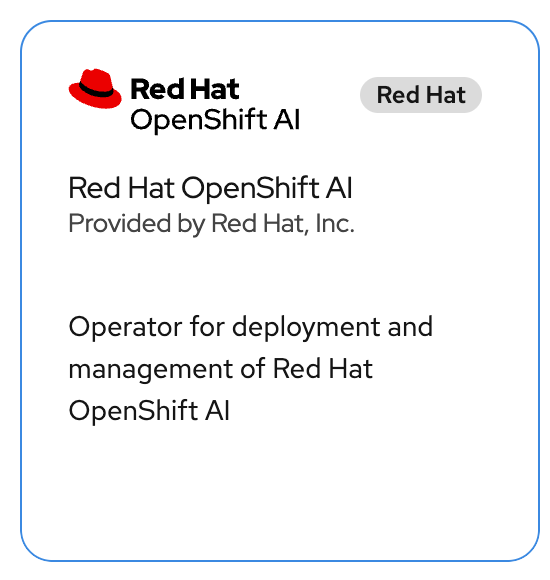
If multiple tiles are displayed, find this exact tile Red Hat OpenShift AI Provided by Red Hat, Inc., and click it.
-
In the Channel field, select stable-3.x.
-
For Version, select 3.4.0 or the latest version.
-
Keep the default values for Installation mode and Installed Namespace (
redhat-ods-operator). -
Click Install.
-
If you have not created the Data Science Cluster already, click Create DataScienceCluster when the button is active. Click Create again.
The DataScienceCluster Initialization (DSCI) YAML file is created automatically. The DataScienceCluster YAML file is displayed.
-
Edit the DSC YAML file as needed. For example, if you want to add Llama Stack to your Data Science Cluster, change
RemovedtoManagedand click Save.
Example section of the DSC YAML file
  spec:
    trainer:
      managementState: Managed
    llamastackoperator:
      managementState: Managed
    trainingoperator:
      managementState: Removed
Completing the installation might take a minute or longer depending on your environment.
Verification
When RHOAI and its components are completely installed, RHOAI has the status Succeeded on the OperatorHub and the DataScienceCluster has the status Ready.
-
To verify the RHOAI status, click Ecosystem → Installed Operators.
The RHOAI status should be Succeeded.
-
Click the link for Red Hat OpenShift AI.
The Provided APIs for RHOAI are displayed as tiles.
-
To verify that the Data Science Cluster is running, click the DataScienceCluster tab.
The DataScienceCluster should show the Phase: Ready in the Status column. -
To see the details for Data Science Cluster, click the default-dsc link.
Launch RHOAI
You are ready to launch RHOAI. Begin building, training, testing, and deploying both predictive and generative AI models across hybrid cloud environments.
Procedure
-
From the OpenShift console, click the Applications grid icon.

-
Under OpenShift Self Managed Services, click Red Hat OpenShift AI, and log in.
