Administration guide
Administering Red Hat OpenShift Dev Spaces 3.27
Abstract
Preface
Install, configure, and manage Red Hat OpenShift Dev Spaces on OpenShift clusters.
Chapter 1. Security best practices
Apply these security best practices for Red Hat OpenShift Dev Spaces to protect user credentials, isolate workspaces, and reduce the cluster attack surface.
Red Hat OpenShift Dev Spaces runs on top of OpenShift, which provides the platform, and the foundation for the products functioning on top of it. OpenShift documentation is the entry point for security hardening.
1.1. Project isolation in OpenShift
In OpenShift, project isolation is similar to namespace isolation in Kubernetes but is achieved through the concept of projects. A project in OpenShift is a top-level organizational unit that provides isolation and collaboration between different applications, teams, or workloads within a cluster.
By default, OpenShift Dev Spaces provisions a unique <username>-devspaces project for each user. Alternatively, the cluster administrator can disable project self-provisioning on the OpenShift level, and turn off automatic namespace provisioning in the CheCluster custom resource:
devEnvironments:
  defaultNamespace:
autoProvision: falseWith this setup, you achieve curated access to OpenShift Dev Spaces. Cluster administrators control provisioning for each user and can explicitly configure various settings including resource limits and quotas.
1.2. Role-based access control (RBAC)
By default, the OpenShift Dev Spaces operator creates the following ClusterRoles:
-
<namespace>-cheworkspaces-clusterrole -
<namespace>-cheworkspaces-devworkspace-clusterrole
The <namespace> prefix corresponds to the project name where the Red Hat OpenShift Dev Spaces CheCluster CR is located. The first time a user accesses Red Hat OpenShift Dev Spaces, the corresponding RoleBinding is created in the <username>-devspaces project.
The following table lists the resources and actions that you can grant users permission to use in their namespace.
Table 1.1. Overview of resources and actions available in a user’s namespace
| Resources | Actions |
|---|---|
| pods | "get", "list", "watch", "create", "delete", "update", "patch" |
| pods/exec | "get", "create" |
| pods/log | "get", "list", "watch" |
| pods/portforward | "get", "list", "create" |
| configmaps | "get", "list", "create", "update", "patch", "delete" |
| events | "list", "watch" |
| secrets | "get", "list", "create", "update", "patch", "delete" |
| services | "get", "list", "create", "delete", "update", "patch" |
| routes | "get", "list", "create", "delete" |
| persistentvolumeclaims | "get", "list", "watch", "create", "delete", "update", "patch" |
| apps/deployments | "get", "list", "watch", "create", "patch", "delete" |
| apps/replicasets | "get", "list", "patch", "delete" |
| namespaces | "get", "list" |
| projects | "get" |
| devworkspace | "get", "create", "delete", "list", "update", "patch", "watch" |
| devworkspacetemplates | "get", "create", "delete", "list", "update", "patch", "watch" |
Each user is granted permissions only to their namespace and cannot access other users' resources. Cluster administrators can add extra permissions to users. They should not remove permissions granted by default.
For more details about configuring cluster roles for Red Hat OpenShift Dev Spaces users and role-based access control, see the Additional resources section.
1.3. Dev environment isolation
Isolation of the development environments is implemented using OpenShift projects. Every developer has a project in which the following objects are created and managed:
- Cloud Development Environment (CDE) Pods, including the Integrated Development Environment (IDE) server.
- Secrets containing developer credentials, such as a Git token, SSH keys, and a Kubernetes token.
- ConfigMaps with developer-specific configuration, such as the Git name and email.
- Volumes that persist data such as the source code, even when the CDE Pod is stopped.
Access to the resources in a namespace must be limited to the developer owning it. Granting read access to another developer is equivalent to sharing the developer credentials and should be avoided.
1.4. Enhanced authorization
The current trend is to split an infrastructure into several "fit for purpose" clusters instead of having a gigantic monolith OpenShift cluster. A "fit for purpose" cluster is specifically designed and configured to meet the requirements of a particular use case or workload. It is tailored to optimize performance and resource utilization based on the characteristics of the workloads it manages.
For Red Hat OpenShift Dev Spaces, this type of cluster is recommended. However, administrators might still want to provide granular access and restrict the availability of certain functionalities to particular users.
For this purpose, optional properties that you can use to configure granular access for different groups and users are available in the CheCluster Custom Resource:
-
allowUsers -
allowGroups -
denyUsers -
denyGroups
The following example shows an access configuration:
networking:
  auth:
    advancedAuthorization:
      allowUsers:
        - user-a
        - user-b
      denyUsers:
        - user-c
      allowGroups:
        - openshift-group-a
        - openshift-group-b
      denyGroups:
        - openshift-group-c
Users in the denyUsers and denyGroup categories cannot use Red Hat OpenShift Dev Spaces and see a warning when trying to access the User Dashboard.
1.5. Authentication
Only authenticated OpenShift users can access Red Hat OpenShift Dev Spaces. The Gateway Pod uses a role-based access control (RBAC) subsystem to determine whether a developer is authorized to access a Cloud Development Environment (CDE) or not.
The CDE Gateway container checks the developer’s Kubernetes roles. If their roles allow access to the CDE Pod, the connection to the development environment is allowed. By default, only the owner of the namespace has access to the CDE Pod.
1.6. Security context and security context constraint
Red Hat OpenShift Dev Spaces adds SETGID and SETUID capabilities to the specification of the CDE Pod container security context:
"spec": {
  "containers": [
    "securityContext": {
            "allowPrivilegeEscalation": true,
            "capabilities": {
               "add": ["SETGID", "SETUID"],
               "drop": ["ALL","KILL","MKNOD"]
            },
            "readOnlyRootFilesystem": false,
            "runAsNonRoot": true,
            "runAsUser": 1001110000
   }
  ]
}This provides the ability for users to build container images from within a CDE.
By default, Red Hat OpenShift Dev Spaces assigns users a specific SecurityContextConstraint (SCC) that allows them to start a Pod with such capabilities. This SCC grants more capabilities to the users compared to the default restricted SCC but less capability compared to the anyuid SCC. This default SCC is pre-created in the OpenShift Dev Spaces namespace and named container-build.
Setting the following property in the CheCluster Custom Resource prevents assigning extra capabilities and SCC to users:
spec:
  devEnvironments:
disableContainerBuildCapabilities: true1.7. Resource Quotas and Limit Ranges
Resource Quotas and Limit Ranges are Kubernetes features you can use to help prevent bad actors and resource abuse within a cluster. Specifically, they allow you to set resource consumption constraints for pods and containers. By combining Resource Quotas and Limit Ranges, you can enforce project-specific policies to prevent bad actors from consuming excessive resources.
These mechanisms contribute to better resource management, stability, and fairness within an OpenShift cluster. More details about resource quotas and limit ranges are available in the OpenShift documentation.
1.8. Network policies
Network policies provide an additional layer of security by controlling network traffic between pods in a Kubernetes cluster. By default, every pod can communicate with every other pod and service on the cluster.
Implementing network policies allows you to:
- Control ingress and egress traffic to and from workspace pods
- Limit the attack surface by denying unauthorized network access
When configuring network policies for Red Hat OpenShift Dev Spaces, ensure that pods in the OpenShift Dev Spaces namespace can still communicate with pods in user namespaces. This communication is required for proper functionality.
For detailed instructions on implementing network policies with Red Hat OpenShift Dev Spaces, see the procedure for configuring network policies.
1.9. Disconnected environment
An air-gapped OpenShift disconnected cluster refers to an OpenShift cluster isolated from the internet or any external network. This isolation is often done for security reasons to protect sensitive or critical systems from potential cyber threats. In an air-gapped environment, the cluster cannot access external repositories or registries to download container images, updates, or dependencies.
Red Hat OpenShift Dev Spaces is supported and can be installed in a restricted environment.
1.10. Managing extensions
By default, Red Hat OpenShift Dev Spaces includes the embedded Open VSX registry which contains a limited set of extensions for the Microsoft Visual Studio Code - Open Source editor. Alternatively, cluster administrators can specify a different plugin registry in the Custom Resource, for example the open-vsx.org registry that contains thousands of extensions. They can also build a custom Open VSX registry.
Installing extra extensions increases potential risks. To minimize these risks, ensure that you only install extensions from reliable sources and regularly update them.
1.11. Secrets
Keep sensitive data stored as Kubernetes secrets in the users' namespaces confidential (for example Personal Access Tokens (PAT), and SSH keys).
1.12. Git repositories
It is crucial to operate within Git repositories that you are familiar with and that you trust. Before incorporating new dependencies into the repository, verify that they are well-maintained and regularly release updates to address any identified security vulnerabilities in their code.
Additional resources
- Section 6.3, “Provision projects in advance”
- Section 15.1, “Configure cluster roles for OpenShift Dev Spaces users”
- OpenShift role-based access control
- Resource quotas per project
- Limit ranges
- OpenShift networking overview
- Section 12.1, “Configure network policies”
- Section 4.3, “Install OpenShift Dev Spaces in a restricted environment on OpenShift”
- Chapter 19, Manage IDE extensions
Chapter 2. Prepare the installation
Ensure your OpenShift cluster meets the requirements for OpenShift Dev Spaces and install the tools you need for installation.
Review the supported platforms, install the dsc management tool, understand the OpenShift Dev Spaces architecture, and estimate resource requirements for your deployment.
2.1. Supported platforms
OpenShift Dev Spaces is supported on specific OpenShift versions and CPU architectures.
OpenShift Dev Spaces runs on OpenShift 4.16–4.22 on the following CPU architectures:
-
AMD64 and Intel 64 (
x86_64) -
IBM Z (
s390x) -
IBM Power (
ppc64le) -
ARMv8 (
arm64)
2.2. Install the dsc management tool
Install dsc, the Red Hat OpenShift Dev Spaces command-line management tool, on Linux, macOS, or Windows to start, stop, update, and delete the OpenShift Dev Spaces server.
Prerequisites
You have a Linux or macOS workstation.
NoteFor installing
dscon Windows, see the following pages:
Procedure
-
Download the archive from This content is not included.https://developers.redhat.com/products/openshift-dev-spaces/download to a directory such as
$HOME. -
Run
tar xvzfon the archive to extract the/dscdirectory. -
Add the extracted
/dsc/binsubdirectory to$PATH.
Verification
Run
dscto view information about it.$ dsc
Additional resources
2.3. OpenShift Dev Spaces architecture overview
Figure 2.1. High-level OpenShift Dev Spaces architecture with the Dev Workspace operator
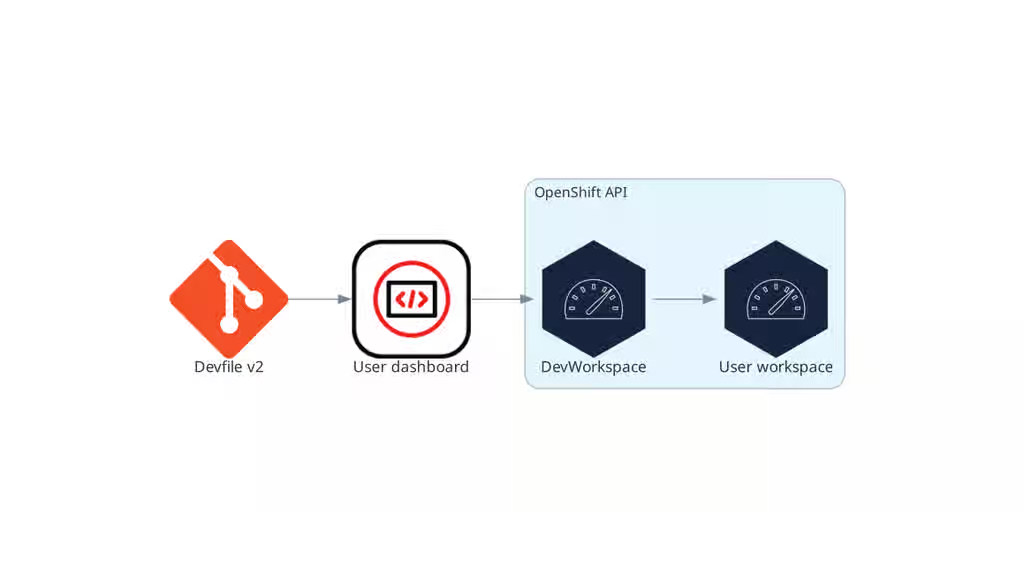
The OpenShift Dev Spaces architecture consists of server components, user workspaces, and the Dev Workspace Operator, which together provide cloud-based development environments on OpenShift.
OpenShift Dev Spaces runs on three groups of components:
- OpenShift Dev Spaces server components
- Manage User project and workspaces. The main component is the User dashboard, from which users control their workspaces.
- Dev Workspace operator
-
Creates and controls the necessary OpenShift objects to run User workspaces. Including
Pods,Services, andPersistentVolumes. - User workspaces
- Container-based development environments, the Integrated Development Environment (IDE) included.
The role of these OpenShift features is central:
- Dev Workspace Custom Resources
- Valid OpenShift objects representing the User workspaces and manipulated by OpenShift Dev Spaces. It is the communication channel for the three groups of components.
- OpenShift role-based access control (RBAC)
- Controls access to all resources.
Additional resources
2.3.1. Server components
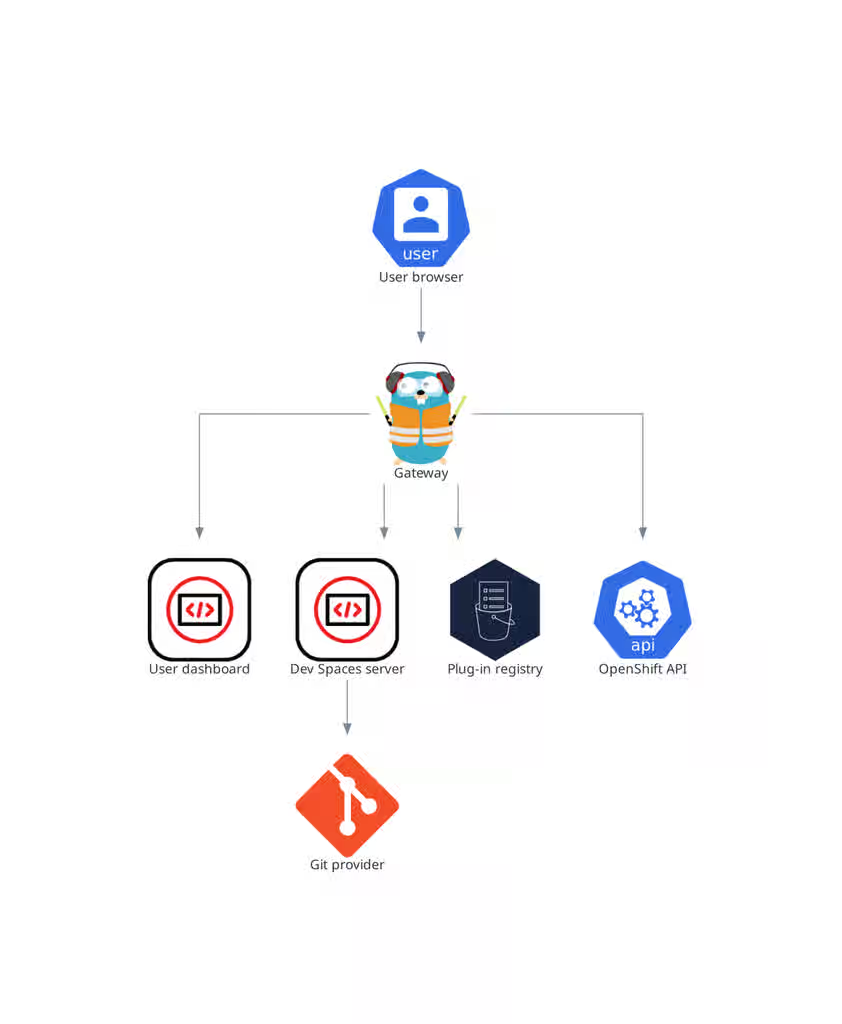
The OpenShift Dev Spaces server components manage multi-tenancy and workspace lifecycle. Understanding these components helps you troubleshoot issues and plan cluster capacity.
Figure 2.2. OpenShift Dev Spaces server components interacting with the Dev Workspace operator
2.3.2. OpenShift Dev Spaces operator
The OpenShift Dev Spaces operator ensures full lifecycle management of the OpenShift Dev Spaces server components.
CheClustercustom resource definition (CRD)-
Defines the
CheClusterOpenShift object. - OpenShift Dev Spaces controller
- Creates and controls the necessary OpenShift objects to run an OpenShift Dev Spaces instance, such as pods, services, and persistent volumes.
CheClustercustom resource (CR)-
On a cluster with the OpenShift Dev Spaces operator, it is possible to create a
CheClustercustom resource (CR). The OpenShift Dev Spaces operator ensures the full lifecycle management of the OpenShift Dev Spaces server components on this OpenShift Dev Spaces instance. These components include the Dev Workspace Operator, gateway, user dashboard, OpenShift Dev Spaces server, and plug-in registry.
Additional resources
2.3.3. Dev Workspace operator
The Dev Workspace Operator (DWO) is a dependency of OpenShift Dev Spaces, and is an integral part of how OpenShift Dev Spaces functions. One of DWO’s main responsibilities is to reconcile Dev Workspace custom resources (CR).
The Dev Workspace CR is an OpenShift resource representation of an OpenShift Dev Spaces workspace. Whenever a user creates a workspace using OpenShift Dev Spaces in the background, Dashboard OpenShift Dev Spaces creates a Dev Workspace CR in the cluster. For every OpenShift Dev Spaces workspace, there is an underlying Dev Workspace CR on the cluster.
Figure 2.3. Example of a Dev Workspace CR in a cluster
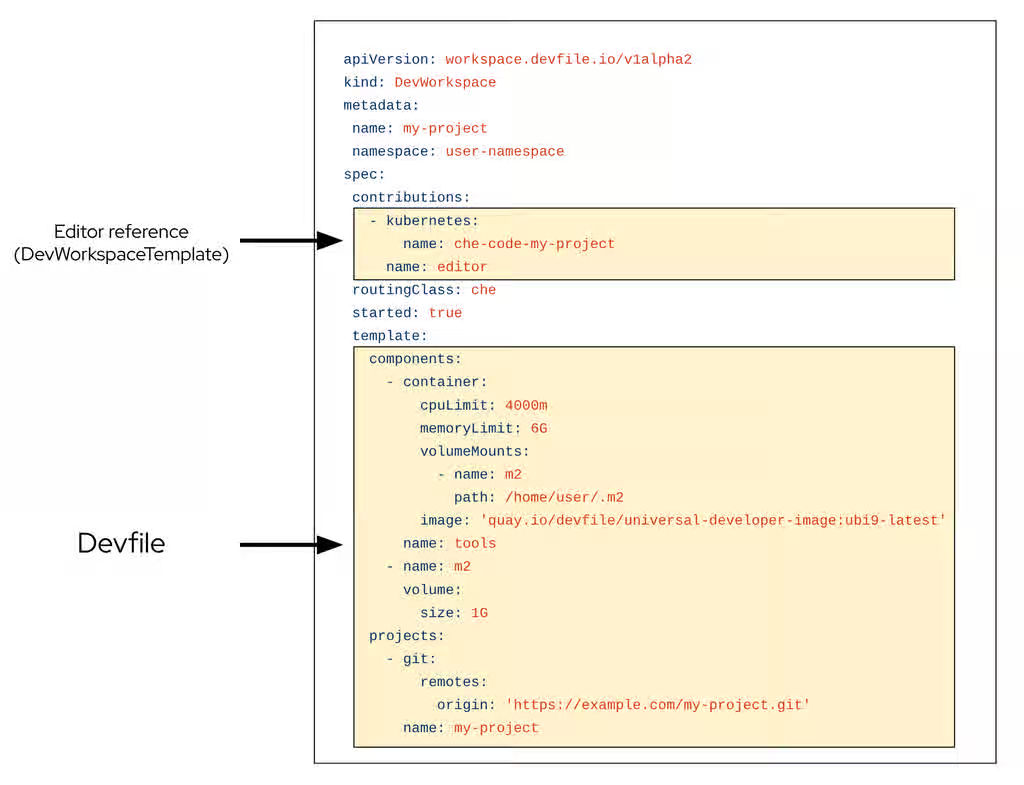
When creating a workspace with OpenShift Dev Spaces with a devfile, the Dev Workspace CR contains the devfile details. Additionally, OpenShift Dev Spaces adds the editor definition into the Dev Workspace CR depending on which editor was chosen for the workspace. OpenShift Dev Spaces also adds attributes to the Dev Workspace that further configure the workspace depending on how you configured the CheCluster CR.
A DevWorkspaceTemplate is a custom resource that defines a reusable spec.template for Dev Workspaces.
When a workspace is started, DWO reads the corresponding Dev Workspace CR and creates the necessary resources such as deployments, secrets, configmaps, and routes. As a result, a workspace pod representing the development environment defined in the devfile is created.
2.3.3.1. Custom Resources overview
The following Custom Resource Definitions are provided by the Dev Workspace Operator:
-
Dev Workspace -
DevWorkspaceTemplate -
DevWorkspaceOperatorConfig -
DevWorkspaceRouting
2.3.3.2. Dev Workspace
The Dev Workspace custom resource contains details about an OpenShift Dev Spaces workspace. Notably, it contains devfile details and a reference to the editor definition.
2.3.3.3. DevWorkspaceTemplate
In OpenShift Dev Spaces the DevWorkspaceTemplate custom resource is typically used to define an editor (such as Visual Studio Code - Open Source) for OpenShift Dev Spaces workspaces. You can use this custom resource to define reusable spec.template content that is reused by multiple Dev Workspaces.
2.3.3.4. DevWorkspaceOperatorConfig
The DevWorkspaceOperatorConfig (DWOC) custom resource defines configuration options for the DWO. There are two different types of DWOC:
- global configuration
- non-global configuration
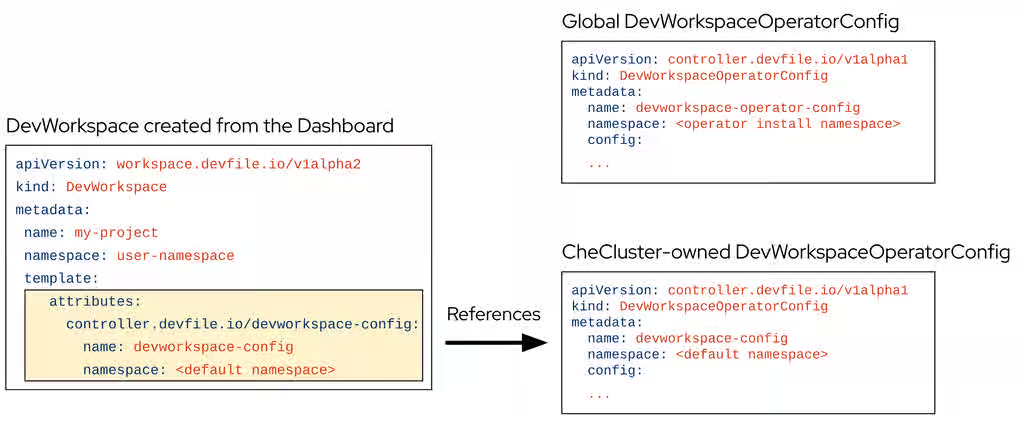
The global configuration is a DWOC custom resource named devworkspace-operator-config and is usually located in the DWO installation namespace. By default, the global configuration is not created upon installation. Configuration fields set in the global configuration apply to the DWO and all Dev Workspaces. However, the DWOC configuration can be overridden by a non-global configuration.
Any other DWOC custom resource than devworkspace-operator-config is considered to be non-global configuration. A non-global configuration does not apply to any Dev Workspaces unless the Dev Workspace contains a reference to the DWOC. If the global configuration and non-global configuration have the same fields, the non-global configuration field takes precedence.
Table 2.1. Global DWOC and OpenShift Dev Spaces-owned DWOC comparison
| Global DWOC | OpenShift Dev Spaces-owned DWOC | |
|---|---|---|
| Resource name |
|
|
| Namespace | DWO installation namespace | OpenShift Dev Spaces installation namespace |
| Default creation | Not created by default upon DWO installation | Created by default on OpenShift Dev Spaces installation |
| Scope | Applies to the DWO itself and all Dev Workspaces managed by DWO | Applies to Dev Workspaces created by OpenShift Dev Spaces |
| Precedence | Overridden by fields set in OpenShift Dev Spaces-owned config | Takes precedence over global config if both define the same field |
| Primary use case | Used to define default, broad settings that apply to DWO in general. | Used to define specific configuration for Dev Workspaces created by OpenShift Dev Spaces |
For example, by default OpenShift Dev Spaces creates and manages a non-global DWOC in the OpenShift Dev Spaces namespace named devworkspace-config. This DWOC contains configuration specific to OpenShift Dev Spaces workspaces, and is maintained by OpenShift Dev Spaces depending on how you configure the CheCluster CR. When OpenShift Dev Spaces creates a workspace, OpenShift Dev Spaces adds a reference to the OpenShift Dev Spaces-owned DWOC with the controller.devfile.io/devworkspace-config attribute.
Figure 2.4. Example of Dev Workspace configuration attribute
2.3.3.5. DevWorkspaceRouting
The DevWorkspaceRouting custom resource defines details about the endpoints of a Dev Workspace. Every Dev Workspace has its corresponding DevWorkspaceRouting object that specifies the workspace’s container endpoints. Endpoints defined from the devfile, as well as endpoints defined by the editor definition appear in the DevWorkspaceRouting custom resource.
apiVersion: controller.devfile.io/v1alpha1
kind: DevWorkspaceRouting
metadata:
  annotations:
    controller.devfile.io/devworkspace-started: 'false'
  name: routing-workspaceb14aa33254674065
  labels:
    controller.devfile.io/devworkspace_id: workspaceb14aa33254674065
spec:
  devworkspaceId: workspaceb14aa33254674065
  endpoints:
    universal-developer-image:
      - attributes:
          cookiesAuthEnabled: true
          discoverable: false
          type: main
          urlRewriteSupported: true
        exposure: public
        name: che-code
        protocol: https
        secure: true
        targetPort: 3100
  podSelector:
    controller.devfile.io/devworkspace_id: workspaceb14aa33254674065
  routingClass: che
status:
  exposedEndpoints:
...2.3.3.6. Dev Workspace Operator operands
The Dev Workspace Operator has two operands:
- controller deployment
- webhook deployment.
$ oc get pods -l 'app.kubernetes.io/part-of=devworkspace-operator' -o custom-columns=NAME:.metadata.name -n openshift-operators
NAME
devworkspace-controller-manager-66c6f674f5-l7rhj
devworkspace-webhook-server-d4958d9cd-gh7vr
devworkspace-webhook-server-d4958d9cd-rfvj6
where:
devworkspace-controller-manager-*- The Dev Workspace controller pod, which is responsible for reconciling custom resources.
devworkspace-webhook-server-*- The Dev Workspace operator webhook server pods.
2.3.3.7. Configuring the Dev Workspace-controller-manager deployment
You can configure the devworkspace-controller-manager pod in the Dev Workspace Operator Subscription object:
apiVersion: operators.coreos.com/v1alpha1
kind: Subscription
metadata:
  name: devworkspace-operator
  namespace: openshift-operators
spec:
  config:
    affinity:
      nodeAffinity: ...
      podAffinity: ...
    resources:
      limits:
        memory: ...
        cpu: ...
      requests:
        memory: ...
cpu: ...2.3.3.8. Configuring the Dev Workspace-webhook-server deployment
You can configure the devworkspace-webhook-server deployment in the global DWOC:
apiVersion: controller.devfile.io/v1alpha1
kind: DevWorkspaceOperatorConfig
metadata:
  name: devworkspace-operator-config
  namespace: <DWO install namespace>
config:
  webhooks:
    nodeSelector: <map[string]string>
    replicas: <int>
tolerations: <[]corev1.Toleration>2.3.4. OpenShift Dev Spaces gateway
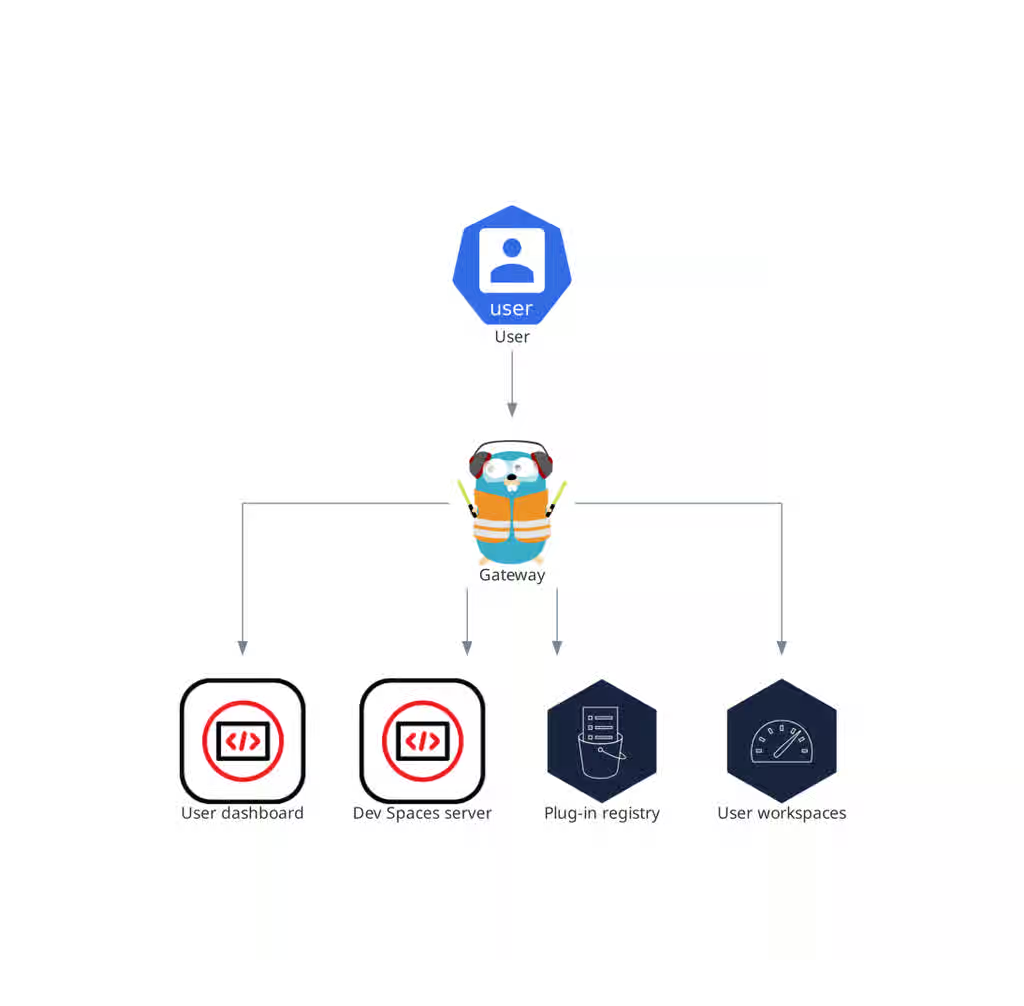
The OpenShift Dev Spaces gateway routes requests, authenticates users, and applies access control policies for OpenShift Dev Spaces resources.
The OpenShift Dev Spaces gateway has the following roles:
- Routing requests. It uses Traefik.
- Authenticating users with OpenID Connect (OIDC). It uses OAuth2 Proxy.
- Applying OpenShift Role Based Access Control (RBAC) policies to control access to any OpenShift Dev Spaces resource. It uses kube-rbac-proxy.
The OpenShift Dev Spaces operator manages it as the che-gateway Deployment.
It controls access to the user dashboard, the OpenShift Dev Spaces server, the plug-in registry, and user workspaces.
Figure 2.5. OpenShift Dev Spaces gateway interactions with other components
Additional resources
- Chapter 15, Manage identities and authorizations
- Content from github.com is not included.Traefik
- Content from github.com is not included.OAuth2 Proxy
- Content from github.com is not included.kube-rbac-proxy
- Section 2.3.5, “User dashboard”
- Section 2.3.6, “OpenShift Dev Spaces server”
- Section 2.3.7, “Plug-in registry”
- Section 2.4, “User workspaces”
2.3.5. User dashboard
The user dashboard is the landing page of Red Hat OpenShift Dev Spaces, providing a central interface for users to create, access, and manage their workspaces.
It needs access to the OpenShift Dev Spaces server, the plug-in registry, and the OpenShift Application Programming Interface (API).
Figure 2.6. User dashboard interactions with other components
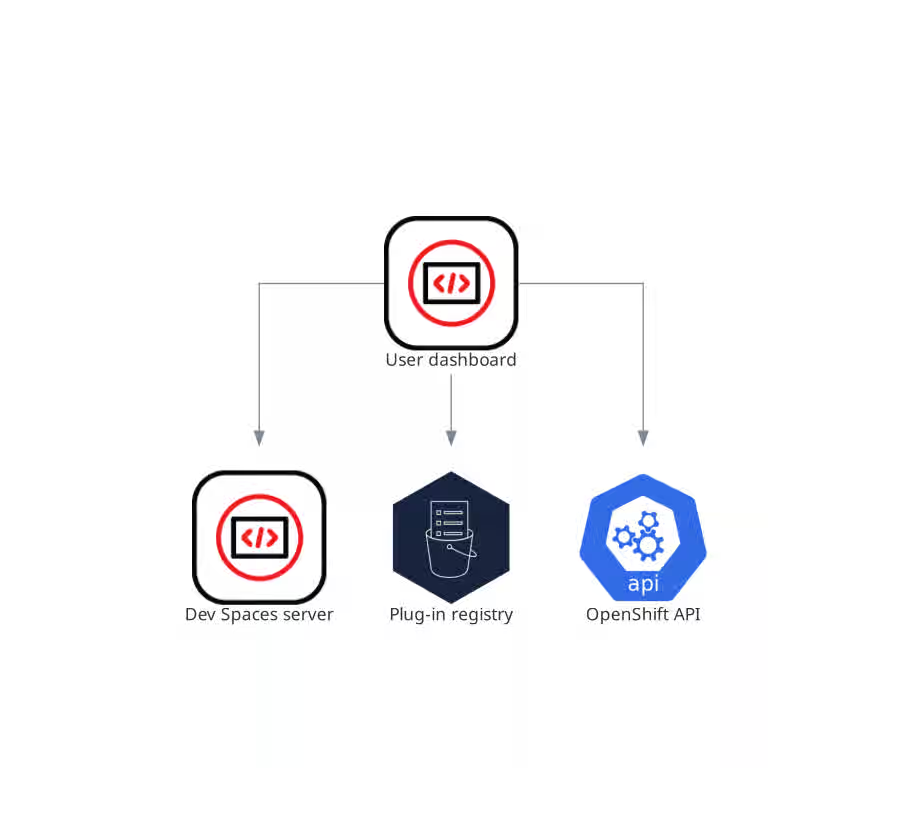
When the user requests the user dashboard to start a workspace, the user dashboard executes this sequence of actions:
- Sends the repository URL to the OpenShift Dev Spaces server and expects a devfile in return, when the user is creating a workspace from a remote devfile.
- Reads the devfile describing the workspace.
- Collects the additional metadata from the plug-in registry.
- Converts the information into a Dev Workspace Custom Resource.
- Creates the Dev Workspace Custom Resource in the user project using the OpenShift API.
- Watches the Dev Workspace Custom Resource status.
- Redirects the user to the running workspace IDE.
2.3.6. OpenShift Dev Spaces server
The OpenShift Dev Spaces server is a Java web service that manages user namespaces, provisions secrets and config maps, and integrates with Git service providers.
The OpenShift Dev Spaces server main functions are:
- Creating user namespaces.
- Provisioning user namespaces with required secrets and config maps.
- Integrating with Git services providers, to fetch and validate devfiles and authentication.
The OpenShift Dev Spaces server is a Java web service exposing a Hypertext Transfer Protocol (HTTP) REST API and needs access to:
- Git service providers
- OpenShift API
Figure 2.7. OpenShift Dev Spaces server interactions with other components
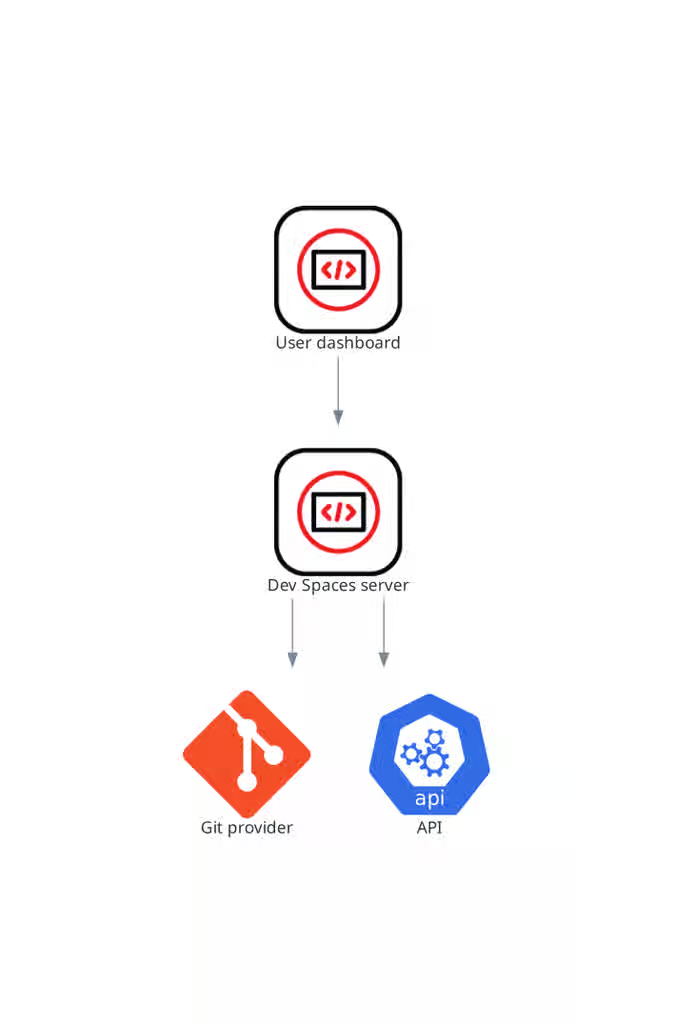
Additional resources
2.3.7. Plug-in registry
Each OpenShift Dev Spaces workspace starts with a specific editor and set of associated extensions. The OpenShift Dev Spaces plugin registry provides the list of available editors and editor extensions. A Devfile v2 describes each editor or extension.
The user dashboard reads the content of the registry.
Figure 2.8. Plugin registries interactions with other components
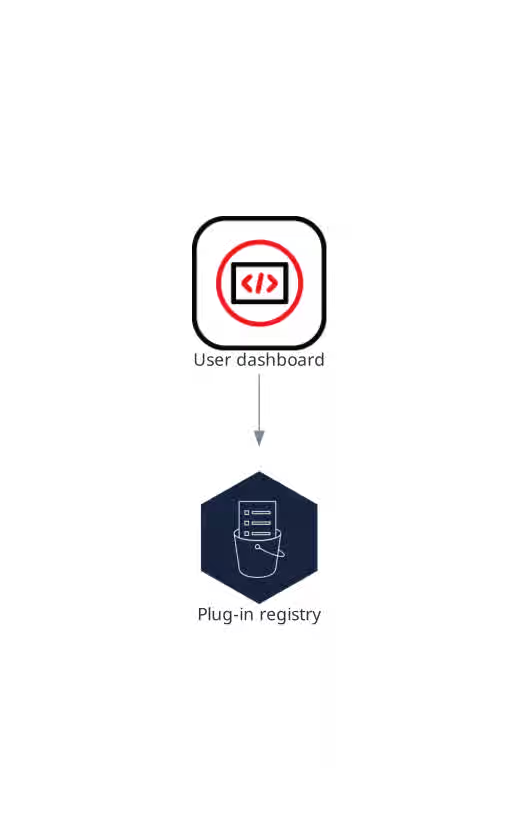
2.4. User workspaces
Figure 2.9. User workspaces interactions with other components
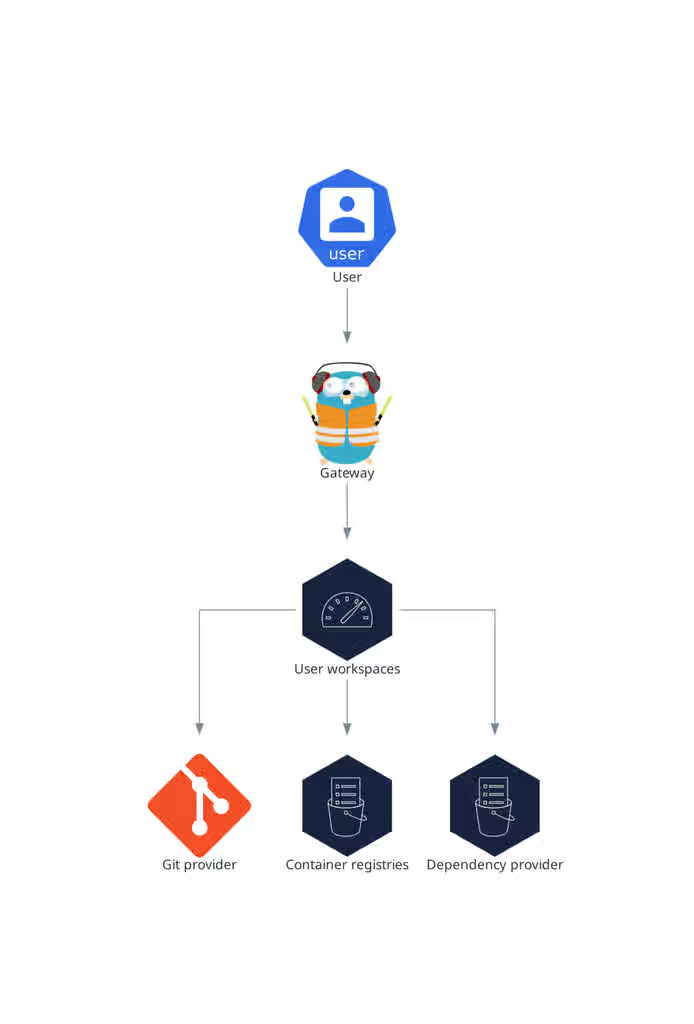
User workspaces provide browser-based IDEs running in OpenShift containers, giving developers on-demand access to editors, language servers, debugging tools, and application runtimes without local setup.
A User workspace is a web application. It consists of microservices running in containers providing all the services of a modern IDE running in your browser:
- Editor
- Language auto-completion
- Language server
- Debugging tools
- Plug-ins
- Application runtimes
A workspace is one OpenShift Deployment containing the workspace containers and enabled plugins, plus related OpenShift components:
- Containers
- ConfigMaps
- Services
- Endpoints
- Ingresses or Routes
- Secrets
- Persistent Volumes (PV)
A OpenShift Dev Spaces workspace contains the source code of the projects, persisted in an OpenShift Persistent Volume (PV). Microservices have read/write access to this shared directory.
Use the devfile v2 format to specify the tools and runtime applications of an OpenShift Dev Spaces workspace.
The following diagram shows one running OpenShift Dev Spaces workspace and its components.
Figure 2.10. OpenShift Dev Spaces workspace components
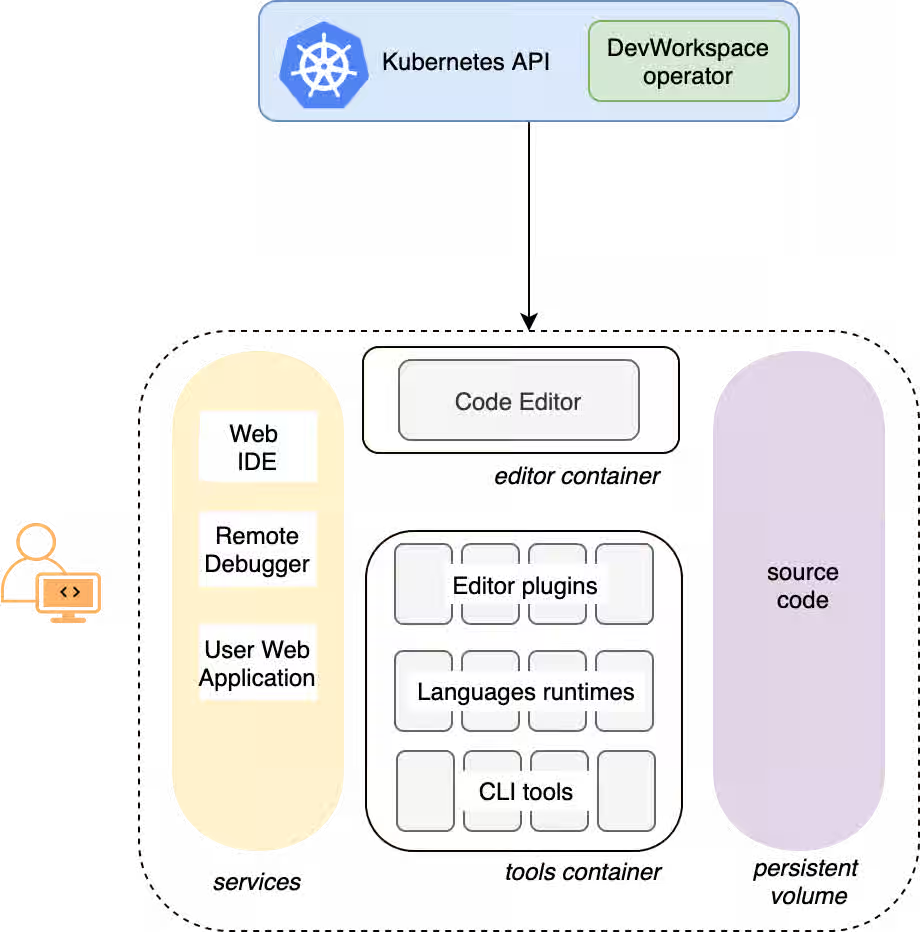
In the diagram, there is one running workspace.
2.5. Calculate OpenShift Dev Spaces resource requirements
Calculate the CPU and memory resource consumption for the OpenShift Dev Spaces Operator, Dev Workspace Controller, and user workspaces to right-size your cluster for the expected number of concurrent users.
The following link to an Content from github.com is not included.example devfile is a pointer to material from the upstream community. This material represents the very latest available content and the most recent best practices. These tips have not yet been vetted by Red Hat’s QE department, and they have not yet been proven by a wide user group. Please, use this information cautiously. It is best used for educational and 'developmental' purposes rather than 'production' purposes.
Prerequisites
- You have a planned or existing OpenShift Dev Spaces deployment on OpenShift Container Platform 4.16 or later.
- You have the devfiles that define the development environments for your users.
- You have an estimate of the number of concurrent workspaces that your users will run.
Procedure
Identify the workspace resource requirements from the devfile
componentssection. The following example uses the Content from github.com is not included.Quarkus API example devfile.The
toolscomponent of the devfile defines the following requests and limits:memoryLimit: 6G memoryRequest: 512M cpuRequest: 1000m cpuLimit: 4000mDuring workspace startup, an internal
che-gatewaycontainer is implicitly provisioned with the following requests and limits:memoryLimit: 256M memoryRequest: 64M cpuRequest: 50m cpuLimit: 500mAdditional memory and CPU are added implicitly for the Visual Studio Code - Open Source ("Code - OSS") editor:
memoryLimit: 1024M memoryRequest: 256M cpuRequest: 30m cpuLimit: 500mAdditional memory and CPU are added implicitly for a JetBrains IDE, for example IntelliJ IDEA Ultimate:
    memoryLimit: 6144M
    memoryRequest: 2048M
    cpuRequest: 1500m
    cpuLimit: 2000m
Calculate the sums of the resources required for each workspace. If you intend to use multiple devfiles, repeat this calculation for every expected devfile.
Table 2.2. Workspace requirements for the Content from github.com is not included.example devfile in the previous step
Purpose Pod Container name Memory limit Memory request CPU limit CPU request Developer tools
workspacetools6 GiB
512 MiB
4000 m
1000 m
OpenShift Dev Spaces gateway
workspaceche-gateway256 MiB
64 MiB
500 m
50 m
Visual Studio Code
workspacetools1024 MiB
256 MiB
500 m
30 m
Total
7.3 GiB
832 MiB
5000 m
1080 m
- Multiply the resources calculated per workspace by the number of workspaces that you expect all of your users to run simultaneously.
Calculate the sums of the requirements for the OpenShift Dev Spaces Operator, Operands, and Dev Workspace Controller.
Table 2.3. Default requirements for the OpenShift Dev Spaces Operator, Operands, and Dev Workspace Controller
Purpose Pod name Container names Memory limit Memory request CPU limit CPU request OpenShift Dev Spaces operator
devspaces-operatordevspaces-operator256 MiB
64 MiB
500 m
100 m
OpenShift Dev Spaces Server
devspacesdevspaces-server1 GiB
512 MiB
1000 m
100 m
OpenShift Dev Spaces Dashboard
devspaces-dashboarddevspaces-dashboard256 MiB
32 MiB
500 m
100 m
OpenShift Dev Spaces Gateway
devspaces-gatewaytraefik4 GiB
128 MiB
1000 m
100 m
OpenShift Dev Spaces Gateway
devspaces-gatewayconfigbump256 MiB
64 MiB
500 m
50 m
OpenShift Dev Spaces Gateway
devspaces-gatewayoauth-proxy512 MiB
64 MiB
500 m
100 m
OpenShift Dev Spaces Gateway
devspaces-gatewaykube-rbac-proxy512 MiB
64 MiB
500 m
100 m
Plugin registry
plugin-registryplugin-registry256 MiB
32 MiB
500 m
100 m
Dev Workspace Controller Manager
devworkspace-controller-managerdevworkspace-controller5 GiB
100 MiB
3000 m
250 m
Dev Workspace Controller Manager
devworkspace-controller-managerkube-rbac-proxyN/A
N/A
N/A
N/A
Dev Workspace Operator Catalog
devworkspace-operator-catalogregistry-serverN/A
50 MiB
N/A
10 m
Dev Workspace Webhook Server
devworkspace-webhook-serverwebhook-server300 MiB
20 MiB
200 m
100 m
Dev Workspace Webhook Server
devworkspace-webhook-serverkube-rbac-proxyN/A
N/A
N/A
N/A
Total
12.3 GiB
1.1 GiB
8.2
1.1
- Add the workspace resources from step 3 and the operator resources from step 4 to determine total cluster resource requirements.
Verification
- Verify that the total resource requirements account for all OpenShift Dev Spaces Operator components, Dev Workspace Controller components, and the expected number of concurrent workspaces.
Chapter 3. OpenShift Dev Spaces scalability
Scaling Cloud Development Environments (CDEs) to thousands of concurrent workspaces on Kubernetes presents significant infrastructure and performance challenges.
Such a scale imposes high infrastructure demands and introduces potential bottlenecks that can impact performance and stability. Addressing these challenges requires meticulous planning, strategic architectural choices, monitoring, and continuous optimization.
CDE workloads are particularly complex to scale. The underlying IDE solutions, such as Visual Studio Code - Open Source ("Code - OSS") or JetBrains Gateway, are designed as single-user applications, not as multitenant services.
3.1. Resource quantity and object maximums
While there is no strict limit on the number of resources in a Kubernetes cluster, there are certain considerations for large clusters to remember.
OpenShift Container Platform, a certified distribution of Kubernetes, provides a set of tested maximums for various resources. These maximums can serve as an initial guideline for planning your environment:
Table 3.1. OpenShift Container Platform tested cluster maximums
| Resource type | Tested maximum |
|---|---|
| Number of nodes | 2000 |
| Number of pods | 150000 |
| Number of pods per node | 2500 |
| Number of namespace | 10000 |
| Number of services | 10000 |
| Number of secrets | 80000 |
| Number of config maps | 90000 |
For more details on OpenShift Container Platform tested object maximums, see the OpenShift Container Platform scalability and performance documentation.
For example, it is generally not recommended to have more than 10,000 namespaces due to potential performance and management overhead. In Red Hat OpenShift Dev Spaces, each user is allocated a namespace. If you expect the user base to be large, consider spreading workloads across multiple "fit-for-purpose" clusters and potentially using solutions for multi-cluster orchestration.
3.2. Resource requirements
When deploying Red Hat OpenShift Dev Spaces on Kubernetes, accurately calculate the resource requirements for each CDE, including memory and CPU or GPU needs. This determines the right sizing of the cluster. In general, the CDE size is limited by and cannot be bigger than the worker node size.
The resource requirements for CDEs can vary significantly based on the specific workloads and configurations. A simple CDE might require only a few hundred megabytes of memory. A more complex one might need several gigabytes of memory and multiple CPU cores.
For details about calculating resource requirements, see the procedure for calculating OpenShift Dev Spaces resource requirements.
3.3. Using etcd
The primary datastore of Kubernetes cluster configuration and state is etcd. It holds information about nodes, pods, services, and custom resources.
As a distributed key-value store, etcd does not scale well past a certain threshold. As the size of etcd grows, so does the load on the cluster, risking its stability.
The default etcd size is 2 GB, and the recommended maximum is 8 GB. Exceeding the maximum limit can make the Kubernetes cluster unstable and unresponsive. Even though the data stored in a ConfigMap cannot exceed 1 MiB by design, a few thousand relatively large ConfigMap objects can overload etcd storage.
3.4. Object size as a factor
The size of the objects stored in etcd is also a critical factor. Each object consumes space, and as the number of objects increases, the overall size of etcd grows. The larger the object, the more space it takes. For example, etcd can be overloaded with only a few thousand large Kubernetes objects.
In the context of Red Hat OpenShift Dev Spaces, by default the Operator creates and manages the 'ca-certs-merged' ConfigMap, which contains the Certificate Authorities (CAs) bundle, in every user namespace. With a large number of Transport Layer Security (TLS) certificates in the cluster, this results in additional etcd usage.
To disable mounting the CA bundle by using the ConfigMap under the /etc/pki/ca-trust/extracted/pem path, configure the CheCluster Custom Resource by setting the disableWorkspaceCaBundleMount property to true. With this configuration, only custom certificates are mounted under the path /public-certs:
spec:
  devEnvironments:
    trustedCerts:
disableWorkspaceCaBundleMount: true3.5. Dev Workspace objects
For large Kubernetes deployments, particularly those involving a high number of custom resources such as DevWorkspace objects, which represent CDEs, etcd can become a significant performance bottleneck.
Based on the load testing for 6,000 DevWorkspace objects, storage consumption for etcd was approximately 2.5GB.
Starting from Dev Workspace Operator version 0.34.0, you can configure a pruner that automatically cleans up DevWorkspace objects that were not in use for a certain period of time. To set the pruner up, configure the DevWorkspaceOperatorConfig object as follows:
apiVersion: controller.devfile.io/v1alpha1
kind: DevWorkspaceOperatorConfig
metadata:
  name: devworkspace-operator-config
  namespace: crw
config:
  workspace:
    cleanupCronJob:
      enabled: true
      dryRun: false
      retainTime: 2592000
schedule: "0 0 1 * *"- retainTime
- By default, if a workspace was not started for more than 30 days, it is marked for deletion.
- schedule
- By default, the pruner runs once per month.
3.6. OLMConfig
When an Operator is installed by the Operator Lifecycle Manager (OLM), a stripped-down copy of its CSV is created in every namespace the Operator watches. These "Copied CSVs" communicate which controllers are reconciling resource events in a given namespace.
On large clusters with hundreds or thousands of namespaces, Copied CSVs consume an unsustainable amount of resources, including OLM memory, etcd storage, and network bandwidth. To eliminate the CSVs copied to every namespace, configure the OLMConfig object:
apiVersion: operators.coreos.com/v1
kind: OLMConfig
metadata:
  name: cluster
spec:
  features:
    disableCopiedCSVs: true
Additional information about the disableCopiedCSVs feature is available in its original enhancement proposal.
In clusters with many namespaces and cluster-wide Operators, Copied CSVs increase etcd storage usage and memory consumption. Disabling Copied CSVs significantly reduces the data stored in etcd and improves cluster performance and stability.
Disabling Copied CSVs also reduces the memory footprint of OLM, as it no longer maintains these additional resources.
For more details about disabling Copied CSVs, see the OLM documentation.
3.7. Cluster Autoscaling
Although cluster autoscaling is a powerful Kubernetes feature, you cannot always rely on it. Consider predictive scaling by analyzing load data to detect daily or weekly usage patterns.
If your workloads follow a pattern with dramatic peaks throughout the day, provision worker nodes accordingly. For example, if workspaces increase during business hours and decrease during off-hours, predictive scaling adjusts the number of worker nodes. This ensures enough resources are available during peak load while minimizing costs during off-peak hours.
You can also use open-source solutions such as Karpenter for configuration and lifecycle management of the worker nodes. Karpenter can dynamically provision and optimize worker nodes based on the specific requirements of the workloads. This helps improve resource utilization and reduce costs.
3.8. Multi-cluster
By design, Red Hat OpenShift Dev Spaces is not multi-cluster aware. You can only have one instance per cluster.
However, you can run Red Hat OpenShift Dev Spaces in a multi-cluster environment by deploying Red Hat OpenShift Dev Spaces in each cluster. Use a load balancer or Domain Name System (DNS)-based routing to direct traffic to the appropriate instance. This approach distributes the workload across clusters and provides redundancy in case of cluster failures.
3.9. Developer Sandbox example
You can test running OpenShift Dev Spaces in a multi-cluster environment by using the Developer Sandbox, a free trial environment by Red Hat.
From an infrastructure perspective, the Developer Sandbox consists of multiple Red Hat OpenShift Service on AWS (ROSA) clusters. On each cluster, the productized version of Red Hat OpenShift Dev Spaces is installed and configured using Argo CD. The workspaces.openshift.com URL is used as a single entry point to the Red Hat OpenShift Dev Spaces instances across clusters.
Figure 3.1. Developer Sandbox multi-cluster architecture
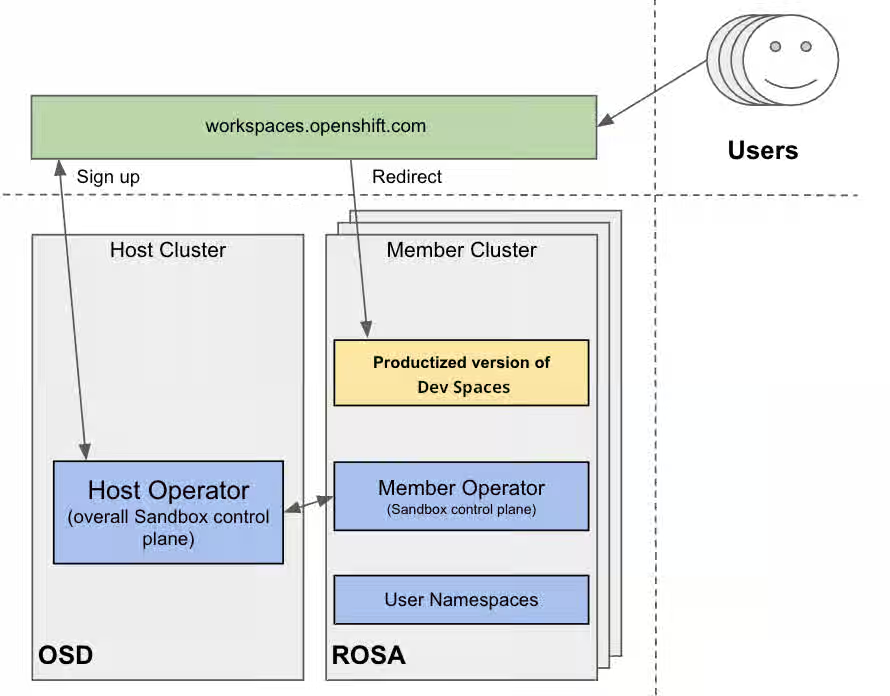
You can find implementation details about the multicluster redirector in the crw-multicluster-redirector GitHub repository.
The multi-cluster architecture of workspaces.openshift.com is part of the Developer Sandbox. It is a Developer Sandbox-specific solution that cannot be reused as-is in other environments. However, you can use it as a reference for implementing a similar solution well-tailored to your specific multicluster needs.
3.10. The multicluster redirector solution for OpenShift Container Platform
Red Hat offers an open-source, Quarkus-based service that acts as a single gateway for developers. This service automatically redirects users to the correct Red Hat OpenShift Dev Spaces instance on the appropriate cluster based on their OpenShift Container Platform group membership. The community-supported version is available in the devspaces-multicluster-redirector GitHub repository.
3.11. Architecture and requirements
A critical requirement for the multicluster redirector is that all users are provisioned to the host cluster where the redirector is deployed. Users authenticate through the OAuth flow of this cluster, even if they never run workloads there. The host cluster’s OpenShift Container Platform groups determine the routing logic. See the devspaces-multicluster-redirector documentation for deployment instructions.
3.12. Configuration
The routing configuration uses a ConfigMap that contains JSON to map OpenShift Container Platform groups to Red Hat OpenShift Dev Spaces URLs. The redirector uses this file to update routing tables in real-time without requiring restarts.
3.13. Operational flow
The routing process follows these steps:
- Authenticate by using OAuth through a proxy sidecar.
- Pass identity and group information through HTTP headers.
- Verify group memberships by using OpenShift Container Platform API queries.
- Determine the appropriate Red Hat OpenShift Dev Spaces URL by using a mapping lookup.
- Redirect the user to the designated cluster instance.
If users belong to multiple OpenShift Container Platform groups, they can choose their desired Red Hat OpenShift Dev Spaces instance from a selection dashboard.
Additional resources
- Content from che.eclipseprojects.io is not included.Running at scale
- This content is not included.Enterprise multi-cluster scalability
- Content from kubernetes.io is not included.Kubernetes
- Content from github.com is not included.Visual Studio Code - Open Source ("Code - OSS")
- Content from www.jetbrains.com is not included.JetBrains Gateway
- Content from kubernetes.io is not included.Considerations for large clusters
- Content from kubernetespodcast.com is not included."Scalability, with Wojciech Tyczynski" episode of Kubernetes Podcast
- This content is not included.OpenShift Container Platform
- OpenShift Container Platform tested object maximums
- Section 2.5, “Calculate OpenShift Dev Spaces resource requirements”
- Content from etcd.io is not included.etcd
- Content from olm.operatorframework.io is not included.Operator Lifecycle Manager (OLM)
- Content from github.com is not included.OLM toggle Copied CSVs enhancement proposal
- Content from olm.operatorframework.io is not included.Disabling Copied CSVs in OLM
- Content from karpenter.sh is not included.Karpenter
- This content is not included.Developer Sandbox
- This content is not included.Red Hat OpenShift Service on AWS (ROSA)
- Content from argo-cd.readthedocs.io is not included.Argo CD
- Content from workspaces.openshift.com is not included.workspaces.openshift.com
- Content from github.com is not included.crw-multicluster-redirector GitHub repository
- Content from github.com is not included.devspaces-multicluster-redirector GitHub repository
Chapter 4. Install Red Hat OpenShift Dev Spaces
Install Red Hat OpenShift Dev Spaces on an OpenShift cluster by using the command-line interface (CLI) or the web console.
You can deploy only one instance of OpenShift Dev Spaces per cluster.
4.1. Install Dev Spaces on OpenShift using CLI
Install OpenShift Dev Spaces on OpenShift by using the dsc CLI management tool to deploy a new instance.
Prerequisites
- You have an OpenShift Container Platform 4.22 or later cluster.
-
You have an active
ocsession with administrative permissions to the OpenShift cluster. See This page is not included, but the link has been rewritten to point to the nearest parent document.Getting started with the OpenShift CLI. -
You have the
dscmanagement tool installed. See Section 2.2, “Install the dsc management tool”.
Procedure
Optional: If you previously deployed OpenShift Dev Spaces on this OpenShift cluster, ensure that the previous OpenShift Dev Spaces instance is removed:
$ dsc server:delete
Create the OpenShift Dev Spaces instance:
$ dsc server:deploy --platform openshift
Verification
Verify the OpenShift Dev Spaces instance status:
$ dsc server:status
Navigate to the OpenShift Dev Spaces cluster instance:
$ dsc dashboard:open
Additional resources
4.2. Install Dev Spaces on OpenShift using the web console
Install OpenShift Dev Spaces on OpenShift through the web console by deploying the Operator from OperatorHub and creating a CheCluster instance.
Prerequisites
- You have an OpenShift web console session as a cluster administrator. See Accessing the web console.
-
You have an active
ocsession with administrative permissions to the OpenShift cluster. See This page is not included, but the link has been rewritten to point to the nearest parent document.Getting started with the OpenShift CLI. - For a repeat installation: you have uninstalled the previous OpenShift Dev Spaces instance according to Chapter 24, Uninstall OpenShift Dev Spaces.
Procedure
-
In the Administrator view of the OpenShift web console, go to Operators → OperatorHub and search for
Red Hat OpenShift Dev Spaces. Install the Red Hat OpenShift Dev Spaces Operator.
ImportantThe Red Hat OpenShift Dev Spaces Operator depends on the Dev Workspace Operator. If you install the Red Hat OpenShift Dev Spaces Operator manually to a non-default namespace, ensure that the Dev Workspace Operator is also installed in the same namespace. The Operator Lifecycle Manager installs the Dev Workspace Operator as a dependency within the Red Hat OpenShift Dev Spaces Operator namespace. If the Dev Workspace Operator is already installed in a different namespace, two conflicting installations can result.
ImportantIf you want to onboard Web Terminal Operator on the cluster, use the same installation namespace as the Red Hat OpenShift Dev Spaces Operator. Both operators depend on the Dev Workspace Operator, so all three must be installed in the same namespace.
Create the
openshift-devspacesproject in OpenShift as follows:oc create namespace openshift-devspaces
- Go to Operators → Installed Operators → Red Hat OpenShift Dev Spaces instance Specification → Create CheCluster → YAML view.
-
In the YAML view, replace
namespace: openshift-operatorswithnamespace: openshift-devspaces. Select Create.
Verification
- In Red Hat OpenShift Dev Spaces instance Specification, go to devspaces, landing on the Details tab.
- Under Message, check that there is None, which means no errors.
- Under Red Hat OpenShift Dev Spaces URL, wait until the URL of the OpenShift Dev Spaces instance appears, and then open the URL to check the OpenShift Dev Spaces dashboard.
- In the Resources tab, view the resources for the OpenShift Dev Spaces deployment and their status.
4.3. Install OpenShift Dev Spaces in a restricted environment on OpenShift
Install OpenShift Dev Spaces on an air-gapped OpenShift cluster by mirroring required images and operator catalogs to a registry within the restricted network.
On a restricted network, deploying OpenShift Dev Spaces and running workspaces requires the following public resources:
- Operator catalog
- Container images
- Sample projects
To make these resources available, you can replace them with their copy in a registry accessible by the OpenShift cluster.
Prerequisites
- You have an OpenShift cluster with at least 64 GB of disk space.
- You have an OpenShift cluster ready to operate on a restricted network. See About disconnected installation mirroring and This page is not included, but the link has been rewritten to point to the nearest parent document.Using Operator Lifecycle Manager on restricted networks.
-
You have an active
ocsession with administrative permissions to the OpenShift cluster. See This page is not included, but the link has been rewritten to point to the nearest parent document.Getting started with the OpenShift CLI. -
You have an active
oc registrysession to theregistry.redhat.ioRed Hat Ecosystem Catalog. See Red Hat Container Registry authentication. -
You have
opminstalled. See Installing theopmCLI. -
You have
jqinstalled. See Content from stedolan.github.io is not included.Downloadingjq. -
You have
podmaninstalled. See Content from podman.io is not included.Podman Installation Instructions. -
You have
skopeoversion 1.6 or higher installed. See Content from github.com is not included.Installing Skopeo. -
You have an active
skopeosession with administrative access to the private Docker registry. See Content from github.com is not included.Authenticating to a registry and Mirroring images for a disconnected installation. -
You have
dscfor OpenShift Dev Spaces version 3.27 installed. See Section 2.2, “Install the dsc management tool”.
Procedure
Download and execute the mirroring script to install a custom Operator catalog and mirror the related images.
$ bash prepare-restricted-environment.sh \ --devworkspace_operator_index registry.redhat.io/redhat/redhat-operator-index:v4.22\ --devworkspace_operator_version "v0.40.0" \ --prod_operator_index "registry.redhat.io/redhat/redhat-operator-index:v4.22" \ --prod_operator_package_name "devspaces" \ --prod_operator_bundle_name "devspacesoperator" \ --prod_operator_version "v3.27.0" \ --my_registry "<my_registry>"--my_registry- The private Docker registry where the images will be mirrored
Procedure
Install OpenShift Dev Spaces with the configuration set in the
che-operator-cr-patch.yamlduring the previous step:$ dsc server:deploy \ --platform=openshift \ --olm-channel stable \ --catalog-source-name=devspaces-disconnected-install \ --catalog-source-namespace=openshift-marketplace \ --skip-devworkspace-operator \ --che-operator-cr-patch-yaml=che-operator-cr-patch.yaml
- Allow incoming traffic from the OpenShift Dev Spaces namespace to all Pods in the user projects. See: Section 12.1, “Configure network policies”.
Verification
Verify that the OpenShift Dev Spaces instance is running:
$ dsc server:status
Additional resources
4.4. Set up an Ansible sample
Configure an Ansible sample for use in restricted OpenShift Dev Spaces environments.
Prerequisites
- You have Microsoft Visual Studio Code - Open Source IDE as the configured editor.
- You have a 64-bit x86 system.
Procedure
Mirror the following images:
ghcr.io/ansible/ansible-devspaces@sha256:ce1ecc3b3c350eab2a9a417ce14a33f4b222a6aafd663b5cf997ccc8c601fe2c
registry.access.redhat.com/ubi8/python-39@sha256:301fec66443f80c3cc507ccaf72319052db5a1dc56deb55c8f169011d4bbaacb
Configure the cluster proxy to allow access to the following domains:
.ansible.com
.ansible-galaxy-ng.s3.dualstack.us-east-1.amazonaws.com
NoteSupport for the following IDE and CPU architectures is planned for a future release:
CPU architectures
- IBM Power (ppc64le)
- IBM Z (s390x)
4.5. Install OpenShift Dev Spaces on OpenShift with Keycloak as external identity provider
Install OpenShift Dev Spaces on an OpenShift cluster that uses Keycloak as an external OpenID Connect (OIDC) identity provider for centralized user authentication.
Prerequisites
-
You have an active
ocsession with administrative permissions to the OpenShift cluster. See This page is not included, but the link has been rewritten to point to the nearest parent document.Getting started with the CLI. - You have Keycloak configured as an external identity provider for OpenShift. See Enabling direct authentication with an external OIDC identity provider.
Procedure
Define the environment variables:
# The Keycloak realm used for OpenShift authentication:
OPENSHIFT_REALM=<realm>

# The Keycloak URL:
KEYCLOAK_URL=<keycloak_url>
Create a
devspacesclient in the Keycloak Admin Console:- Within the realm used for OpenShift authentication, select Clients on the left side of the navigation bar.
- Select the Create client button.
On the General Settings page:
-
Enter
devspacesin the Client ID field. - Optional: Enter a Name and Description for the OAuth client.
- Click Next.
-
Enter
On the Capability config page:
- Toggle Client authentication to On.
- Click Next.
- Click Save.
- Navigate to the Credentials tab of the newly created client and copy the Client secret value for use when applying the OAuth client secret.
Add the
devspacesclient to the audiences list in the OpenShift authentication configuration:oc patch authentication.config/cluster \ --type='json' \ -p='[ { "op": "add", "path": "/spec/oidcProviders/0/issuer/audiences/-", "value": "devspaces" } ]'NoteIf you have multiple OIDC providers configured, adjust the array index in the path (currently 0) to match your Keycloak provider’s position in the configuration.
Wait for the
kube-apiservercluster Operator to roll out the configuration changes:watch oc get co kube-apiserver
Create a project for OpenShift Dev Spaces:
oc create project openshift-devspaces
Create a secret for the OAuth client in the OpenShift Dev Spaces namespace:
oc apply -f - <<EOF apiVersion: v1 kind: Secret metadata: name: oauth-secret namespace: openshift-devspaces labels: app.kubernetes.io/part-of: che.eclipse.org stringData: oAuthSecret: <client_secret> EOFwhere:
<client_secret>-
The client secret value from the
devspacesclient in Keycloak.
Optional: Create the
ConfigMapwith a Keycloak certificate in theopenshift-devspacesnamespace. If Keycloak uses a certificate that is already trusted by OpenShift, skip this step.openssl s_client \ -connect "$(echo "$KEYCLOAK_URL" | sed 's|https://||'):443" \ -showcerts < /dev/null \ | sed -n '/-----BEGIN CERTIFICATE-----/,/-----END CERTIFICATE-----/p' \ > keycloak-ca.crt oc create configmap keycloak-certs \ --from-file=keycloak-ca.crt=keycloak-ca.crt \ -n openshift-devspaces && \ oc label configmap keycloak-certs \ app.kubernetes.io/part-of=che.eclipse.org \ app.kubernetes.io/component=ca-bundle \ -n openshift-devspacesPrepare the
CheClusterpatch:cat > che-patch.yaml << EOF kind: CheCluster apiVersion: org.eclipse.che/v2 spec: networking: auth: oAuthClientName: devspaces oAuthSecret: oauth-secret identityProviderURL: "$KEYCLOAK_URL/realms/$OPENSHIFT_REALM" gateway: oAuthProxy: cookieExpireSeconds: 300 deployment: containers: - name: oauth-proxy env: - name: OAUTH2_PROXY_CODE_CHALLENGE_METHOD value: S256 - name: OAUTH2_PROXY_BACKEND_LOGOUT_URL value: "$KEYCLOAK_URL/realms/$OPENSHIFT_REALM/protocol/openid-connect/logout?id_token_hint={id_token}" components: cheServer: extraProperties: CHE_OIDC_GROUPS__CLAIM: '<GROUPS_CLAIM>' CHE_OIDC_GROUPS__PREFIX: '<GROUPS_PREFIX>' CHE_OIDC_USERNAME__CLAIM: '<USERNAME_CLAIM>' CHE_OIDC_USERNAME__PREFIX: '<USERNAME_PREFIX>' EOFwhere:
CHE_OIDC_GROUPS__CLAIM- The claim to use for extracting user groups.
CHE_OIDC_GROUPS__PREFIX- The prefix to add to group names. Empty string means no prefix.
CHE_OIDC_USERNAME__CLAIM- The claim to use for extracting the username.
CHE_OIDC_USERNAME__PREFIXThe prefix to add to usernames. Empty string means no prefix.
NoteThese values must match the corresponding claim and prefix settings configured in the
authentication.config/clusterresource. To view the current cluster configuration, run:oc get authentication.config/cluster -o yaml
Create the OpenShift Dev Spaces instance with
dsc:dsc server:deploy \ --platform openshift \ --che-operator-cr-patch-yaml che-patch.yaml
Update the
devspacesclient to set the OpenShift Dev Spaces redirect URI and web origin.Obtain the Red Hat OpenShift Dev Spaces URL:
echo "$(oc get checluster devspaces -n openshift-devspaces -o jsonpath='{.status.cheURL}')"-
In the Valid redirect URIs field, enter the URL above with
/oauth/callbackappended. - In the Web origins field, enter the URL above.
- Click Save.
-
In the Valid redirect URIs field, enter the URL above with
Verification
Verify the OpenShift Dev Spaces instance status:
dsc server:status
Navigate to the OpenShift Dev Spaces cluster instance:
dsc dashboard:open
- Log in to the OpenShift Dev Spaces instance.
4.6. Find the fully qualified domain name (FQDN)
Retrieve the fully qualified domain name (FQDN) of your organization’s instance of OpenShift Dev Spaces on the command line to access the OpenShift Dev Spaces dashboard URL.
You can find the FQDN for your organization’s OpenShift Dev Spaces instance in the Administrator view of the OpenShift web console as follows. Go to Operators → Installed Operators → Red Hat OpenShift Dev Spaces instance Specification → devspaces → Red Hat OpenShift Dev Spaces URL.
Prerequisites
-
You have an active
ocsession with administrative permissions to the OpenShift cluster. See This page is not included, but the link has been rewritten to point to the nearest parent document.Getting started with the OpenShift CLI.
Procedure
Run the following command:
oc get checluster devspaces -n openshift-devspaces -o jsonpath='{.status.cheURL}'
Verification
- Open the returned URL in a web browser and verify that the OpenShift Dev Spaces dashboard loads.
4.7. Permissions to install OpenShift Dev Spaces on OpenShift using CLI
A specific set of permissions is required to install OpenShift Dev Spaces on an OpenShift cluster using the dsc CLI tool.
The following YAML shows the minimal set of permissions required to install OpenShift Dev Spaces on an OpenShift cluster using dsc:
apiVersion: rbac.authorization.k8s.io/v1
kind: ClusterRole
metadata:
  name: devspaces-install-dsc
rules:
- apiGroups: ["org.eclipse.che"]
  resources: ["checlusters"]
  verbs: ["*"]
- apiGroups: ["project.openshift.io"]
  resources: ["projects"]
  verbs: ["get", "list"]
- apiGroups: [""]
  resources: ["namespaces"]
  verbs: ["get", "list", "create"]
- apiGroups: [""]
  resources: ["pods", "configmaps"]
  verbs: ["get", "list"]
- apiGroups: ["route.openshift.io"]
  resources: ["routes"]
  verbs: ["get", "list"]
  # OLM resources permissions
- apiGroups: ["operators.coreos.com"]
  resources: ["catalogsources", "subscriptions"]
  verbs: ["create", "get", "list", "watch"]
- apiGroups: ["operators.coreos.com"]
  resources: ["operatorgroups", "clusterserviceversions"]
  verbs: ["get", "list", "watch"]
- apiGroups: ["operators.coreos.com"]
  resources: ["installplans"]
  verbs: ["patch", "get", "list", "watch"]
- apiGroups: ["packages.operators.coreos.com"]
  resources: ["packagemanifests"]
  verbs: ["get", "list"]
Additional resources
4.8. Permissions to install OpenShift Dev Spaces on OpenShift using web console
A specific set of permissions is required to install OpenShift Dev Spaces on an OpenShift cluster using the web console.
The following YAML shows the minimal set of permissions required to install OpenShift Dev Spaces on an OpenShift cluster using the web console:
apiVersion: rbac.authorization.k8s.io/v1
kind: ClusterRole
metadata:
  name: devspaces-install-web-console
rules:
- apiGroups: ["org.eclipse.che"]
  resources: ["checlusters"]
  verbs: ["*"]
- apiGroups: [""]
  resources: ["namespaces"]
  verbs: ["get", "list", "create"]
- apiGroups: ["project.openshift.io"]
  resources: ["projects"]
  verbs: ["get", "list", "create"]
  # OLM resources permissions
- apiGroups: ["operators.coreos.com"]
  resources: ["subscriptions"]
  verbs: ["get", "list", "watch", "create", "update", "patch", "delete"]
- apiGroups: ["operators.coreos.com"]
  resources: ["operatorgroups"]
  verbs: ["get", "list", "watch"]
- apiGroups: ["operators.coreos.com"]
  resources: ["clusterserviceversions", "catalogsources", "installplans"]
  verbs: ["get", "list", "watch", "delete"]
- apiGroups: ["packages.operators.coreos.com"]
  resources: ["packagemanifests", "packagemanifests/icon"]
  verbs: ["get", "list", "watch"]
  # Workaround related to viewing operators in OperatorHub
- apiGroups: ["operator.openshift.io"]
  resources: ["cloudcredentials"]
  verbs: ["get", "list", "watch"]
- apiGroups: ["config.openshift.io"]
  resources: ["infrastructures", "authentications"]
  verbs: ["get", "list", "watch"]
Additional resources
Chapter 5. Configure the CheCluster Custom Resource
Configure your OpenShift Dev Spaces instance by editing the CheCluster Custom Resource (CR).
The CheCluster CR is the central configuration object for OpenShift Dev Spaces. You can set fields during installation with dsc flags or modify them at any time afterward with oc.
5.1. The CheCluster Custom Resource
A default deployment of OpenShift Dev Spaces consists of a CheCluster Custom Resource parameterized by the Red Hat OpenShift Dev Spaces Operator. Understand its structure to customize OpenShift Dev Spaces components for your environment.
The CheCluster Custom Resource is a Kubernetes object. You can configure it by editing the CheCluster Custom Resource YAML file. This file contains sections to configure each component: devWorkspace, cheServer, pluginRegistry, devfileRegistry, dashboard and imagePuller.
The Red Hat OpenShift Dev Spaces Operator translates the CheCluster Custom Resource into a config map usable by each component of the OpenShift Dev Spaces installation.
The OpenShift platform applies the configuration to each component, and creates the necessary Pods. When OpenShift detects changes in the configuration of a component, it restarts the Pods accordingly.
Example 5.1. Configuring the main properties of the OpenShift Dev Spaces server component
-
Apply the
CheClusterCustom Resource YAML file with suitable modifications in thecheServercomponent section. -
The Operator generates the
cheConfigMap. -
OpenShift detects changes in the
ConfigMapand triggers a restart of the OpenShift Dev Spaces Pod.
Additional resources
5.2. Use dsc to configure the CheCluster Custom Resource during installation
To deploy OpenShift Dev Spaces with a suitable configuration, edit the CheCluster Custom Resource YAML file during the installation of OpenShift Dev Spaces. Otherwise, the OpenShift Dev Spaces deployment uses the default configuration parameterized by the Operator.
Prerequisites
-
You have an active
ocsession with administrative permissions to the OpenShift cluster. See This page is not included, but the link has been rewritten to point to the nearest parent document.Getting started with the CLI. -
You have the
dscmanagement tool installed. See Section 2.2, “Install the dsc management tool”.
Procedure
Create a
che-operator-cr-patch.yamlYAML file that contains the subset of theCheClusterCustom Resource to configure:spec: <component>: <property_to_configure>: <value>
Deploy OpenShift Dev Spaces and apply the changes described in
che-operator-cr-patch.yamlfile:$ dsc server:deploy \ --che-operator-cr-patch-yaml=che-operator-cr-patch.yaml \ --platform <chosen_platform>
Verification
Verify the value of the configured property:
$ oc get configmap che -o jsonpath='{.data.<configured_property>}' \
-n openshift-devspaces
5.3. Use the CLI to configure the CheCluster Custom Resource
Edit the CheCluster Custom Resource YAML file to customize the behavior of a running OpenShift Dev Spaces instance for your environment.
Prerequisites
- You have an instance of OpenShift Dev Spaces on OpenShift.
-
You have an active
ocsession with administrative permissions to the destination OpenShift cluster. See This page is not included, but the link has been rewritten to point to the nearest parent document.Getting started with the CLI.
Procedure
Edit the CheCluster Custom Resource on the cluster:
$ oc edit checluster/devspaces -n openshift-devspaces
- Save and close the file to apply the changes.
Verification
Verify the value of the configured property:
$ oc get configmap che -o jsonpath='{.data.<configured_property>}' \
-n openshift-devspaces
5.4. CheCluster Custom Resource fields reference
Customize the CheCluster Custom Resource by configuring its specification fields to control OpenShift Dev Spaces server, dashboard, gateway, and workspace components.
Example 5.2. A minimal CheCluster Custom Resource example.
apiVersion: org.eclipse.che/v2
kind: CheCluster
metadata:
  name: devspaces
  namespace: openshift-devspaces
spec:
  components: {}
  devEnvironments: {}
networking: {}Table 5.1. Development environment configuration options.
| Property | Description | Default |
|---|---|---|
| allowedSources | AllowedSources defines the allowed sources on which workspaces can be started. | |
| containerBuildConfiguration | Container build configuration. | |
| containerResourceCaps | ContainerResourceCaps defines the maximum resource requirements enforced for workspace containers. If a container specifies limits or requests that exceed these values, they will be capped at the maximum. Note: Caps only apply when resources are already specified on a container. For containers without resource specifications, use DefaultContainerResources instead. These resource caps do not apply to initContainers or the projectClone container. | |
| containerRunConfiguration | Container run configuration. | |
| defaultComponents | Default components applied to DevWorkspaces. These default components are meant to be used when a Devfile, that does not contain any components. | |
| defaultContainerResources | DefaultContainerResources defines the resource requirements (memory/cpu limit/request) used for container components that do not define limits or requests. | |
| defaultEditor |
The default editor to workspace create with. It could be a plugin ID or a URI. The plugin ID must have | |
| defaultNamespace | User’s default namespace. | { "autoProvision": true, "template": "<username>-che"} |
| defaultPlugins | Default plug-ins applied to DevWorkspaces. | |
| deploymentStrategy |
DeploymentStrategy defines the deployment strategy to use to replace existing workspace pods with new ones. The available deployment stragies are | |
| disableContainerBuildCapabilities |
Disables the container build capabilities. When set to | |
| disableContainerRunCapabilities |
Disables container run capabilities. Can be enabled on OpenShift version 4.20 or later. When set to | true |
| editorsDownloadUrls |
EditorsDownloadUrls provides a list of custom download URLs for JetBrains editors in a local-to-remote flow. It is particularly useful in disconnected or air-gapped environments, where editors cannot be downloaded from the public internet. Each entry contains an editor identifier in the | |
| gatewayContainer | GatewayContainer configuration. | |
| ignoredUnrecoverableEvents | IgnoredUnrecoverableEvents defines a list of Kubernetes event names that should be ignored when deciding to fail a workspace that is starting. This option should be used if a transient cluster issue is triggering false-positives (for example, if the cluster occasionally encounters FailedScheduling events). Events listed here will not trigger workspace failures. | [ "FailedScheduling"] |
| imagePullPolicy | ImagePullPolicy defines the imagePullPolicy used for containers in a DevWorkspace. | |
| maxNumberOfRunningWorkspacesPerCluster | The maximum number of concurrently running workspaces across the entire Kubernetes cluster. This applies to all users in the system. If the value is set to -1, it means there is no limit on the number of running workspaces. | |
| maxNumberOfRunningWorkspacesPerUser | The maximum number of running workspaces per user. The value, -1, allows users to run an unlimited number of workspaces. | |
| maxNumberOfWorkspacesPerUser | Total number of workspaces, both stopped and running, that a user can keep. The value, -1, allows users to keep an unlimited number of workspaces. | -1 |
| networking | Configuration settings related to the workspaces networking. | |
| nodeSelector | The node selector limits the nodes that can run the workspace pods. | |
| persistUserHome | PersistUserHome defines configuration options for persisting the user home directory in workspaces. | |
| podSchedulerName | Pod scheduler for the workspace pods. If not specified, the pod scheduler is set to the default scheduler on the cluster. | |
| projectCloneContainer | Project clone container configuration. | |
| runtimeClassName | RuntimeClassName specifies the spec.runtimeClassName for workspace pods. | |
| secondsOfInactivityBeforeIdling | Idle timeout for workspaces in seconds. This timeout is the duration after which a workspace will be idled if there is no activity. To disable workspace idling due to inactivity, set this value to -1. | 1800 |
| secondsOfRunBeforeIdling | Run timeout for workspaces in seconds. This timeout is the maximum duration a workspace runs. To disable workspace run timeout, set this value to -1. | -1 |
| security | Workspace security configuration. | |
| serviceAccount | ServiceAccount to use by the DevWorkspace operator when starting the workspaces. | |
| serviceAccountTokens | List of ServiceAccount tokens that will be mounted into workspace pods as projected volumes. | |
| startTimeoutSeconds | StartTimeoutSeconds determines the maximum duration (in seconds) that a workspace can take to start before it is automatically failed. If not specified, the default value of 300 seconds (5 minutes) is used. | 300 |
| storage | Workspaces persistent storage. | { "pvcStrategy": "per-user"} |
| tolerations | The pod tolerations of the workspace pods limit where the workspace pods can run. | |
| trustedCerts | Trusted certificate settings. | |
| user | User configuration. | |
| workspacesPodAnnotations | WorkspacesPodAnnotations defines additional annotations for workspace pods. |
Table 5.2. allowedSources options.
| Property | Description | Default |
|---|---|---|
| urls |
The list of approved URLs for starting Cloud Development Environments (CDEs). CDEs can only be initiated from these URLs. Wildcards |
Table 5.3. defaultNamespace options.
| Property | Description | Default |
|---|---|---|
| autoProvision | Indicates if is allowed to automatically create a user namespace. If it set to false, then user namespace must be pre-created by a cluster administrator. | true |
| template |
If you do not create the user namespaces in advance, this field defines the Kubernetes namespace created when you start your first workspace. You can use | "<username>-che" |
Table 5.4. defaultPlugins options.
| Property | Description | Default |
|---|---|---|
| editor |
The editor ID to specify default plug-ins for. The plugin ID must have | |
| plugins | Default plug-in URIs for the specified editor. |
Table 5.5. editorsDownloadUrls options.
| Property | Description | Default |
|---|---|---|
| editor |
The editor ID must have | |
| url | ul |
Table 5.6. gatewayContainer options.
| Property | Description | Default |
|---|---|---|
| env | List of environment variables to set in the container. | |
| image | Container image. Omit it or leave it empty to use the default container image provided by the Operator. | |
| imagePullPolicy |
Image pull policy. Default value is | |
| name | Container name. | |
| resources | Compute resources required by this container. |
Table 5.7. networking options.
| Property | Description | Default |
|---|---|---|
| externalTLSConfig | External TLS configuration. |
Table 5.8. externalTLSConfig options.
| Property | Description | Default |
|---|---|---|
| annotations | Annotations to be applied to ingress/route objects when external TLS is enabled. | |
| enabled | Enabled determines whether external TLS configuration is used. If set to true, the operator will not set TLS config for ingress/route objects. Instead, it ensures that any custom TLS configuration will not be reverted on synchronization. | |
| labels | Labels to be applied to ingress/route objects when external TLS is enabled. |
Table 5.9. persistUserHome options.
| Property | Description | Default |
|---|---|---|
| disableInitContainer |
Determines whether the init container that initializes the persistent home directory should be disabled. When the | |
| enabled | Determines whether the user home directory in workspaces should persist between workspace shutdown and startup. Must be used with the 'per-user' or 'per-workspace' PVC strategy to take effect. Disabled by default. |
Table 5.10. projectCloneContainer options.
| Property | Description | Default |
|---|---|---|
| env | List of environment variables to set in the container. | |
| image | Container image. Omit it or leave it empty to use the default container image provided by the Operator. | |
| imagePullPolicy |
Image pull policy. Default value is | |
| name | Container name. | |
| resources | Compute resources required by this container. |
Table 5.11. security options.
| Property | Description | Default |
|---|---|---|
| containerSecurityContext |
Defines the SecurityContext applied to all workspace-related containers. When set, the specified values are merged with the default SecurityContext configuration. This setting takes effect only if both | |
| podSecurityContext | PodSecurityContext used by all workspace-related pods. If set, defined values are merged into the default PodSecurityContext configuration. |
Table 5.12. storage options.
| Property | Description | Default |
|---|---|---|
| perUserStrategyPvcConfig |
PVC settings when using the | |
| perWorkspaceStrategyPvcConfig |
PVC settings when using the | |
| pvcStrategy |
Persistent volume claim strategy for the OpenShift Dev Spaces server. The supported strategies are: | "per-user" |
Table 5.13. per-user PVC strategy options.
| Property | Description | Default |
|---|---|---|
| claimSize | Persistent Volume Claim size. To update the claim size, the storage class that provisions it must support resizing. | |
| storageAccessMode | StorageAccessMode are the desired access modes the volume should have. It is used to specify PersistentVolume access mode type to RWO/RWX when using per-user strategy, allowing user to re-use volume across multiple workspaces. It defaults to ReadWriteOnce if not specified | |
| storageClass | Storage class for the Persistent Volume Claim. When omitted or left blank, a default storage class is used. |
Table 5.14. per-workspace PVC strategy options.
| Property | Description | Default |
|---|---|---|
| claimSize | Persistent Volume Claim size. To update the claim size, the storage class that provisions it must support resizing. | |
| storageAccessMode | StorageAccessMode are the desired access modes the volume should have. It is used to specify PersistentVolume access mode type to RWO/RWX when using per-user strategy, allowing user to re-use volume across multiple workspaces. It defaults to ReadWriteOnce if not specified | |
| storageClass | Storage class for the Persistent Volume Claim. When omitted or left blank, a default storage class is used. |
Table 5.15. trustedCerts options.
| Property | Description | Default |
|---|---|---|
| disableWorkspaceCaBundleMount | By default, the Operator creates and mounts the 'ca-certs-merged' ConfigMap containing the CA certificate bundle in users' workspaces at two locations: '/public-certs' and '/etc/pki/ca-trust/extracted/pem'. The '/etc/pki/ca-trust/extracted/pem' directory is where the system stores extracted CA certificates for trusted certificate authorities on Red Hat (e.g., CentOS, Fedora). This option disables mounting the CA bundle to the '/etc/pki/ca-trust/extracted/pem' directory while still mounting it to '/public-certs'. | |
| gitTrustedCertsConfigMapName |
The ConfigMap contains certificates to propagate to the OpenShift Dev Spaces components and to provide a particular configuration for Git. See the following page: Content from www.eclipse.org is not included.https://www.eclipse.org/che/docs/stable/administration-guide/deploying-che-with-support-for-git-repositories-with-self-signed-certificates/ The ConfigMap must have a |
Table 5.16. user options.
| Property | Description | Default |
|---|---|---|
| clusterRoles |
Additional ClusterRoles assigned to the user. The role must have |
Table 5.17. containerBuildConfiguration options.
| Property | Description | Default |
|---|---|---|
| openShiftSecurityContextConstraint | OpenShift security context constraint to build containers. | "container-build" |
Table 5.18. containerRunConfiguration options.
| Property | Description | Default |
|---|---|---|
| containerSecurityContext |
SecurityContext applied to all workspace containers when run capabilities are enabled. The default | { "allowPrivilegeEscalation": true, "capabilities": { "add": [ "SETGID", "SETUID" ] }, "procMount": "Unmasked"} |
| openShiftSecurityContextConstraint | Specifies the OpenShift SecurityContextConstraint used to run containers. | "container-run" |
| workspacesPodAnnotations |
Extra annotations applied to all workspace pods, in addition to those defined in | { "io.kubernetes.cri-o.Devices": "/dev/fuse,/dev/net/tun"} |
Table 5.19. OpenShift Dev Spaces components configuration.
| Property | Description | Default |
|---|---|---|
| cheServer | General configuration settings related to the OpenShift Dev Spaces server. | { "debug": false, "logLevel": "INFO"} |
| dashboard | Configuration settings related to the dashboard used by the OpenShift Dev Spaces installation. | |
| devWorkspace | DevWorkspace Operator configuration. | |
| devfileRegistry | Configuration settings related to the devfile registry used by the OpenShift Dev Spaces installation. | |
| imagePuller | Kubernetes Image Puller configuration. | |
| metrics | OpenShift Dev Spaces server metrics configuration. | { "enable": true} |
| pluginRegistry | Configuration settings related to the plug-in registry used by the OpenShift Dev Spaces installation. |
Table 5.20. General configuration settings related to the OpenShift Dev Spaces server component.
| Property | Description | Default |
|---|---|---|
| clusterRoles |
Additional ClusterRoles assigned to OpenShift Dev Spaces ServiceAccount. Each role must have a | |
| debug | Enables the debug mode for OpenShift Dev Spaces server. | false |
| deployment | Deployment override options. | |
| extraProperties |
A map of additional environment variables applied in the generated | |
| logLevel |
The log level for the OpenShift Dev Spaces server: | "INFO" |
| proxy | Proxy server settings for Kubernetes cluster. No additional configuration is required for OpenShift cluster. By specifying these settings for the OpenShift cluster, you override the OpenShift proxy configuration. |
Table 5.21. proxy options.
| Property | Description | Default |
|---|---|---|
| credentialsSecretName |
The secret name that contains | |
| nonProxyHosts |
A list of hosts that can be reached directly, bypassing the proxy. Specify wild card domain use the following form | |
| port | Proxy server port. | |
| url |
URL (protocol+hostname) of the proxy server. Use only when a proxy configuration is required. The Operator respects OpenShift cluster-wide proxy configuration, defining |
Table 5.22. Configuration settings related to the Plug-in registry component used by the OpenShift Dev Spaces installation.
| Property | Description | Default |
|---|---|---|
| deployment | Deployment override options. | |
| disableInternalRegistry | Disables internal plug-in registry. | |
| externalPluginRegistries | External plugin registries. | |
| openVSXURL | Open VSX registry URL. If omitted an embedded instance will be used. |
Table 5.23. externalPluginRegistries options.
| Property | Description | Default |
|---|---|---|
| url | Public URL of the plug-in registry. |
Table 5.24. Configuration settings related to the Devfile registry component used by the OpenShift Dev Spaces installation.
| Property | Description | Default |
|---|---|---|
| deployment | Deprecated deployment override options. | |
| disableInternalRegistry | Disables internal devfile registry. | |
| externalDevfileRegistries | External devfile registries serving sample ready-to-use devfiles. |
Table 5.25. externalDevfileRegistries options.
| Property | Description | Default |
|---|---|---|
| url | The public URL of the devfile registry that serves sample ready-to-use devfiles. |
Table 5.26. Configuration settings related to the Dashboard component used by the OpenShift Dev Spaces installation.
| Property | Description | Default |
|---|---|---|
| branding | Dashboard branding resources. | |
| deployment | Deployment override options. | |
| headerMessage | Dashboard header message. | |
| logLevel | The log level for the Dashboard. | "ERROR" |
Table 5.27. headerMessage options.
| Property | Description | Default |
|---|---|---|
| show | Instructs dashboard to show the message. | |
| text | Warning message displayed on the user dashboard. |
Table 5.28. branding options.
| Property | Description | Default |
|---|---|---|
| logo | Dashboard logo. |
Table 5.29. Kubernetes Image Puller component configuration.
| Property | Description | Default |
|---|---|---|
| enable |
Install and configure the community supported Kubernetes Image Puller Operator. When you set the value to | |
| spec | A Kubernetes Image Puller spec to configure the image puller in the CheCluster. |
Table 5.30. OpenShift Dev Spaces server metrics component configuration.
| Property | Description | Default |
|---|---|---|
| enable |
Enables | true |
Table 5.31. Configuration settings that allows users to work with remote Git repositories.
| Property | Description | Default |
|---|---|---|
| azure | Enables users to work with repositories hosted on Azure DevOps Service (dev.azure.com). | |
| bitbucket | Enables users to work with repositories hosted on Bitbucket (bitbucket.org or self-hosted). | |
| github | Enables users to work with repositories hosted on GitHub (github.com or GitHub Enterprise). | |
| gitlab | Enables users to work with repositories hosted on GitLab (gitlab.com or self-hosted). |
Table 5.32. github options.
| Property | Description | Default |
|---|---|---|
| disableSubdomainIsolation |
Disables subdomain isolation. Deprecated in favor of | |
| endpoint |
GitHub server endpoint URL. Deprecated in favor of | |
| secretName | Kubernetes secret, that contains Base64-encoded GitHub OAuth Client id and GitHub OAuth Client secret. See the following page for details: Content from www.eclipse.org is not included.https://www.eclipse.org/che/docs/stable/administration-guide/configuring-oauth-2-for-github/. |
Table 5.33. gitlab options.
| Property | Description | Default |
|---|---|---|
| endpoint |
GitLab server endpoint URL. Deprecated in favor of | |
| secretName | Kubernetes secret, that contains Base64-encoded GitHub Application id and GitLab Application Client secret. See the following page: Content from www.eclipse.org is not included.https://www.eclipse.org/che/docs/stable/administration-guide/configuring-oauth-2-for-gitlab/. |
Table 5.34. bitbucket options.
| Property | Description | Default |
|---|---|---|
| endpoint |
Bitbucket server endpoint URL. Deprecated in favor of | |
| secretName | Kubernetes secret, that contains Base64-encoded Bitbucket OAuth 1.0 or OAuth 2.0 data. See the following pages for details: Content from www.eclipse.org is not included.https://www.eclipse.org/che/docs/stable/administration-guide/configuring-oauth-1-for-a-bitbucket-server/ and Content from www.eclipse.org is not included.https://www.eclipse.org/che/docs/stable/administration-guide/configuring-oauth-2-for-the-bitbucket-cloud/. |
Table 5.35. azure options.
| Property | Description | Default |
|---|---|---|
| secretName | Kubernetes secret, that contains Base64-encoded Azure DevOps Service Application ID and Client Secret. See the following page: Content from www.eclipse.org is not included.https://www.eclipse.org/che/docs/stable/administration-guide/configuring-oauth-2-for-microsoft-azure-devops-services |
Table 5.36. Networking, OpenShift Dev Spaces authentication and TLS configuration.
| Property | Description | Default |
|---|---|---|
| annotations | Defines annotations which will be set for an Ingress (a route for OpenShift platform). The defaults for kubernetes platforms are: kubernetes.io/ingress.class: "nginx" nginx.ingress.kubernetes.io/proxy-read-timeout: "3600", nginx.ingress.kubernetes.io/proxy-connect-timeout: "3600", nginx.ingress.kubernetes.io/ssl-redirect: "true" | |
| auth | Authentication settings. | { "gateway": { "configLabels": { "app": "che", "component": "che-gateway-config" } }} |
| domain | For an OpenShift cluster, the Operator uses the domain to generate a hostname for the route. The generated hostname follows this pattern: che-<devspaces-namespace>.<domain>. The <devspaces-namespace> is the namespace where the CheCluster CRD is created. In conjunction with labels, it creates a route served by a non-default Ingress controller. For a Kubernetes cluster, it contains a global ingress domain. There are no default values: you must specify them. | |
| hostname | The public hostname of the installed OpenShift Dev Spaces server. | |
| ingressClassName |
IngressClassName is the name of an IngressClass cluster resource. If a class name is defined in both the | |
| labels | Defines labels which will be set for an Ingress (a route for OpenShift platform). | |
| tlsSecretName |
The name of the secret used to set up Ingress TLS termination. If the field is an empty string, the default cluster certificate is used. The secret must have a |
Table 5.37. auth options.
| Property | Description | Default |
|---|---|---|
| advancedAuthorization |
Advance authorization settings. Determines which users and groups are allowed to access Che. User is allowed to access OpenShift Dev Spaces if he/she is either in the | |
| gateway | Gateway settings. | { "configLabels": { "app": "che", "component": "che-gateway-config" }} |
| identityProviderURL | Public URL of the Identity Provider server. | |
| identityToken |
Identity token to be passed to upstream. There are two types of tokens supported: | |
| oAuthAccessTokenInactivityTimeoutSeconds |
Inactivity timeout for tokens to set in the OpenShift | |
| oAuthAccessTokenMaxAgeSeconds |
Access token max age for tokens to set in the OpenShift | |
| oAuthClientName |
Name of the OpenShift | |
| oAuthScope | Access Token Scope. This field is specific to OpenShift Dev Spaces installations made for Kubernetes only and ignored for OpenShift. | |
| oAuthSecret |
Name of the secret set in the OpenShift |
Table 5.38. gateway options.
| Property | Description | Default |
|---|---|---|
| configLabels | Gateway configuration labels. | { "app": "che", "component": "che-gateway-config"} |
| deployment |
Deployment override options. Since gateway deployment consists of several containers, they must be distinguished in the configuration by their names: - | |
| kubeRbacProxy | Configuration for kube-rbac-proxy within the OpenShift Dev Spaces gateway pod. | |
| oAuthProxy | Configuration for oauth-proxy within the OpenShift Dev Spaces gateway pod. | |
| traefik | Configuration for Traefik within the OpenShift Dev Spaces gateway pod. |
Table 5.39. advancedAuthorization options.
| Property | Description | Default |
|---|---|---|
| allowGroups | List of groups allowed to access OpenShift Dev Spaces (currently supported in OpenShift only). | |
| allowUsers | List of users allowed to access Che. | |
| denyGroups | List of groups denied to access OpenShift Dev Spaces (currently supported in OpenShift only). | |
| denyUsers | List of users denied to access Che. |
Table 5.40. Configuration of an alternative registry that stores OpenShift Dev Spaces images.
| Property | Description | Default |
|---|---|---|
| hostname | An optional hostname or URL of an alternative container registry to pull images from. This value overrides the container registry hostname defined in all the default container images involved in an OpenShift Dev Spaces deployment. This is particularly useful for installing OpenShift Dev Spaces in a restricted environment. | |
| organization | An optional repository name of an alternative registry to pull images from. This value overrides the container registry organization defined in all the default container images involved in an OpenShift Dev Spaces deployment. This is particularly useful for installing OpenShift Dev Spaces in a restricted environment. |
Table 5.41. deployment options.
| Property | Description | Default |
|---|---|---|
| containers | List of containers belonging to the pod. | |
| nodeSelector | The node selector limits the nodes that can run the pod. | |
| securityContext | Security options the pod should run with. | |
| tolerations | The pod tolerations of the component pod limit where the pod can run. |
Table 5.42. containers options.
| Property | Description | Default |
|---|---|---|
| env | List of environment variables to set in the container. | |
| image | Container image. Omit it or leave it empty to use the default container image provided by the Operator. | |
| imagePullPolicy |
Image pull policy. Default value is | |
| name | Container name. | |
| resources | Compute resources required by this container. |
Table 5.43. resources options.
| Property | Description | Default |
|---|---|---|
| limits | Describes the maximum amount of compute resources allowed. | |
| request | Describes the minimum amount of compute resources required. |
Table 5.44. request options.
| Property | Description | Default |
|---|---|---|
| cpu |
CPU, in cores. (500m = .5 cores) If the value is not specified, then the default value is set depending on the component. If value is | |
| memory |
Memory, in bytes. (500Gi = 500GiB = 500 * 1024 * 1024 * 1024) If the value is not specified, then the default value is set depending on the component. If value is |
Table 5.45. limits options.
| Property | Description | Default |
|---|---|---|
| cpu |
CPU, in cores. (500m = .5 cores) If the value is not specified, then the default value is set depending on the component. If value is | |
| memory |
Memory, in bytes. (500Gi = 500GiB = 500 * 1024 * 1024 * 1024) If the value is not specified, then the default value is set depending on the component. If value is |
Table 5.46. securityContext options.
| Property | Description | Default |
|---|---|---|
| fsGroup |
A special supplemental group that applies to all containers in a pod. The default value is | |
| runAsUser |
The UID to run the entrypoint of the container process. The default value is |
Table 5.47. CheCluster Custom Resource status defines the observed state of OpenShift Dev Spaces installation
| Property | Description | Default |
|---|---|---|
| chePhase | Specifies the current phase of the OpenShift Dev Spaces deployment. | |
| cheURL | Public URL of the OpenShift Dev Spaces server. | |
| cheVersion | Currently installed OpenShift Dev Spaces version. | |
| devfileRegistryURL | Deprecated the public URL of the internal devfile registry. | |
| gatewayPhase | Specifies the current phase of the gateway deployment. | |
| message | A human readable message indicating details about why the OpenShift Dev Spaces deployment is in the current phase. | |
| pluginRegistryURL | The public URL of the internal plug-in registry. | |
| reason | A brief CamelCase message indicating details about why the OpenShift Dev Spaces deployment is in the current phase. | |
| workspaceBaseDomain | The resolved workspace base domain. This is either the copy of the explicitly defined property of the same name in the spec or, if it is undefined in the spec and we’re running on OpenShift, the automatically resolved basedomain for routes. |
Chapter 6. Configure projects
Configure projects for OpenShift Dev Spaces workspaces, including namespace templates, pre-provisioning, and resource synchronization.
6.1. Project configuration
OpenShift Dev Spaces isolates workspaces for each user in a project, identified by labels and annotations. If the project does not exist, OpenShift Dev Spaces creates it from a template.
You can modify OpenShift Dev Spaces behavior by configuring the project name, provisioning projects in advance, or configuring a user project.
6.2. Configure project name
Configure the project name template that OpenShift Dev Spaces uses when creating workspace projects to enforce naming conventions and organizational compliance.
A valid project name template follows these conventions:
-
The
<username>or<userid>placeholder is mandatory. -
Usernames and IDs cannot contain invalid characters. If a username or ID is incompatible with OpenShift naming conventions, OpenShift Dev Spaces replaces incompatible characters with the
-symbol. -
OpenShift Dev Spaces evaluates the
<userid>placeholder into a 14 character long string, and adds a random six character long suffix to prevent IDs from colliding. The result is stored in the user preferences for reuse. - Kubernetes limits the length of a project name to 63 characters.
- OpenShift limits the length further to 49 characters.
Prerequisites
-
You have an active
ocsession with administrative permissions to the destination OpenShift cluster. See This page is not included, but the link has been rewritten to point to the nearest parent document.Getting started with the CLI.
Procedure
Configure the
CheClusterCustom Resource. See Section 5.3, “Use the CLI to configure the CheCluster Custom Resource”.spec: components: devEnvironments: defaultNamespace: template: <workspace_namespace_template>where:
<workspace_namespace_template>The project name template. Must include the
<username>or<userid>placeholder.Table 6.1. User workspaces project name template examples
User workspaces project name template Resulting project example <username>-devspaces(default)user1-devspaces
<userid>-namespacecge1egvsb2nhba-namespace-ul1411<userid>-aka-<username>-namespacecgezegvsb2nhba-aka-user1-namespace-6m2w2b
Verification
Start a workspace and verify that the workspace project name matches the configured template:
oc get devworkspaces -A -o jsonpath='{range .items[*]}{.metadata.namespace}{"\n"}{end}'
6.3. Provision projects in advance
Provision workspace projects in advance, rather than relying on automatic provisioning, to control namespace naming and apply custom resource quotas. Repeat the procedure for each user.
Prerequisites
-
You have an active
ocsession with administrative permissions to the destination OpenShift cluster. See This page is not included, but the link has been rewritten to point to the nearest parent document.Getting started with the CLI.
Procedure
Disable automatic namespace provisioning on the
CheClusterlevel:devEnvironments: defaultNamespace: autoProvision: falseCreate the <project_name> project for <username> user with the following labels and annotations:
kind: Namespace
apiVersion: v1
metadata:
  name: <project_name>
  labels:
    app.kubernetes.io/part-of: che.eclipse.org
    app.kubernetes.io/component: workspaces-namespace
  annotations:
    che.eclipse.org/username: <username>
where:
<project_name>- A project name of your choosing.
<username>- The username of the OpenShift Dev Spaces user.
Verification
Verify that the project was created with the correct labels:
$ oc get namespace <project_name> --show-labels
6.4. Configure a user namespace
Synchronize ConfigMaps, Secrets, PersistentVolumeClaims, and other Kubernetes objects from the openshift-devspaces namespace to user-specific namespaces to provide consistent workspace configurations.
If you make changes to a Kubernetes resource in the openshift-devspaces namespace, OpenShift Dev Spaces immediately synchronizes the changes across all user namespaces. In reverse, if a Kubernetes resource is modified in a user namespace, OpenShift Dev Spaces immediately reverts the changes.
Prerequisites
-
You have an active
ocsession with administrative permissions to the OpenShift cluster. See This page is not included, but the link has been rewritten to point to the nearest parent document.Getting started with the CLI.
Applying or modifying a Secret or ConfigMap with the controller.devfile.io/mount-to-devworkspace: 'true' label restarts all running workspaces in the project. Ensure that users save their work before you apply these changes.
Procedure
Create the following
ConfigMapto mount it into every workspace:kind: ConfigMap apiVersion: v1 metadata: name: devspaces-user-configmap namespace: openshift-devspaces labels: app.kubernetes.io/part-of: che.eclipse.org app.kubernetes.io/component: workspaces-config data: ...For example, to mount a default SSH configuration into every workspace, create a ConfigMap:
kind: ConfigMap apiVersion: v1 metadata: name: ssh-config-configmap namespace: openshift-devspaces labels: app.kubernetes.io/component: workspaces-config app.kubernetes.io/part-of: che.eclipse.org annotations: controller.devfile.io/mount-as: subpath controller.devfile.io/mount-path: /etc/ssh/ssh_config.d/ data: ssh.conf: <ssh_config_content>The ConfigMap propagates the SSH configuration as an extension by using
Include /etc/ssh/ssh_config.d/*.conf. For details, see Content from man.openbsd.org is not included.Include definition.For other labels and annotations, see the Content from github.com is not included.mounting volumes, configmaps, and secrets.
Optional: To prevent the ConfigMap from being mounted automatically, add these labels:
controller.devfile.io/watch-configmap: "false"
controller.devfile.io/mount-to-devworkspace: "false"
Optional: To retain the ConfigMap in a user namespace after deletion from
openshift-devspaces, add this annotation:che.eclipse.org/sync-retain-on-delete: "true"
Create the following
Secretto mount it into every workspace:kind: Secret apiVersion: v1 metadata: name: devspaces-user-secret namespace: openshift-devspaces labels: app.kubernetes.io/part-of: che.eclipse.org app.kubernetes.io/component: workspaces-config stringData: ...See the Content from github.com is not included.mounting volumes, configmaps, and secrets for other possible labels and annotations.
Optional: To prevent the Secret from being mounted automatically, add these labels:
controller.devfile.io/watch-secret: "false"
controller.devfile.io/mount-to-devworkspace: "false"
Optional: To retain the Secret in a user namespace after deletion from
openshift-devspaces, add this annotation:che.eclipse.org/sync-retain-on-delete: "true"
Create the following
PersistentVolumeClaimfor every user project:apiVersion: v1 kind: PersistentVolumeClaim metadata: name: devspaces-user-pvc namespace: openshift-devspaces labels: app.kubernetes.io/part-of: che.eclipse.org app.kubernetes.io/component: workspaces-config spec: ...See the Content from github.com is not included.mounting volumes, configmaps, and secrets for other possible labels and annotations.
Optional: By default, deleting a
PersistentVolumeClaimfromopenshift-devspacesdoes not delete it from a user namespace. To delete thePersistentVolumeClaimfrom user namespaces as well, add this annotation:che.eclipse.org/sync-retain-on-delete: "false"
Optional: To use the OpenShift Kubernetes Engine, create a
Templateobject to replicate all resources defined within the template across each user project.Aside from the previously mentioned
ConfigMap,Secret, andPersistentVolumeClaim,Templateobjects can include:-
LimitRange -
NetworkPolicy -
ResourceQuota -
Role RoleBindingapiVersion: template.openshift.io/v1 kind: Template metadata: name: devspaces-user-namespace-configurator namespace: openshift-devspaces labels: app.kubernetes.io/part-of: che.eclipse.org app.kubernetes.io/component: workspaces-config objects: ... parameters: - name: PROJECT_NAME - name: PROJECT_ADMIN_USERThe
parametersare optional and define which parameters can be used. Currently, onlyPROJECT_NAMEandPROJECT_ADMIN_USERare supported.PROJECT_NAMEis the name of the OpenShift Dev Spaces namespace, whilePROJECT_ADMIN_USERis the OpenShift Dev Spaces user of the namespace.The namespace name in objects is replaced with the user’s namespace name during synchronization.
For example, a Template that replicates
ResourceQuota,LimitRange,Role, andRoleBindingobjects:apiVersion: template.openshift.io/v1 kind: Template metadata: name: devspaces-user-namespace-configurator namespace: openshift-devspaces labels: app.kubernetes.io/part-of: che.eclipse.org app.kubernetes.io/component: workspaces-config objects: - apiVersion: v1 kind: ResourceQuota metadata: name: devspaces-user-resource-quota spec: ... - apiVersion: v1 kind: LimitRange metadata: name: devspaces-user-resource-constraint spec: ... - apiVersion: rbac.authorization.k8s.io/v1 kind: Role metadata: name: devspaces-user-roles rules: ... - apiVersion: rbac.authorization.k8s.io/v1 kind: RoleBinding metadata: name: devspaces-user-rolebinding roleRef: apiGroup: rbac.authorization.k8s.io kind: Role name: devspaces-user-roles subjects: - kind: User apiGroup: rbac.authorization.k8s.io name: ${PROJECT_ADMIN_USER} parameters: - name: PROJECT_ADMIN_USERNoteCreating Template Kubernetes resources is supported only on OpenShift.
-
Verification
Verify that the Kubernetes objects are synchronized to a user project:
$ oc get configmaps,secrets -n <user_namespace> -l app.kubernetes.io/part-of=che.eclipse.org
Chapter 7. Configure server components
Mount OpenShift Secrets and ConfigMaps into OpenShift Dev Spaces containers to provide configuration files, credentials, and environment variables without modifying container images.
You can mount Secrets and ConfigMaps as files, as subpath volumes, or as environment variables. Each method requires specific annotations and labels on the OpenShift resource.
7.1. Mount a Secret or a ConfigMap as a file
Mount an OpenShift Secret or a ConfigMap as a file into an OpenShift Dev Spaces container to provide configuration files, certificates, or credentials without embedding them in the container image.
Prerequisites
- You have a running instance of Red Hat OpenShift Dev Spaces.
Procedure
Create a new OpenShift Secret or a ConfigMap in the OpenShift project where OpenShift Dev Spaces is deployed with the required labels:
apiVersion: v1 kind: Secret metadata: name: custom-settings labels: app.kubernetes.io/part-of: che.eclipse.org app.kubernetes.io/component: <DEPLOYMENT_NAME>-<OBJECT_KIND> ...where:
kind-
Secretfor a Secret orConfigMapfor a ConfigMap. <DEPLOYMENT_NAME>-
Target deployment:
devspaces,devspaces-dashboard,devfile-registry, orplugin-registry. <OBJECT_KIND>-
secretfor a Secret orconfigmapfor a ConfigMap.
Configure the annotation values. Annotations must indicate that the given object is mounted as a file:
-
che.eclipse.org/mount-as: file- Mounts an object as a file. che.eclipse.org/mount-path: <TARGET_PATH>- To provide a required mount path.For a Secret:
apiVersion: v1 kind: Secret metadata: name: custom-data annotations: che.eclipse.org/mount-as: file che.eclipse.org/mount-path: /data labels: app.kubernetes.io/part-of: che.eclipse.org app.kubernetes.io/component: devspaces-secret ...For a ConfigMap:
apiVersion: v1
kind: ConfigMap
metadata:
  name: custom-data
  annotations:
    che.eclipse.org/mount-as: file
    che.eclipse.org/mount-path: /data
  labels:
    app.kubernetes.io/part-of: che.eclipse.org
    app.kubernetes.io/component: devspaces-configmap
...
-
Add data items to the object. Each item name must match the desired file name mounted into the container.
For a Secret:
apiVersion: v1 kind: Secret metadata: name: custom-data labels: app.kubernetes.io/part-of: che.eclipse.org app.kubernetes.io/component: devspaces-secret annotations: che.eclipse.org/mount-as: file che.eclipse.org/mount-path: /data data: ca.crt: <base64 encoded data content here>For a ConfigMap:
apiVersion: v1
kind: ConfigMap
metadata:
  name: custom-data
  labels:
    app.kubernetes.io/part-of: che.eclipse.org
    app.kubernetes.io/component: devspaces-configmap
  annotations:
    che.eclipse.org/mount-as: file
    che.eclipse.org/mount-path: /data
data:
  ca.crt: <data content here>
Verification
Verify that the file is mounted in the target container:
oc exec -n openshift-devspaces deploy/<DEPLOYMENT_NAME> -- ls <TARGET_PATH>/<FILE_NAME>
Each data item name in the object corresponds to a file name at the mount path. For example, a data item named
ca.crtwith a mount path of/dataresults in a file at/data/ca.crt.ImportantIf you update the Secret or ConfigMap data, re-create the object entirely to make the changes visible in the OpenShift Dev Spaces container.
7.2. Mount a Secret or a ConfigMap as a subPath
Mount an OpenShift Secret or a ConfigMap as a subPath to add individual files to a target directory without replacing existing contents. Use a subPath mount when the target directory already contains files that must be preserved.
Prerequisites
- You have a running instance of Red Hat OpenShift Dev Spaces.
Procedure
Create a new OpenShift Secret or a ConfigMap in the OpenShift project where OpenShift Dev Spaces is deployed with the required labels:
apiVersion: v1 kind: Secret metadata: name: custom-settings labels: app.kubernetes.io/part-of: che.eclipse.org app.kubernetes.io/component: <DEPLOYMENT_NAME>-<OBJECT_KIND> ...where:
kind-
Secretfor a Secret orConfigMapfor a ConfigMap. <DEPLOYMENT_NAME>-
Target deployment:
devspaces,devspaces-dashboard,devfile-registry, orplugin-registry. <OBJECT_KIND>-
secretfor a Secret orconfigmapfor a ConfigMap.
Configure the annotation values. Annotations must indicate that the given object is mounted as a subPath:
-
che.eclipse.org/mount-as: subpath- Mounts an object as a subPath. che.eclipse.org/mount-path: <TARGET_PATH>- To provide a required mount path.For a Secret:
apiVersion: v1 kind: Secret metadata: name: custom-data annotations: che.eclipse.org/mount-as: subpath che.eclipse.org/mount-path: /data labels: app.kubernetes.io/part-of: che.eclipse.org app.kubernetes.io/component: devspaces-secret ...For a ConfigMap:
apiVersion: v1
kind: ConfigMap
metadata:
  name: custom-data
  annotations:
    che.eclipse.org/mount-as: subpath
    che.eclipse.org/mount-path: /data
  labels:
    app.kubernetes.io/part-of: che.eclipse.org
    app.kubernetes.io/component: devspaces-configmap
...
-
Add data items to the object. Each item name must match the file name mounted into the container.
For a Secret:
apiVersion: v1 kind: Secret metadata: name: custom-data labels: app.kubernetes.io/part-of: che.eclipse.org app.kubernetes.io/component: devspaces-secret annotations: che.eclipse.org/mount-as: subpath che.eclipse.org/mount-path: /data data: ca.crt: <base64 encoded data content here>For a ConfigMap:
apiVersion: v1
kind: ConfigMap
metadata:
  name: custom-data
  labels:
    app.kubernetes.io/part-of: che.eclipse.org
    app.kubernetes.io/component: devspaces-configmap
  annotations:
    che.eclipse.org/mount-as: subpath
    che.eclipse.org/mount-path: /data
data:
  ca.crt: <data content here>
Verification
Verify that the file is mounted in the target container:
oc exec -n openshift-devspaces deploy/<DEPLOYMENT_NAME> -- ls <TARGET_PATH>/<FILE_NAME>
Each data item name in the object corresponds to a file name at the mount path. For example, a data item named
ca.crtwith a mount path of/dataresults in a file at/data/ca.crt.ImportantIf you update the Secret or ConfigMap data, re-create the object entirely to make the changes visible in the OpenShift Dev Spaces container.
7.3. Mount a Secret or a ConfigMap as an environment variable
Mount an OpenShift Secret or a ConfigMap as an environment variable in an OpenShift Dev Spaces container. This injects configuration values such as credentials, API keys, or feature flags without modifying the container image.
Prerequisites
- You have a running instance of Red Hat OpenShift Dev Spaces.
Procedure
Create a new OpenShift Secret or a ConfigMap in the OpenShift project where OpenShift Dev Spaces is deployed with the required labels:
apiVersion: v1 kind: Secret metadata: name: custom-settings labels: app.kubernetes.io/part-of: che.eclipse.org app.kubernetes.io/component: <DEPLOYMENT_NAME>-<OBJECT_KIND> ...where:
kind-
Secretfor a Secret orConfigMapfor a ConfigMap. <DEPLOYMENT_NAME>-
Target deployment:
devspaces,devspaces-dashboard,devfile-registry, orplugin-registry. <OBJECT_KIND>-
secretfor a Secret orconfigmapfor a ConfigMap.
Configure the annotation values. Annotations must indicate that the given object is mounted as an environment variable:
-
che.eclipse.org/mount-as: env- Mounts an object as an environment variable. che.eclipse.org/env-name: <FOO_ENV>- Provides the environment variable name, which is required to mount an object key value.For a Secret:
apiVersion: v1 kind: Secret metadata: name: custom-settings annotations: che.eclipse.org/env-name: FOO_ENV che.eclipse.org/mount-as: env labels: app.kubernetes.io/part-of: che.eclipse.org app.kubernetes.io/component: devspaces-secret stringData: mykey: myvalueFor a ConfigMap:
apiVersion: v1
kind: ConfigMap
metadata:
  name: custom-settings
  annotations:
    che.eclipse.org/env-name: FOO_ENV
    che.eclipse.org/mount-as: env
  labels:
    app.kubernetes.io/part-of: che.eclipse.org
    app.kubernetes.io/component: devspaces-configmap
data:
  mykey: myvalue
-
If the object provides more than one data item, provide the environment variable name for each data key by using the
che.eclipse.org/<key>_env-nameannotation format.For a Secret:
apiVersion: v1 kind: Secret metadata: name: custom-settings annotations: che.eclipse.org/mount-as: env che.eclipse.org/mykey_env-name: FOO_ENV che.eclipse.org/otherkey_env-name: OTHER_ENV labels: app.kubernetes.io/part-of: che.eclipse.org app.kubernetes.io/component: devspaces-secret stringData: mykey: <data_content_here> otherkey: <data_content_here>For a ConfigMap:
apiVersion: v1 kind: ConfigMap metadata: name: custom-settings annotations: che.eclipse.org/mount-as: env che.eclipse.org/mykey_env-name: FOO_ENV che.eclipse.org/otherkey_env-name: OTHER_ENV labels: app.kubernetes.io/part-of: che.eclipse.org app.kubernetes.io/component: devspaces-configmap data: mykey: <data content here> otherkey: <data content here>The maximum length of annotation names in an OpenShift object is 63 characters, where 9 characters are reserved for a prefix that ends with
/. This restricts the maximum length of the key that can be used for the object.
Verification
Verify that the environment variable is set in the target container:
oc exec -n openshift-devspaces deploy/<DEPLOYMENT_NAME> -- env | grep <ENV_NAME>
For a single-key object, both the
env-namevalue and the data key name become environment variables. For a multi-key object, only the per-keyenv-namevalues are provisioned.ImportantIf you update the Secret or ConfigMap data, re-create the object entirely to make the changes visible in the OpenShift Dev Spaces container.
7.4. Advanced configuration options for OpenShift Dev Spaces server
Advanced configuration of the OpenShift Dev Spaces server allows you to set environment variables or override properties that are not exposed through the standard CheCluster Custom Resource fields.
Advanced configuration is necessary to:
-
Add environment variables not automatically generated by the Operator from the standard
CheClusterCustom Resource fields. -
Override the properties automatically generated by the Operator from the standard
CheClusterCustom Resource fields.
The customCheProperties field, part of the CheCluster Custom Resource server settings, contains a map of additional environment variables to apply to the OpenShift Dev Spaces server component.
7.4.1. Override the default memory limit for workspaces
Configure the
CheClusterCustom Resource.apiVersion: org.eclipse.che/v2 kind: CheCluster spec: components: cheServer: extraProperties: CHE_LOGS_APPENDERS_IMPL: json
Previous versions of the OpenShift Dev Spaces Operator had a ConfigMap named custom to fulfill this role. If the OpenShift Dev Spaces Operator finds a configMap with the name custom, it adds the data into the customCheProperties field. The Operator then redeploys OpenShift Dev Spaces and deletes the custom configMap.
Chapter 8. Configure autoscaling
Configure autoscaling for OpenShift Dev Spaces container replicas and for cluster nodes running workspaces.
8.1. Configure replicas for OpenShift Dev Spaces containers
Define a Kubernetes HorizontalPodAutoscaler (HPA) resource for OpenShift Dev Spaces operands to ensure high availability and handle varying workloads. The HPA dynamically adjusts the number of replicas based on specified metrics.
Prerequisites
-
You have an active
ocsession with administrative permissions to the destination OpenShift cluster. See This page is not included, but the link has been rewritten to point to the nearest parent document.Getting started with the CLI.
Procedure
Create an
HPAresource for a deployment, specifying the target metrics and desired replica count.apiVersion: autoscaling/v2 kind: HorizontalPodAutoscaler metadata: name: scaler namespace: openshift-devspaces spec: scaleTargetRef: apiVersion: apps/v1 kind: Deployment name: <deployment_name> ...where:
<deployment_name>One of the following deployments:
-
devspaces -
che-gateway -
devspaces-dashboard -
plugin-registry devfile-registryFor example:
apiVersion: autoscaling/v2 kind: HorizontalPodAutoscaler metadata: name: devspaces-scaler namespace: openshift-devspaces spec: scaleTargetRef: apiVersion: apps/v1 kind: Deployment name: devspaces minReplicas: 2 maxReplicas: 5 metrics: - type: Resource resource: name: cpu target: type: Utilization averageUtilization: 75In this example, the HPA targets the
devspacesdeployment with a minimum of 2 replicas, a maximum of 5 replicas, and scales based on CPU utilization.
-
Verification
Verify that the HPA resource is created and targeting the correct deployment:
oc get hpa -n openshift-devspaces
Additional resources
8.2. Configure machine autoscaling
Configure OpenShift Dev Spaces startup timeouts and pod annotations to work with the cluster autoscaler, preventing workspace disruptions when nodes are added or removed.
When the autoscaler adds a new node, workspace startup can take longer than usual until node provisioning is complete. When the autoscaler removes a node, workspace pods should not be evicted because eviction can cause interruptions and loss of unsaved data.
Prerequisites
-
You have an active
ocsession with administrative permissions to the destination OpenShift cluster. See This page is not included, but the link has been rewritten to point to the nearest parent document.Getting started with the CLI. - You have the cluster autoscaler enabled on the OpenShift cluster.
Procedure
Set the startup timeout and event handling in the
CheClusterCustom Resource to handle autoscaler node additions:spec: devEnvironments: startTimeoutSeconds: 600 ignoredUnrecoverableEvents: - FailedSchedulingwhere:
startTimeoutSeconds- Set to at least 600 seconds to allow time for a new node to be provisioned during workspace startup.
ignoredUnrecoverableEvents-
Ignore the
FailedSchedulingevent to allow workspace startup to continue when a new node is provisioned. This setting is enabled by default.
Add the safe-to-evict annotation to the
CheClusterCustom Resource to prevent workspace pod eviction when the autoscaler removes a node:spec: devEnvironments: workspacesPodAnnotations: cluster-autoscaler.kubernetes.io/safe-to-evict: "false"
Verification
Start a workspace and verify that the workspace pod contains the
cluster-autoscaler.kubernetes.io/safe-to-evict: "false"annotation:$ oc get pod <workspace_pod_name> -o jsonpath='{.metadata.annotations.cluster-autoscaler\.kubernetes\.io/safe-to-evict}' false
Additional resources
Chapter 9. Configure workspaces globally
Configure workspace limits, self-signed Git certificates, node scheduling, allowed URLs, and container run capabilities for all users.
9.1. Limit the number of workspaces that a user can keep
By default, users can keep an unlimited number of workspaces in the dashboard. Limit this number to reduce demand on the cluster.
Prerequisites
-
You have an active
ocsession with administrative permissions to the destination OpenShift cluster. See This page is not included, but the link has been rewritten to point to the nearest parent document.Getting started with the CLI.
Procedure
Get the name of the OpenShift Dev Spaces namespace. The default is
openshift-devspaces.$ oc get checluster --all-namespaces \ -o=jsonpath="{.items[*].metadata.namespace}"Configure the
maxNumberOfWorkspacesPerUserin theCheClusterCustom Resource:spec: devEnvironments: maxNumberOfWorkspacesPerUser: <kept_workspaces_limit>where:
<kept_workspaces_limit>-
The maximum number of workspaces per user. The default value,
-1, allows users to keep an unlimited number of workspaces. Use a positive integer to set the maximum number of workspaces per user.
Apply the change:
$ oc patch checluster/devspaces -n openshift-devspaces \ --type='merge' -p \ '{"spec":{"devEnvironments":{"maxNumberOfWorkspacesPerUser": <kept_workspaces_limit>}}}'where:
-n- The OpenShift Dev Spaces namespace that you got in step 1.
Verification
Verify the
maxNumberOfWorkspacesPerUservalue in theCheClusterCustom Resource:$ oc get checluster devspaces -n openshift-devspaces -o jsonpath='{.spec.devEnvironments.maxNumberOfWorkspacesPerUser}'
Additional resources
9.2. Limit the number of workspaces that all users can run simultaneously
By default, all users can run an unlimited number of workspaces. Limit the number of concurrently running workspaces across the cluster to manage resource consumption.
Prerequisites
-
You have an active
ocsession with administrative permissions to the destination OpenShift cluster. See This page is not included, but the link has been rewritten to point to the nearest parent document.Getting started with the CLI.
Procedure
Configure the
maxNumberOfRunningWorkspacesPerClusterin theCheClusterCustom Resource:spec: devEnvironments: maxNumberOfRunningWorkspacesPerCluster: <running_workspaces_limit>where:
<running_workspaces_limit>-
The maximum number of concurrently running workspaces across the entire Kubernetes cluster. This applies to all users in the system. The
-1value means there is no limit on the number of running workspaces.
Apply the change:
$ oc patch checluster/devspaces -n openshift-devspaces \
--type='merge' -p \
'{"spec":{"devEnvironments":{"maxNumberOfRunningWorkspacesPerCluster": <running_workspaces_limit>}}}'
Verification
Verify the
maxNumberOfRunningWorkspacesPerClustervalue in theCheClusterCustom Resource:$ oc get checluster devspaces -n openshift-devspaces -o jsonpath='{.spec.devEnvironments.maxNumberOfRunningWorkspacesPerCluster}'
Additional resources
9.3. Enable users to run multiple workspaces simultaneously
By default, a user can run only one workspace at a time. Enable users to run multiple workspaces simultaneously so that they can work on several projects without stopping active sessions.
If using the default storage method, users might experience problems when concurrently running workspaces if pods are distributed across nodes in a multi-node cluster. Switching from the per-user common storage strategy to the per-workspace storage strategy or using the ephemeral storage type can avoid or solve those problems.
Prerequisites
-
You have an active
ocsession with administrative permissions to the destination OpenShift cluster. See This page is not included, but the link has been rewritten to point to the nearest parent document.Getting started with the CLI.
Procedure
Get the name of the OpenShift Dev Spaces namespace. The default is
openshift-devspaces.$ oc get checluster --all-namespaces \ -o=jsonpath="{.items[*].metadata.namespace}"Configure the
maxNumberOfRunningWorkspacesPerUserin theCheClusterCustom Resource:spec: devEnvironments: maxNumberOfRunningWorkspacesPerUser: <running_workspaces_limit>where:
<running_workspaces_limit>-
The maximum number of simultaneously running workspaces per user. The
-1value enables users to run an unlimited number of workspaces. The default value is1.
Apply the change:
$ oc patch checluster/devspaces -n openshift-devspaces \ --type='merge' -p \ '{"spec":{"devEnvironments":{"maxNumberOfRunningWorkspacesPerUser": <running_workspaces_limit>}}}'where:
-n- The OpenShift Dev Spaces namespace that you got in step 1.
Verification
Verify the
maxNumberOfRunningWorkspacesPerUservalue in theCheClusterCustom Resource:oc get checluster devspaces -n openshift-devspaces -o jsonpath='{.spec.devEnvironments.maxNumberOfRunningWorkspacesPerUser}'
9.4. Configure Git with self-signed certificates
Configure OpenShift Dev Spaces to support operations on Git providers that use self-signed certificates so that workspaces can clone and push to repositories secured by internal certificate authorities.
Prerequisites
-
You have an active
ocsession with administrative permissions to the OpenShift cluster. See This page is not included, but the link has been rewritten to point to the nearest parent document.Getting started with the OpenShift CLI. - You have Git version 2 or later installed.
Procedure
Create a new ConfigMap with details about the Git server:
$ oc create configmap che-git-self-signed-cert \
  --from-file=ca.crt=<path_to_certificate> \
  --from-literal=githost=<git_server_url> -n openshift-devspaces
where:
--from-file- Path to the self-signed certificate.
--from-literalOptional parameter to specify the Git server URL for example
Content from git.example.com is not included.https://git.example.com:8443. When omitted, the self-signed certificate is used for all repositories over HTTPS.Note-
Certificate files are typically stored as Base64 ASCII files, such as.
.pem,.crt,.ca-bundle. AllConfigMapsthat hold certificate files should use the Base64 ASCII certificate rather than the binary data certificate. -
A certificate chain of trust is required. If the
ca.crtis signed by a certificate authority (CA), the CA certificate must be included in theca.crtfile.
-
Certificate files are typically stored as Base64 ASCII files, such as.
Add the required labels to the ConfigMap:
$ oc label configmap che-git-self-signed-cert \
  app.kubernetes.io/part-of=che.eclipse.org -n openshift-devspaces
Configure OpenShift Dev Spaces operand to use self-signed certificates for Git repositories. See Section 5.3, “Use the CLI to configure the CheCluster Custom Resource”.
spec:
  devEnvironments:
    trustedCerts:
      gitTrustedCertsConfigMapName: che-git-self-signed-cert
Verification
Create and start a new workspace. Every container used by the workspace mounts a special volume that contains a file with the self-signed certificate. The container’s
/etc/gitconfigfile contains information about the Git server host (its URL) and the path to the certificate in thehttpsection (see Git documentation about Content from git-scm.com is not included.git-config).For example:
[http "https://10.33.177.118:3000"]
sslCAInfo = /etc/config/che-git-tls-creds/certificate
9.5. Configure workspaces nodeSelector
Configure nodeSelector and tolerations for OpenShift Dev Spaces workspace Pods to control which nodes run workspaces for compliance, hardware affinity, or zone isolation.
Prerequisites
-
You have an active
ocsession with administrative permissions to the destination OpenShift cluster. See This page is not included, but the link has been rewritten to point to the nearest parent document.Getting started with the CLI.
Procedure
Set
nodeSelectorin theCheClusterCustom Resource to schedule workspace Pods on specific nodes:spec: devEnvironments: nodeSelector: <key>: <value>This section must contain a set of
key=valuepairs for each node label to form thenodeSelectorrule.Set
tolerationsin theCheClusterCustom Resource to allow workspace Pods to be scheduled on tainted nodes. Tolerations work in the opposite way tonodeSelector. Instead of specifying which nodes the Pod is scheduled on, you specify which nodes the Pod cannot be scheduled on.spec: devEnvironments: tolerations: - effect: NoSchedule key: <key> value: <value> operator: EqualImportantnodeSelectormust be configured during OpenShift Dev Spaces installation. This prevents existing workspaces from failing to run due to volumes affinity conflict caused by existing workspace PVC and Pod being scheduled in different zones.On large, multizone clusters, Pods and PVCs can be scheduled in different zones. To avoid this, create an additional
StorageClassobject (pay attention to theallowedTopologiesfield) to coordinate the PVC creation process.Pass the name of this newly created
StorageClassto OpenShift Dev Spaces through theCheClusterCustom Resource. For more information, see: Section 13.2, “Configure storage classes”.
Verification
Verify the
nodeSelectorortolerationsconfiguration in theCheClusterCustom Resource:oc get checluster devspaces -n openshift-devspaces -o jsonpath='{.spec.devEnvironments.nodeSelector}'
Additional resources
- Content from kubernetes.io is not included.Assigning Pods to Nodes
- Content from kubernetes.io is not included.Built-in node labels
- Content from kubernetes.io is not included.Taints and Tolerations
- Content from kubernetes.io is not included.Storage Classes
- Section 5.2, “Use dsc to configure the CheCluster Custom Resource during installation”
- Section 5.3, “Use the CLI to configure the CheCluster Custom Resource”
9.6. Configure allowed URLs for Cloud Development Environments
Configure allowed URLs to restrict Cloud Development Environment (CDE) initiation to authorized sources, protecting your infrastructure from untrusted deployments.
Prerequisites
-
You have an active
ocsession with administrative permissions to the OpenShift cluster. See This page is not included, but the link has been rewritten to point to the nearest parent document.Getting started with the CLI.
Procedure
Patch the
CheClusterCustom Resource to configure the allowed source URLs:oc patch checluster/devspaces \ --namespace openshift-devspaces \ --type='merge' \ -p \ '{ "spec": { "devEnvironments": { "allowedSources": { "urls": ["<url_1>", "<url_2>"] } } } }'where:
urls-
The array of approved URLs for starting CDEs. Wildcards
*are supported. For example,Content from example.com is not included.https://example.com/\*allows CDEs from any path withinexample.com.
Verification
- In the OpenShift Dev Spaces Dashboard, start a workspace from an allowed URL and verify that it starts successfully.
- Attempt to start a workspace from a URL that is not in the allowed list and verify that it is rejected.
Additional resources
9.7. Enable container run capabilities
Enable container run capabilities in OpenShift Dev Spaces workspaces to allow running nested containers using tools like Podman. This feature uses Linux kernel user namespaces for isolation, so that users can build and run container images within their workspaces.
Previously created workspaces cannot be started after enabling this feature. Users must create new workspaces.
- This feature is available on OpenShift 4.20 and later versions.
Prerequisites
-
You have an active
ocsession with administrative permissions to the destination OpenShift cluster. See This page is not included, but the link has been rewritten to point to the nearest parent document.Getting started with the CLI. - You have an instance of OpenShift Dev Spaces running in OpenShift.
Procedure
Configure the
CheClustercustom resource to enable container run capabilities:oc patch checluster/devspaces -n openshift-devspaces \ --type='merge' -p \ '{"spec":{"devEnvironments":{"disableContainerRunCapabilities":false}}}'
Verification
Create a new workspace and verify that Podman is available:
podman run --rm hello-world
Additional resources
Chapter 10. Cache images for faster workspace start
Use the Kubernetes Image Puller to pre-pull images and reduce workspace startup time.
10.1. Image caching for faster workspace start
To improve workspace start time, use the Image Puller, a community-supported OpenShift Dev Spaces-agnostic component that pre-pulls images for OpenShift clusters.
The Image Puller is an additional OpenShift deployment that creates a DaemonSet to pre-pull relevant OpenShift Dev Spaces workspace images on each node. These images are already available when a workspace starts, improving the workspace start time.
Additional resources
- Section 10.3, “Install Image Puller on OpenShift by using the web console”
- Section 10.2, “Install Image Puller on OpenShift using CLI”
- Section 10.4, “Configure Image Puller to pre-pull default OpenShift Dev Spaces images”
- Section 10.5, “Configure Image Puller to pre-pull custom images”
- Section 10.6, “Configure Image Puller to pre-pull additional images”
- Section 10.7, “Retrieve the default list of images for Kubernetes Image Puller”
- Content from github.com is not included.Kubernetes Image Puller source code repository
10.2. Install Image Puller on OpenShift using CLI
Install the Kubernetes Image Puller on OpenShift by using the oc CLI to cache images and reduce workspace startup time.
If the Image Puller is installed with the oc CLI, it cannot be configured through the CheCluster Custom Resource.
Prerequisites
-
You have an active
ocsession with administrative permissions to the OpenShift cluster. See This page is not included, but the link has been rewritten to point to the nearest parent document.Getting started with the OpenShift CLI.
Procedure
- Gather a list of relevant container images to pull. See Section 10.7, “Retrieve the default list of images for Kubernetes Image Puller”.
Define the memory requests and limits parameters to ensure pulled containers and the platform have enough memory to run.
When defining the minimal value for
CACHING_MEMORY_REQUESTorCACHING_MEMORY_LIMIT, consider the necessary amount of memory required to run each of the container images to pull.When defining the maximal value for
CACHING_MEMORY_REQUESTorCACHING_MEMORY_LIMIT, consider the total memory allocated to the DaemonSet Pods in the cluster:(memory limit) * (number of images) * (number of nodes in the cluster)
Pulling 5 images on 20 nodes, with a container memory limit of
20Mirequires2000Miof memory.Clone the Image Puller repository and get in the directory containing the OpenShift templates:
git clone https://github.com/che-incubator/kubernetes-image-puller
cd kubernetes-image-puller/deploy/openshift
Configure the
app.yaml,configmap.yaml, andserviceaccount.yamlOpenShift templates using the following parameters:Table 10.1. Image Puller OpenShift templates parameters in
app.yamlValue Usage Default DEPLOYMENT_NAMEThe value of
DEPLOYMENT_NAMEin the ConfigMapkubernetes-image-pullerIMAGEImage used for the
kubernetes-image-pullerdeploymentregistry.redhat.io/devspaces/imagepuller-rhel8IMAGE_TAGThe image tag to pull
latestSERVICEACCOUNT_NAMEThe name of the ServiceAccount created and used by the deployment
kubernetes-image-pullerTable 10.2. Image Puller OpenShift templates parameters in
configmap.yamlValue Usage Default CACHING_CPU_LIMITThe value of
CACHING_CPU_LIMITin the ConfigMap.2CACHING_CPU_REQUESTThe value of
CACHING_CPU_REQUESTin the ConfigMap.05CACHING_INTERVAL_HOURSThe value of
CACHING_INTERVAL_HOURSin the ConfigMap"1"CACHING_MEMORY_LIMITThe value of
CACHING_MEMORY_LIMITin the ConfigMap"20Mi"CACHING_MEMORY_REQUESTThe value of
CACHING_MEMORY_REQUESTin the ConfigMap"10Mi"DAEMONSET_NAMEThe value of
DAEMONSET_NAMEin the ConfigMapkubernetes-image-pullerDEPLOYMENT_NAMEThe value of
DEPLOYMENT_NAMEin the ConfigMapkubernetes-image-pullerIMAGESThe value of
IMAGESin the ConfigMap{}NAMESPACEThe value of
NAMESPACEin the ConfigMapk8s-image-pullerNODE_SELECTORThe value of
NODE_SELECTORin the ConfigMap"{}"Table 10.3. Image Puller OpenShift templates parameters in
serviceaccount.yamlValue Usage Default SERVICEACCOUNT_NAMEThe name of the ServiceAccount created and used by the deployment
kubernetes-image-pullerKIP_IMAGEThe image puller image to copy the sleep binary from
registry.redhat.io/devspaces/imagepuller-rhel8:latestCreate an OpenShift project to host the Image Puller:
oc new-project <k8s-image-puller>Process and apply the templates to install the puller:
oc process -f serviceaccount.yaml | oc apply -f -
oc process -f configmap.yaml | oc apply -f -
oc process -f app.yaml | oc apply -f -
Verification
Verify the existence of a <kubernetes-image-puller> deployment and a <kubernetes-image-puller> DaemonSet. The DaemonSet needs to have a Pod for each node in the cluster:
oc get deployment,daemonset,pod --namespace <k8s-image-puller>Verify the values of the <kubernetes-image-puller>
ConfigMap.oc get configmap <kubernetes-image-puller> --output yaml
Additional resources
10.3. Install Image Puller on OpenShift by using the web console
Install the Kubernetes Image Puller Operator on OpenShift by using the OpenShift web console to cache images and reduce workspace startup time.
Prerequisites
- You have an OpenShift web console session as a cluster administrator. See Accessing the web console.
Procedure
- Install the Kubernetes Image Puller Operator. See This page is not included, but the link has been rewritten to point to the nearest parent document.Installing from OperatorHub using the web console.
-
Create a
KubernetesImagePulleroperand from the Kubernetes Image Puller Operator. See Creating applications from installed Operators.
Verification
- In the OpenShift web console, go to Operators → Installed Operators and verify that the Kubernetes Image Puller Operator status is Succeeded.
10.4. Configure Image Puller to pre-pull default OpenShift Dev Spaces images
Pre-pull default OpenShift Dev Spaces images with Kubernetes Image Puller to reduce workspace startup time. The Red Hat OpenShift Dev Spaces Operator controls the image list and updates it automatically on OpenShift Dev Spaces upgrade.
Prerequisites
- You have an instance of OpenShift Dev Spaces installed and running on a Kubernetes cluster.
- You have Image Puller installed on the Kubernetes cluster.
-
You have an active
ocsession with administrative permissions to the destination OpenShift cluster. See This page is not included, but the link has been rewritten to point to the nearest parent document.Getting started with the CLI.
Procedure
Configure the Image Puller to pre-pull OpenShift Dev Spaces images.
oc patch checluster/devspaces \
    --namespace openshift-devspaces \
    --type='merge' \
    --patch '{
              "spec": {
                "components": {
                  "imagePuller": {
                    "enable": true
                  }
                }
              }
            }'
Verification
Verify that the image puller is enabled:
oc get checluster devspaces -n openshift-devspaces -o jsonpath='{.spec.components.imagePuller.enable}'
Additional resources
10.5. Configure Image Puller to pre-pull custom images
Pre-pull custom images with Kubernetes Image Puller so that workspaces using organization-specific container images start without waiting for large image downloads.
Prerequisites
- You have an instance of OpenShift Dev Spaces installed and running on a Kubernetes cluster.
- You have Image Puller installed on the Kubernetes cluster.
-
You have an active
ocsession with administrative permissions to the destination OpenShift cluster. See This page is not included, but the link has been rewritten to point to the nearest parent document.Getting started with the CLI.
Procedure
Configure the Image Puller to pre-pull custom images.
oc patch checluster/devspaces \ --namespace openshift-devspaces \ --type='merge' \ --patch '{ "spec": { "components": { "imagePuller": { "enable": true, "spec": { "images": "NAME-1=IMAGE-1;NAME-2=IMAGE-2" } } } } }'where:
images-
The semicolon-separated list of images in
name=imageformat.
Verification
Verify that the image puller is configured with the custom images:
oc get checluster devspaces -n openshift-devspaces -o jsonpath='{.spec.components.imagePuller.spec.images}'
10.6. Configure Image Puller to pre-pull additional images
Pre-pull additional OpenShift Dev Spaces images with Kubernetes Image Puller to reduce workspace startup time by ensuring that required images are already cached on each node.
Prerequisites
- You have an instance of OpenShift Dev Spaces installed and running on a Kubernetes cluster.
- You have Image Puller installed on the Kubernetes cluster.
-
You have an active
ocsession with administrative permissions to the destination OpenShift cluster. See This page is not included, but the link has been rewritten to point to the nearest parent document.Getting started with the CLI.
Procedure
Create
k8s-image-pullernamespace:oc create namespace k8s-image-puller
Create
KubernetesImagePullerCustom Resource:oc apply -f - <<EOF apiVersion: che.eclipse.org/v1alpha1 kind: KubernetesImagePuller metadata: name: k8s-image-puller-images namespace: k8s-image-puller spec: images: "NAME-1=IMAGE-1;NAME-2=IMAGE-2" EOF
where:
images-
The semicolon-separated list of images in
name=imageformat.
Verification
Verify that the image puller
DaemonSetis running in thek8s-image-pullernamespace:oc get daemonset -n k8s-image-puller
10.7. Retrieve the default list of images for Kubernetes Image Puller
Retrieve the default list of images used by Kubernetes Image Puller. This list helps administrators review and configure Image Puller to use only a subset of these images in advance.
Prerequisites
- You have an instance of OpenShift Dev Spaces installed and running on a Kubernetes cluster.
-
You have an active
ocsession with administrative permissions to the destination OpenShift cluster. See This page is not included, but the link has been rewritten to point to the nearest parent document.Getting started with the CLI.
Procedure
Determine the namespace where the OpenShift Dev Spaces Operator is deployed:
OPERATOR_NAMESPACE=$(oc get pods -l app.kubernetes.io/component=devspaces-operator -o jsonpath={".items[0].metadata.namespace"} --all-namespaces)Determine the images that can be pre-pulled by the Image Puller:
oc exec -n $OPERATOR_NAMESPACE deploy/devspaces-operator -- cat /tmp/external_images.txt
Additional resources
Chapter 11. Configure observability
Configure logging, monitoring, and telemetry for OpenShift Dev Spaces to gain visibility into workspace health, operator performance, and usage patterns.
11.1. Configure the Woopra telemetry plugin
The Content from github.com is not included.Woopra Telemetry Plugin sends telemetry from a Red Hat OpenShift Dev Spaces installation to Segment and Woopra. Any Red Hat OpenShift Dev Spaces deployment can use this plugin with a valid Woopra domain and Segment Write key.
The devfile v2 for the plugin, Content from raw.githubusercontent.com is not included.plugin.yaml, has four environment variables that can be passed to the plugin:
-
WOOPRA_DOMAIN- The Woopra domain to send events to. -
SEGMENT_WRITE_KEY- The write key to send events to Segment and Woopra. -
WOOPRA_DOMAIN_ENDPOINT- If you prefer not to pass in the Woopra domain directly, the plugin gets it from a supplied HTTP endpoint that returns the Woopra Domain. -
SEGMENT_WRITE_KEY_ENDPOINT- If you prefer not to pass in the Segment write key directly, the plugin gets it from a supplied HTTP endpoint that returns the Segment write key.
To enable the Woopra plugin on the Red Hat OpenShift Dev Spaces installation:
Procedure
-
Deploy the
plugin.yamldevfile v2 file to an HTTP server with the environment variables set correctly. Configure the
CheClusterCustom Resource. See Section 5.3, “Use the CLI to configure the CheCluster Custom Resource”.spec: devEnvironments: defaultPlugins: - editor: eclipse/che-theia/next plugins: - '<your_plugin_url>'where:
editor-
The
editorIdto set the telemetry plugin for. plugins-
The URL to the telemetry plugin’s devfile v2 definition, for example,
Content from your-web-server is not included.https://your-web-server/plugin.yaml.
11.2. Telemetry plugin overview
Create a telemetry plugin for OpenShift Dev Spaces to collect workspace usage data and send it to your analytics backend. The plugin extends the AbstractAnalyticsManager class with methods for event handling, activity tracking, and shutdown.
The AbstractAnalyticsManager class requires the following method implementations:
-
isEnabled()- determines whether the telemetry backend is functioning correctly. This can mean always returningtrue, or have more complex checks, for example, returningfalsewhen a connection property is missing. -
destroy()- cleanup method that is run before shutting down the telemetry backend. This method sends theWORKSPACE_STOPPEDevent. -
onActivity()- notifies that some activity is still happening for a given user. This is mainly used to sendWORKSPACE_INACTIVEevents. -
onEvent()- submits telemetry events to the telemetry server, such asWORKSPACE_USEDorWORKSPACE_STARTED. -
increaseDuration()- increases the duration of a current event rather than sending many events in a small frame of time.
A finished example of the telemetry backend is available in the devworkspace-telemetry-example-plugin repository.
Additional resources
- Section 11.2.1, “Create a telemetry server”
- Section 11.2.2, “Create a telemetry backend”
- Section 11.2.3, “Implement and test telemetry backend event handlers”
- Section 11.2.4, “Deploy a telemetry plugin”
- Section 11.2.5, “Configure workspaces to load a telemetry plugin”
- Content from github.com is not included.devworkspace-telemetry-example-plugin
11.2.1. Create a telemetry server
Create a server that receives telemetry events from the OpenShift Dev Spaces telemetry plugin and writes them to standard output. For production, consider integrating with a third-party telemetry system such as Segment or Woopra.
Prerequisites
- You have a running instance of Red Hat OpenShift Dev Spaces.
Procedure
Create a
main.gofile for a Go application that starts a server on port8080and writes events to standard output:package main import ( "io/ioutil" "net/http" "go.uber.org/zap" ) var logger *zap.SugaredLogger func event(w http.ResponseWriter, req *http.Request) { switch req.Method { case "GET": logger.Info("GET /event") case "POST": logger.Info("POST /event") } body, err := req.GetBody() if err != nil { logger.With("err", err).Info("error getting body") return } responseBody, err := ioutil.ReadAll(body) if err != nil { logger.With("error", err).Info("error reading response body") return } logger.With("body", string(responseBody)).Info("got event") } func activity(w http.ResponseWriter, req *http.Request) { switch req.Method { case "GET": logger.Info("GET /activity, doing nothing") case "POST": logger.Info("POST /activity") body, err := req.GetBody() if err != nil { logger.With("error", err).Info("error getting body") return } responseBody, err := ioutil.ReadAll(body) if err != nil { logger.With("error", err).Info("error reading response body") return } logger.With("body", string(responseBody)).Info("got activity") } } func main() { log, _ := zap.NewProduction() logger = log.Sugar() http.HandleFunc("/event", event) http.HandleFunc("/activity", activity) logger.Info("Added Handlers") logger.Info("Starting to serve") http.ListenAndServe(":8080", nil) }The code for the example telemetry server is available in the
telemetry-server-examplerepository.Create a container image based on this code and expose it as a deployment in OpenShift in the
openshift-devspacesproject. Clone the repository and build the container:$ git clone https://github.com/che-incubator/telemetry-server-example $ cd telemetry-server-example $ podman build -t registry/organization/telemetry-server-example:latest . $ podman push registry/organization/telemetry-server-example:latest
Deploy the telemetry server to OpenShift.
Both
manifest_with_ingress.yamlandmanifest_with_routecontain definitions for a Deployment and Service. The former also defines a Kubernetes Ingress, while the latter defines an OpenShift Route.In the manifest file, replace the
imageandhostfields to match the image you pushed, and the public hostname of your OpenShift cluster. Then run:$ oc apply -f manifest_with_[ingress|route].yaml -n openshift-devspaces
Verification
Verify that the telemetry server pod is running:
oc get pods -n openshift-devspaces -l app=telemetry-server-example
11.2.2. Create a telemetry backend
Create a Quarkus-based telemetry backend that extends the OpenShift Dev Spaces telemetry client and implements custom event handling logic.
For fast feedback when developing, develop inside a Dev Workspace. This way, you can run the application in a cluster and receive events from the front-end telemetry plugin.
Prerequisites
- You have a running instance of Red Hat OpenShift Dev Spaces.
- You have a telemetry server deployed to receive events. See Section 11.2.1, “Create a telemetry server”.
Procedure
Create a Maven Quarkus project:
mvn io.quarkus:quarkus-maven-plugin:2.7.1.Final:create \ -DprojectGroupId=mygroup -DprojectArtifactId=devworkspace-telemetry-example-plugin \ -DprojectVersion=1.0.0-SNAPSHOT-
Remove the files under
src/main/java/mygroupandsrc/test/java/mygroup. Consult the Content from github.com is not included.GitHub packages for the latest version of
backend-baseand add the following dependencies to yourpom.xml:<!-- Required --> <dependency> <groupId>org.eclipse.che.incubator.workspace-telemetry</groupId> <artifactId>backend-base</artifactId> <version><latest_version></version> </dependency> <!-- Used to make http requests to the telemetry server --> <dependency> <groupId>io.quarkus</groupId> <artifactId>quarkus-rest-client</artifactId> </dependency> <dependency> <groupId>io.quarkus</groupId> <artifactId>quarkus-rest-client-jackson</artifactId> </dependency>Create a personal access token with
read:packagespermissions from Content from docs.github.com is not included.GitHub packages and add your GitHub username, the token, andche-incubatorrepository details in your~/.m2/settings.xmlfile:<settings xmlns="http://maven.apache.org/SETTINGS/1.0.0" xmlns:xsi="http://www.w3.org/2001/XMLSchema-instance" xsi:schemaLocation="http://maven.apache.org/SETTINGS/1.0.0 http://maven.apache.org/xsd/settings-1.0.0.xsd"> <servers> <server> <id>che-incubator</id> <username><github_username></username> <password><github_token></password> </server> </servers> <profiles> <profile> <id>github</id> <activation> <activeByDefault>true</activeByDefault> </activation> <repositories> <repository> <id>central</id> <url>https://repo1.maven.org/maven2</url> <releases><enabled>true</enabled></releases> <snapshots><enabled>false</enabled></snapshots> </repository> <repository> <id>che-incubator</id> <url>https://maven.pkg.github.com/che-incubator/che-workspace-telemetry-client</url> </repository> </repositories> </profile> </profiles> </settings>Create
MainConfiguration.javaundersrc/main/java/mygroup. This file contains configuration provided toAnalyticsManager:package org.my.group; import java.util.Optional; import javax.enterprise.context.Dependent; import javax.enterprise.inject.Alternative; import org.eclipse.che.incubator.workspace.telemetry.base.BaseConfiguration; import org.eclipse.microprofile.config.inject.ConfigProperty; @Dependent @Alternative public class MainConfiguration extends BaseConfiguration { @ConfigProperty(name = "welcome.message") Optional<String> welcomeMessage; }where:
@ConfigProperty(name = "welcome.message")-
A MicroProfile configuration annotation that injects the
welcome.messageconfiguration. For more details on how to set configuration properties specific to your backend, see the Quarkus Configuration Reference Guide.
Create
AnalyticsManager.javaundersrc/main/java/mygroup. This file contains logic specific to the telemetry system:package org.my.group; import java.util.HashMap; import java.util.Map; import javax.enterprise.context.Dependent; import javax.enterprise.inject.Alternative; import javax.inject.Inject; import org.eclipse.che.incubator.workspace.telemetry.base.AbstractAnalyticsManager; import org.eclipse.che.incubator.workspace.telemetry.base.AnalyticsEvent; import org.eclipse.che.incubator.workspace.telemetry.finder.DevWorkspaceFinder; import org.eclipse.che.incubator.workspace.telemetry.finder.UsernameFinder; import org.eclipse.microprofile.rest.client.inject.RestClient; import org.slf4j.Logger; import static org.slf4j.LoggerFactory.getLogger; @Dependent @Alternative public class AnalyticsManager extends AbstractAnalyticsManager { private static final Logger LOG = getLogger(AbstractAnalyticsManager.class); public AnalyticsManager(MainConfiguration mainConfiguration, DevWorkspaceFinder devworkspaceFinder, UsernameFinder usernameFinder) { super(mainConfiguration, devworkspaceFinder, usernameFinder); mainConfiguration.welcomeMessage.ifPresentOrElse( (str) -> LOG.info("The welcome message is: {}", str), () -> LOG.info("No welcome message provided") ); } @Override public boolean isEnabled() { return true; } @Override public void destroy() {} @Override public void onEvent(AnalyticsEvent event, String ownerId, String ip, String userAgent, String resolution, Map<String, Object> properties) { LOG.info("The received event is: {}", event); } @Override public void increaseDuration(AnalyticsEvent event, Map<String, Object> properties) { } @Override public void onActivity() {} }where:
ifPresentOrElse()- Log the welcome message if it was provided.
LOG.info("The received event is: {}", event)- Log the event received from the front-end plugin.
Add the
quarkus.arc.selected-alternativesproperty tosrc/main/resources/application.propertiesto specify the alternative beansorg.my.group.AnalyticsManagerandorg.my.group.MainConfiguration:quarkus.arc.selected-alternatives=MainConfiguration,AnalyticsManager
Verification
Run the Quarkus application and verify that it starts without errors:
mvn quarkus:dev
11.2.3. Implement and test telemetry backend event handlers
Implement the AnalyticsManager event handling methods in your telemetry backend and test the backend in a running Dev Workspace to verify that events are received from the front-end plugin.
Prerequisites
- You have a running instance of Red Hat OpenShift Dev Spaces.
- You have a telemetry backend project created. See Section 11.2.2, “Create a telemetry backend”.
Procedure
Set the
DEVWORKSPACE_TELEMETRY_BACKEND_PORTenvironment variable in the Dev Workspace. Here, the value is set to4167.spec: template: attributes: workspaceEnv: - name: DEVWORKSPACE_TELEMETRY_BACKEND_PORT value: '4167'- Restart the Dev Workspace from the Red Hat OpenShift Dev Spaces dashboard.
Run the following command within a Dev Workspace’s terminal window to start the application. Use the
--settingsflag to specify the path to thesettings.xmlfile that contains the GitHub access token.$ mvn --settings=settings.xml quarkus:dev -Dquarkus.http.port=${DEVWORKSPACE_TELEMETRY_BACKEND_PORT}The application now receives telemetry events through port
4167from the front-end plugin. Verify that the following output is logged:INFO [org.ecl.che.inc.AnalyticsManager] (Quarkus Main Thread) No welcome message provided INFO [io.quarkus] (Quarkus Main Thread) devworkspace-telemetry-example-plugin 1.0.0-SNAPSHOT on JVM (powered by Quarkus 2.7.2.Final) started in 0.323s. Listening on: http://localhost:4167 INFO [io.quarkus] (Quarkus Main Thread) Profile dev activated. Live Coding activated. INFO [io.quarkus] (Quarkus Main Thread) Installed features: [cdi, kubernetes-client, rest-client, rest-client-jackson, resteasy, resteasy-jsonb, smallrye-context-propagation, smallrye-openapi, swagger-ui, vertx]
Customize
isEnabled()inAnalyticsManager.java. For this example, the method always returnstrue:@Override public boolean isEnabled() { return true; }The Content from github.com is not included.hosted OpenShift Dev Spaces Woopra backend demonstrates a more advanced
isEnabled()implementation that checks for a configuration property before enabling the backend.Implement
onEvent()to send events to the telemetry server. For the example application, it sends an HTTP POST payload to the/eventendpoint.Configure the RESTEasy REST Client by creating a
TelemetryService.javainterface:package org.my.group; import java.util.Map; import javax.ws.rs.Consumes; import javax.ws.rs.POST; import javax.ws.rs.Path; import javax.ws.rs.core.MediaType; import javax.ws.rs.core.Response; import org.eclipse.microprofile.rest.client.inject.RegisterRestClient; @RegisterRestClient public interface TelemetryService { @POST @Path("/event") @Consumes(MediaType.APPLICATION_JSON) Response sendEvent(Map<String, Object> payload); }where:
@Path("/event")-
The endpoint to make the
POSTrequest to.
Specify the base URL for
TelemetryServiceinsrc/main/resources/application.properties:org.my.group.TelemetryService/mp-rest/url=http://little-telemetry-server-che.apps-crc.testing
Inject
TelemetryServiceintoAnalyticsManager.javaand send aPOSTrequest inonEvent():@Dependent @Alternative public class AnalyticsManager extends AbstractAnalyticsManager { @Inject @RestClient TelemetryService telemetryService; ... @Override public void onEvent(AnalyticsEvent event, String ownerId, String ip, String userAgent, String resolution, Map<String, Object> properties) { Map<String, Object> payload = new HashMap<String, Object>(properties); payload.put("event", event); telemetryService.sendEvent(payload); }This sends an HTTP request to the telemetry server and automatically delays identical events for a small period of time. The default duration is 1500 milliseconds.
Implement
increaseDuration()inAnalyticsManager.java. Many telemetry systems recognize event duration. TheAbstractAnalyticsManagermerges similar events that happen in the same frame of time into one event. This implementation is a no-op:@Override public void increaseDuration(AnalyticsEvent event, Map<String, Object> properties) {}Implement
onActivity()inAnalyticsManager.java. Set an inactive timeout limit and send aWORKSPACE_INACTIVEevent if the last event time exceeds the timeout:public class AnalyticsManager extends AbstractAnalyticsManager { ... private long inactiveTimeLimit = 60000 * 3; ... @Override public void onActivity() { if (System.currentTimeMillis() - lastEventTime >= inactiveTimeLimit) { onEvent(WORKSPACE_INACTIVE, lastOwnerId, lastIp, lastUserAgent, lastResolution, commonProperties); } }Implement
destroy()inAnalyticsManager.java. When called, send aWORKSPACE_STOPPEDevent and shut down any resources such as connection pools:@Override public void destroy() { onEvent(WORKSPACE_STOPPED, lastOwnerId, lastIp, lastUserAgent, lastResolution, commonProperties); }
Verification
To verify that the
onEvent()method receives events from the front-end plugin, press the l key to disable Quarkus live coding and edit any file within the IDE. The following output should be logged:INFO [io.qua.dep.dev.RuntimeUpdatesProcessor] (Aesh InputStream Reader) Live reload disabled INFO [org.ecl.che.inc.AnalyticsManager] (executor-thread-2) The received event is: Edit Workspace File in Che
-
Stop the application with Ctrl+C and verify that a
WORKSPACE_STOPPEDevent is sent to the server.
11.2.4. Deploy a telemetry plugin
Package the telemetry backend as a container image, create a devfile v2 plugin, and host the plugin on a web server so that Dev Workspaces can load it.
This guide demonstrates hosting the plugin on an Apache web server on OpenShift. In production, deploy the plugin file to a corporate web server.
Prerequisites
- You have a running instance of Red Hat OpenShift Dev Spaces.
- You have a telemetry backend created and tested. See Section 11.2.2, “Create a telemetry backend”.
Procedure
Package the Quarkus application as a container image and push it to a container registry by using one of the following options. See Content from quarkus.io is not included.the Quarkus documentation for details.
- Option A: JVM image
Create a
Dockerfile.jvm:FROM registry.access.redhat.com/ubi8/openjdk-11:1.11 ENV LANG='en_US.UTF-8' LANGUAGE='en_US:en' COPY --chown=185 target/quarkus-app/lib/ /deployments/lib/ COPY --chown=185 target/quarkus-app/*.jar /deployments/ COPY --chown=185 target/quarkus-app/app/ /deployments/app/ COPY --chown=185 target/quarkus-app/quarkus/ /deployments/quarkus/ EXPOSE 8080 USER 185 ENTRYPOINT ["java", "-Dquarkus.http.host=0.0.0.0", "-Djava.util.logging.manager=org.jboss.logmanager.LogManager", "-Dquarkus.http.port=${DEVWORKSPACE_TELEMETRY_BACKEND_PORT}", "-jar", "/deployments/quarkus-run.jar"]Build and push the image:
mvn package && \
podman build -f src/main/docker/Dockerfile.jvm -t image:tag .
- Option B: Native image
Create a
Dockerfile.native:FROM registry.access.redhat.com/ubi8/ubi-minimal:8.5 WORKDIR /work/ RUN chown 1001 /work \ && chmod "g+rwX" /work \ && chown 1001:root /work COPY --chown=1001:root target/*-runner /work/application EXPOSE 8080 USER 1001 CMD ["./application", "-Dquarkus.http.host=0.0.0.0", "-Dquarkus.http.port=${DEVWORKSPACE_TELEMETRY_BACKEND_PORT}"]Build and push the image:
mvn package -Pnative -Dquarkus.native.container-build=true && \
podman build -f src/main/docker/Dockerfile.native -t image:tag .
Create a
plugin.yamldevfile v2 file representing a Dev Workspace plugin that runs your custom backend in a Dev Workspace Pod. For more information about devfile v2, see Content from devfile.io is not included.Devfile v2 documentation.schemaVersion: 2.1.0 metadata: name: devworkspace-telemetry-backend-plugin version: 0.0.1 description: A Demo telemetry backend displayName: Devworkspace Telemetry Backend components: - name: devworkspace-telemetry-backend-plugin attributes: workspaceEnv: - name: DEVWORKSPACE_TELEMETRY_BACKEND_PORT value: '4167' container: image: <your_image> env: - name: WELCOME_MESSAGE value: 'hello world!'where:
<your_image>- The container image built in the previous step.
WELCOME_MESSAGE-
Set the value for the
welcome.messageoptional configuration property.
Create a
ConfigMapobject that references theplugin.yamlfile:$ oc create configmap --from-file=plugin.yaml -n openshift-devspaces telemetry-plugin-yaml
Create a
manifest.yamlfile with a Deployment, a Service, and a Route to expose the Apache web server. The Deployment references thisConfigMapobject and places theplugin.yamlin the/var/www/htmldirectory.kind: Deployment apiVersion: apps/v1 metadata: name: apache spec: replicas: 1 selector: matchLabels: app: apache template: metadata: labels: app: apache spec: volumes: - name: plugin-yaml configMap: name: telemetry-plugin-yaml defaultMode: 420 containers: - name: apache image: 'registry.redhat.io/rhscl/httpd-24-rhel7:latest' ports: - containerPort: 8080 protocol: TCP resources: {} volumeMounts: - name: plugin-yaml mountPath: /var/www/html strategy: type: RollingUpdate rollingUpdate: maxUnavailable: 25% maxSurge: 25% revisionHistoryLimit: 10 progressDeadlineSeconds: 600 --- kind: Service apiVersion: v1 metadata: name: apache spec: ports: - protocol: TCP port: 8080 targetPort: 8080 selector: app: apache type: ClusterIP --- kind: Route apiVersion: route.openshift.io/v1 metadata: name: apache spec: host: apache-che.apps-crc.testing to: kind: Service name: apache weight: 100 port: targetPort: 8080 wildcardPolicy: NoneApply the manifest:
$ {orch-cli} apply -f manifest.yaml
Verification
After the deployment has started, confirm that
plugin.yamlis available in the web server:$ curl apache-che.apps-crc.testing/plugin.yaml
11.2.5. Configure workspaces to load a telemetry plugin
Add the telemetry plugin to Dev Workspaces so that workspace activity events are sent to your telemetry backend for collection and analysis.
Prerequisites
- You have a running instance of Red Hat OpenShift Dev Spaces.
- You have a telemetry plugin deployed and hosted on a web server. See Section 11.2.4, “Deploy a telemetry plugin”.
Procedure
Add the telemetry plugin to the
componentsfield of an existing Dev Workspace:components: ... - name: telemetry-plugin plugin: uri: <telemetry_plugin_url>- Start the Dev Workspace from the OpenShift Dev Spaces dashboard.
Optional: Configure the
CheClusterCustom Resource to apply the telemetry plugin as a default for all Dev Workspaces. Default plugins are applied on Dev Workspace startup for new and existing Dev Workspaces.spec: devEnvironments: defaultPlugins: - editor: eclipse/che-theia/next plugins: - '<telemetry_plugin_url>'where:
editor- The editor identification to set the default plugins for.
plugins- List of URLs to devfile v2 plugins.
Verification
Verify that the telemetry plugin container is running in the Dev Workspace pod by checking the Workspace view within the editor.
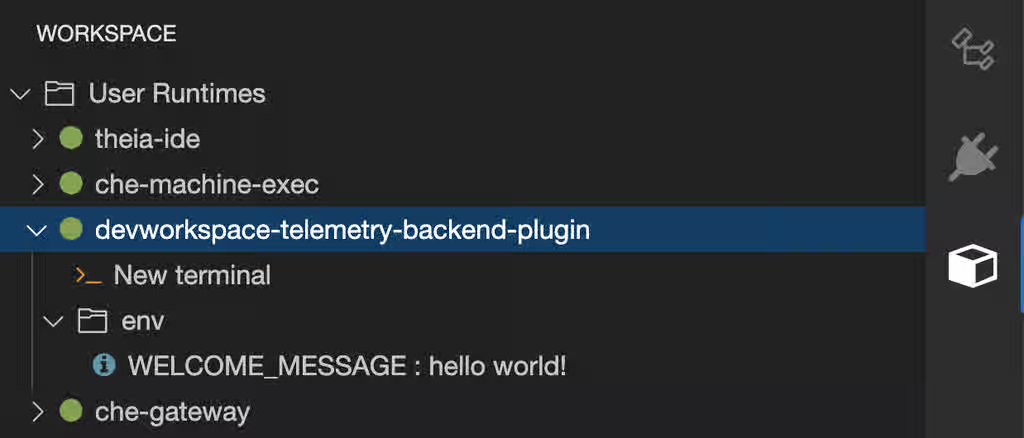
- Edit files within the editor and observe their events in the example telemetry server’s logs.
11.3. Server logging
Fine-tune the log levels of individual loggers available in the OpenShift Dev Spaces server to control output verbosity and isolate issues during troubleshooting.
The log level of the whole OpenShift Dev Spaces server is configured globally using the cheLogLevel configuration property of the Operator. To set the global log level in installations not managed by the Operator, specify the CHE_LOG_LEVEL environment variable in the che ConfigMap.
It is possible to configure the log levels of the individual loggers in the OpenShift Dev Spaces server using the CHE_LOGGER_CONFIG environment variable.
The names of the loggers follow the class names of the internal server classes that use those loggers.
Additional resources
11.3.1. Configure log levels
Configure the log levels of individual loggers in the OpenShift Dev Spaces server using the CHE_LOGGER_CONFIG environment variable to control log verbosity and simplify troubleshooting.
Prerequisites
-
You have an active
ocsession with administrative permissions to the destination OpenShift cluster. See This page is not included, but the link has been rewritten to point to the nearest parent document.Getting started with the CLI.
Procedure
Configure the
CheClusterCustom Resource. See Section 5.3, “Use the CLI to configure the CheCluster Custom Resource”.spec: components: cheServer: extraProperties: CHE_LOGGER_CONFIG: "<key1=value1,key2=value2>"where:
<key1=value1,key2=value2>Comma-separated list of key-value pairs, where keys are the names of the loggers as seen in the OpenShift Dev Spaces server log output and values are the required log levels.
For example, to configure debug mode for the
WorkspaceManager:spec: components: cheServer: extraProperties: CHE_LOGGER_CONFIG: "org.eclipse.che.api.workspace.server.WorkspaceManager=DEBUG"
Verification
Verify that the log level is applied by checking the OpenShift Dev Spaces server logs:
$ oc logs deployment/devspaces -n openshift-devspaces | grep -i "log level"
11.3.2. Log HTTP traffic
Log the HTTP traffic between the OpenShift Dev Spaces server and the API server of the Kubernetes or OpenShift cluster to troubleshoot communication issues and debug API errors.
Prerequisites
-
You have an active
ocsession with administrative permissions to the destination OpenShift cluster. See This page is not included, but the link has been rewritten to point to the nearest parent document.Getting started with the CLI.
Procedure
Configure the
CheClusterCustom Resource:spec: components: cheServer: extraProperties: CHE_LOGGER_CONFIG: "che.infra.request-logging=TRACE"
Verification
Verify that HTTP traffic is logged in the OpenShift Dev Spaces server logs:
$ oc logs deploy/devspaces -n openshift-devspaces | grep "request-logging"
11.4. Log collection with dsc
The dsc management tool provides commands to collect OpenShift Dev Spaces logs for troubleshooting and diagnostics. These commands automate log collection from the multiple containers that comprise a Red Hat OpenShift Dev Spaces installation in the OpenShift cluster.
dsc server:logsCollects existing Red Hat OpenShift Dev Spaces server logs and stores them in a directory on the local machine. By default, logs are downloaded to a temporary directory on the machine. However, this can be overwritten by specifying the
-dparameter. For example, to download OpenShift Dev Spaces logs to the/home/user/che-logs/directory, use the commanddsc server:logs -d /home/user/che-logs/
When run,
dsc server:logsprints a message in the console specifying the directory that stores the log files:Red Hat OpenShift Dev Spaces logs will be available in '/tmp/chectl-logs/1648575098344'
If Red Hat OpenShift Dev Spaces is installed in a non-default project,
dsc server:logsrequires the-n <NAMESPACE>parameter.<NAMESPACE>is the project in which Red Hat OpenShift Dev Spaces was installed. For example, to get logs from OpenShift Dev Spaces in themy-namespaceproject, use the commanddsc server:logs -n my-namespace
dsc server:deploy-
Logs are automatically collected during the OpenShift Dev Spaces installation when installed using
dsc. As withdsc server:logs, the directory logs are stored in can be specified using the-dparameter.
Additional resources
11.5. Dev Workspace Operator metrics
The Dev Workspace Operator exposes workspace startup, failure, and performance metrics on port 8443 on the /metrics endpoint of the devworkspace-controller-metrics Service. The OpenShift in-cluster monitoring stack can scrape these metrics to help administrators track workspace health and diagnose startup failures.
11.5.1. Dev Workspace-specific metrics
The following tables describe the Dev Workspace-specific metrics exposed by the devworkspace-controller-metrics Service.
Table 11.1. Metrics
| Name | Type | Description | Labels |
|---|---|---|---|
|
| Counter | Number of Dev Workspace starting events. |
|
|
| Counter |
Number of Dev Workspaces successfully entering the |
|
|
| Counter | Number of failed Dev Workspaces. |
|
|
| Histogram | Total time taken to start a Dev Workspace, in seconds. |
|
Table 11.2. Labels
| Name | Description | Values |
|---|---|---|
|
|
The |
|
|
|
The |
|
|
| The workspace startup failure reason. |
|
Table 11.3. Startup failure reasons
| Name | Description |
|---|---|
|
| Startup failure due to an invalid devfile used to create a Dev Workspace. |
|
|
Startup failure due to the following errors: |
|
| Unknown failure reason. |
11.5.2. Dev Workspace Operator dashboard panels
The OpenShift web console custom dashboard is based on Grafana 6.x and displays the following metrics from the Dev Workspace Operator.
Not all features for Grafana 6.x dashboards are supported as an OpenShift web console dashboard.
The Dev Workspace Metrics panel displays Dev Workspace-specific metrics.
Figure 11.1. The Dev Workspace Metrics panel
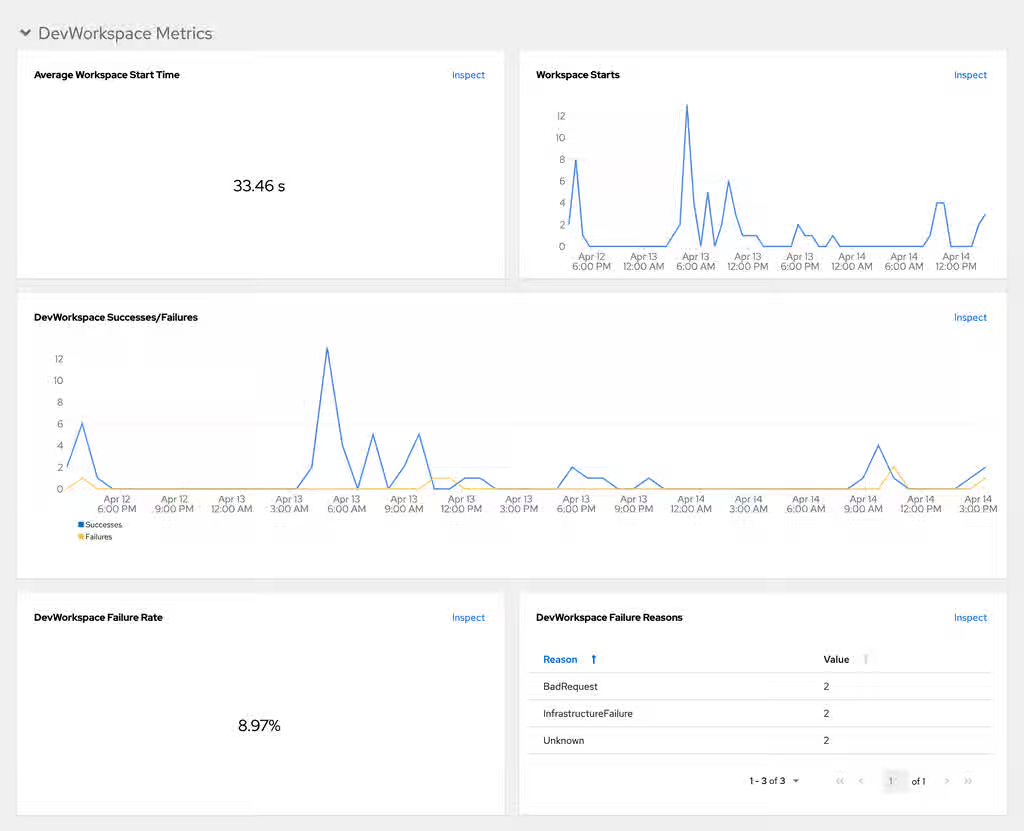
- Average workspace start time
- The average workspace startup duration.
- Workspace starts
- The number of successful and failed workspace startups.
- Dev Workspace successes and failures
- A comparison between successful and failed Dev Workspace startups.
- Dev Workspace failure rate
- The ratio between the number of failed workspace startups and the number of total workspace startups.
- Dev Workspace startup failure reasons
A pie chart that displays the distribution of workspace startup failures:
-
BadRequest -
InfrastructureFailure -
Unknown
-
The Operator Metrics panel displays Operator-specific metrics.
Figure 11.2. The Operator Metrics panel
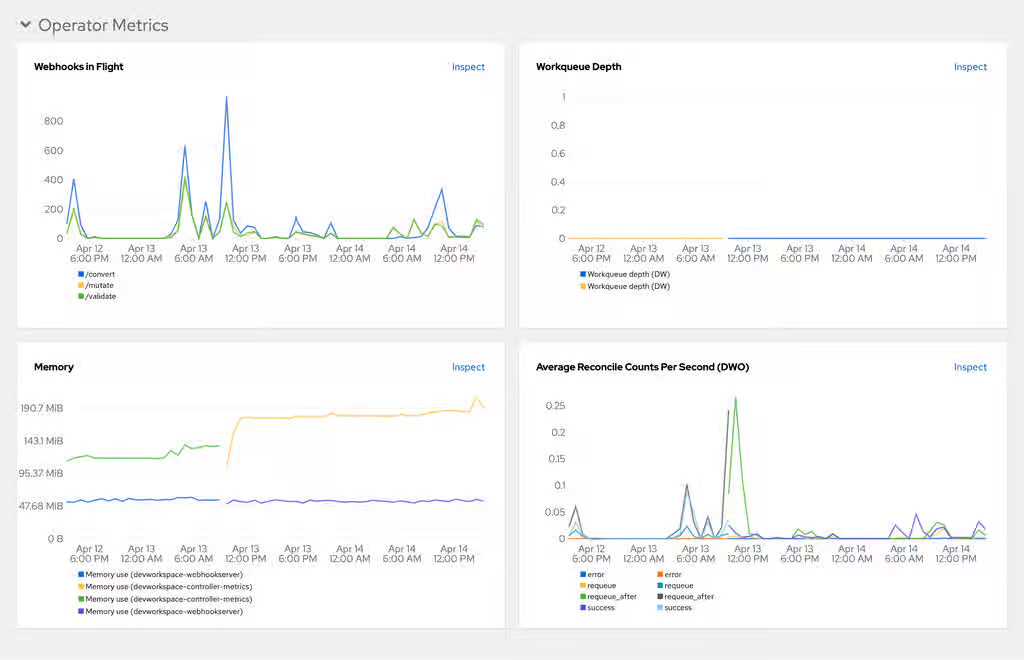
- Webhooks in flight
- A comparison between the number of different webhook requests.
- Work queue depth
- The number of reconcile requests that are in the work queue.
- Memory
- Memory usage for the Dev Workspace controller and the Dev Workspace webhook server.
- Average reconcile counts per second (DWO)
- The average per-second number of reconcile counts for the Dev Workspace controller.
Additional resources
- Section 11.6, “Collect Dev Workspace Operator metrics with Prometheus”
- Section 11.7, “View Dev Workspace Operator metrics from an OpenShift web console dashboard”
- This page is not included, but the link has been rewritten to point to the nearest parent document.OpenShift Documentation: Managing metrics
11.6. Collect Dev Workspace Operator metrics with Prometheus
Create the required ServiceMonitor and enable namespace monitoring to collect, store, and query Dev Workspace Operator metrics from the in-cluster Prometheus instance.
Prerequisites
- You have an instance of OpenShift Dev Spaces installed and running in OpenShift.
-
You have an active
ocsession with administrative permissions to the destination OpenShift cluster. See This page is not included, but the link has been rewritten to point to the nearest parent document.Getting started with the CLI. -
You have the
devworkspace-controller-metricsService with metrics exposed on port8443. This is preconfigured by default.
Procedure
Create the ServiceMonitor for detecting the Dev Workspace Operator metrics Service:
apiVersion: monitoring.coreos.com/v1 kind: ServiceMonitor metadata: name: devworkspace-controller namespace: openshift-devspaces spec: endpoints: - bearerTokenFile: /var/run/secrets/kubernetes.io/serviceaccount/token interval: 10s port: metrics scheme: https tlsConfig: insecureSkipVerify: true namespaceSelector: matchNames: - openshift-operators selector: matchLabels: app.kubernetes.io/name: devworkspace-controllerwhere:
namespace-
The OpenShift Dev Spaces namespace. The default is
openshift-devspaces. interval- The rate at which a target is scraped.
Allow the in-cluster Prometheus instance to detect the ServiceMonitor by labeling the OpenShift Dev Spaces namespace:
$ oc label namespace openshift-devspaces openshift.io/cluster-monitoring=true
Verification
- For a fresh installation of OpenShift Dev Spaces, generate metrics by creating an OpenShift Dev Spaces workspace from the Dashboard.
- In the Administrator view of the OpenShift web console, go to Observe → Metrics.
-
Run a PromQL query to confirm that the metrics are available. For example, enter
devworkspace_started_totaland click Run queries. The query returns data points showing the total number of started workspaces.
Troubleshooting
To troubleshoot missing metrics, view the Prometheus container logs for possible RBAC-related errors.
Get the name of the Prometheus pod:
$ oc get pods -l app.kubernetes.io/name=prometheus -n openshift-monitoring -o=jsonpath='{.items[*].metadata.name}'Print the last 20 lines of the Prometheus container logs from the Prometheus pod from the previous step:
$ oc logs --tail=20 <prometheus_pod_name> -c prometheus -n openshift-monitoring
11.7. View Dev Workspace Operator metrics from an OpenShift web console dashboard
View Dev Workspace Operator metrics on a custom dashboard in the Administrator perspective of the OpenShift web console. This dashboard helps you monitor operator health and detect workspace provisioning issues.
Prerequisites
- You have an instance of OpenShift Dev Spaces installed and running in OpenShift.
-
You have an active
ocsession with administrative permissions to the destination OpenShift cluster. See This page is not included, but the link has been rewritten to point to the nearest parent document.Getting started with the CLI. - You have the in-cluster Prometheus instance configured to collect metrics. See Section 11.6, “Collect Dev Workspace Operator metrics with Prometheus”.
Procedure
Create a ConfigMap for the dashboard definition in the
openshift-config-managedproject and apply the necessary label.$ oc create configmap grafana-dashboard-dwo \ --from-literal=dwo-dashboard.json="$(curl https://raw.githubusercontent.com/devfile/devworkspace-operator/main/docs/grafana/openshift-console-dashboard.json)" \ -n openshift-config-managed
NoteThe previous command contains a link to material from the upstream community. This material represents the very latest available content and the most recent best practices. These tips have not yet been vetted by Red Hat’s QE department, and they have not yet been proven by a wide user group. Please, use this information cautiously.
$ oc label configmap grafana-dashboard-dwo console.openshift.io/dashboard=true -n openshift-config-managed
NoteThe dashboard definition is based on Grafana 6.x dashboards. Not all Grafana 6.x dashboard features are supported in the OpenShift web console.
Verification
- In the Administrator view of the OpenShift web console, go to Observe → Dashboards.
- Go to Dashboard → Dev Workspace Operator and verify that the dashboard panels contain data.
11.8. OpenShift Dev Spaces server monitoring
The OpenShift Dev Spaces server exposes JVM metrics such as memory usage and class loading on port 8087 on the /metrics endpoint. Monitoring these metrics helps administrators identify performance bottlenecks and plan server capacity.
11.9. Enable and expose OpenShift Dev Spaces Server metrics
OpenShift Dev Spaces exposes the JVM metrics on port 8087 of the che-host Service. Configure this behavior to support performance monitoring and capacity planning.
Prerequisites
-
You have an active
ocsession with administrative permissions to the destination OpenShift cluster. See This page is not included, but the link has been rewritten to point to the nearest parent document.Getting started with the CLI.
Procedure
Configure the
CheClusterCustom Resource. See Section 5.3, “Use the CLI to configure the CheCluster Custom Resource”.spec: components: metrics: enable: <boolean>where:
<boolean>-
trueto enable,falseto disable.
Verification
Verify the metrics endpoint is accessible:
oc get service che-host -n openshift-devspaces -o jsonpath='{.spec.ports[?(@.port==8087)]}'
11.10. Collect OpenShift Dev Spaces Server metrics with Prometheus
Create the required ServiceMonitor, Role, and RoleBinding objects to collect, store, and query JVM metrics for the OpenShift Dev Spaces Server from the in-cluster Prometheus instance.
Prerequisites
- You have an instance of OpenShift Dev Spaces installed and running in OpenShift.
-
You have an active
ocsession with administrative permissions to the destination OpenShift cluster. See This page is not included, but the link has been rewritten to point to the nearest parent document.Getting started with the CLI. -
You have OpenShift Dev Spaces metrics exposed on port
8087. See Section 11.9, “Enable and expose OpenShift Dev Spaces Server metrics”.
Procedure
Create the ServiceMonitor for detecting the OpenShift Dev Spaces JVM metrics Service:
apiVersion: monitoring.coreos.com/v1 kind: ServiceMonitor metadata: name: che-host namespace: openshift-devspaces spec: endpoints: - interval: 10s port: metrics scheme: http namespaceSelector: matchNames: - openshift-devspaces selector: matchLabels: app.kubernetes.io/name: devspaceswhere:
namespace-
The OpenShift Dev Spaces namespace. The default is
openshift-devspaces. interval- The rate at which a target is scraped.
Create a
Roleto allow Prometheus to view the metrics:kind: Role apiVersion: rbac.authorization.k8s.io/v1 metadata: name: prometheus-k8s namespace: openshift-devspaces rules: - verbs: - get - list - watch apiGroups: - '' resources: - services - endpoints - podswhere:
namespace-
The OpenShift Dev Spaces namespace. The default is
openshift-devspaces.
Create a
RoleBindingto bind theRoleto the Prometheus service account:kind: RoleBinding apiVersion: rbac.authorization.k8s.io/v1 metadata: name: view-devspaces-openshift-monitoring-prometheus-k8s namespace: openshift-devspaces subjects: - kind: ServiceAccount name: prometheus-k8s namespace: openshift-monitoring roleRef: apiGroup: rbac.authorization.k8s.io kind: Role name: prometheus-k8swhere:
namespace-
The OpenShift Dev Spaces namespace. The default is
openshift-devspaces.
Allow the in-cluster Prometheus instance to detect the ServiceMonitor by labeling the OpenShift Dev Spaces namespace:
$ oc label namespace openshift-devspaces openshift.io/cluster-monitoring=true
Verification
- In the Administrator view of the OpenShift web console, go to Observe → Metrics.
-
Run a PromQL query to confirm that the metrics are available. For example, enter
process_uptime_seconds{job="che-host"}and click Run queries. The query returns data points showing the OpenShift Dev Spaces Server uptime.
Troubleshooting
To troubleshoot missing metrics, view the Prometheus container logs for possible RBAC-related errors.
Get the name of the Prometheus pod:
$ oc get pods -l app.kubernetes.io/name=prometheus -n openshift-monitoring -o=jsonpath='{.items[*].metadata.name}'Print the last 20 lines of the Prometheus container logs from the Prometheus pod from the previous step:
$ oc logs --tail=20 <prometheus_pod_name> -c prometheus -n openshift-monitoring
11.11. View OpenShift Dev Spaces Server from an OpenShift web console dashboard
View OpenShift Dev Spaces Server JVM metrics on a custom dashboard in the Administrator perspective of the OpenShift web console. This dashboard helps you identify performance bottlenecks and monitor server health.
Prerequisites
- You have an instance of OpenShift Dev Spaces installed and running in OpenShift.
-
You have an active
ocsession with administrative permissions to the destination OpenShift cluster. See This page is not included, but the link has been rewritten to point to the nearest parent document.Getting started with the CLI. - You have the in-cluster Prometheus instance configured to collect metrics. See Section 11.10, “Collect OpenShift Dev Spaces Server metrics with Prometheus”.
Procedure
Create a ConfigMap for the dashboard definition in the
openshift-config-managedproject and apply the necessary label.$ oc create configmap grafana-dashboard-devspaces-server \ --from-literal=devspaces-server-dashboard.json="$(curl https://raw.githubusercontent.com/eclipse-che/che-server/main/docs/grafana/openshift-console-dashboard.json)" \ -n openshift-config-managed
NoteThe previous command contains a link to material from the upstream community. This material represents the very latest available content and the most recent best practices. These tips have not yet been vetted by Red Hat’s QE department, and they have not yet been proven by a wide user group. Please, use this information cautiously.
$ oc label configmap grafana-dashboard-devspaces-server console.openshift.io/dashboard=true -n openshift-config-managed
NoteThe dashboard definition is based on Grafana 6.x dashboards. Not all Grafana 6.x dashboard features are supported in the OpenShift web console.
Verification
- In the Administrator view of the OpenShift web console, go to Observe → Dashboards.
Go to Dashboard → Che Server JVM and verify that the dashboard panels contain data.
Figure 11.3. Quick Facts
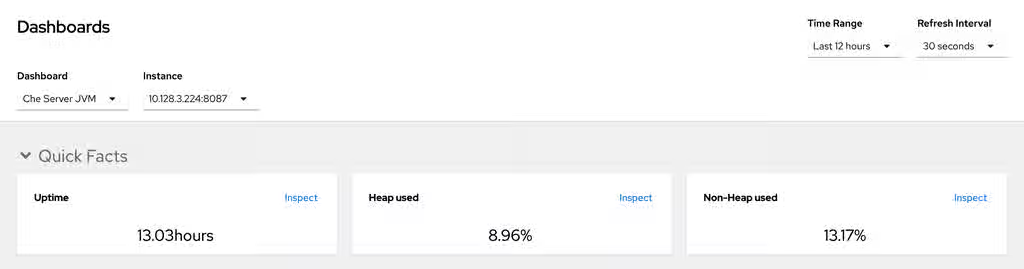
Figure 11.4. JVM Memory
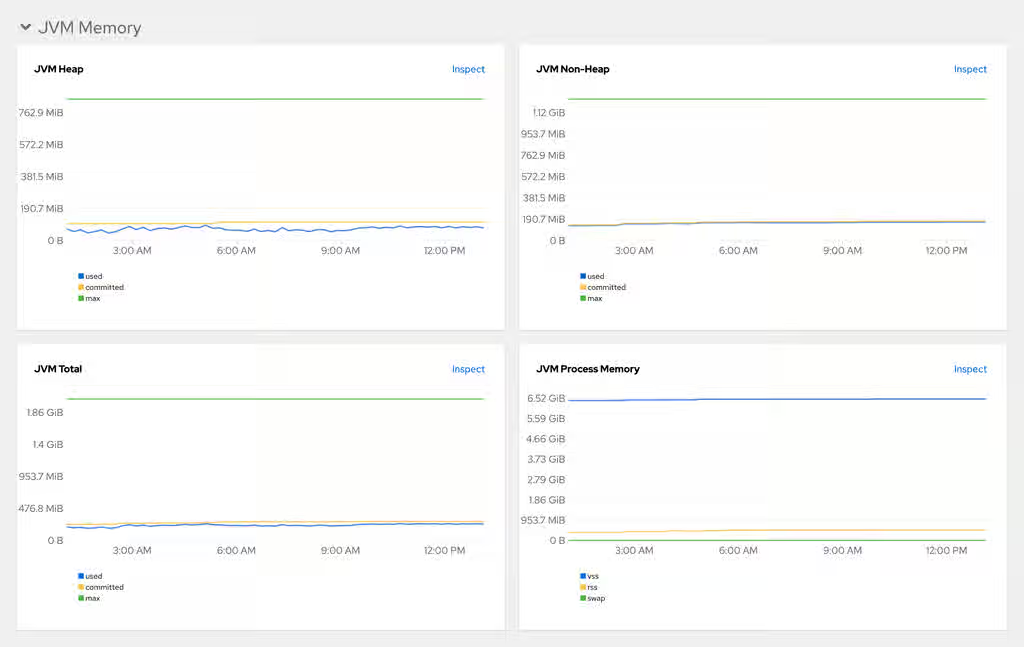
Figure 11.5. JVM Misc
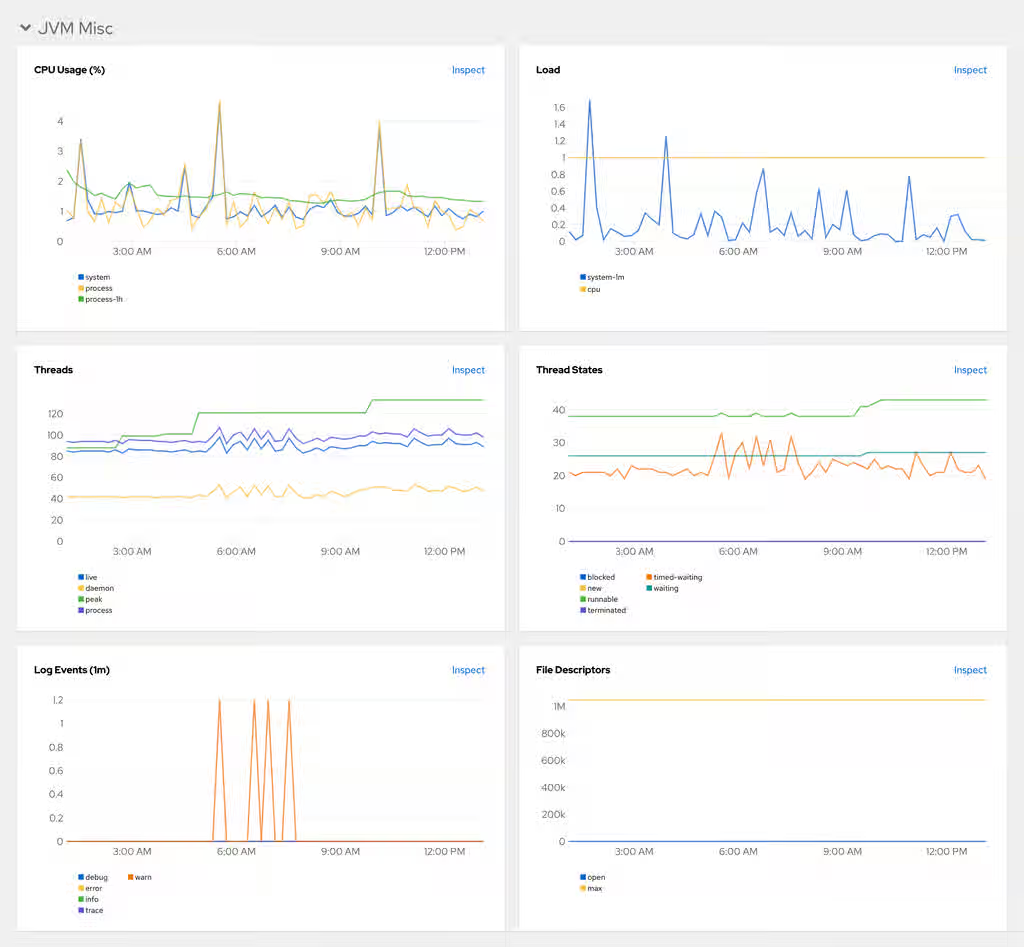
Figure 11.6. JVM Memory Pools (heap)
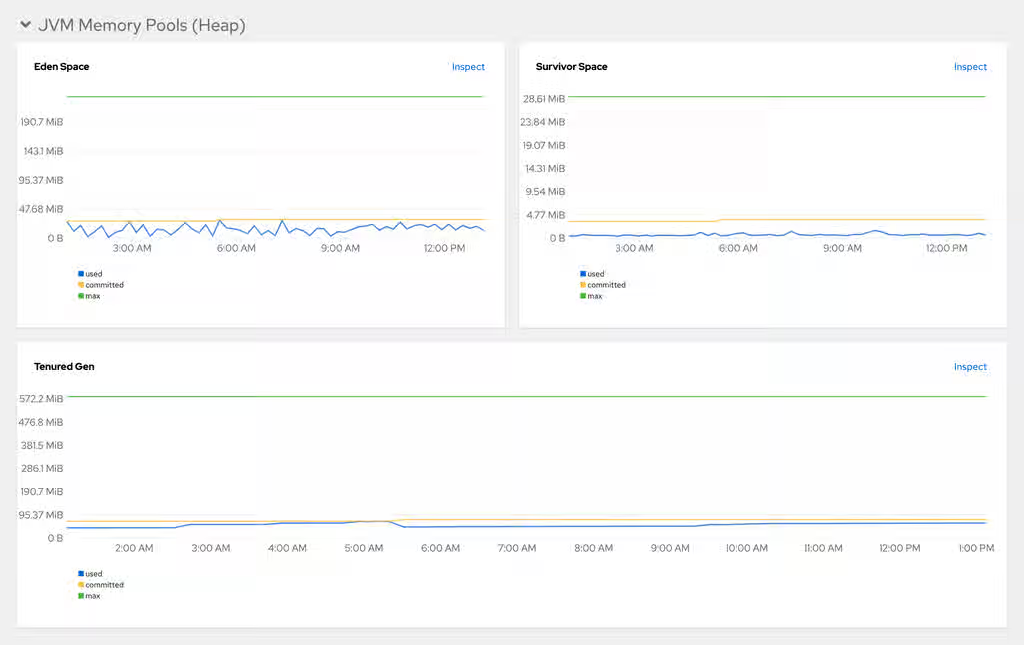
Figure 11.7. JVM Memory Pools (Non-Heap)
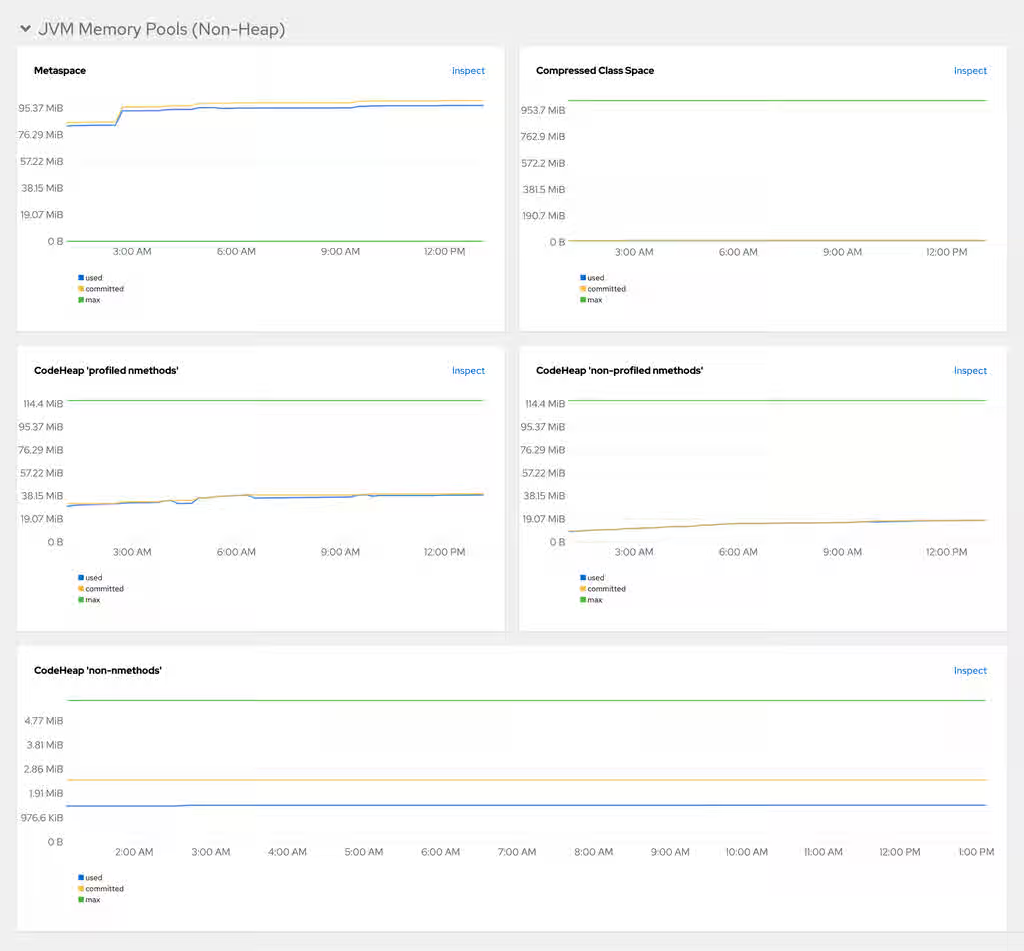
Figure 11.8. Garbage Collection
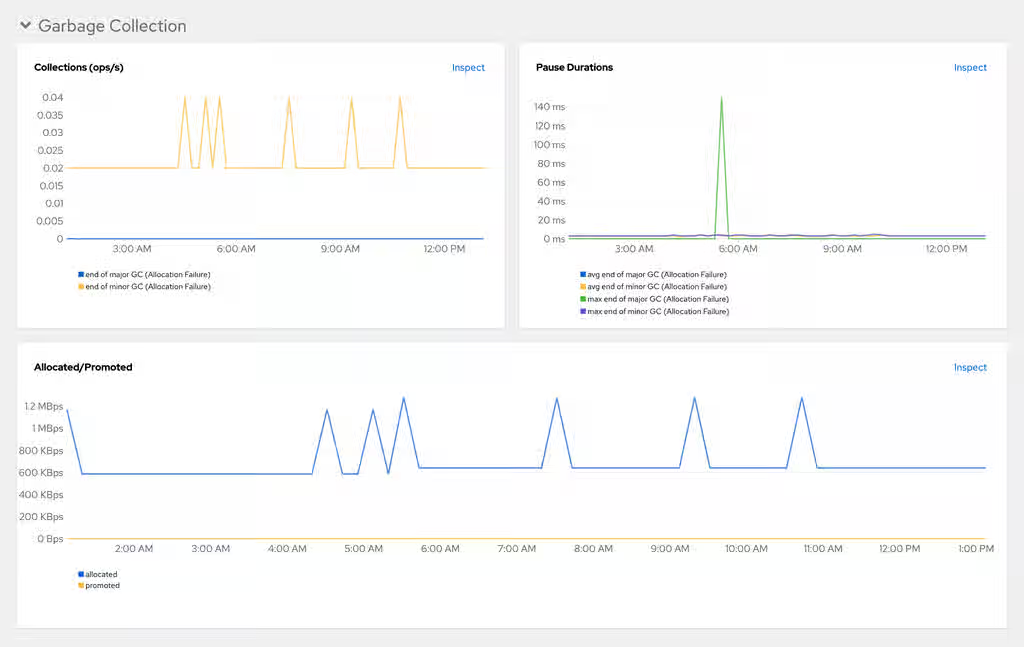
Figure 11.9. Class loading
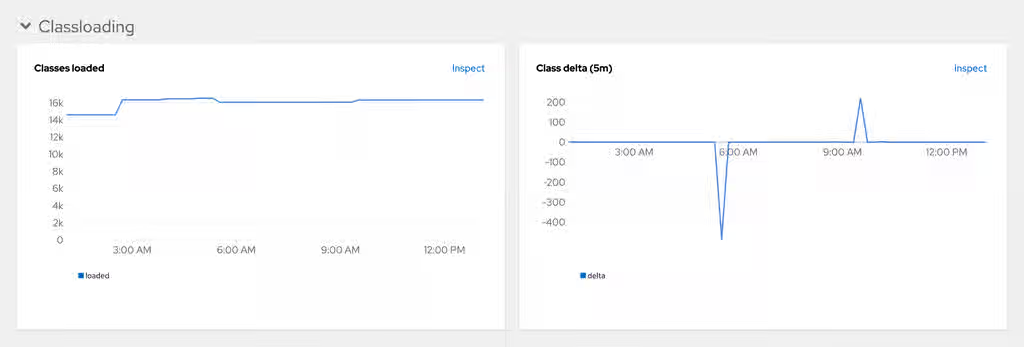
Figure 11.10. Buffer Pools
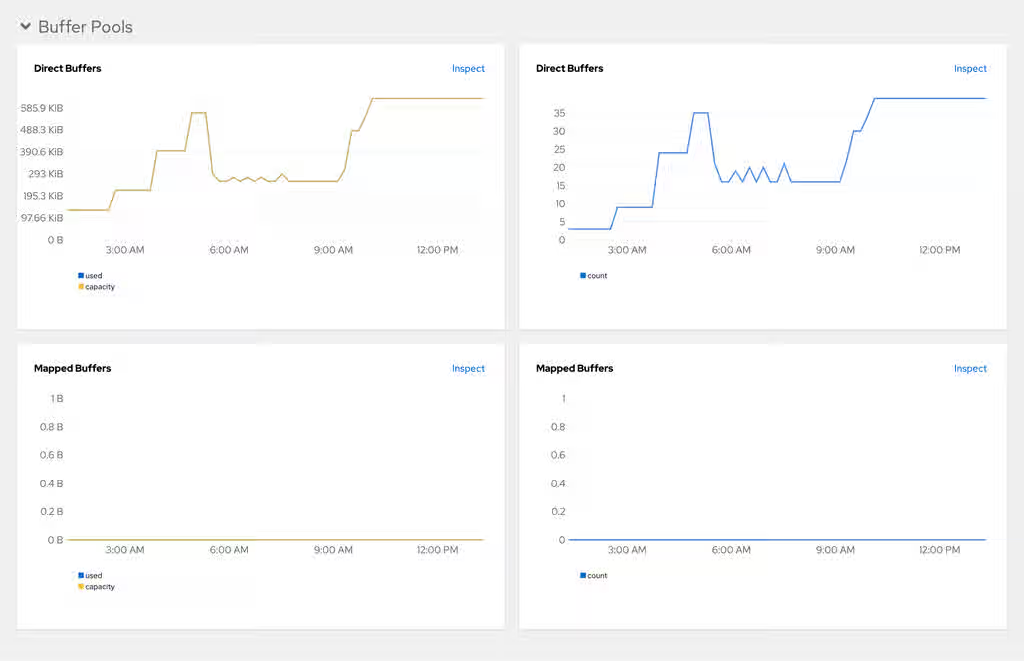
Additional resources
Chapter 12. Configure networking
Configure networking for OpenShift Dev Spaces to secure communications, enable custom routing, and support restricted environments through network policies, TLS certificates, custom hostnames, and proxy settings.
12.1. Configure network policies
By default, all Pods in an OpenShift cluster can communicate across namespaces. Configure network policies to restrict traffic between workspace Pods in different user projects to improve security through multitenant isolation.
With multitenant isolation, NetworkPolicy objects restrict all incoming traffic to Pods in a user project. However, Pods in the OpenShift Dev Spaces project must still communicate with Pods in user projects.
Prerequisites
- You have an OpenShift cluster with network restrictions such as multitenant isolation.
Procedure
Create an
allow-from-openshift-devspaces.yamlfile. Theallow-from-openshift-devspacesNetworkPolicy allows incoming traffic from the OpenShift Dev Spaces namespace to all Pods in the user project.apiVersion: networking.k8s.io/v1 kind: NetworkPolicy metadata: name: allow-from-openshift-devspaces spec: ingress: - from: - namespaceSelector: matchLabels: kubernetes.io/metadata.name: openshift-devspaces podSelector: {} policyTypes: - Ingresswhere:
kubernetes.io/metadata.name: openshift-devspaces-
Selects traffic from the OpenShift Dev Spaces namespace. The default namespace is
openshift-devspaces. podSelector: {}-
The empty
podSelectorselects all Pods in the project.
Apply the
allow-from-openshift-devspacesNetworkPolicy to each user project:oc apply -f allow-from-openshift-devspaces.yaml -n <user_namespace>Optional: If you configured multitenant isolation with network policy, create and apply the
allow-from-openshift-apiserverandallow-from-workspaces-namespacesNetworkPolicies toopenshift-devspaces. Theallow-from-openshift-apiserverNetworkPolicy allows incoming traffic from theopenshift-apiservernamespace to thedevworkspace-webhook-server, enabling webhooks. Theallow-from-workspaces-namespacesNetworkPolicy allows incoming traffic from each user project to theche-gatewaypod.Create an
allow-from-openshift-apiserver.yamlfile:apiVersion: networking.k8s.io/v1 kind: NetworkPolicy metadata: name: allow-from-openshift-apiserver namespace: openshift-devspaces spec: podSelector: matchLabels: app.kubernetes.io/name: devworkspace-webhook-server ingress: - from: - podSelector: {} namespaceSelector: matchLabels: kubernetes.io/metadata.name: openshift-apiserver policyTypes: - Ingresswhere:
namespace: openshift-devspaces-
The OpenShift Dev Spaces namespace. The default is
openshift-devspaces. app.kubernetes.io/name: devworkspace-webhook-server-
The
podSelectoronly selects devworkspace-webhook-server pods.
Create an
allow-from-workspaces-namespaces.yamlfile:apiVersion: networking.k8s.io/v1 kind: NetworkPolicy metadata: name: allow-from-workspaces-namespaces namespace: openshift-devspaces spec: podSelector: {} ingress: - from: - podSelector: {} namespaceSelector: matchLabels: app.kubernetes.io/component: workspaces-namespace policyTypes: - Ingresswhere:
namespace: openshift-devspaces-
The OpenShift Dev Spaces namespace. The default is
openshift-devspaces. podSelector: {}-
The empty
podSelectorselects all pods in the OpenShift Dev Spaces namespace.
Apply both NetworkPolicies:
oc apply -f allow-from-openshift-apiserver.yaml -n openshift-devspaces
oc apply -f allow-from-workspaces-namespaces.yaml -n openshift-devspaces
Verification
Verify that the NetworkPolicy is applied in the user namespace:
oc get networkpolicy -n <user_namespace>- Start a workspace and verify that the workspace can communicate with the OpenShift Dev Spaces server.
12.2. Configure OpenShift Dev Spaces hostname
Configure OpenShift Dev Spaces to use a custom hostname instead of the default cluster-assigned URL to align with corporate DNS standards and branding requirements.
Prerequisites
-
You have an active
ocsession with administrative permissions to the destination OpenShift cluster. See This page is not included, but the link has been rewritten to point to the nearest parent document.Getting started with the CLI. - You have the certificate and the private key files generated by the same certification authority (CA) used for other OpenShift Dev Spaces hosts.
- You have the custom hostname configured to point to the cluster ingress with your DNS provider.
Procedure
Pre-create a project for OpenShift Dev Spaces:
$ oc create project openshift-devspaces
Create a TLS secret:
$ oc create secret tls <tls_secret_name> \
--key <key_file> \
--cert <cert_file> \
-n openshift-devspaces
where:
<tls_secret_name>- The TLS secret name.
--key- A file with the private key.
--cert- A file with the certificate.
Add the required labels to the secret:
$ oc label secret <tls_secret_name> \ app.kubernetes.io/part-of=che.eclipse.org -n openshift-devspaceswhere:
<tls_secret_name>- The TLS secret name.
Configure the
CheClusterCustom Resource:spec: networking: hostname: <hostname> tlsSecretName: <secret>where:
<hostname>- Custom Red Hat OpenShift Dev Spaces server hostname.
<secret>- The TLS secret name.
- If OpenShift Dev Spaces is already deployed, wait for the rollout of all OpenShift Dev Spaces components to complete.
Verification
- Verify that the OpenShift Dev Spaces Dashboard is accessible at the custom hostname.
12.3. Import untrusted TLS certificates to OpenShift Dev Spaces
Import TLS certificate authority (CA) chains for external services into OpenShift Dev Spaces. This enables the server, dashboard, and workspaces to establish trusted encrypted connections to proxies, identity providers, and Git servers.
OpenShift Dev Spaces uses labeled ConfigMaps in OpenShift Dev Spaces project as sources for TLS certificates. The ConfigMaps can have an arbitrary amount of keys with an arbitrary amount of certificates each. All certificates are mounted into:
-
/public-certslocation of OpenShift Dev Spaces server and dashboard pods -
/etc/pki/ca-trust/extracted/pemlocations of workspaces pods
Configure the CheCluster Custom Resource to disable CA bundle mounting at /etc/pki/ca-trust/extracted/pem. The certificates are instead mounted at /public-certs to keep the behavior from the previous version.
Configure the CheCluster Custom Resource to disable the mounting of the CA bundle under the path /etc/pki/ca-trust/extracted/pem. Certificates are mounted under the path /public-certs in this case.
spec:
  devEnvironments:
    trustedCerts:
disableWorkspaceCaBundleMount: trueOn an OpenShift cluster, OpenShift Dev Spaces operator automatically adds Red Hat Enterprise Linux CoreOS (RHCOS) trust bundle into mounted certificates.
Prerequisites
-
You have an active
ocsession with administrative permissions to the destination OpenShift cluster. See This page is not included, but the link has been rewritten to point to the nearest parent document.Getting started with the CLI. -
You have the
openshift-devspacesproject created. -
You have the root CA and intermediate certificates for each CA chain to import, in Content from wiki.openssl.org is not included.PEM format, in a
ca-cert-for-devspaces-<count>.pemfile.
Procedure
Concatenate all CA chains PEM files to import, into the
custom-ca-certificates.pemfile, and remove the return character that is incompatible with the Java truststore.$ cat ca-cert-for-devspaces-*.pem | tr -d '\r' > custom-ca-certificates.pem
Create the
custom-ca-certificatesConfigMap with the required TLS certificates:$ oc create configmap custom-ca-certificates \ --from-file=custom-ca-certificates.pem \ --namespace=openshift-devspacesLabel the
custom-ca-certificatesConfigMap:$ oc label configmap custom-ca-certificates \ app.kubernetes.io/component=ca-bundle \ app.kubernetes.io/part-of=che.eclipse.org \ --namespace=openshift-devspaces- Deploy OpenShift Dev Spaces if it has not been deployed before. Otherwise, wait until the rollout of OpenShift Dev Spaces components finishes.
- Restart running workspaces for the changes to take effect.
Verification
Verify that the ConfigMap contains your custom CA certificates. This command returns CA bundle certificates in PEM format:
oc get configmap \ --namespace=openshift-devspaces \ --output='jsonpath={.items[0:].data.custom-ca-certificates\.pem}' \ --selector=app.kubernetes.io/component=ca-bundle,app.kubernetes.io/part-of=che.eclipse.orgVerify in the OpenShift Dev Spaces server logs that the imported certificates count is not null:
oc logs deploy/devspaces --namespace=openshift-devspaces \ | grep tls-ca-bundle.pem- Start a workspace, get the project name in which it has been created: <workspace_namespace>, and wait for the workspace to be started.
Verify that the
ca-certs-mergedConfigMap contains your custom CA certificates. This command returns OpenShift Dev Spaces CA bundle certificates in PEM format:oc get configmap ca-certs-merged \ --namespace=<workspace_namespace> \ --output='jsonpath={.data.tls-ca-bundle\.pem}'Verify that the workspace pod mounts the
ca-certs-mergedConfigMap:oc get pod \ --namespace=<workspace_namespace> \ --selector='controller.devfile.io/devworkspace_name=<workspace_name>' \ --output='jsonpath={.items[0:].spec.volumes[0:].configMap.name}' \ | grep ca-certs-mergedGet the workspace pod name <workspace_pod_name>:
oc get pod \ --namespace=<workspace_namespace> \ --selector='controller.devfile.io/devworkspace_name=<workspace_name>' \ --output='jsonpath={.items[0:].metadata.name}'Verify that the workspace container has your custom CA certificates. This command returns OpenShift Dev Spaces CA bundle certificates in PEM format:
oc exec <workspace_pod_name> \
    --namespace=<workspace_namespace> \
    -- cat /etc/pki/ca-trust/extracted/pem/tls-ca-bundle.pem
Or if
disableWorkspaceCaBundleMountset totrue:oc exec <workspace_pod_name> \ --namespace=<workspace_namespace> \ -- cat /public-certs/tls-ca-bundle.pem
Additional resources
12.4. Configure OpenShift Route to work with Router Sharding
Configure labels, annotations, and domains for OpenShift Route to direct OpenShift Dev Spaces traffic to the correct ingress controller when using Router Sharding on an OpenShift cluster.
Prerequisites
-
You have an active
ocsession with administrative permissions to the OpenShift cluster. See This page is not included, but the link has been rewritten to point to the nearest parent document.Getting started with the OpenShift CLI. -
You have the
dscmanagement tool installed. See Section 2.2, “Install the dsc management tool”.
Procedure
Configure the
CheClusterCustom Resource. See Section 5.3, “Use the CLI to configure the CheCluster Custom Resource”.spec: networking: labels: <labels> domain: <domain> annotations: <annotations>where:
<labels>- An unstructured key value map of labels that the target ingress controller uses to filter the set of Routes to service.
<domain>- The DNS name serviced by the target ingress controller.
<annotations>- An unstructured key value map stored with a resource.
Verification
Verify that OpenShift Dev Spaces routes have the configured labels and annotations:
oc get routes -n openshift-devspaces -o yaml
12.5. Configure workspace endpoints base domain
Configure a custom base domain for workspace endpoints to align URLs with your organization’s DNS naming conventions. By default, the OpenShift Dev Spaces Operator detects the base domain automatically.
Prerequisites
-
You have an active
ocsession with administrative permissions to the destination OpenShift cluster. See This page is not included, but the link has been rewritten to point to the nearest parent document.Getting started with the CLI.
Procedure
Set the
CHE_INFRA_OPENSHIFT_ROUTE_HOST_DOMAIN__SUFFIXfield in theCheClusterCustom Resource:spec: components: cheServer: extraProperties: CHE_INFRA_OPENSHIFT_ROUTE_HOST_DOMAINSUFFIX: "<base_domain>__"where:
<base_domain>-
Workspace endpoints base domain, for example,
my-devspaces.example.com.
Apply the change:
oc patch checluster/devspaces \
    --namespace openshift-devspaces \
    --type='merge' -p \
'{"spec":
    {"components":
        {"cheServer":
            {"extraProperties":
                {"CHE_INFRA_OPENSHIFT_ROUTE_HOST_DOMAIN__SUFFIX": "my-devspaces.example.com"}}}}}'
Verification
Verify the
CHE_INFRA_OPENSHIFT_ROUTE_HOST_DOMAIN__SUFFIXvalue in theCheClusterCustom Resource:oc get checluster devspaces -n openshift-devspaces -o jsonpath='{.spec.components.cheServer.extraProperties.CHE_INFRA_OPENSHIFT_ROUTE_HOST_DOMAIN__SUFFIX}'
Additional resources
12.6. Configure proxy
Configure a proxy for Red Hat OpenShift Dev Spaces by creating a Kubernetes Secret for proxy credentials and configuring the necessary proxy settings in the CheCluster custom resource. The proxy settings are propagated to the operands and workspaces through environment variables.
On an OpenShift cluster, you do not need to configure proxy settings. OpenShift Dev Spaces Operator automatically uses the OpenShift cluster-wide proxy configuration. However, you can override the proxy settings by specifying them in the CheCluster custom resource.
Prerequisites
-
You have an active
ocsession with administrative permissions to the destination OpenShift cluster. See This page is not included, but the link has been rewritten to point to the nearest parent document.Getting started with the CLI.
Procedure
Optional: Create a Secret in the openshift-devspaces namespace that contains a user and password for a proxy server. The secret must have the
app.kubernetes.io/part-of=che.eclipse.orglabel. Skip this step if the proxy server does not require authentication.oc apply -f - <<EOF kind: Secret apiVersion: v1 metadata: name: devspaces-proxy-credentials namespace: openshift-devspaces labels: app.kubernetes.io/part-of: che.eclipse.org type: Opaque stringData: user: <user> password: <password> EOFwhere:
<user>- The username for the proxy server.
<password>- The password for the proxy server.
Configure the proxy or override the cluster-wide proxy configuration for an OpenShift cluster by setting the following properties in the CheCluster custom resource:
oc patch checluster/devspaces \ --namespace openshift-devspaces \ --type='merge' -p \ '{"spec": {"components": {"cheServer": {"proxy": {"credentialsSecretName" : "<secretName>", "nonProxyHosts" : ["<host_1>"], "port" : "<port>", "url" : "<protocol>://<domain>"}}}}}'where:
<secretName>- The credentials secret name created in the previous step.
<host_1>-
The list of hosts that can be reached directly, without using the proxy. Use the following form
.<DOMAIN>to specify a wildcard domain. OpenShift Dev Spaces Operator automatically adds .svc and Kubernetes service host to the list of non-proxy hosts. In OpenShift, OpenShift Dev Spaces Operator combines the non-proxy host list from the cluster-wide proxy configuration with the custom resource. In some proxy configurations,localhostmay not translate to127.0.0.1. Bothlocalhostand127.0.0.1should be specified in this situation. <port>- The port of the proxy server.
<protocol>://<domain>- Protocol and domain of the proxy server.
Verification
- Start a workspace.
-
Verify that the workspace pod contains
HTTP_PROXY,HTTPS_PROXY,http_proxy, andhttps_proxyenvironment variables, each set to<protocol>://<user>:<password>@<domain>:<port>. -
Verify that the workspace pod contains
NO_PROXYandno_proxyenvironment variables, each set to a comma-separated list of non-proxy hosts.
Additional resources
Chapter 13. Configure storage
Configure storage for OpenShift Dev Spaces workspaces, including storage classes, strategies, and sizes.
13.1. Workspace storage requirements
OpenShift Dev Spaces workspaces store project files in a hierarchical directory structure and require specific storage capabilities depending on the selected strategy.
All workspace storage must use volumeMode: FileSystem.
The per-user storage strategy shares a single Persistent Volume Claim (PVC) across all of a user’s workspaces. This requires ReadWriteMany (RWX) access mode so that multiple workspace pods can mount the same volume simultaneously.
13.1.1. Choosing a storage backend for the Per-User strategy
Generic NFS provisioning supports RWX access but has two operational limitations:
- Quota enforcement: Kubernetes PVCs cannot reliably enforce storage quotas on generic NFS volumes. A single workspace can exceed its allocation and consume the entire shared volume, causing instability for all users on that node.
- Data integrity: Generic NFS implementations often lack the locking and cache coherency required when multiple cluster nodes access the same volume concurrently.
To avoid these issues, use a certified clustered or managed storage solution with a CSI driver that enforces quota limits and provides high-performance RWX file access. Most cloud providers offer suitable CSI drivers, and community-supported distributed storage projects are also available.
Additional resources
13.2. Configure storage classes
To configure OpenShift Dev Spaces to use a configured infrastructure storage, install OpenShift Dev Spaces using storage classes. This is especially useful when you want to bind a persistent volume provided by a non-default provisioner.
OpenShift Dev Spaces has one component that requires persistent volumes to store data:
-
A OpenShift Dev Spaces workspace. OpenShift Dev Spaces workspaces store source code using volumes, for example
/projectsvolume.
OpenShift Dev Spaces workspaces source code is stored in the persistent volume only if a workspace is not ephemeral.
Persistent volume claims facts:
- OpenShift Dev Spaces does not create persistent volumes in the infrastructure.
- OpenShift Dev Spaces uses persistent volume claims (PVC) to mount persistent volumes.
- The Dev Workspace operator creates persistent volume claims.
Define a storage class name in the OpenShift Dev Spaces configuration to use the storage classes feature in the OpenShift Dev Spaces PVC.
Use CheCluster Custom Resource definition to define storage classes:
Prerequisites
-
You have an active
ocsession with administrative permissions to the destination OpenShift cluster. See This page is not included, but the link has been rewritten to point to the nearest parent document.Getting started with the CLI.
Procedure
Define storage class names: configure the
CheClusterCustom Resource, and install OpenShift Dev Spaces. See Section 5.2, “Use dsc to configure the CheCluster Custom Resource during installation”.spec: devEnvironments: storage: perUserStrategyPvcConfig: claimSize: <claim_size> storageClass: <storage_class_name> perWorkspaceStrategyPvcConfig: claimSize: <claim_size> storageClass: <storage_class_name> pvcStrategy: <pvc_strategy>where:
- claimSize
- Persistent Volume Claim size.
- storageClass
- Storage class for the Persistent Volume Claim. When omitted or left blank, a default storage class is used.
- pvcStrategy
Persistent volume claim strategy. The supported strategies are:
-
per-user: All workspaces Persistent Volume Claims share one volume. -
per-workspace: Each workspace gets its own individual Persistent Volume Claim. -
ephemeral: Non-persistent storage. Local changes are lost when the workspace stops.
-
Verification
Start a workspace and verify that the PersistentVolumeClaim uses the configured storage class:
oc get pvc -n <user_namespace> -o jsonpath='{.items[*].spec.storageClassName}'
13.3. Configure the storage strategy
Configure OpenShift Dev Spaces to provide persistent or non-persistent storage to workspaces by selecting a storage strategy. The selected strategy applies to all newly created workspaces by default.
Available storage strategies:
-
per-user: Use a single PVC for all workspaces created by a user. -
per-workspace: Each workspace gets its own PVC. -
ephemeral: Non-persistent storage; any local changes are lost when the workspace is stopped.
The default storage strategy used in OpenShift Dev Spaces is per-user.
Prerequisites
-
You have an active
ocsession with administrative permissions to the destination OpenShift cluster. See This page is not included, but the link has been rewritten to point to the nearest parent document.Getting started with the CLI.
Procedure
Set the
pvcStrategyfield in theCheClusterCustom Resource toper-user,per-workspace, orephemeral:spec: devEnvironments: storage: pvc: pvcStrategy: 'per-user'where:
- pvcStrategy
The available storage strategies are
per-user,per-workspace, andephemeral.Note- You can set this field at installation. See Section 5.2, “Use dsc to configure the CheCluster Custom Resource during installation”.
- You can update this field on the command line. See Section 5.3, “Use the CLI to configure the CheCluster Custom Resource”.
Verification
Verify the
pvcStrategyvalue in theCheClusterCustom Resource:oc get checluster devspaces -n openshift-devspaces -o jsonpath='{.spec.devEnvironments.storage.pvc.pvcStrategy}'
13.4. Configure storage sizes
Configure the persistent volume claim (PVC) size for the per-user or per-workspace storage strategy by setting the claimSize field in the CheCluster Custom Resource. Specify PVC sizes as a Kubernetes resource quantity.
Default persistent volume claim sizes:
per-user: 10Gi
per-workspace: 5Gi
Prerequisites
-
You have an active
ocsession with administrative permissions to the destination OpenShift cluster. See This page is not included, but the link has been rewritten to point to the nearest parent document.Getting started with the CLI.
Procedure
Set the appropriate
claimSizefield for the desired storage strategy in theCheClusterCustom Resource.Note- You can set this field at installation. See Section 5.2, “Use dsc to configure the CheCluster Custom Resource during installation”.
- You can update this field on the command line. See Section 5.3, “Use the CLI to configure the CheCluster Custom Resource”.
spec: devEnvironments: storage: pvc: pvcStrategy: '<strategy_name>' perUserStrategyPvcConfig: claimSize: <resource_quantity> perWorkspaceStrategyPvcConfig: claimSize: <resource_quantity>where:
<strategy_name>-
Select the storage strategy:
per-userorper-workspaceorephemeral. Note: theephemeralstorage strategy does not use persistent storage, therefore you cannot configure its storage size or other PVC-related attributes. perUserStrategyPvcConfig,perWorkspaceStrategyPvcConfig- Specify a claim size on the next line or omit the next line to set the default claim size value. The specified claim size is only used when you select this storage strategy.
<resource_quantity>The claim size must be specified as a Content from kubernetes.io is not included.Kubernetes resource quantity. The available quantity units include:
Ei,Pi,Ti,Gi,MiandKi.ImportantManually modifying a PVC on the cluster that was provisioned by OpenShift Dev Spaces is not officially supported and may result in unexpected consequences.
If you want to resize a PVC that is in use by a workspace, you must restart the workspace for the PVC change to occur.
Verification
Start a workspace and verify that the PersistentVolumeClaim has the configured size:
oc get pvc -n <user_namespace> -o jsonpath='{.items[*].spec.resources.requests.storage}'
13.5. Persistent user home
Red Hat OpenShift Dev Spaces provides a persistent home directory feature that preserves the /home/user directory across workspace restarts. User settings, shell history, and tooling configurations persist between sessions.
You can enable this feature in the CheCluster by setting spec.devEnvironments.persistUserHome.enabled to true.
For newly started workspaces, this feature creates a PVC mounted to the /home/user path of the tools container. In this documentation, a "tools container" refers to the first container in the devfile. This container is the container that includes the project source code by default.
When the PVC is mounted for the first time, the persistent volume’s contents are empty and therefore must be populated with the /home/user directory content.
By default, the persistUserHome feature creates an init container for each new workspace pod named init-persistent-home. This init container is created with the tools container image. It runs a stow command to create symbolic links in the persistent volume to populate the /home/user directory.
For files that cannot be symbolically linked to the /home/user directory such as the .viminfo and .bashrc file, cp is used instead of stow.
The primary function of the stow command is to run:
stow -t /home/user/ -d /home/tooling/ --no-folding
The stow command creates symbolic links in /home/user for files and directories located in /home/tooling. This populates the persistent volume with symbolic links to the content in /home/tooling. As a result, the persistUserHome feature expects the tooling image to have its /home/user/ content within /home/tooling.
For example, the tools container image might contain files in the home/tooling directory such as .config and .config-folder/another-file. In this case, stow creates symbolic links in the persistent volume as shown in the following diagram:
Figure 13.1. Tools container with persistUserHome enabled
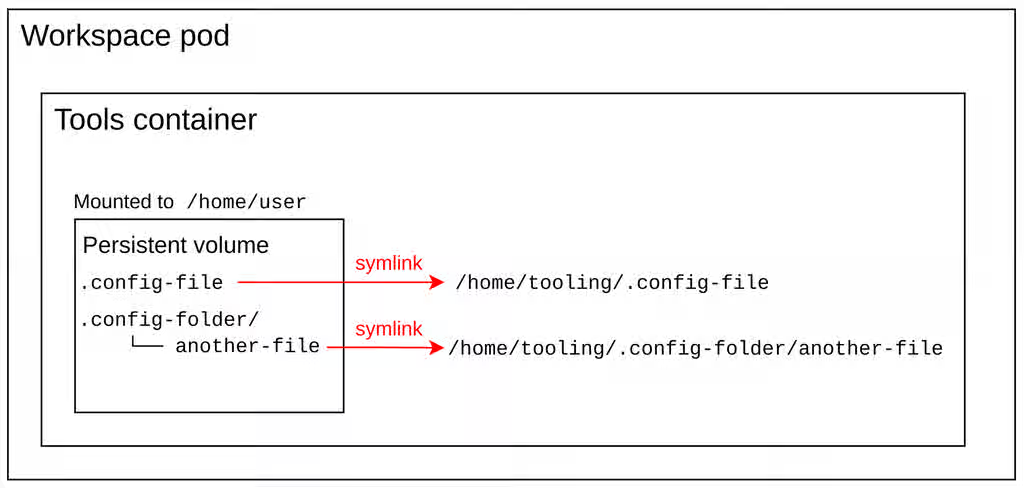
The init container writes the output of the stow command to /home/user/.stow.log and only runs stow the first time the persistent volume is mounted to the workspace.
Using the stow command to populate /home/user content in the persistent volume provides two main advantages:
-
Creating symbolic links is faster and consumes less storage than creating copies of the
/home/userdirectory content in the persistent volume. To put it differently, the persistent volume in this case contains symbolic links and not the actual files themselves. -
If the tools image is updated with newer versions of existing binaries, configs, and files, the init container does not need to
stowthe new versions. The existing symbolic links already point to the updated content in/home/tooling.
If the tooling image is updated with additional binaries or files, they are not symbolically linked to the /home/user directory since the stow command does not run again. In this case, the user must delete the /home/user/.stow_completed file and restart the workspace to rerun stow.
13.5.1. persistUserHome tools image requirements
The persistUserHome feature depends on the tools image used for the workspace. By default OpenShift Dev Spaces uses the Universal Developer Image (UDI) for sample workspaces, which supports persistUserHome out of the box.
If you are using a custom image, it must meet three requirements to support the persistUserHome feature.
-
The tools image should contain
stowversion >= 2.4.0. -
The
$HOMEenvironment variable is set to/home/user. -
In the tools image, the directory that is intended to contain the
/home/usercontent is/home/tooling.
Because the /home/user content must be in /home/tooling, the default UDI image adds the /home/user content to /home/tooling instead, and runs:
RUN stow -t /home/user/ -d /home/tooling/ --no-folding
in the Dockerfile so that files in /home/tooling are accessible from /home/user even when not using the persistUserHome feature.
Chapter 14. Configure dashboard
Customize the OpenShift Dev Spaces dashboard to control the getting started experience, available editors, and branding that users see when they log in.
14.1. Configure getting started samples
Configure the OpenShift Dev Spaces Dashboard to display custom samples that reflect your organization’s preferred languages, frameworks, and project templates for faster onboarding.
Prerequisites
-
You have an active
ocsession with administrative permissions to the OpenShift cluster. See This page is not included, but the link has been rewritten to point to the nearest parent document.Getting started with the CLI.
Procedure
Create a JSON file with the samples configuration. The file must contain an array of objects, where each object represents a sample.
cat > my-samples.json <<EOF [ { "displayName": "<display_name>", "description": "<description>", "tags": <tags>, "url": "<url>", "icon": { "base64data": "<base64data>", "mediatype": "<mediatype>" } } ] EOFwhere:
displayName- The display name of the sample.
description- The description of the sample.
tags-
The JSON array of tags, for example,
["java", "spring"]. url- The URL to the repository containing the devfile.
base64data- The base64-encoded data of the icon.
mediatype-
The media type of the icon. For example,
image/png.
Create a ConfigMap with the samples configuration:
oc create configmap getting-started-samples --from-file=my-samples.json -n openshift-devspaces
Add the required labels to the ConfigMap:
oc label configmap getting-started-samples app.kubernetes.io/part-of=che.eclipse.org app.kubernetes.io/component=getting-started-samples -n openshift-devspaces
Verification
- Refresh the OpenShift Dev Spaces Dashboard page and verify that the new samples are displayed on the Create Workspace page.
14.2. Configure editor definitions
Configure custom editor definitions for OpenShift Dev Spaces by creating a devfile with the editor configuration and storing it in a ConfigMap to offer additional IDE options to your users.
Prerequisites
-
You have an active
ocsession with administrative permissions to the OpenShift cluster. See This page is not included, but the link has been rewritten to point to the nearest parent document.Getting started with the CLI.
Procedure
Create the
my-editor-definition-devfile.yamlYAML file with the editor definition configuration. Provide actual values forpublisherandversionundermetadata.attributesbecause these construct the editor ID in the formatpublisher/name/version.For example:
# Version of the devfile schema schemaVersion: 2.2.2 # Meta information of the editor metadata: # (MANDATORY) The editor name # Must consist of lower case alphanumeric characters, '-' or '.' name: editor-name displayName: Display Name description: Run Editor Foo on top of OpenShift Dev Spaces # (OPTIONAL) Array of tags of the current editor. The Tech-Preview tag means the option is considered experimental and is not recommended for production environments. While it can include new features and improvements, it may still contain bugs or undergo significant changes before reaching a stable version. tags: - Tech-Preview # Additional attributes attributes: title: This is my editor # (MANDATORY) The supported architectures arch: - x86_64 - arm64 # (MANDATORY) The publisher name publisher: publisher # (MANDATORY) The editor version version: version repository: https://github.com/editor/repository/ firstPublicationDate: '2024-01-01' iconMediatype: image/svg+xml iconData: | <icon-content> # List of editor components components: # Name of the component - name: che-code-injector # Configuration of devworkspace-related container container: # Image of the container image: 'quay.io/che-incubator/che-code:insiders' # The command to run in the dockerimage component instead of the default one provided in the image command: - /entrypoint-init-container.sh # (OPTIONAL) List of volumes mounts that should be mounted in this container volumeMounts: # The name of the mount - name: checode # The path of the mount path: /checode # (OPTIONAL) The memory limit of the container memoryLimit: 256Mi # (OPTIONAL) The memory request of the container memoryRequest: 32Mi # (OPTIONAL) The CPU limit of the container cpuLimit: 500m # (OPTIONAL) The CPU request of the container cpuRequest: 30m # Name of the component - name: che-code-runtime-description # (OPTIONAL) Map of implementation-dependant free-form YAML attributes attributes: # The component within the architecture app.kubernetes.io/component: che-code-runtime # The name of a higher level application this one is part of app.kubernetes.io/part-of: che-code.eclipse.org # Defines a container component as a "container contribution". If a flattened DevWorkspace has a container component with the merge-contribution attribute, then any container contributions are merged into that container component controller.devfile.io/container-contribution: true container: # Can be a placeholder image because the component is expected to be injected into workspace dev component image: quay.io/devfile/universal-developer-image:latest # (OPTIONAL) List of volume mounts that should be mounted in this container volumeMounts: # The name of the mount - name: checode # (OPTIONAL) The path in the component container where the volume should be mounted. If no path is defined, the default path is /<name> path: /checode # (OPTIONAL) The memory limit of the container memoryLimit: 1024Mi # (OPTIONAL) The memory request of the container memoryRequest: 256Mi # (OPTIONAL) The CPU limit of the container cpuLimit: 500m # (OPTIONAL) The CPU request of the container cpuRequest: 30m # (OPTIONAL) Environment variables used in this container env: - name: ENV_NAME value: value # Component endpoints endpoints: # Name of the editor - name: che-code # (OPTIONAL) Map of implementation-dependant string-based free-form attributes attributes: # Type of the endpoint. You can only set its value to main, indicating that the endpoint should be used as the mainUrl in the workspace status (i.e. it should be the URL used to access the editor in this context) type: main # An attribute that instructs the service to automatically redirect the unauthenticated requests for current user authentication. Setting this attribute to true has security consequences because it makes Cross-site request forgery (CSRF) attacks possible. The default value of the attribute is false. cookiesAuthEnabled: true # Defines an endpoint as "discoverable", meaning that a service should be created using the endpoint name (i.e. instead of generating a service name for all endpoints, this endpoint should be statically accessible) discoverable: false # Used to secure the endpoint with authorization on OpenShift, so that not anyone on the cluster can access the endpoint, the attribute enables authentication. urlRewriteSupported: true # Port number to be used within the container component targetPort: 3100 # (OPTIONAL) Describes how the endpoint should be exposed on the network (public, internal, none) exposure: public # (OPTIONAL) Describes whether the endpoint should be secured and protected by some authentication process secure: true # (OPTIONAL) Describes the application and transport protocols of the traffic that will go through this endpoint protocol: https # Mandatory name that allows referencing the component from other elements - name: checode # (OPTIONAL) Allows specifying the definition of a volume shared by several other components. Ephemeral volumes are not stored persistently across restarts. Defaults to false volume: {ephemeral: true} # (OPTIONAL) Bindings of commands to events. Each command is referred-to by its name events: # IDs of commands that should be executed before the devworkspace start. These commands would typically be executed in an init container preStart: - init-container-command # IDs of commands that should be executed after the devworkspace has completely started. In the case of Che-Code, these commands should be executed after all plugins and extensions have started, including project cloning. This means that those commands are not triggered until the user opens the IDE within the browser postStart: - init-che-code-command # (OPTIONAL) Predefined, ready-to-use, devworkspace-related commands commands: # Mandatory identifier that allows referencing this command - id: init-container-command apply: # Describes the component for the apply command component: che-code-injector # Mandatory identifier that allows referencing this command - id: init-che-code-command # CLI Command executed in an existing component container exec: # Describes component for the exec command component: che-code-runtime-description # The actual command-line string commandLine: 'nohup /checode/entrypoint-volume.sh > /checode/entrypoint-logs.txt 2>&1 &'where:
<icon-content>- The SVG icon data for the editor, displayed in the OpenShift Dev Spaces Dashboard editor selector.
Create a ConfigMap with the editor definition content:
oc create configmap my-editor-definition --from-file=my-editor-definition-devfile.yaml -n openshift-devspaces
Add the required labels to the ConfigMap:
oc label configmap my-editor-definition app.kubernetes.io/part-of=che.eclipse.org app.kubernetes.io/component=editor-definition -n openshift-devspaces
Verification
- Refresh the OpenShift Dev Spaces Dashboard page and verify that the new editor is available.
Verify the editor definition through the OpenShift Dev Spaces Dashboard API:
https://<openshift_dev_spaces_fqdn>/dashboard/api/editorsTo retrieve a specific editor definition, use the publisher, name, and version values:
https://<openshift_dev_spaces_fqdn>/dashboard/api/editors/devfile?che-editor=publisher/editor-name/versionWhen retrieving the editor definition from within the OpenShift cluster, access the OpenShift Dev Spaces Dashboard API through the dashboard service:
http://devspaces-dashboard.openshift-devspaces.svc.cluster.local:8080/dashboard/api/editors
14.3. Show deprecated editors
Show deprecated OpenShift Dev Spaces editors on the Dashboard to support users who need them during migration to a supported editor. By default, the Dashboard UI hides them.
Prerequisites
-
You have an active
ocsession with administrative permissions to the OpenShift cluster. See This page is not included, but the link has been rewritten to point to the nearest parent document.Getting started with the CLI. -
You have
jqinstalled. See Content from stedolan.github.io is not included.Downloadingjq.
Procedure
Determine the IDs of the deprecated editors. An editor ID has the following format:
publisher/name/version.oc exec deploy/devspaces-dashboard -n openshift-devspaces \ -- curl -s http://localhost:8080/dashboard/api/editors | jq -r '[.[] | select(.metadata.tags != null) | select(.metadata.tags[] | contains("Deprecate")) | "\(.metadata.attributes.publisher)/\(.metadata.name)/\(.metadata.attributes.version)"]'Configure the
CheClusterCustom Resource. See Section 5.3, “Use the CLI to configure the CheCluster Custom Resource”.spec: components: dashboard: deployment: containers: - env: - name: CHE_SHOW_DEPRECATED_EDITORS value: 'true'
14.4. Configure default editor
Configure the default editor that OpenShift Dev Spaces uses when creating new workspaces to ensure a consistent development experience. The default editor is specified by its plugin ID in the publisher/name/version format.
Prerequisites
-
You have an active
ocsession with administrative permissions to the OpenShift cluster. See This page is not included, but the link has been rewritten to point to the nearest parent document.Getting started with the CLI. -
You have
jqinstalled. See Content from stedolan.github.io is not included.Downloadingjq.
Procedure
Determine the IDs of the available editors. An editor ID has the following format:
publisher/name/version.oc exec deploy/devspaces-dashboard -n openshift-devspaces \ -- curl -s http://localhost:8080/dashboard/api/editors | jq -r '[.[] | "\(.metadata.attributes.publisher)/\(.metadata.name)/\(.metadata.attributes.version)"]'Configure the
defaultEditor:oc patch checluster/devspaces \ --namespace openshift-devspaces \ --type='merge' \ -p '{"spec":{"devEnvironments":{"defaultEditor": "<default_editor>"}}}'where:
<default_editor>-
The default editor specified as a plugin ID in
publisher/name/versionformat or as a URI.
Verification
- Create a new workspace from the OpenShift Dev Spaces Dashboard and verify that the configured default editor opens.
14.5. Conceal editors in the Dashboard
Conceal OpenShift Dev Spaces editors to hide selected editors from the Dashboard UI, for example hide IntelliJ IDEA Ultimate and have only Visual Studio Code - Open Source visible.
Prerequisites
-
You have an active
ocsession with administrative permissions to the OpenShift cluster. See This page is not included, but the link has been rewritten to point to the nearest parent document.Getting started with the CLI. -
You have
jqinstalled. See Content from stedolan.github.io is not included.Downloadingjq.
Procedure
Determine the IDs of the available editors. An editor ID has the following format:
publisher/name/version.oc exec deploy/devspaces-dashboard -n openshift-devspaces \ -- curl -s http://localhost:8080/dashboard/api/editors | jq -r '[.[] | "\(.metadata.attributes.publisher)/\(.metadata.name)/\(.metadata.attributes.version)"]'Configure the
CheClusterCustom Resource. See Section 5.3, “Use the CLI to configure the CheCluster Custom Resource”.spec: components: dashboard: deployment: containers: - env: - name: CHE_HIDE_EDITORS_BY_ID value: 'che-incubator/che-webstorm-server/latest, che-incubator/che-webstorm-server/next'where:
- value
- A string containing comma-separated IDs of editors to hide.
Verification
- In the OpenShift Dev Spaces Dashboard, go to Create Workspace and verify that the concealed editors are no longer visible.
14.6. Configure editor download URLs
Configure custom download URLs for editors in air-gapped OpenShift Dev Spaces environments where editors cannot be retrieved from the public internet. This option applies only to JetBrains editors.
Prerequisites
-
You have an active
ocsession with administrative permissions to the OpenShift cluster. See This page is not included, but the link has been rewritten to point to the nearest parent document.Getting started with the CLI. -
You have
jqinstalled. See Content from stedolan.github.io is not included.Downloadingjq.
Procedure
Determine the IDs of the available editors. An editor ID has the following format:
publisher/name/version.oc exec deploy/devspaces-dashboard -n openshift-devspaces \ -- curl -s http://localhost:8080/dashboard/api/editors | jq -r '[.[] | "\(.metadata.attributes.publisher)/\(.metadata.name)/\(.metadata.attributes.version)"]'Configure the download URLs for editors:
oc patch checluster/devspaces \ --namespace openshift-devspaces \ --type='merge' \ -p '{ "spec": { "devEnvironments": { "editorsDownloadUrls": [ { "editor": "publisher1/editor-name1/version1", "url": "https://example.com/editor1.tar.gz" }, { "editor": "publisher2/editor-name2/version2", "url": "https://example.com/editor2.tar.gz" } ] } } }'where:
editor-
The editor ID in the format
publisher/name/version. Determine the IDs by running the command in step 1. url- The URL of the editor archive to download.
Verification
-
Verify that the editor download URLs appear in the
CheClusterCustom Resource specification.
14.7. Customize the OpenShift Dev Spaces ConsoleLink icon
Replace the default Red Hat OpenShift Dev Spaces ConsoleLink icon with your organization’s branding so that the OpenShift web console reflects a consistent visual identity.
Prerequisites
-
You have an active
ocsession with administrative permissions to the OpenShift cluster. See This page is not included, but the link has been rewritten to point to the nearest parent document.Getting started with the CLI.
Procedure
Create a Secret:
oc apply -f - <<EOF apiVersion: v1 kind: Secret metadata: name: devspaces-dashboard-customization namespace: openshift-devspaces annotations: che.eclipse.org/mount-as: subpath che.eclipse.org/mount-path: /public/dashboard/assets/branding labels: app.kubernetes.io/component: devspaces-dashboard-secret app.kubernetes.io/part-of: che.eclipse.org data: loader.svg: <Base64_encoded_content_of_the_image> type: Opaque EOFwhere:
<Base64_encoded_content_of_the_image>- Base64 encoding with disabled line wrapping.
Verification
- Verify that the rollout of devspaces-dashboard finishes and the custom icon appears in the OpenShift web console.
Additional resources
Chapter 15. Manage identities and authorizations
Manage identities and authorizations for Red Hat OpenShift Dev Spaces, including cluster roles, advanced authorization policies, and GDPR-compliant user data removal.
15.1. Configure cluster roles for OpenShift Dev Spaces users
Grant OpenShift Dev Spaces users additional cluster permissions by adding cluster roles, enabling them to perform actions beyond the default workspace operations.
Prerequisites
-
You have an active
ocsession with administrative permissions to the destination OpenShift cluster. See This page is not included, but the link has been rewritten to point to the nearest parent document.Getting started with the CLI.
Procedure
Define the user roles name:
$ USER_ROLES=<name>where:
- name
- Unique resource name.
Determine the namespace where the OpenShift Dev Spaces Operator is deployed:
$ OPERATOR_NAMESPACE=$(oc get pods -l app.kubernetes.io/component=devspaces-operator -o jsonpath={".items[0].metadata.namespace"} --all-namespaces)Create needed roles:
$ kubectl apply -f - <<EOF kind: ClusterRole apiVersion: rbac.authorization.k8s.io/v1 metadata: name: ${USER_ROLES} labels: app.kubernetes.io/part-of: che.eclipse.org rules: - verbs: - <verbs> apiGroups: - <apiGroups> resources: - <resources> EOFwhere:
- verbs
-
List all Verbs that apply to all ResourceKinds and AttributeRestrictions contained in this rule. You can use
*to represent all verbs. - apiGroups
- Name the APIGroups that contain the resources.
- resources
-
List all resources that this rule applies to. You can use
*to represent all verbs.
Delegate the roles to the OpenShift Dev Spaces Operator:
$ kubectl apply -f - <<EOF kind: ClusterRoleBinding apiVersion: rbac.authorization.k8s.io/v1 metadata: name: ${USER_ROLES} labels: app.kubernetes.io/part-of: che.eclipse.org subjects: - kind: ServiceAccount name: devspaces-operator namespace: ${OPERATOR_NAMESPACE} roleRef: apiGroup: rbac.authorization.k8s.io kind: ClusterRole name: ${USER_ROLES} EOFConfigure the OpenShift Dev Spaces Operator to delegate the roles to the
cheservice account:$ kubectl patch checluster devspaces \ --patch '{"spec": {"components": {"cheServer": {"clusterRoles": ["'${USER_ROLES}'"]}}}}' \ --type=merge -n openshift-devspacesConfigure the OpenShift Dev Spaces server to delegate the roles to a user:
$ kubectl patch checluster devspaces \ --patch '{"spec": {"devEnvironments": {"user": {"clusterRoles": ["'${USER_ROLES}'"]}}}}' \ --type=merge -n openshift-devspaces- Wait for the rollout of the OpenShift Dev Spaces server components to complete.
- Ask the user to log out and log in to have the new roles applied.
Verification
Verify that the ClusterRole exists:
$ kubectl get clusterrole ${USER_ROLES}
15.2. Configure advanced authorization
Determine which users and groups are allowed to access OpenShift Dev Spaces to enforce access control policies and meet organizational compliance requirements.
Prerequisites
-
You have an active
ocsession with administrative permissions to the destination OpenShift cluster. See This page is not included, but the link has been rewritten to point to the nearest parent document.Getting started with the CLI.
Procedure
Configure the
CheClusterCustom Resource. See Section 5.3, “Use the CLI to configure the CheCluster Custom Resource”.spec: networking: auth: advancedAuthorization: allowUsers: - <allow_users> allowGroups: - <allow_groups> denyUsers: - <deny_users> denyGroups: - <deny_groups>where:
- allowUsers
- List of users allowed to access Red Hat OpenShift Dev Spaces.
- allowGroups
- List of groups of users allowed to access Red Hat OpenShift Dev Spaces (for OpenShift Container Platform only).
- denyUsers
- List of users denied access to Red Hat OpenShift Dev Spaces.
- denyGroups
List of groups of users denied access to Red Hat OpenShift Dev Spaces (for OpenShift Container Platform only).
If a user is on both
allowanddenylists, access is denied. IfallowUsersandallowGroupsare empty, all users are allowed except the ones on thedenylists. IfdenyUsersanddenyGroupsare empty, only the users fromallowlists are allowed. If bothallowanddenylists are empty, all users are allowed.
- Wait for the rollout of the OpenShift Dev Spaces server components to complete.
Verification
-
Log in to the OpenShift Dev Spaces dashboard as a user on the
allowUserslist and verify access to the dashboard. -
Log in as a user on the
denyUserslist and verify that OpenShift Dev Spaces returns a403 Forbiddenresponse.
15.3. Remove user data in compliance with the GDPR
Remove a user’s data on OpenShift Container Platform in compliance with the Content from gdpr.eu is not included.General Data Protection Regulation (GDPR). The process for other Kubernetes infrastructures might vary.
Removing user data as follows is irreversible. All removed data is deleted and unrecoverable.
Prerequisites
-
You have an active
ocsession with administrative permissions for the OpenShift Container Platform cluster. See This page is not included, but the link has been rewritten to point to the nearest parent document.Getting started with the OpenShift CLI.
Procedure
List all the users in the OpenShift cluster using the following command:
$ oc get users
Delete the user entry:
ImportantIf the user has any associated resources (such as projects, roles, or service accounts), you must delete those first before deleting the user.
$ oc delete user <username>
Chapter 16. Configure OAuth for Git providers
Configure OAuth to allow OpenShift Dev Spaces users to interact with remote Git repositories without re-entering credentials.
OpenShift Dev Spaces supports GitHub, GitLab, Bitbucket Server (OAuth 2.0 and OAuth 1.0), Bitbucket Cloud, and Microsoft Azure DevOps Services. For each provider, you create an OAuth application, then apply the corresponding secret to your OpenShift Dev Spaces instance.
Microsoft Entra ID replaces the deprecated Azure DevOps OAuth 2.0 application, which no longer accepts new registrations. If you have an existing Azure DevOps OAuth app, migrate to Microsoft Entra ID.
16.1. Set up the GitHub OAuth App
To enable users to work with a remote Git repository that is hosted on GitHub, register the GitHub OAuth App (OAuth 2.0).
Prerequisites
- You are logged in to GitHub.
Procedure
- Go to Content from github.com is not included.the GitHub OAuth application registration page.
Enter the following values:
-
Application name:
<application name> -
Homepage URL:
https://<openshift_dev_spaces_fqdn>/ -
Authorization callback URL:
https://<openshift_dev_spaces_fqdn>/api/oauth/callback
-
Application name:
- Click Register application.
- Click Generate new client secret.
- Copy and save the GitHub OAuth Client ID for use when applying the GitHub OAuth App Secret.
- Copy and save the GitHub OAuth Client Secret for use when applying the GitHub OAuth App Secret.
Additional resources
16.2. Apply the GitHub OAuth App Secret
Prepare and apply the GitHub OAuth App Secret so that OpenShift Dev Spaces users can access remote Git repositories hosted on GitHub without re-entering credentials.
Prerequisites
- You have configured the GitHub OAuth App.
You have the following values, which were generated when configuring the GitHub OAuth App:
- GitHub OAuth Client ID
- GitHub OAuth Client Secret
-
You have an active
ocsession with administrative permissions to the destination OpenShift cluster. See This page is not included, but the link has been rewritten to point to the nearest parent document.Getting started with the CLI.
Procedure
Prepare the Secret:
kind: Secret apiVersion: v1 metadata: name: github-oauth-config namespace: openshift-devspaces labels: app.kubernetes.io/part-of: che.eclipse.org app.kubernetes.io/component: oauth-scm-configuration annotations: che.eclipse.org/oauth-scm-server: github che.eclipse.org/scm-server-endpoint: <github_server_url> che.eclipse.org/scm-github-disable-subdomain-isolation: 'false' type: Opaque stringData: id: <GitHub_OAuth_Client_ID> secret: <GitHub_OAuth_Client_Secret>where:
- namespace
-
The OpenShift Dev Spaces namespace. The default is
openshift-devspaces. - che.eclipse.org/scm-server-endpoint
-
This depends on the GitHub product your organization is using. When hosting repositories on GitHub.com or GitHub Enterprise Cloud, omit this line or enter the default
Content from github.com is not included.https://github.com. When hosting repositories on GitHub Enterprise Server, enter the GitHub Enterprise Server URL. - che.eclipse.org/scm-github-disable-subdomain-isolation
-
If you are using GitHub Enterprise Server with a disabled Content from docs.github.com is not included.subdomain isolation option, you must set the annotation to
true. Otherwise, you can either omit the annotation or set it tofalse. - id
- The GitHub OAuth Client ID.
- secret
- The GitHub OAuth Client Secret.
Apply the Secret:
$ oc apply -f - <<EOF <Secret_prepared_in_the_previous_step> EOF- Optional: To configure OAuth 2.0 for another GitHub provider, repeat the previous steps and create a second GitHub OAuth Secret with a different name.
Verification
-
Verify that the output displays
secret/github-oauth-config created.
16.3. Set up the GitLab authorized application
To enable users to work with a remote Git repository that is hosted using a GitLab instance, create the GitLab authorized application (OAuth 2.0).
Prerequisites
- You are logged in to GitLab.
Procedure
- Click your avatar and go to → .
- Enter OpenShift Dev Spaces as the Name.
-
Enter
https://<openshift_dev_spaces_fqdn>/api/oauth/callbackas the Redirect URI. - Check the Confidential and Expire access tokens checkboxes.
-
Under Scopes, check the
api,write_repository, andopenidcheckboxes. - Click Save application.
- Copy and save the GitLab Application ID for use when applying the GitLab-authorized application Secret.
- Copy and save the GitLab Client Secret for use when applying the GitLab-authorized application Secret.
Additional resources
16.4. Apply the GitLab-authorized application Secret
Prepare and apply the GitLab-authorized application Secret so that OpenShift Dev Spaces users can access remote Git repositories hosted on GitLab without re-entering credentials.
Prerequisites
- You have configured the GitLab authorized application.
You have the following values, which were generated when configuring the GitLab authorized application:
- GitLab Application ID
- GitLab Client Secret
-
You have an active
ocsession with administrative permissions to the destination OpenShift cluster. See This page is not included, but the link has been rewritten to point to the nearest parent document.Getting started with the CLI.
Procedure
Prepare the Secret:
kind: Secret apiVersion: v1 metadata: name: gitlab-oauth-config namespace: openshift-devspaces labels: app.kubernetes.io/part-of: che.eclipse.org app.kubernetes.io/component: oauth-scm-configuration annotations: che.eclipse.org/oauth-scm-server: gitlab che.eclipse.org/scm-server-endpoint: <gitlab_server_url> type: Opaque stringData: id: <GitLab_Application_ID> secret: <GitLab_Client_Secret>where:
- namespace
-
The OpenShift Dev Spaces namespace. The default is
openshift-devspaces. - che.eclipse.org/scm-server-endpoint
-
The GitLab server URL. Use
Content from gitlab.com is not included.https://gitlab.comfor theSAASversion. - id
- The GitLab Application ID.
- secret
- The GitLab Client Secret.
Apply the Secret:
$ oc apply -f - <<EOF <Secret_prepared_in_the_previous_step> EOF- Optional: To configure OAuth 2.0 for another GitLab provider, repeat the previous steps and create a second GitLab OAuth Secret with a different name.
Verification
-
Verify that the output displays
secret/gitlab-oauth-config created.
16.5. Set up an OAuth 2.0 application link on the Bitbucket Server
To enable users to work with a remote Git repository that is hosted on a Bitbucket Server, create an OAuth 2.0 application link on the Bitbucket Server.
Prerequisites
- You are logged in to the Bitbucket Server.
Procedure
- Go to Administration > Applications > Application links.
- Select Create link.
- Select External application and Incoming.
-
Enter
https://<openshift_dev_spaces_fqdn>/api/oauth/callbackto the Redirect URL field. - Select the Admin - Write checkbox in Application permissions.
- Click Save.
- Copy and save the Client ID for use when applying the Bitbucket application link Secret.
- Copy and save the Client secret for use when applying the Bitbucket application link Secret.
16.6. Apply an OAuth 2.0 application link Secret for Bitbucket Server
Prepare and apply the OAuth 2.0 application link Secret for Bitbucket Server so that OpenShift Dev Spaces users can access remote Git repositories without re-entering credentials.
Prerequisites
- You have configured the OAuth 2.0 application link on the Bitbucket Server.
You have the following values, which were generated when configuring the Bitbucket application link:
- Bitbucket Client ID
- Bitbucket Client secret
-
You have an active
ocsession with administrative permissions to the destination OpenShift cluster. See This page is not included, but the link has been rewritten to point to the nearest parent document.Getting started with the CLI.
Procedure
Prepare the Secret:
kind: Secret apiVersion: v1 metadata: name: bitbucket-oauth-config namespace: openshift-devspaces labels: app.kubernetes.io/part-of: che.eclipse.org app.kubernetes.io/component: oauth-scm-configuration annotations: che.eclipse.org/oauth-scm-server: bitbucket che.eclipse.org/scm-server-endpoint: <bitbucket_server_url> type: Opaque stringData: id: <Bitbucket_Client_ID> secret: <Bitbucket_Client_Secret>where:
- namespace
-
The OpenShift Dev Spaces namespace. The default is
openshift-devspaces. - che.eclipse.org/scm-server-endpoint
- The URL of the Bitbucket Server.
- id
- The Bitbucket Client ID.
- secret
- The Bitbucket Client secret.
Apply the Secret:
$ oc apply -f - <<EOF
<Secret_prepared_in_the_previous_step>
EOF
Verification
-
Verify that the output displays
secret/bitbucket-oauth-config created.
16.7. Set up an OAuth consumer in the Bitbucket Cloud
To enable users to work with a remote Git repository that is hosted in the Bitbucket Cloud, create an OAuth consumer (OAuth 2.0) in the Bitbucket Cloud.
Prerequisites
- You are logged in to the Bitbucket Cloud.
Procedure
- Click your avatar and go to the All workspaces page.
- Select a workspace and click it.
- Go to → → .
- Enter OpenShift Dev Spaces as the Name.
-
Enter
https://<openshift_dev_spaces_fqdn>/api/oauth/callbackas the Callback URL. - Under Permissions, check all of the Account and Repositories checkboxes, and click Save.
- Expand the added consumer and then copy and save the Key value for use when applying the Bitbucket OAuth consumer Secret.
- Copy and save the Secret value for use when applying the Bitbucket OAuth consumer Secret.
16.8. Apply an OAuth consumer Secret for the Bitbucket Cloud
Prepare and apply the OAuth consumer Secret for Bitbucket Cloud so that OpenShift Dev Spaces users can access remote Git repositories hosted on Bitbucket Cloud without re-entering credentials.
Prerequisites
- You have configured the OAuth consumer in the Bitbucket Cloud.
You have the following values, which were generated when configuring the Bitbucket OAuth consumer:
- Bitbucket OAuth consumer Key
- Bitbucket OAuth consumer Secret
-
You have an active
ocsession with administrative permissions to the destination OpenShift cluster. See This page is not included, but the link has been rewritten to point to the nearest parent document.Getting started with the CLI.
Procedure
Prepare the Secret:
kind: Secret apiVersion: v1 metadata: name: bitbucket-oauth-config namespace: openshift-devspaces labels: app.kubernetes.io/part-of: che.eclipse.org app.kubernetes.io/component: oauth-scm-configuration annotations: che.eclipse.org/oauth-scm-server: bitbucket type: Opaque stringData: id: <Bitbucket_Oauth_Consumer_Key> secret: <Bitbucket_Oauth_Consumer_Secret>where:
- namespace
-
The OpenShift Dev Spaces namespace. The default is
openshift-devspaces. - id
- The Bitbucket OAuth consumer Key.
- secret
- The Bitbucket OAuth consumer Secret.
Apply the Secret:
$ oc apply -f - <<EOF
<Secret_prepared_in_the_previous_step>
EOF
Verification
-
Verify that the output displays
secret/bitbucket-oauth-config created.
16.9. Set up an application link on the Bitbucket Server
To enable users to work with a remote Git repository that is hosted on a Bitbucket Server, create an application link (OAuth 1.0) on the Bitbucket Server.
Prerequisites
- You are logged in to the Bitbucket Server.
-
Content from www.openssl.org is not included.
opensslis installed in the operating system you are using.
Procedure
On a command line, run the commands to create the necessary files for the next steps and for use when applying the application link Secret:
$ openssl genrsa -out private.pem 2048 && \
openssl pkcs8 -topk8 -inform pem -outform pem -nocrypt -in private.pem -out privatepkcs8.pem && \
cat privatepkcs8.pem | sed 's/-----BEGIN PRIVATE KEY-----//g' | sed 's/-----END PRIVATE KEY-----//g' | tr -d '\n' > privatepkcs8-stripped.pem && \
openssl rsa -in private.pem -pubout > public.pub && \
cat public.pub | sed 's/-----BEGIN PUBLIC KEY-----//g' | sed 's/-----END PUBLIC KEY-----//g' | tr -d '\n' > public-stripped.pub && \
openssl rand -base64 24 > bitbucket-consumer-key && \
openssl rand -base64 24 > bitbucket-shared-secret
-
Go to → , enter
https://<openshift_dev_spaces_fqdn>/into the URL field, and click Create new link. - Under The supplied Application URL has redirected once, check the Use this URL checkbox and click Continue.
Configure the application link with the following values:
- Enter OpenShift Dev Spaces as the Application Name.
- Select Generic Application as the Application Type.
- Enter OpenShift Dev Spaces as the Service Provider Name.
-
Paste the content of the
bitbucket-consumer-keyfile as the Consumer key. -
Paste the content of the
bitbucket-shared-secretfile as the Shared secret. -
Enter
<bitbucket_server_url>/plugins/servlet/oauth/request-tokenas the Request Token URL. -
Enter
<bitbucket_server_url>/plugins/servlet/oauth/access-tokenas the Access token URL. -
Enter
<bitbucket_server_url>/plugins/servlet/oauth/authorizeas the Authorize URL. - Check the Create incoming link checkbox and click Continue.
Configure the incoming link with the following values:
-
Paste the content of the
bitbucket-consumer-keyfile as the Consumer Key. - Enter OpenShift Dev Spaces as the Consumer name.
-
Paste the content of the
public-stripped.pubfile as the Public Key and click Continue.
-
Paste the content of the
16.10. Apply an application link Secret for Bitbucket Server
Prepare and apply the application link Secret (OAuth 1.0) for Bitbucket Server so that OpenShift Dev Spaces users can access remote Git repositories without re-entering credentials.
Prerequisites
- You have configured the application link on the Bitbucket Server.
You have the following files, which were created when configuring the application link:
-
privatepkcs8-stripped.pem -
bitbucket-consumer-key -
bitbucket-shared-secret
-
-
You have an active
ocsession with administrative permissions to the destination OpenShift cluster. See This page is not included, but the link has been rewritten to point to the nearest parent document.Getting started with the CLI.
Procedure
Prepare the Secret:
kind: Secret apiVersion: v1 metadata: name: bitbucket-oauth-config namespace: openshift-devspaces labels: app.kubernetes.io/component: oauth-scm-configuration app.kubernetes.io/part-of: che.eclipse.org annotations: che.eclipse.org/oauth-scm-server: bitbucket che.eclipse.org/scm-server-endpoint: <bitbucket_server_url> type: Opaque stringData: private.key: <Content_of_privatepkcs8-stripped.pem> consumer.key: <Content_of_bitbucket-consumer-key> shared_secret: <Content_of_bitbucket-shared-secret>where:
- namespace
-
The OpenShift Dev Spaces namespace. The default is
openshift-devspaces. - che.eclipse.org/scm-server-endpoint
- The URL of the Bitbucket Server.
- private.key
-
The content of the
privatepkcs8-stripped.pemfile. - consumer.key
-
The content of the
bitbucket-consumer-keyfile. - shared_secret
-
The content of the
bitbucket-shared-secretfile.
Apply the Secret:
$ oc apply -f - <<EOF
<Secret_prepared_in_the_previous_step>
EOF
Verification
-
Verify that the output displays
secret/bitbucket-oauth-config created.
16.11. Set up the Microsoft Entra ID OAuth App
Set up a Microsoft Entra ID OAuth App to enable OpenShift Dev Spaces users to interact with Azure DevOps Git repositories without re-entering credentials.
Prerequisites
- You are logged in to Content from azure.microsoft.com is not included.Microsoft Azure DevOps Services.
Procedure
- Register an application in Microsoft Entra ID. See Content from learn.microsoft.com is not included.Register an application.
-
Add the Authorization callback URL
https://<openshift_dev_spaces_fqdn>/api/oauth/callbackto your application. See Content from learn.microsoft.com is not included.Add a redirect URI. - Add a client secret to your application. See Content from learn.microsoft.com is not included.Add credentials.
-
Add the Azure DevOps
vso.code_writepermission to the client application. See Content from learn.microsoft.com is not included.Add permissions to access your web API. - Connect your Azure DevOps organization to Microsoft Entra ID. See Content from learn.microsoft.com is not included.Connect your organization to Microsoft Entra ID.
16.12. Apply the Microsoft Entra ID OAuth App Secret
Prepare and apply the Secret that enables OpenShift Dev Spaces to authenticate with Microsoft Entra ID for Azure DevOps repository access.
Prerequisites
- You have configured the Microsoft Entra ID OAuth App.
You have the following values, which were generated when configuring the Microsoft Entra ID OAuth App:
- Application (client) ID
- Directory (tenant) ID
- Client Secret
-
You have an active
ocsession with administrative permissions to the destination OpenShift cluster. See This page is not included, but the link has been rewritten to point to the nearest parent document.Getting started with the CLI.
Procedure
Prepare the Secret:
kind: Secret apiVersion: v1 metadata: name: azure-devops-oauth-config namespace: openshift-devspaces labels: app.kubernetes.io/part-of: che.eclipse.org app.kubernetes.io/component: oauth-scm-configuration annotations: che.eclipse.org/oauth-scm-server: azure-devops type: Opaque stringData: tenant-id: <Microsoft_Entra_ID_Tenant_ID> id: <Microsoft_Entra_ID_App_ID> secret: <Microsoft_Entra_ID_Client_Secret>where:
namespace-
The OpenShift Dev Spaces namespace. The default is
openshift-devspaces. tenant-id- The Microsoft Entra ID Directory (tenant) ID.
id- The Microsoft Entra ID Application (client) ID.
secret- The Microsoft Entra ID Client Secret.
Apply the Secret:
$ oc apply -f - <<EOF
<Secret_prepared_in_the_previous_step>
EOF
Verification
-
Verify that the output displays
secret/azure-devops-oauth-config created. Verify that the rollout of the OpenShift Dev Spaces server components is complete:
$ oc rollout status deployment/devspaces -n openshift-devspaces
16.13. Force a refresh of the personal access token
Enable an experimental feature that forces a refresh of the personal access token on workspace startup in Red Hat OpenShift Dev Spaces.
This is an experimental feature.
Prerequisites
-
You have an active
ocsession with administrative permissions to the destination OpenShift cluster. See This page is not included, but the link has been rewritten to point to the nearest parent document.Getting started with the CLI.
Procedure
Modify the
CheClusterCustom Resource to enable forced token refresh:spec: components: cheServer: extraProperties: CHE_FORCE_REFRESH_PERSONAL_ACCESS_TOKEN: "true"
Verification
- Start a new workspace and verify that the personal access token is refreshed by checking the OpenShift Dev Spaces server logs.
Chapter 17. Configure fuse-overlayfs
Configure fuse-overlayfs for building container images within OpenShift Dev Spaces workspaces.
17.1. fuse-overlayfs configuration
By default, Podman and Buildah in the Universal Developer Image (UDI) use the vfs storage driver, which does not provide copy-on-write support. For more efficient container image management, use the fuse-overlayfs storage driver.
To enable fuse-overlayfs for workspaces for OpenShift versions older than 4.15, the administrator must first enable /dev/fuse access on the cluster.
This is not necessary for OpenShift versions 4.15 and later, since the /dev/fuse device is available by default.
After enabling /dev/fuse access, fuse-overlayfs can be enabled in two ways:
- For all user workspaces within the cluster.
- For workspaces belonging to certain users.
17.2. Enable access to /dev/fuse for OpenShift versions older than 4.15
Make /dev/fuse accessible to workspace containers on OpenShift versions older than 4.15, so that workspaces can use the fuse-overlayfs storage driver for Podman and Buildah.
For OpenShift 4.15 and later, /dev/fuse is available by default and no additional configuration is needed. See Release Notes.
Creating MachineConfig resources on an OpenShift cluster is a potentially dangerous task, as you are making advanced, system-level changes to the cluster.
View the MachineConfig documentation for more details and possible risks.
Prerequisites
-
You have the Butane tool (
butane) installed. -
You have an active
ocsession with administrative permissions to the destination OpenShift cluster. See This page is not included, but the link has been rewritten to point to the nearest parent document.Getting started with the CLI.
Procedure
Set the environment variable based on the type of your OpenShift cluster: a single node cluster, or a multi node cluster with separate control plane and worker nodes.
For a single node cluster, set:
$ NODE_ROLE=master
For a multi node cluster, set:
$ NODE_ROLE=worker
Set the environment variable for the OpenShift Butane config version. This variable is the major and minor version of the OpenShift cluster. For example,
4.12.0,4.13.0, or4.14.0.$ VERSION=4.12.0
Create a
MachineConfigresource that creates a drop-in CRI-O configuration file named99-podman-fusein theNODE_ROLEnodes. This configuration file makes access to the/dev/fusedevice possible for certain pods.cat << EOF | butane | oc apply -f - variant: openshift version: ${VERSION} metadata: labels: machineconfiguration.openshift.io/role: ${NODE_ROLE} name: 99-podman-dev-fuse-${NODE_ROLE} storage: files: - path: /etc/crio/crio.conf.d/99-podman-fuse mode: 0644 overwrite: true contents: inline: | [crio.runtime.workloads.podman-fuse] activation_annotation = "io.openshift.podman-fuse" allowed_annotations = [ "io.kubernetes.cri-o.Devices" ] [crio.runtime] allowed_devices = ["/dev/fuse"] EOFwhere:
/etc/crio/crio.conf.d/99-podman-fuse- The absolute file path to the new drop-in configuration file for CRI-O.
contents- The content of the new drop-in configuration file.
[crio.runtime.workloads.podman-fuse]-
Define a
podman-fuseworkload. activation_annotation-
The pod annotation that activates the
podman-fuseworkload settings. allowed_annotations-
List of annotations the
podman-fuseworkload is allowed to process. allowed_devices-
List of devices on the host that a user can specify with the
io.kubernetes.cri-o.Devicesannotation.
After applying the
MachineConfigresource, scheduling is temporarily disabled for each node with theworkerrole as changes are applied. View the nodes' statuses.$ oc get nodes
Example output:
NAME                           STATUS                     ROLES    AGE   VERSION
ip-10-0-136-161.ec2.internal   Ready                      worker   28m   v1.27.9
ip-10-0-136-243.ec2.internal   Ready                      master   34m   v1.27.9
ip-10-0-141-105.ec2.internal   Ready,SchedulingDisabled   worker   28m   v1.27.9
ip-10-0-142-249.ec2.internal   Ready                      master   34m   v1.27.9
ip-10-0-153-11.ec2.internal    Ready                      worker   28m   v1.27.9
ip-10-0-153-150.ec2.internal   Ready                      master   34m   v1.27.9
After all nodes with the
workerrole have a statusReady,/dev/fuseis available to any pod with the following annotations.io.openshift.podman-fuse: '' io.kubernetes.cri-o.Devices: /dev/fuse
Verification
Get the name of a node with a
workerrole:$ oc get nodes
Open an
oc debugsession to a worker node.$ oc debug node/<nodename>Verify that a new CRI-O config file named
99-podman-fuseexists.sh-4.4# stat /host/etc/crio/crio.conf.d/99-podman-fuse
17.3. Enable fuse-overlayfs for all workspaces
Enable fuse-overlayfs for all workspaces to use the overlay storage driver.
Prerequisites
-
You have completed the Section 17.2, “Enable access to
/dev/fusefor OpenShift versions older than 4.15” section. This is not required for OpenShift versions 4.15 and later. -
You have an active
ocsession with administrative permissions to the destination OpenShift cluster. See This page is not included, but the link has been rewritten to point to the nearest parent document.Getting started with the CLI.
Procedure
Set the necessary annotation in the
spec.devEnvironments.workspacesPodAnnotationsfield of theCheClusterCustom Resource.kind: CheCluster apiVersion: org.eclipse.che/v2 spec: devEnvironments: workspacesPodAnnotations: io.kubernetes.cri-o.Devices: /dev/fuseNoteFor OpenShift versions before 4.15, the
io.openshift.podman-fuse: ""annotation is also required.NoteThe Universal Development Image (UDI) includes the following logic in the entrypoint script to detect fuse-overlayfs and set the storage driver. If you use a custom image, add equivalent logic to the image’s entrypoint.
if [ ! -d "${HOME}/.config/containers" ]; then
  mkdir -p ${HOME}/.config/containers
  if [ -c "/dev/fuse" ] && [ -f "/usr/bin/fuse-overlayfs" ]; then
    (echo '[storage]';echo 'driver = "overlay"';echo '[storage.options.overlay]';echo 'mount_program = "/usr/bin/fuse-overlayfs"') > ${HOME}/.config/containers/storage.conf
  else
    (echo '[storage]';echo 'driver = "vfs"') > "${HOME}"/.config/containers/storage.conf
  fi
fi
Verification
Start a workspace and verify that the storage driver is
overlay.$ podman info | grep overlay
Example output:
graphDriverName: overlay overlay.mount_program: Executable: /usr/bin/fuse-overlayfs Package: fuse-overlayfs-1.12-1.module+el8.9.0+20326+387084d0.x86_64 fuse-overlayfs: version 1.12 Backing Filesystem: overlayfsNoteThe following error might occur for existing workspaces:
ERRO[0000] User-selected graph driver "overlay" overwritten by graph driver "vfs" from database - delete libpod local files ("/home/user/.local/share/containers/storage") to resolve. May prevent use of images created by other toolsIn this case, delete the libpod local files shown in the error message.
Chapter 18. Back up OpenShift Dev Spaces workspaces
Back up OpenShift Dev Spaces workspace data to an OCI-compatible registry on a recurring schedule.
The Dev Workspace backup controller creates periodic snapshots of stopped workspace PVCs and stores them as tar.gz archives in a target registry. Supported registries include the OpenShift Container Platform integrated registry and Quay.io. Configure the backup schedule, target registry, and authentication by editing the DevWorkspaceOperatorConfig resource.
The backoffLimit field sets the number of retries before marking the backup job as failed. The default value is 1.
By default, the Dev Workspace backup job is disabled.
18.1. Configure backup with the integrated OpenShift registry
Configure the Dev Workspace backup job to use the integrated OpenShift Container Platform container registry. This option requires no additional authentication configuration.
Prerequisites
- You have administrator access to the OpenShift cluster.
- You have the integrated container registry enabled on the cluster.
Procedure
Configure the
DevWorkspaceOperatorConfigresource to enable the backup job:apiVersion: controller.devfile.io/v1alpha1 kind: DevWorkspaceOperatorConfig metadata: name: devworkspace-operator-config namespace: openshift-operators config: workspace: backupCronJob: enable: true registry: path: <integrated_registry_url> oras: extraArgs: '--insecure' schedule: '0 */4 * * *' imagePullPolicy: Alwayswhere:
openshift-operators- The default installation namespace for the Dev Workspace Operator on OpenShift. If the Dev Workspace Operator is installed in a different namespace, use that namespace instead.
<integrated_registry_url>- The URL to the OpenShift Container Platform integrated registry for your cluster.
--insecure-
The
--insecureflag may be required depending on the integrated registry’s routing configuration.
Get the default path to the integrated registry:
echo "$(oc get route default-route -n openshift-image-registry --template='{{ .spec.host }}')"
Verification
- After the backup job completes, verify that the backup archives are available in the integrated registry. Check the Dev Workspace project for a repository with a matching Dev Workspace name.
If the installation project for the Dev Workspace Operator is not openshift-operators, you must define it as an environment variable for the Red Hat OpenShift Dev Spaces dashboard in the CheCluster Custom Resource.
apiVersion: org.eclipse.che/v2
kind: CheCluster
spec:
  components:
    dashboard:
      deployment:
        containers:
          - env:
              - name: DWO_NAMESPACE
                value: <operator_install_namespace>
name: che-dashboard+ where:
+ <operator_install_namespace>:: The project where the Dev Workspace Operator is installed. The default installation project for the Dev Workspace Operator on OpenShift is openshift-operators.
For more information, see Section 2.3.3, “Dev Workspace operator”.
18.2. Configure backup with a regular OCI-compatible registry
Configure the Dev Workspace backup job to use a regular OCI-compatible registry for backups. Provide registry credentials through a Kubernetes Secret in the Operator project or in each Dev Workspace project.
A Secret in the Dev Workspace project enables using different registry accounts per project with more granular access control.
Prerequisites
- You have administrator access to the OpenShift cluster.
- You have credentials for an OCI-compatible registry such as Content from quay.io is not included.Quay.io.
Procedure
Configure the
DevWorkspaceOperatorConfigresource to enable the backup job:kind: DevWorkspaceOperatorConfig apiVersion: controller.devfile.io/v1alpha1 metadata: name: devworkspace-operator-config namespace: openshift-operators config: workspace: backupCronJob: enable: true registry: authSecret: devworkspace-backup-registry-auth path: <registry_url> schedule: '0 */4 * * *' imagePullPolicy: Alwayswhere:
openshift-operators- The default installation namespace for the Dev Workspace Operator on OpenShift. If the Dev Workspace Operator is installed in a different namespace, use that namespace instead.
<registry_url>The OCI registry URL. For example:
quay.io/my-company-org.The
authSecretmust be nameddevworkspace-backup-registry-auth. It must reference a Kubernetes Secret of typekubernetes.io/dockerconfigjsonthat contains credentials to access the registry. Create the Secret in the installation project for the Dev Workspace Operator.
Create the registry credentials Secret:
oc create secret docker-registry devworkspace-backup-registry-auth --from-file=config.json -n openshift-operators
Add the required label to the Secret for the Dev Workspace Operator to recognize it:
oc label secret devworkspace-backup-registry-auth controller.devfile.io/watch-secret=true -n openshift-operators
WarningThe Dev Workspace Operator copies the
devworkspace-backup-registry-authSecret to each Dev Workspace project so that backups from user workspaces can be pushed to the registry. To use different credentials per project, create adevworkspace-backup-registry-authSecret with user-specific credentials in each Dev Workspace project instead.
Verification
- After the backup job completes, verify that the backup archives are available in the OCI registry under the expected path.
If the installation project for the Dev Workspace Operator is not openshift-operators, you must define it as an environment variable for the Red Hat OpenShift Dev Spaces dashboard in the CheCluster Custom Resource.
apiVersion: org.eclipse.che/v2
kind: CheCluster
spec:
  components:
    dashboard:
      deployment:
        containers:
          - env:
              - name: DWO_NAMESPACE
                value: <operator_install_namespace>
name: che-dashboard+ where:
+ <operator_install_namespace>:: The project where the Dev Workspace Operator is installed. The default installation project for the Dev Workspace Operator on OpenShift is openshift-operators.
For more information, see Section 2.3.3, “Dev Workspace operator”.
Additional resources
Additional resources
Chapter 19. Manage IDE extensions
Manage IDE extensions in OpenShift Dev Spaces workspaces to control which extensions are available, trusted, and pre-installed for users across different IDE types.
19.1. Extensions for Microsoft Visual Studio Code - Open Source
OpenShift Dev Spaces uses an Open VSX registry instance to manage extensions for Microsoft Visual Studio Code - Open Source.
To manage extensions, this IDE uses one of the Open VSX registry instances:
-
The embedded instance of the Open VSX registry that runs in the
plugin-registrypod of OpenShift Dev Spaces to support air-gapped, offline, and proxy-restricted environments. The embedded Open VSX registry contains only a subset of the extensions published on the public open-vsx.org registry. This subset is customizable. - The public open-vsx.org registry that is accessed over the internet.
- A standalone Open VSX registry instance that is deployed on a network accessible from OpenShift Dev Spaces workspace pods.
The default is the embedded instance of the Open VSX registry.
Additional resources
- Content from github.com is not included.Microsoft Visual Studio Code - Open Source source code repository
- Content from open-vsx.org is not included.Open VSX registry
- Content from open-vsx.org is not included.open-vsx.org
- Section 19.3, “Add or remove extensions in an OpenShift Dev Spaces workspace”
- Section 19.4, “Add or remove extensions from the Linux command line”
19.2. Configure the Open VSX registry URL
To search and install extensions, the Microsoft Visual Studio Code - Open Source editor in OpenShift Dev Spaces uses an embedded Open VSX registry instance. Configure OpenShift Dev Spaces to use another Open VSX registry instance rather than the embedded one.
The default is the embedded instance of the Open VSX registry.
If the default Open VSX registry instance does not meet your requirements, you can select one of the following instances:
-
The Open VSX registry instance at
https://open-vsx.orgthat requires access to the internet. - A standalone Open VSX registry instance that is deployed on a network accessible from OpenShift Dev Spaces workspace pods.
Prerequisites
- You have administrator access to the OpenShift cluster where OpenShift Dev Spaces is deployed.
-
You have an active
ocsession with administrative permissions to the destination OpenShift cluster. See This page is not included, but the link has been rewritten to point to the nearest parent document.Getting started with the CLI.
Procedure
Edit the
CheClustercustom resource to update theopenVSXURLvalue:spec: components: pluginRegistry: openVSXURL: "<url_of_an_open_vsx_registry_instance>"where:
<url_of_an_open_vsx_registry_instance>The URL of the Open VSX registry instance. For example:
openVSXURL: "https://open-vsx.org".-
To select the embedded Open VSX registry instance in the
plugin-registrypod, useopenVSXURL: ''. You can customize the list of included extensions using a workspace or using a Linux operating system. -
You can also point
openVSXURLat the URL of a standalone Open VSX registry instance. The URL must be accessible from within your organization’s cluster and not blocked by a proxy.
NoteTo ensure the stability and performance of the community-supported Open VSX Registry, API usage is organized into defined tiers. The Eclipse Foundation implements these limits to protect infrastructure from high-frequency automated traffic and to provide consistent service quality for all users. For more information, see Content from github.com is not included.Rate Limits and Usage Tiers and the Content from github.com is not included.open-vsx.org wiki.
ImportantUsing Content from open-vsx.org is not included.https://open-vsx.org is not recommended in an air-gapped environment, isolated from the internet. To reduce the risk of malware infections and unauthorized access to your code, use the embedded or self-hosted Open VSX registry with a curated set of extensions.
WarningDue to the dedicated Microsoft Content from cdn.vsassets.io is not included.Terms of Use, Content from marketplace.visualstudio.com is not included.Visual Studio Code Marketplace is not supported by Red Hat OpenShift Dev Spaces.
-
To select the embedded Open VSX registry instance in the
Verification
-
Confirm that the
plugin-registrypod has restarted and is running. - Open a workspace and verify that extensions are available from the selected registry instance in the Extensions view.
19.3. Add or remove extensions in an OpenShift Dev Spaces workspace
Customize the embedded Open VSX registry instance by adding or removing extensions directly within an OpenShift Dev Spaces workspace to create a custom extension catalog for your organization.
The embedded plugin registry is deprecated; the Open VSX Registry is its successor. Setting up an internal, on-premises Open VSX Registry provides full control over the extension lifecycle, enables offline use, and improves compliance. See Section 19.5, “Deploy Open VSX using an OpenShift Dev Spaces workspace” or Section 19.6, “Deploy Open VSX using the OpenShift CLI” for detailed setup instructions.
Prerequisites
- You are logged in to your OpenShift Dev Spaces instance as an administrator.
- You have started a workspace using the Content from github.com is not included.plugin registry repository.
- You have created a Red Hat Registry Service Account and have the username and token available.
-
You have the custom plugin registry built locally on the corresponding hardware for IBM Power (
ppc64le) and IBM Z (s390x) architectures. - You have a container image based on the latest tag or SHA to include the latest security fixes.
Procedure
Identify the publisher and extension name for each extension you want to add:
- Find the extension on the Content from open-vsx.org is not included.Open VSX registry website.
- Copy the URL of the extension’s listing page.
Extract the <publisher> and <name> from the URL:
https://open-vsx.org/extension/<publisher>/<name>
TipIf the extension is only available from Content from marketplace.visualstudio.com is not included.Microsoft Visual Studio Marketplace and not Content from open-vsx.org is not included.Open VSX, ask the extension publisher to publish it on Content from open-vsx.org is not included.open-vsx.org. See the Content from github.com is not included.publishing instructions and the Content from github.com is not included.GitHub action.
If the publisher is unavailable or unwilling, and no Open VSX equivalent exists, consider Content from github.com is not included.reporting an issue to the Open VSX team.
-
Open the Content from github.com is not included.
openvsx-sync.jsonfile in the repository. Add or remove extensions using the following JSON syntax:
{ "id": "<publisher>.<name>", "version": "<extension_version>" }TipIf you have a closed-source or internal-only extension, you can add it directly from a
.vsixfile. Use a URL accessible to your custom plugin registry container:{ "id": "<publisher>.<name>", "download": "<url_to_download_vsix_file>", "version": "<extension_version>" }Read the Content from aka.ms is not included.Terms of Use for the Content from marketplace.visualstudio.com is not included.Microsoft Visual Studio Marketplace before using its resources.
Log in to the Red Hat registry:
- Navigate to Terminal → Run Task… → devfile.
- Run the 1. Login to registry.redhat.io task.
- Enter your Red Hat Registry Service Account credentials when prompted.
Build and publish the custom plugin registry:
- Navigate to Terminal → Run Task… → devfile.
Run the 2. Build and Publish a Custom Plugin Registry task.
NoteVerify that the
CHE_CODE_VERSIONin the Content from github.com is not included.build-config.jsonfile matches the version of the editor currently used with OpenShift Dev Spaces. Update it if necessary.
Configure OpenShift Dev Spaces to use the custom plugin registry:
- Navigate to Terminal → Run Task… → devfile.
- Run the 3. Configure Che to use the Custom Plugin Registry task.
Verification
-
Check that the
plugin-registrypod has restarted and is running. - Restart your workspace.
- Open the Extensions view in the IDE and verify that your added extensions are available.
19.4. Add or remove extensions from the Linux command line
Build and publish a custom plugin registry from the Linux command line to create a tailored Open VSX registry with the specific extensions your organization needs.
Prerequisites
- You have podman installed.
- You have Node.js version 18.20.3 or higher installed.
- You have created a Red Hat Registry Service Account and have the username and token available.
- You have a container image based on the latest tag or SHA to include the latest security fixes.
Procedure
Clone the plugin registry repository:
$ git clone https://github.com/redhat-developer/che-plugin-registry.git
Change to the plugin registry directory:
$ cd che-plugin-registry/
Log in to the Red Hat registry:
$ podman login registry.redhat.io
Identify the publisher and extension name for each extension you want to add:
- Find the extension on the Content from open-vsx.org is not included.Open VSX registry website.
- Copy the URL of the extension’s listing page.
Extract the <publisher> and <name> from the URL:
https://open-vsx.org/extension/<publisher>/<name>
TipIf the extension is only available from Content from marketplace.visualstudio.com is not included.Microsoft Visual Studio Marketplace and not Content from open-vsx.org is not included.Open VSX, ask the extension publisher to publish it on Content from open-vsx.org is not included.open-vsx.org. See the Content from github.com is not included.publishing instructions and the Content from github.com is not included.GitHub action.
If the publisher is unavailable or unwilling, and no Open VSX equivalent exists, consider Content from github.com is not included.reporting an issue to the Open VSX team.
-
Open the Content from github.com is not included.
openvsx-sync.jsonfile. Add or remove extensions using the following JSON syntax:
{ "id": "<publisher>.<name>", "version": "<extension_version>" }TipIf you have a closed-source or internal-only extension, you can add it directly from a
.vsixfile. Use a URL accessible to your custom plugin registry container:{ "id": "<publisher>.<name>", "download": "<url_to_download_vsix_file>", "version": "<extension_version>" }Read the Content from aka.ms is not included.Terms of Use for the Content from marketplace.visualstudio.com is not included.Microsoft Visual Studio Marketplace before using its resources.
Build the plugin registry container image:
$ ./build.sh -o <username> -r quay.io -t customNoteVerify that the
CHE_CODE_VERSIONin the Content from github.com is not included.build-config.jsonfile matches the version of the editor currently used with OpenShift Dev Spaces. Update it if necessary.Push the image to a container registry such as Content from quay.io is not included.quay.io:
$ podman push quay.io/<username/plugin_registry:custom>Edit the
CheClustercustom resource in your organization’s cluster to point to the image and save the changes:spec: components: pluginRegistry: deployment: containers: - image: quay.io/<username/plugin_registry:custom> openVSXURL: ''
Verification
-
Check that the
plugin-registrypod has restarted and is running. - Restart your workspace.
- Open the Extensions view in the IDE and verify that your added extensions are available.
19.5. Deploy Open VSX using an OpenShift Dev Spaces workspace
Deploy and configure an on-premises Eclipse Open VSX extension registry by using an OpenShift Dev Spaces workspace with the Open VSX repository.
Prerequisites
- You are logged in as a cluster administrator.
-
For IBM Power (ppc64le) or IBM Z (s390x) architectures: the
elasticsearchcomponent is removed from the Content from github.com is not included..devfile.yaml, or you use the CLI-based deployment instead.
Procedure
Create a workspace by using the Content from github.com is not included.Eclipse Open VSX repository v0.31.0.
ImportantUse the v0.31.0 tag specifically to avoid database schema compatibility issues. Later versions require additional database columns that are not handled by the devfile tasks.
-
Run the
2.1. Create Namespace for OpenVSXtask in the workspace (Terminal>Run Task…>devfile>2.1. Create Namespace for OpenVSX). A new OpenShift project with the nameopenvsxis created on the cluster. Run the
2.4.1. Deploy Custom OpenVSXtask in the workspace (Terminal>Run Task…>devfile>2.4.1. Deploy Custom OpenVSX). When the task prompts for the Open VSX server image, enterregistry.redhat.io/devspaces/openvsx-rhel9:3.27.1.After the deployment completes, the
openvsxproject has two components:PostgreSQL databaseandOpen VSX server. The Open VSX UI is accessible through an exposed route in the OpenShift cluster. Deployment information is in thedeploy/openshift/openvsx-deployment-no-es.ymlfile with default values such asOVSX_PAT_BASE64.Run the
2.5. Add OpenVSX user with PAT to the DBtask in the workspace (Terminal>Run Task…>devfile>2.5. Add OpenVSX user with PAT to the DB). The command prompts for the Open VSX username and user PAT. The default values are used if no custom values are entered.The user PAT must match the decoded value of
OVSX_PAT_BASE64specified in the deployment file. If you updateOVSX_PAT_BASE64, use the new decoded value as the user PAT.-
Run the
2.6. Configure Che to use the internal Open VSX registrytask in the workspace (Terminal>Run Task…>devfile>2.6. Configure Che to use the internal OpenVSX registry). The task patches theCheClustercustom resource to use the specified Open VSX URL for the extension registry. -
After the
openvsx-serverpod is running and in the Ready state, run the2.8. Publish a Visual Studio Code Extension from a VSIX filetask to publish an extension from a.vsixfile (Terminal>Run Task…>devfile>2.8. Publish a Visual Studio Code Extension from a VSIX file). The command prompts for the extension’snamespacename and the path to the.vsixfile. -
Optional: To publish multiple extensions, update the
deploy/openshift/extensions.txtfile with the download URLs of each.vsixfile, then run the2.9. Publish list of Visual Studio Code Extensionstask (Terminal>Run Task…>devfile>2.9. Publish list of Visual Studio Code Extensions).
Verification
- Start any workspace and verify the published extensions are available in the Extensions view of the workspace IDE.
-
Open the
internalroute in theopenvsxOpenShift project to verify the Open VSX registry UI.
19.6. Deploy Open VSX using the OpenShift CLI
Deploy and configure an on-premises Eclipse Open VSX extension registry by using the oc CLI tool.
Prerequisites
-
You have the
octool installed. You are logged in to the OpenShift cluster where OpenShift Dev Spaces is deployed as a cluster administrator.
Tip$ oc login https://<openshift_dev_spaces_fqdn> --username=<my_user>
Procedure
Create a new OpenShift project for Open VSX:
oc new-project openvsx
- Save the Content from github.com is not included.openvsx-deployment-no-es.yml file on your file system.
Deploy Open VSX from the directory where you saved the file:
oc process -f openvsx-deployment-no-es.yml \
   -p OPENVSX_SERVER_IMAGE=registry.redhat.io/devspaces/openvsx-rhel9:3.27 \
   | oc apply -f -
Verify that all pods in the
openvsxnamespace are running and ready:oc get pods -n openvsx \ -o jsonpath='{range .items[]}{@.metadata.name}{"\t"}{@.status.phase}{"\t"}{.status.containerStatuses[].ready}{"\n"}{end}'Add an Open VSX user with PAT to the database.
Find the PostgreSQL pod:
export POSTGRESQL_POD_NAME=$(oc get pods -n openvsx \ -o jsonpath="{.items[*].metadata.name}" | tr ' ' '\n' | grep '^postgresql' | head -n 1)Insert the username into the OpenVSX database:
oc exec -n openvsx "$POSTGRESQL_POD_NAME" -- bash -c \
   "psql -d openvsx -c \"INSERT INTO user_data (id, login_name, role) VALUES (1001, 'eclipse-che', 'privileged');\""
Insert the user PAT into the OpenVSX database:
oc exec -n openvsx "$POSTGRESQL_POD_NAME" -- bash -c \
   "psql -d openvsx -c \"INSERT INTO personal_access_token (id, user_data, value, active, created_timestamp, accessed_timestamp, description) VALUES (1001, 1001, 'eclipse_che_token', true, current_timestamp, current_timestamp, 'extensions publisher');\""
Configure OpenShift Dev Spaces to use the internal Open VSX:
export CHECLUSTER_NAME="$(oc get checluster --all-namespaces -o json | jq -r '.items[0].metadata.name')" && export CHECLUSTER_NAMESPACE="$(oc get checluster --all-namespaces -o json | jq -r '.items[0].metadata.namespace')" && export OPENVSX_ROUTE_URL="$(oc get route internal -n openvsx -o jsonpath='{.spec.host}')" && export PATCH='{"spec":{"components":{"pluginRegistry":{"openVSXURL":"https://'"$OPENVSX_ROUTE_URL"'"}}}}' && oc patch checluster "${CHECLUSTER_NAME}" --type=merge --patch "${PATCH}" -n "${CHECLUSTER_NAMESPACE}"TipRefer to Section 19.2, “Configure the Open VSX registry URL” for detailed instructions on configuring the Open VSX registry URL in OpenShift Dev Spaces.
Publish Visual Studio Code extensions with the
ovsxcommand. The Open VSX registry does not provide any extension by default. You need the extensionnamespacename and the download URL of the.vsixpackage.Retrieve the name of the pod running the Open VSX server:
export OVSX_POD_NAME=$(oc get pods -n openvsx -o jsonpath="{.items[*].metadata.name}" | tr ' ' '\n' | grep ^openvsx-server)Download the
.vsixextension:oc exec -n openvsx "${OVSX_POD_NAME}" -- bash -c "wget -O /tmp/extension.vsix <EXTENSION_DOWNLOAD_URL>"Create an extension namespace:
oc exec -n openvsx "${OVSX_POD_NAME}" -- bash -c "ovsx create-namespace <EXTENSION_NAMESPACE_NAME>" || truePublish the extension:
oc exec -n openvsx "${OVSX_POD_NAME}" -- bash -c "ovsx publish /tmp/extension.vsix"Delete the downloaded extension file:
oc exec -n openvsx "${OVSX_POD_NAME}" -- bash -c "rm /tmp/extension.vsix"
Optional: Remove the public route to configure internal access to the Open VSX service:
oc delete route internal -n openvsx
Optional: Set the internal Open VSX service URL so that OpenShift Dev Spaces uses internal cluster service routing instead of a public route:
export CHECLUSTER_NAME="$(oc get checluster --all-namespaces -o json | jq -r '.items[0].metadata.name')" &&
export CHECLUSTER_NAMESPACE="$(oc get checluster --all-namespaces -o json | jq -r '.items[0].metadata.namespace')" &&
export PATCH='{"spec":{"components":{"pluginRegistry":{"openVSXURL":"http://openvsx-server.openvsx.svc:8080"}}}}' &&
oc patch checluster "${CHECLUSTER_NAME}" --type=merge --patch "${PATCH}" -n "${CHECLUSTER_NAMESPACE}"
Verification
- Check the list of published extensions by navigating to the Open VSX route URL or the internal service URL.
19.7. Delete an extension by using the Open VSX administrator API
Delete an extension from your private Open VSX registry by calling the administrator API with an administrator user and a Personal Access Token (PAT).
Prerequisites
-
You have access to the OpenShift cluster where the Open VSX registry is deployed in the
openvsxproject.
Procedure
Add the Open VSX administrator user and PAT to the database:
POD=$(oc get pods -n openvsx -l app=openvsx-db -o jsonpath='{.items[0].metadata.name}')oc exec -n openvsx "$POD" -- psql -d openvsx -c \ "INSERT INTO user_data (id, login_name, role) VALUES (1002, 'openvsx-admin', 'admin');"
oc exec -n openvsx "$POD" -- psql -d openvsx -c \ "INSERT INTO personal_access_token (id, user_data, value, active, created_timestamp, accessed_timestamp, description) VALUES (1002, 1002, '<your_admin_token>', true, current_timestamp, current_timestamp, 'Admin API Token');"NoteUse a strong, unique value for
<your_admin_token>in production environments.Delete an extension and all its versions:
curl -X POST \ "https://<your_openvsx_server_url>/admin/api/extension/<publisher>/<extension>/delete?token=<your_admin_token>"
where:
<your_openvsx_server_url>- The URL of the Open VSX server.
<publisher>- The extension publisher name.
<extension>- The extension name.
<your_admin_token>- The PAT value created in step 1.
Optional: Delete a specific version of an extension:
curl -X POST \ -H "Content-Type: application/json" \ -d '[{"version": "<version>", "targetPlatform": "<platform>"}]' \ "https://<your_openvsx_server_url>/admin/api/extension/<publisher>/<extension>/delete?token=<your_admin_token>"You can list multiple version and platform pairs in the JSON array.
Verification
- Refresh the Open VSX registry and verify that the extension no longer appears.
19.8. Delete an extension from the PostgreSQL database directly
Delete an extension from the PostgreSQL database directly when the administrator API is not available or when you need specific data cleanup.
Prerequisites
-
You have access to the OpenShift cluster where the Open VSX registry is deployed in the
openvsxproject. - You know the namespace name and extension name to delete.
Procedure
Identify the PostgreSQL pod:
POD=$(oc get pods -n openvsx -l app=openvsx-db -o jsonpath='{.items[0].metadata.name}')Connect to the PostgreSQL database:
oc exec -it -n openvsx "$POD" -- psql
\c openvsx
Find the namespace ID and extension ID:
SELECT id, name FROM namespace WHERE name = '<namespace_name>';SELECT id, name, namespace_id FROM extension WHERE namespace_id = <namespace_id> AND name = '<extension_name>';
Optional: Preview extension versions and file resources before deleting:
SELECT id, version, target_platform FROM extension_version WHERE extension_id = <extension_id>;SELECT id, name, storage_type FROM file_resource WHERE extension_id = <extension_id>;If
storage_typeislocal, you must also remove the files from the file system after deleting the database records.Delete the extension from the database:
BEGIN; DELETE FROM file_resource WHERE extension_id = <extension_id>; DELETE FROM extension_review WHERE extension_id = <extension_id>; DELETE FROM extension_version WHERE extension_id = <extension_id>; DELETE FROM extension WHERE id = <extension_id>; COMMIT;
ImportantRun these commands in order within one transaction. Do not skip the
COMMITstatement.If the
storage_typeislocal, remove the extension files from local storage:SERVER_POD=$(oc get pods -n openvsx -l app=openvsx-server -o jsonpath='{.items[0].metadata.name}')oc exec -n openvsx "$SERVER_POD" -- rm -rf /tmp/extensions/<publisher>/<extension>
Verification
- Refresh the Open VSX registry and verify that the extension no longer appears.
Chapter 20. Configure Visual Studio Code - Open Source ("Code - OSS")
Configure Visual Studio Code - Open Source ("Code - OSS") for OpenShift Dev Spaces workspaces, including multi-root project layout, trusted and default extensions, and editor settings.
20.1. Configure single and multiroot workspaces
Work with multiple project folders in the same workspace by using the multi-root workspace feature. This is useful when you are working on several related projects at once, such as product documentation and product code repositories.
By default, workspaces open in multi-root mode. After a workspace starts, the /projects/.code-workspace workspace file is generated. The workspace file contains all the projects described in the devfile.
{
"folders": [
{
"name": "project-1",
"path": "/projects/project-1"
},
{
"name": "project-2",
"path": "/projects/project-2"
}
]
}If the workspace file already exists, it is updated and all missing projects are taken from the devfile. If you remove a project from the devfile, it remains in the workspace file.
You can change the default behavior and provide your own workspace file or switch to a single-root workspace.
Prerequisites
- You have a running instance of OpenShift Dev Spaces.
Procedure
Add a workspace file with the name
.code-workspaceto the root of your repository. After workspace creation, the Visual Studio Code - Open Source ("Code - OSS") uses the workspace file as it is.{ "folders": [ { "name": "project-name", "path": "." } ] }ImportantBe careful when creating a workspace file. In case of errors, an empty Visual Studio Code - Open Source ("Code - OSS") opens instead. If you have several projects, the workspace file is taken from the first project. If the workspace file does not exist in the first project, a new one is created and placed in the
/projectsdirectory.Define the
VSCODE_DEFAULT_WORKSPACEenvironment variable in your devfile with the path to an alternative workspace file.env: - name: VSCODE_DEFAULT_WORKSPACE value: "/projects/project-name/workspace-file"Define the
VSCODE_DEFAULT_WORKSPACEenvironment variable and set it to/to open a workspace in single-root mode.env: - name: VSCODE_DEFAULT_WORKSPACE value: "/"
Verification
- Start or restart the workspace and verify that Code - OSS opens with the expected workspace mode (single-root or multi-root).
20.2. Configure trusted extensions for Microsoft Visual Studio Code
Grant specific extensions access to OAuth authentication tokens in Microsoft Visual Studio Code by configuring the trustedExtensionAuthAccess field. This allows extensions that require access to services such as GitHub, Microsoft, or any other OAuth-enabled service to authenticate without manual intervention.
"trustedExtensionAuthAccess": [ "<publisher1>.<extension1>", "<publisher2>.<extension2>" ]
Define the variable in the devfile or in a ConfigMap.
Use the trustedExtensionAuthAccess field with caution as it could potentially lead to security risks if misused. Give access only to trusted extensions.
Since the Microsoft Visual Studio Code editor is bundled within che-code image, you can only change the product.json file when the workspace is started up.
Prerequisites
- You have a running instance of OpenShift Dev Spaces.
Procedure
Define the
VSCODE_TRUSTED_EXTENSIONSenvironment variable in devfile.yaml:env: - name: VSCODE_TRUSTED_EXTENSIONS value: "<publisher1>.<extension1>,<publisher2>.<extension2>"Alternatively, mount a ConfigMap with the
VSCODE_TRUSTED_EXTENSIONSenvironment variable. With a ConfigMap, the variable is propagated to all your workspaces and you do not need to add the variable to each devfile you are using.kind: ConfigMap apiVersion: v1 metadata: name: trusted-extensions labels: controller.devfile.io/mount-to-devworkspace: 'true' controller.devfile.io/watch-configmap: 'true' annotations: controller.devfile.io/mount-as: env data: VSCODE_TRUSTED_EXTENSIONS: '<publisher1>.<extension1>,<publisher2>.<extension2>'
Verification
-
Start or restart the workspace and verify that the
trustedExtensionAuthAccesssection is added to theproduct.jsonfile.
20.3. Configure default extensions
Pre-install VS Code extensions in OpenShift Dev Spaces workspaces by configuring the DEFAULT_EXTENSIONS environment variable to provide a consistent set of editor extensions on workspace startup.
After startup, the editor checks for the DEFAULT_EXTENSIONS environment variable and installs the specified extensions in the background. To specify multiple extensions, separate the paths with a semicolon.
There are three ways to embed default .vsix extensions into your workspace:
- Add the extension binary to the source repository.
-
Use the devfile
postStartevent to fetch extension binaries from the network. -
Include the extensions'
.vsixbinaries in theche-codeimage.
Prerequisites
- You have a running OpenShift Dev Spaces instance.
Procedure
Add the extension binary to the source repository.
Adding the extension binary to the Git repository and defining the environment variable in the devfile is the easiest way to add default extensions to your workspace. If the
extension.vsixfile exists in the repository root, set theDEFAULT_EXTENSIONSenvironment variable for the tooling container in your.devfile.yaml:schemaVersion: 2.3.0 metadata: generateName: example-project components: - name: tools container: image: quay.io/devfile/universal-developer-image:ubi8-latest env: - name: 'DEFAULT_EXTENSIONS' value: '/projects/example-project/extension.vsix'Use the devfile
postStartevent to fetch extension binaries from the network.Use cURL or GNU Wget to download extensions to your workspace. Specify a devfile command to download extensions and add a
postStartevent to run the command on workspace startup. Define theDEFAULT_EXTENSIONSenvironment variable in the devfile:schemaVersion: 2.3.0 metadata: generateName: example-project components: - name: tools container: image: quay.io/devfile/universal-developer-image:ubi8-latest env: - name: DEFAULT_EXTENSIONS value: '/tmp/extension-1.vsix;/tmp/extension-2.vsix' commands: - id: add-default-extensions exec: # name of the tooling container component: tools # download several extensions using curl commandLine: | curl https://.../extension-1.vsix --location -o /tmp/extension-1.vsix curl https://.../extension-2.vsix --location -o /tmp/extension-2.vsix events: postStart: - add-default-extensionsWarningIn some cases curl may download a
.gzipcompressed file. This might make installing the extension impossible. To fix that, save the file as a .vsix.gz file and then decompress it with gunzip. This replaces the .vsix.gz file with an unpacked .vsix file:curl Content from some-extension-url is not included.https://some-extension-url --location -o /tmp/extension.vsix.gz && gunzip /tmp/extension.vsix.gzInclude the extensions
.vsixbinaries in theche-codeimage.Bundling extensions in the editor image and defining the
DEFAULT_EXTENSIONSenvironment variable in a ConfigMap applies default extensions without changing the devfile.-
Create a directory and place your selected
.vsixextensions in this directory. Create a Dockerfile with the following content:
# inherit che-incubator/che-code:latest FROM quay.io/che-incubator/che-code:latest USER 0 # copy all .vsix files to /default-extensions directory RUN mkdir --mode=775 /default-extensions COPY --chmod=755 *.vsix /default-extensions/ # add instruction to the script to copy default extensions to the working container RUN echo "cp -r /default-extensions /checode/" >> /entrypoint-init-container.sh
Build the image and then push it to a registry:
$ docker build -t yourname/che-code:next . $ docker push yourname/che-code:next
Add the new ConfigMap to the user’s project, define the
DEFAULT_EXTENSIONSenvironment variable, and specify the absolute paths to the extensions. This ConfigMap sets the environment variable to all workspaces in the user’s project.kind: ConfigMap apiVersion: v1 metadata: name: vscode-default-extensions labels: controller.devfile.io/mount-to-devworkspace: 'true' controller.devfile.io/watch-configmap: 'true' annotations: controller.devfile.io/mount-as: env data: DEFAULT_EXTENSIONS: '/checode/default-extensions/extension1.vsix;/checode/default-extensions/extension2.vsix'- Open the OpenShift Dev Spaces Dashboard and navigate to the Create Workspace tab on the left side.
-
In the Editor Selector section, expand the Use an Editor Definition dropdown and set the editor URI to
yourname/che-code:next. - Create a workspace by selecting a sample or entering a Git repository URL.
-
Create a directory and place your selected
Verification
- Verify that the extensions are installed in the workspace by checking the Extensions panel in the editor.
20.4. Visual Studio Code - Open Source editor configuration sections
The Visual Studio Code - Open Source ("Code - OSS") editor supports several configuration sections in a ConfigMap. Each section maps to a specific editor config file and controls a different aspect of editor behavior.
The following sections are currently supported:
settings.json- Contains various settings with which you can customize different parts of the Code - OSS editor.
extensions.json- Contains recommended extensions that are installed when a workspace is started.
product.json- Contains properties that you need to add to the editor’s product.json file. If the property already exists, its value is updated.
configurations.jsonContains properties for Code - OSS editor configuration. For example, you can use the
extensions.install-from-vsix-enabledproperty to disable theInstall from VSIXmenu item in the Extensions panel.NoteThe
extensions.install-from-vsix-enabledproperty disables only the UI action. Extensions can still be installed by using theworkbench.extensions.command.installFromVSIXAPI command or the CLI. To block these paths as well, manage extension installation policies.policy.json-
Controls Code - OSS extension installation by using the
AllowedExtensionspolicy and the ability to fully block extension installation.
20.5. Apply Code - OSS editor configurations with a ConfigMap
Configure the Code - OSS editor for all workspaces by defining settings, recommended extensions, and product properties in a ConfigMap. When you start a workspace, the editor reads this ConfigMap and applies the configurations to the corresponding config files.
Prerequisites
- You have an active OpenShift Dev Spaces workspace or you are ready to start one.
-
You have an active
ocsession with permissions to create ConfigMaps in user projects.
Procedure
Add a new ConfigMap in valid JSON format to the user’s project, define the supported sections, and specify the properties you want to add.
apiVersion: v1 kind: ConfigMap metadata: name: vscode-editor-configurations labels: app.kubernetes.io/part-of: che.eclipse.org data: extensions.json: | { "recommendations": [ "dbaeumer.vscode-eslint", "github.vscode-pull-request-github" ] } settings.json: | { "window.header": "A HEADER MESSAGE", "window.commandCenter": false, "workbench.colorCustomizations": { "titleBar.activeBackground": "#CCA700", "titleBar.activeForeground": "#ffffff" } } product.json: | { "extensionEnabledApiProposals": { "ms-python.python": [ "contribEditorContentMenu", "quickPickSortByLabel" ] }, "trustedExtensionAuthAccess": [ "<publisher1>.<extension1>", "<publisher2>.<extension2>" ] } configurations.json: | { "extensions.install-from-vsix-enabled": false }where:
<publisher1>.<extension1>,<publisher2>.<extension2>-
The publisher and extension name pairs for extensions that are granted trusted authentication access. Use the format
publisher.extensionName.
-
Optional: To replicate the ConfigMap across all user projects while preventing user modifications, add the ConfigMap to the
openshift-devspacesnamespace instead of individual user projects. - Start or restart your workspace.
Verification
Verify that settings defined in the ConfigMap are applied using one of the following methods:
-
Use
F1 → Preferences: Open Remote Settingsto check if the defined settings are applied. -
Ensure that the settings from the ConfigMap are present in the
/checode/remote/data/Machine/settings.jsonfile by using theF1 → File: Open File…command to inspect the file’s content.
-
Use
Verify that extensions defined in the ConfigMap are applied:
-
Go to the
Extensionsview (F1 → View: Show Extensions) and check that the extensions are installed -
Ensure that the extensions from the ConfigMap are present in the
.code-workspacefile by using theF1 → File: Open File…command. By default, the workspace file is placed at/projects/.code-workspace.
-
Go to the
Verify that product properties defined in the ConfigMap are being added to the Visual Studio Code product.json:
-
Open a terminal, run the command
cat /checode/entrypoint-logs.txt | grep -a "Node.js dir"and copy the Visual Studio Code path. -
Press
Ctrl + O, paste the copied path and open product.json file. - Ensure that product.json file contains all the properties defined in the ConfigMap.
-
Open a terminal, run the command
Verify that
extensions.install-from-vsix-enabledproperty defined in the ConfigMap is applied to the Code - OSS editor:-
Open the Command Palette (use
F1) to check thatInstall from VSIXcommand is not present in the list of commands. -
Use
F1 → Open View → Extensionsto open theExtensionspanel, then click…on the view (Views and More Actionstooltip) to check thatInstall from VSIXaction is absent in the list of actions. -
Go to the Explorer, find a file with the
vsixextension (redhat.vscode-yaml-1.17.0.vsix, for example), open menu for that file.Install from VSIXaction should be absent in the menu.
-
Open the Command Palette (use
20.6. Manage extension installation with a ConfigMap
Control Code - OSS extension installation by using a ConfigMap. Enforce a fine-grained allow or deny list by using the AllowedExtensions policy.
You can also block installs through the CLI, default extensions, and the workbench.extensions.command.installFromVSIX API command. The following properties are supported:
-
BlockCliExtensionsInstallation— when enabled, blocks installation of extensions through the CLI. -
BlockDefaultExtensionsInstallation— when enabled, blocks installation of default extensions. See Section 20.3, “Configure default extensions”. -
BlockInstallFromVSIXCommandExtensionsInstallation— when enabled, blocks installation of extensions through theworkbench.extensions.command.installFromVSIXAPI command. -
AllowedExtensions— provides fine-grained control over Code - OSS extension installation. When this policy is applied, already installed extensions that are not allowed are disabled and display a warning. For conceptual background, see Content from code.visualstudio.com is not included.Configure allowed extensions.
Prerequisites
- You have administrator access to the OpenShift cluster.
Procedure
Add a new ConfigMap to the
openshift-devspacesnamespace and specify the properties you want to add:kind: ConfigMap apiVersion: v1 metadata: name: vscode-editor-configurations namespace: openshift-devspaces labels: app.kubernetes.io/component: workspaces-config app.kubernetes.io/part-of: che.eclipse.org annotations: controller.devfile.io/mount-as: subpath controller.devfile.io/mount-path: /checode-config controller.devfile.io/read-only: 'true' data: policy.json: | { "BlockCliExtensionsInstallation": true, "BlockDefaultExtensionsInstallation": true, "BlockInstallFromVSIXCommandExtensionsInstallation": true, "AllowedExtensions": { "*": true, "dbaeumer.vscode-eslint": false, "ms-python.python": false, "redhat": false } }NoteEnsure that the ConfigMap contains data in a valid JSON format.
Optional: To completely disable extension installation instead of using fine-grained control, set all extensions to disallowed:
kind: ConfigMap apiVersion: v1 metadata: name: vscode-editor-configurations namespace: openshift-devspaces labels: app.kubernetes.io/component: workspaces-config app.kubernetes.io/part-of: che.eclipse.org annotations: controller.devfile.io/mount-as: subpath controller.devfile.io/mount-path: /checode-config controller.devfile.io/read-only: 'true' data: policy.json: | { "AllowedExtensions": { "*": false } }- Start or restart your workspace.
Optional: Add the ConfigMap in the user’s project:
kind: ConfigMap apiVersion: v1 metadata: name: vscode-editor-configurations labels: controller.devfile.io/mount-to-devworkspace: 'true' controller.devfile.io/watch-configmap: 'true' annotations: controller.devfile.io/mount-as: subpath controller.devfile.io/mount-path: /checode-config controller.devfile.io/read-only: 'true' data: policy.json: | { "AllowedExtensions": { "*": false } }NoteWhen the ConfigMap is stored in the user’s project, the user can edit its values.
Verification
Verify that the
BlockCliExtensionsInstallationproperty is applied:-
Press F1, select Preferences: Open Settings (UI), and enter
BlockCliExtensionsInstallationin search. -
Provide a
.vsixfile and try CLI install. The installation fails with "Installation of extensions via CLI has been blocked by an administrator".
-
Press F1, select Preferences: Open Settings (UI), and enter
Verify that the
BlockDefaultExtensionsInstallationproperty is applied:- Check Settings for the property.
- Configure default extensions and verify they are not installed on workspace start or restart.
Verify that the
BlockInstallFromVSIXCommandExtensionsInstallationproperty is applied:- Check Settings for the property.
-
The
workbench.extensions.command.installFromVSIXAPI command is blocked.
Verify that rules defined in the
AllowedExtensionssection are applied:-
Check Settings →
extensions.allowed. - Disallowed extensions display a "This extension cannot be installed because it is not in the allowed list" warning.
-
Check Settings →
Chapter 21. Use the OpenShift Dev Spaces server API
Use the Swagger web user interface to explore and interact with the OpenShift Dev Spaces server and dashboard APIs for programmatic integration and automation.
Procedure
Navigate to the Swagger API web user interface:
-
https://<openshift_dev_spaces_fqdn>/swagger(OpenShift Dev Spaces server) https://<openshift_dev_spaces_fqdn>/dashboard/api/swagger(OpenShift Dev Spaces dashboard)ImportantDevWorkspace is a Kubernetes object and manipulations should happen on the Kubernetes API level. See Managing workspaces with APIs in the User Guide.
-
Additional resources
Chapter 22. Upgrade OpenShift Dev Spaces using the web console
Upgrade OpenShift Dev Spaces from the previous minor version using the OpenShift web console operator interface to receive the latest bug fixes, security patches, and feature improvements.
22.1. Specify the update approval strategy
Configure the update approval strategy for the Red Hat OpenShift Dev Spaces Operator to control how updates are applied.
The Red Hat OpenShift Dev Spaces Operator supports two upgrade strategies:
Automatic- The Operator installs new updates when they become available.
Manual- New updates need to be manually approved before installation begins.
Prerequisites
- You have an OpenShift web console session as a cluster administrator. See Accessing the web console.
- You have an instance of OpenShift Dev Spaces installed by using Red Hat Ecosystem Catalog.
Procedure
- In the OpenShift web console, navigate to → .
- Click Red Hat OpenShift Dev Spaces in the list of installed Operators.
- Navigate to the Subscription tab.
-
Configure the Update approval strategy to
AutomaticorManual.
Additional resources
22.2. Upgrade Dev Spaces using the OpenShift web console
Manually approve an upgrade from an earlier minor version by using the Red Hat OpenShift Dev Spaces Operator in the OpenShift web console. Controlled upgrades ensure you get the latest features, fixes, and security updates at your own pace.
Prerequisites
- You have an OpenShift web console session as a cluster administrator. See Accessing the web console.
- You have an instance of OpenShift Dev Spaces installed by using the Red Hat Ecosystem Catalog.
-
You have the approval strategy in the subscription set to
Manual. See Section 22.1, “Specify the update approval strategy”.
Procedure
- Manually approve the pending Red Hat OpenShift Dev Spaces Operator upgrade. See Manually approving a pending Operator upgrade.
Verification
- Navigate to the OpenShift Dev Spaces instance.
- The 3.27 version number is visible at the bottom of the page.
Additional resources
22.3. Repair the Dev Workspace Operator on OpenShift
If an OLM restart or cluster upgrade causes a duplicate Dev Workspace Operator installation, repair the Dev Workspace Operator on OpenShift.
Prerequisites
-
You have an active
ocsession as a cluster administrator to the destination OpenShift cluster. See This page is not included, but the link has been rewritten to point to the nearest parent document.Getting started with the CLI. - You see multiple entries for the Dev Workspace Operator on the Installed Operators page of the OpenShift web console. Alternatively, you see one entry that is stuck in a loop of Replacing and Pending.
Procedure
-
Delete the
devworkspace-controllernamespace that contains the failing pod. Update
DevWorkspaceandDevWorkspaceTemplateCustom Resource Definitions (CRD) by setting the conversion strategy toNoneand removing the entirewebhooksection:spec: ... conversion: strategy: None status: ...TipYou can find and edit the
DevWorkspaceandDevWorkspaceTemplateCRDs in the Administrator perspective of the OpenShift web console by searching forDevWorkspacein → .NoteThe
DevWorkspaceOperatorConfigandDevWorkspaceRoutingCRDs have the conversion strategy set toNoneby default.Remove the Dev Workspace Operator subscription:
$ oc delete sub devworkspace-operator \ -n openshift-operators
-n-
openshift-operatorsor an OpenShift project where the Dev Workspace Operator is installed.
Get the Dev Workspace Operator CSVs in the <devworkspace_operator.vX.Y.Z> format:
$ oc get csv | grep devworkspace
Remove each Dev Workspace Operator CSV:
$ oc delete csv <devworkspace_operator.vX.Y.Z> \ -n openshift-operators-n-
openshift-operatorsor an OpenShift project where the Dev Workspace Operator is installed.
Re-create the Dev Workspace Operator subscription:
$ cat <<EOF | oc apply -f - apiVersion: operators.coreos.com/v1alpha1 kind: Subscription metadata: name: devworkspace-operator namespace: openshift-operators spec: channel: fast name: devworkspace-operator source: redhat-operators sourceNamespace: openshift-marketplace installPlanApproval: Automatic startingCSV: devworkspace-operator.v0.40.0 EOF
installPlanApprovalAutomaticorManual.ImportantFor
installPlanApproval: Manual, in the Administrator perspective of the OpenShift web console, go to → and select the following for the Dev Workspace Operator: → → .
Verification
- In the Administrator perspective of the OpenShift web console, go to → and verify the Succeeded status of the Dev Workspace Operator.
Chapter 23. Upgrade OpenShift Dev Spaces using the CLI management tool
Upgrade OpenShift Dev Spaces from the previous minor version using the CLI management tool to receive the latest bug fixes, security patches, and feature improvements. Upgrade the dsc management tool to version 3.27 by following the installation procedure to reinstall it before you begin.
23.1. Upgrade OpenShift Dev Spaces using the CLI management tool
Upgrade OpenShift Dev Spaces from the previous minor version using the CLI management tool to receive the latest bug fixes, security patches, and feature improvements.
Prerequisites
- You have an administrative account on OpenShift.
-
You have a previous minor version of CodeReady Workspaces installed using the CLI management tool on the same instance of OpenShift, in the
openshift-devspacesproject. -
You have
dscfor OpenShift Dev Spaces version 3.27 installed. See Section 2.2, “Install the dsc management tool”.
Procedure
- Save and push changes back to the Git repositories for all running CodeReady Workspaces 3.26 workspaces.
- Shut down all workspaces in the CodeReady Workspaces 3.26 instance.
Upgrade OpenShift Dev Spaces:
$ dsc server:update -n openshift-devspaces
NoteFor slow systems or internet connections, add the
--k8spodwaittimeout=1800000flag option to extend the Pod timeout period to 1800000 ms or longer.
Verification
- Navigate to the OpenShift Dev Spaces instance.
- The 3.27 version number is visible at the bottom of the page.
23.2. Upgrade OpenShift Dev Spaces in a restricted environment
Upgrade Red Hat OpenShift Dev Spaces and perform minor version updates by using the CLI management tool in a restricted environment.
Prerequisites
-
You have the OpenShift Dev Spaces instance installed on OpenShift using the
dsc --installer operatormethod in theopenshift-devspacesproject. See Section 4.3, “Install OpenShift Dev Spaces in a restricted environment on OpenShift”. - You have an OpenShift cluster with at least 64 GB of disk space.
- You have an OpenShift cluster ready to operate on a restricted network. See About disconnected installation mirroring and This page is not included, but the link has been rewritten to point to the nearest parent document.Using Operator Lifecycle Manager on restricted networks.
-
You have an active
ocsession with administrative permissions to the OpenShift cluster. See This page is not included, but the link has been rewritten to point to the nearest parent document.Getting started with the OpenShift CLI. -
You have an active
oc registrysession to theregistry.redhat.ioRed Hat Ecosystem Catalog. See Red Hat Container Registry authentication. -
You have the following tools installed:
opm(see Installing theopmCLI),jq(see Content from stedolan.github.io is not included.Downloadingjq),podman(see Content from podman.io is not included.Podman Installation Instructions), andskopeoversion 1.6 or higher (see Content from github.com is not included.Installing Skopeo). -
You have an active
skopeosession with administrative access to the private Docker registry. Content from github.com is not included.Authenticating to a registry, and Mirroring images for a disconnected installation. -
You have
dscfor OpenShift Dev Spaces version 3.27 installed. See Section 2.2, “Install the dsc management tool”.
Procedure
Download and execute the mirroring script to install a custom Operator catalog and mirror the related images: prepare-restricted-environment.sh.
$ bash prepare-restricted-environment.sh \ --devworkspace_operator_index registry.redhat.io/redhat/redhat-operator-index:v4.22\ --devworkspace_operator_version "v0.40.0" \ --prod_operator_index "registry.redhat.io/redhat/redhat-operator-index:v4.22" \ --prod_operator_package_name "devspaces" \ --prod_operator_bundle_name "devspacesoperator" \ --prod_operator_version "v3.27.0" \ --my_registry "<my_registry>"where:
<my_registry>- The private Docker registry where the images are mirrored
- In all running workspaces in the CodeReady Workspaces 3.26 instance, save and push changes back to the Git repositories.
- Stop all workspaces in the CodeReady Workspaces 3.26 instance.
Run the following command:
$ dsc server:update --che-operator-image="$TAG" -n openshift-devspaces --k8spodwaittimeout=1800000
Verification
- Navigate to the OpenShift Dev Spaces instance.
- The 3.27 version number is visible at the bottom of the page.
Additional resources
Chapter 24. Uninstall OpenShift Dev Spaces
Use dsc to uninstall the OpenShift Dev Spaces instance and remove all OpenShift Dev Spaces-related user data from the cluster.
Uninstalling OpenShift Dev Spaces removes all OpenShift Dev Spaces-related user data.
Prerequisites
-
You have the
dscmanagement tool installed. See Section 2.2, “Install the dsc management tool”.
Procedure
Remove the OpenShift Dev Spaces instance:
$ dsc server:delete
TipThe
--delete-namespaceoption removes the OpenShift Dev Spaces namespace.The
--delete-alloption removes the Dev Workspace Operator and the related resources.ImportantStandard operating procedure (SOP) for removing Dev Workspace Operator manually without
dscis available in the OpenShift Container Platform official documentation.
Additional resources
Chapter 25. Troubleshooting OpenShift Dev Spaces administration
Diagnose and resolve common OpenShift Dev Spaces administration issues including workspace startup failures, OAuth configuration errors, and Dev Workspace Operator problems.
25.1. Workspace startup failure error messages
Diagnose and resolve common workspace startup failures based on error symptoms and root causes. The OpenShift Dev Spaces dashboard and the Dev Workspace Operator emit error messages that indicate pod scheduling, image pull, DevWorkspace, and resource quota issues.
25.1.1. Pod scheduling errors
Table 25.1. Pod scheduling error messages and resolutions
| Error message | Resolution |
|---|---|
|
| The cluster does not have enough resources to schedule the workspace Pod. Free resources by stopping idle workspaces, or add nodes to the cluster. |
|
| A PersistentVolumeClaim (PVC) cannot be bound. Verify that a StorageClass is configured and that the cluster has available persistent volumes. |
|
|
The workspace Pod has a |
25.1.2. Image pull errors
Table 25.2. Image pull error messages and resolutions
| Error message | Resolution |
|---|---|
|
| The container runtime cannot pull the workspace image. Verify that the image exists, the image name is correct in the devfile, and that image pull secrets are configured if the image is in a private registry. |
|
| The container runtime does not trust the TLS certificate of the container registry. Import the registry Certificate Authority (CA) certificate into OpenShift Dev Spaces. |
25.1.3. DevWorkspace errors
Table 25.3. DevWorkspace error messages and resolutions
| Error message | Resolution |
|---|---|
|
|
The workspace did not reach the |
|
| The Dev Workspace Operator webhook rejected the DevWorkspace. Verify that the Dev Workspace Operator is running and that CRDs are up to date. |
|
| An infrastructure-level error prevented workspace creation. Check the Dev Workspace Operator logs for details. |
25.1.4. Resource quota errors
Table 25.4. Resource quota error messages and resolutions
| Error message | Resolution |
|---|---|
|
| The user namespace has a ResourceQuota that prevents creating the workspace Pod or PVC. Increase the quota or reduce the workspace resource requests in the devfile. |
|
|
The workspace container exceeded its memory limit and was terminated. Increase the memory limit in the devfile |
Additional resources
25.2. Troubleshooting OAuth configuration
Diagnose and resolve common OAuth configuration issues that prevent Git provider authentication from workspaces. Errors include incorrect credentials, mismatched callback URLs, missing Secrets, and expired tokens.
25.2.1. OAuth application errors
Table 25.5. OAuth application error symptoms and resolutions
| Symptom | Resolution |
|---|---|
|
Users see | The OAuth application credentials are incorrect. Verify the client ID and client secret in the OpenShift Secret. Recreate the Secret if needed. |
|
Users see |
The OAuth callback URL configured in the Git provider application does not match the OpenShift Dev Spaces callback URL. The callback URL must be |
| Users are not prompted to authorize the OAuth application. |
The OAuth OpenShift Secret is not in the |
| OAuth works for some users but not others. | The Git provider OAuth application restricts access to specific organizations or groups. Expand the application permissions to include all required organizations. |
25.2.2. Token refresh errors
Table 25.6. Token refresh error symptoms and resolutions
| Symptom | Resolution |
|---|---|
|
Users see | The OAuth token has expired and cannot be refreshed. The user must revoke the token on the Git provider and re-authorize. |
|
Git push fails with |
The OAuth token scope is insufficient for push operations. Verify that the OAuth application requests the |
Additional resources
Additional resources
Revised on 2026-06-02 08:20:23 UTC