User guide
Using Red Hat OpenShift Dev Spaces 3.27
Abstract
Preface
Create, configure, and use OpenShift Dev Spaces workspaces for cloud-native development.
Chapter 1. Get started with OpenShift Dev Spaces
Start a new workspace from a Git repository, manage running workspaces, and authenticate to a Git server.
OpenShift Dev Spaces creates cloud development environments from any Git repository. Open a repository URL in OpenShift Dev Spaces to launch a workspace with the project code, tools, and dependencies defined in a devfile.
1.1. Start a workspace from a Git repository URL
Start a new OpenShift Dev Spaces workspace with cloned source code by using a Git repository URL, so that you can begin developing immediately without manual repository setup.
Prerequisites
- You have a running instance of OpenShift Dev Spaces.
-
You know the Fully Qualified Domain Name (FQDN) URL of your organization’s OpenShift Dev Spaces instance:
https://<openshift_dev_spaces_fqdn>. - Optional: You have authentication to the Git server configured.
-
Optional: You have a
devfile.yamlor.devfile.yamlfile in the root directory of the Git repository. Without a devfile, the workspace starts with Universal Developer Image and Microsoft Visual Studio Code - Open Source as the workspace IDE. For alternative devfile names and paths, see Chapter 2, Optional parameters for the URLs for starting a new workspace. - For private repositories: you have configured a personal access token or accepted the SCM authentication page to access the repository content. See Section 7.6, “Use a Git provider access token”.
- For Git+SSH URLs: you have propagated the SSH key. See Content from github.com is not included.Configuring DevWorkspaces to use SSH keys for Git operations.
Procedure
- Optional: Visit your OpenShift Dev Spaces dashboard pages to authenticate to your organization’s instance of OpenShift Dev Spaces.
Enter the URL in your browser or in the Git Repository URL field on the Create Workspace page to start a new workspace:
https://<openshift_dev_spaces_fqdn>#<git_repository_url>
To append optional parameters, add
?<optional_parameters>to the URL. See Chapter 2, Optional parameters for the URLs for starting a new workspace for supported parameters.For example:
-
https://<openshift_dev_spaces_fqdn>#https://github.com/che-samples/cpp-hello-world https://<openshift_dev_spaces_fqdn>#git@github.com:che-samples/cpp-hello-world.gitURL syntax per Git provider:
Table 1.1. GitHub
URL pattern Default branch:
https://<openshift_dev_spaces_fqdn>#https://<github_host>/<user_or_org>/<repository>Specified branch:
https://<openshift_dev_spaces_fqdn>#https://<github_host>/<user_or_org>/<repository>/tree/<branch_name>Pull request branch:
https://<openshift_dev_spaces_fqdn>#https://<github_host>/<user_or_org>/<repository>/pull/<pull_request_id>Git+SSH:
https://<openshift_dev_spaces_fqdn>#git@<github_host>:<user_or_org>/<repository>.gitFor GitHub, you can also use a URL of a directory containing a devfile, or a direct URL to the devfile. The devfile name must be
devfile.yamlor.devfile.yaml. Other Git providers do not support this feature.Table 1.2. GitLab
URL pattern Default branch:
https://<openshift_dev_spaces_fqdn>#https://<gitlab_host>/<user_or_org>/<repository>Specified branch:
https://<openshift_dev_spaces_fqdn>#https://<gitlab_host>/<user_or_org>/<repository>/-/tree/<branch_name>Git+SSH:
https://<openshift_dev_spaces_fqdn>#git@<gitlab_host>:<user_or_org>/<repository>.gitTable 1.3. Bitbucket Server
URL pattern Default branch:
https://<openshift_dev_spaces_fqdn>#https://<bb_host>/scm/<project-key>/<repository>.gitDefault branch (user profile repository):
https://<openshift_dev_spaces_fqdn>#https://<bb_host>/users/<user_slug>/repos/<repository>/Specified branch:
https://<openshift_dev_spaces_fqdn>#https://<bb_host>/users/<user-slug>/repos/<repository>/browse?at=refs%2Fheads%2F<branch-name>Git+SSH:
https://<openshift_dev_spaces_fqdn>#git@<bb_host>:<user_slug>/<repository>.gitTable 1.4. Microsoft Azure DevOps
URL pattern Default branch:
https://<openshift_dev_spaces_fqdn>#https://<organization>@dev.azure.com/<organization>/<project>/_git/<repository>Specified branch:
https://<openshift_dev_spaces_fqdn>#https://<organization>@dev.azure.com/<organization>/<project>/_git/<repository>?version=GB<branch>Git+SSH:
https://<openshift_dev_spaces_fqdn>#git@ssh.dev.azure.com:v3/<organization>/<project>/<repository>
-
Verification
- After you enter the URL to start a new workspace in a browser tab, the workspace starting page appears.
- When the new workspace is ready, the workspace IDE loads in the browser tab.
- A clone of the Git repository is present in the filesystem of the new workspace.
-
The workspace has a unique URL:
https://<openshift_dev_spaces_fqdn>/<user_name>/<unique_url>.
Additional resources
- Chapter 2, Optional parameters for the URLs for starting a new workspace
- Section 1.3, “Basic actions you can perform on a workspace”
- Section 7.6, “Use a Git provider access token”
- Section 7.8, “Mount Git configuration”
- Content from github.com is not included.Configuring DevWorkspaces to use SSH keys for Git operations
1.2. Start a workspace from a raw devfile URL
Start a new OpenShift Dev Spaces workspace from a devfile URL. Open the URL in your browser or enter it in the Git Repo URL field on the Create Workspace page.
Prerequisites
- You have a running instance of OpenShift Dev Spaces.
-
You know the Fully Qualified Domain Name (FQDN) URL of your organization’s OpenShift Dev Spaces instance:
https://<openshift_dev_spaces_fqdn>. - The devfile contains project info to clone the Git repository into the workspace filesystem. See Content from devfile.io is not included.https://devfile.io/docs/2.2.0/adding-projects.
Procedure
- Optional: Visit your OpenShift Dev Spaces dashboard pages to authenticate to your organization’s instance of OpenShift Dev Spaces.
Enter the devfile URL in your browser to start a new workspace.
For a public repository:
https://<openshift_dev_spaces_fqdn>#<devfile_url>
For a private repository, include your personal access token in the URL:
https://<openshift_dev_spaces_fqdn>#https://<token>@<host>/<path_to_devfile>
where:
<token>Your personal access token that you generated on the Git provider’s website. This method works for GitHub, GitLab, Bitbucket, Microsoft Azure, and other providers that support Personal Access Token.
ImportantAutomated Git credential injection does not work with token-embedded URLs. To configure Git credentials separately, see Section 7.6, “Use a Git provider access token”.
To append optional parameters, add
?<optional_parameters>to the URL. See Chapter 2, Optional parameters for the URLs for starting a new workspace for supported parameters.For example:
-
Public repository:
https://<openshift_dev_spaces_fqdn>#https://raw.githubusercontent.com/che-samples/cpp-hello-world/main/devfile.yaml -
Private repository:
https://<openshift_dev_spaces_fqdn>#https://<token>@raw.githubusercontent.com/che-samples/cpp-hello-world/main/devfile.yaml
-
Public repository:
Verification
After you enter the URL to start a new workspace in a browser tab, the workspace starting page appears. When the new workspace is ready, the workspace IDE loads in the browser tab.
+ The workspace has a unique URL: https://<openshift_dev_spaces_fqdn>/<user_name>/<unique_url>.
Additional resources
- Chapter 2, Optional parameters for the URLs for starting a new workspace
- Section 1.3, “Basic actions you can perform on a workspace”
- Section 7.6, “Use a Git provider access token”
- Section 7.8, “Mount Git configuration”
- Content from github.com is not included.Configuring DevWorkspaces to use SSH keys for Git operations
1.3. Basic actions you can perform on a workspace
You manage your workspaces and verify their current states in the Workspaces page (https://<openshift_dev_spaces_fqdn>/dashboard/#/workspaces) of your OpenShift Dev Spaces dashboard.
After you start a new workspace, you can perform the following actions on it in the Workspaces page:
Table 1.5. Basic actions you can perform on a workspace
| Action | GUI steps in the Workspaces page |
|---|---|
| Reopen a running workspace | Click Open. |
| Restart a running workspace | Go to ⋮ > Restart Workspace. |
| Stop a running workspace | Go to ⋮ > Stop Workspace. |
| Start a stopped workspace | Click Open. |
| Delete a workspace | Go to ⋮ > Delete Workspace. |
1.4. Git server authentication from a workspace
OpenShift Dev Spaces workspaces support authenticated Git operations such as cloning private repositories and pushing to remote repositories. Administrators and users configure authentication to ensure seamless access to Git servers from workspaces.
User authentication to a Git server from a workspace is configured by the administrator or, in some cases, by the individual user:
- Your administrator configures an OAuth application on GitHub, GitLab, Bitbucket, or Microsoft Azure Repos for your Red Hat OpenShift Dev Spaces instance.
- As a workaround, some users create their own Kubernetes Secrets for personal Git-provider access tokens or configure SSH keys.
Chapter 2. Optional parameters for the URLs for starting a new workspace
Customize workspace creation by appending optional parameters to the URL that starts a new workspace.
When you open a Git repository URL in OpenShift Dev Spaces, you can add query parameters to control the IDE, workspace storage, resource limits, devfile path, and other workspace settings.
2.1. URL parameter concatenation
Combine multiple URL parameters when starting an OpenShift Dev Spaces workspace by concatenating them with &. This enables you to customize the editor, storage type, devfile, and other workspace settings in a single URL.
Use the following URL syntax:
https://<openshift_dev_spaces_fqdn>#<git_repository_url>?<url_parameter_1>&<url_parameter_2>&<url_parameter_3>
For example, the following URL starts a new workspace with a Git repository, a specific editor, and a custom devfile path:
https://<openshift_dev_spaces_fqdn>#https://github.com/che-samples/cpp-hello-world?new&che-editor=che-incubator/intellij-community/latest&devfilePath=tests/testdevfile.yaml
Explanation of the parts of the URL:
https://<openshift_dev_spaces_fqdn>
#https://github.com/che-samples/cpp-hello-world
?new&che-editor=che-incubator/intellij-community/latest&devfilePath=tests/testdevfile.yamlhttps://<openshift_dev_spaces_fqdn>- OpenShift Dev Spaces URL.
#https://github.com/…- The URL of the Git repository to be cloned into the new workspace.
?new&che-editor=…- The concatenated optional URL parameters.
2.2. URL parameter for the IDE
The che-editor= URL parameter specifies a supported IDE when starting a workspace, allowing you to override the default editor or the che-editor.yaml file without modifying the Git repository.
Use the che-editor= parameter when you cannot add or edit a /.che/che-editor.yaml file in the source-code Git repository to be cloned for workspaces.
The che-editor= parameter overrides the /.che/che-editor.yaml file.
This parameter accepts two types of values:
che-editor=<editor_key>https://<openshift_dev_spaces_fqdn>#<git_repository_url>?che-editor=<editor_key>
Table 2.1. The URL parameter <editor_key> values for supported IDEs
| IDE | Status | editor_key value | Note |
|---|---|---|---|
| Content from github.com is not included.Microsoft Visual Studio Code - Open Source | Available |
|
|
| Available |
|
|
2.2.1. Using a URL to a file
To start a workspace with an IDE defined by a URL to a file with devfile content, use the che-editor=<url_to_a_file> parameter:
pass:c,a,q[https://__<openshift_dev_spaces_fqdn>__#<git_repository_url>?che-editor=<url_to_a_file>]
- The URL must point to the raw file content.
-
To use this parameter with a
che-editor.yamlfile, copy the file with another name or path, and remove the line withinlinefrom the file.
2.3. URL parameter for the IDE image
The editor-image URL parameter sets a custom IDE image for the workspace, allowing you to test prerelease IDE builds or use a customized IDE container.
-
If the Git repository contains
/.che/che-editor.yamlfile, the custom editor is overridden with the new IDE image. -
If there is no
/.che/che-editor.yamlfile in the Git repository, the default editor is overridden with the new IDE image. -
If you want to override the supported IDE and change the target editor image, you can use both parameters together:
che-editorandeditor-imageURL parameters.
The URL parameter to override the IDE image is editor-image=:
https://<openshift_dev_spaces_fqdn>#<git_repository_url>?editor-image=<container_registry/image_name:image_tag>
For example:
To start a workspace with a custom IDE image:
pass:c,a,q[https://__<openshift_dev_spaces_fqdn>__]#https://github.com/eclipse-che/che-docs?editor-image=quay.io/che-incubator/che-code:next
To combine the
che-editorandeditor-imageparameters:pass:c,a,q[https://__<openshift_dev_spaces_fqdn>__]#https://github.com/eclipse-che/che-docs?che-editor=che-incubator/che-code/latest&editor-image=quay.io/che-incubator/che-code:next
2.4. URL parameter for starting duplicate workspaces
Use the new URL parameter to create multiple workspaces from the same devfile and Git repository, which is useful when you need parallel environments for testing or comparing changes.
The URL parameter for starting a duplicate workspace is new:
https://<openshift_dev_spaces_fqdn>#<git_repository_url>?new
If you currently have a workspace that you started by using a URL, then visiting the URL again without the new URL parameter opens the existing workspace.
2.5. URL parameter for the existing workspace name
Use the existing URL parameter to reopen an existing workspace instead of creating a new one, which avoids duplicate workspaces when revisiting a workspace URL.
Example 2.1. Example
https://<openshift_dev_spaces_fqdn>#<git_repository_url>?existing=workspace_name
When specifying the existing URL parameter, following situations may arise:
- If there is no workspace created from the same URL, a new workspace is created.
- If the specified existing workspace name matches an existing workspace created from the same URL and the existing workspace is opened.
If the specified existing workspace name does not match any existing workspaces, a warning appears and you need to select one of the following actions:
- Create a new workspace.
- Select an existing workspace to open.
To create multiple workspaces from the same URL, you can use the new URL parameter:
https://<openshift_dev_spaces_fqdn>#<git_repository_url>?new
Additional resources
2.6. URL parameter for the devfile file name
Use the df URL parameter to specify a custom devfile file name when the repository uses a name other than the default .devfile.yaml or devfile.yaml.
The URL parameter for specifying an unconventional file name of the devfile is df=<filename>.yaml:
https://<openshift_dev_spaces_fqdn>#<git_repository_url>?df=<filename>.yaml
df=<filename>.yaml-
<filename>.yamlis an unconventional file name of the devfile in the linked Git repository.
The df=<filename>.yaml parameter also has a long version: devfilePath=<filename>.yaml.
2.7. URL parameter for the devfile file path
Use the devfilePath URL parameter to specify a custom path to the devfile when it is not in the root directory of the linked Git repository.
The URL parameter for specifying an unconventional file path of the devfile is devfilePath=<relative_file_path>:
https://<openshift_dev_spaces_fqdn>#<git_repository_url>?devfilePath=<relative_file_path>
devfilePath=<relative_file_path>-
<relative_file_path>is an unconventional file path of the devfile in the linked Git repository.
2.8. URL parameter for the workspace storage
Use the storageType URL parameter to override the default storage strategy for a new workspace, choosing between persistent and ephemeral storage based on your data retention needs.
The URL parameter for specifying a storage type for a workspace is storageType=<storage_type>:
https://<openshift_dev_spaces_fqdn>#<git_repository_url>?storageType=<storage_type>
storageType=<storage_type>Possible
<storage_type>values:-
ephemeral -
per-user(persistent) -
per-workspace(persistent)
-
With the ephemeral or per-workspace storage type, you can run multiple workspaces concurrently, which is not possible with the default per-user storage type.
Additional resources
2.9. URL parameter for additional remotes
Configure additional Git remotes when starting a workspace by specifying extra repository URLs as parameters, enabling work with multiple upstream sources in a single workspace.
The URL parameter for cloning and configuring additional remotes for the workspace is remotes=:
https://<openshift_dev_spaces_fqdn>#<git_repository_url>?remotes={{<name_1>,<url_1>},{<name_2>,<url_2>},{<name_3>,<url_3>},...}
-
If you do not enter the name
originfor any of the additional remotes, the remote from <git_repository_url> is cloned and namedoriginby default. Its expected branch is checked out automatically. -
If you enter the name
originfor one of the additional remotes, its default branch is checked out automatically. However, the remote from <git_repository_url> is NOT cloned for the workspace.
2.10. URL parameter for a container image
The image URL parameter specifies a custom container image for the workspace, allowing you to use a different base image than the one defined in the devfile or the default Universal Developer Image.
The image parameter applies in the following scenarios:
- The Git repository contains no devfile, and you want to start a new workspace with the custom image.
-
The Git repository contains a devfile, and you want to override the first container image listed in the
componentssection of the devfile.
The URL parameter for the path to the container image is image=:
https://<openshift_dev_spaces_fqdn>#<git_repository_url>?image=<container_image_url>
For example:
https://<openshift_dev_spaces_fqdn>#https://github.com/eclipse-che/che-docs?image=quay.io/devfile/universal-developer-image:ubi9-latest
2.11. URL parameter for a memory limit
The memoryLimit URL parameter specifies or overrides the container memory limit when starting a new workspace from a devfile URL. Use this parameter to allocate enough memory for resource-intensive development tasks.
The URL parameter for the memory limit is memoryLimit=:
https://<openshift_dev_spaces_fqdn>#<git_repository_url>?memoryLimit=<container_memory_limit>
You can specify the memory limit in bytes, or use a suffix such as Mi for mebibytes or Gi for gibibytes.
Example 2.2. Example
https://<openshift_dev_spaces_fqdn>#https://github.com/eclipse-che/che-docs?memoryLimit=4Gi
When you specify the memoryLimit parameter, it overrides the memory limit defined for the first container of the devfile.
The sum of the limits from the target devfile and from the editor definition is applied to the workspace pod spec.containers[0].resources.limits.memory.
2.12. URL parameter for a CPU limit
The cpuLimit URL parameter specifies or overrides the container CPU limit when starting a new workspace from a devfile URL. Use this parameter to allocate enough CPU for resource-intensive development tasks.
The URL parameter for the CPU limit is cpuLimit=:
https://<openshift_dev_spaces_fqdn>#<git_repository_url>?cpuLimit=<container_cpu_limit>
You can specify the CPU limit in cores.
Example 2.3. Example
https://<openshift_dev_spaces_fqdn>#https://github.com/eclipse-che/che-docs?cpuLimit=2
When you specify the cpuLimit parameter, it overrides the CPU limit defined for the first container of the devfile.
The sum of the limits from the target devfile and from the editor definition is applied to the workspace pod spec.containers[0].resources.limits.cpu.
Chapter 3. Use fuse-overlayfs for containers
Use the fuse-overlayfs storage driver for Podman and Buildah in OpenShift Dev Spaces workspaces.
3.1. The fuse-overlayfs storage driver for Podman and Buildah
By default, newly created workspaces that do not specify a devfile use the Universal Developer Image (UDI). The UDI contains common development tools and dependencies commonly used by developers.
Podman and Buildah are included in the UDI, allowing developers to build and push container images from their workspace.
By default, Podman and Buildah in the UDI are configured to use the vfs storage driver. For more efficient image management, use the fuse-overlayfs storage driver which supports copy-on-write in rootless environments.
You must meet the following requirements to use fuse-overlayfs in a workspace:
-
For OpenShift versions older than 4.15, the administrator has enabled
/dev/fuseaccess on the cluster. -
The workspace has the necessary annotations for using the
/dev/fusedevice. -
The
storage.conffile in the workspace container is configured to use fuse-overlayfs.
3.2. Access /dev/fuse in workspace containers
Enable access to /dev/fuse in workspace containers to use fuse-overlayfs as a storage driver for Podman.
Prerequisites
-
For OpenShift versions older than 4.15: you have administrator-enabled access to
/dev/fuse. See Configuring fuse-overlayfs. - You have identified a workspace to use with fuse-overlayfs.
Procedure
Use the
pod-overridesattribute to add the required annotations defined in Configuring fuse-overlayfs to the workspace. Thepod-overridesattribute allows merging certain fields in the workspace pod’sspec.For OpenShift versions older than 4.15:
$ oc patch devworkspace <DevWorkspace_name> \ --patch '{"spec":{"template":{"attributes":{"pod-overrides":{"metadata":{"annotations":{"io.kubernetes.cri-o.Devices":"/dev/fuse","io.openshift.podman-fuse":""}}}}}}}' \ --type=mergeFor OpenShift version 4.15 and later:
$ oc patch devworkspace <DevWorkspace_name> \
  --patch '{"spec":{"template":{"attributes":{"pod-overrides":{"metadata":{"annotations":{"io.kubernetes.cri-o.Devices":"/dev/fuse"}}}}}}}' \
  --type=merge
Verification
Start the workspace and verify that
/dev/fuseis available in the workspace container:$ stat /dev/fuse
3.3. Enable fuse-overlayfs with a ConfigMap
Enable fuse-overlayfs as the storage driver for Podman and Buildah by mounting a storage.conf ConfigMap into all workspaces in your project.
Here are the default contents of the /home/user/.config/containers/storage.conf file in the UDI container:
# storage.conf
[storage]
driver = "vfs"
To use fuse-overlayfs, storage.conf can be set to the following:
# storage.conf
[storage]
driver = "overlay"

[storage.options.overlay]
mount_program="/usr/bin/fuse-overlayfs"
where:
mount_program-
The absolute path to the
fuse-overlayfsbinary. The/usr/bin/fuse-overlayfspath is the default for the UDI.
You can do this manually after starting a workspace. Another option is to build a new image based on the UDI with changes to storage.conf and use the new image for workspaces.
Otherwise, you can update the /home/user/.config/containers/storage.conf for all workspaces in your project by creating a ConfigMap that mounts the updated file. See Section 7.7, “Mount ConfigMaps”.
Prerequisites
-
For OpenShift versions older than 4.15, the administrator has enabled access to
/dev/fuse. See Configuring fuse-overlayfs. You have a workspace with the required annotations as described in Section 3.2, “Access /dev/fuse in workspace containers”.
NoteConfigMaps mounted by following this guide apply to all workspaces and set the storage driver to fuse-overlayfs globally. Verify that your workspaces contain the required annotations to use fuse-overlayfs as described in Section 3.2, “Access /dev/fuse in workspace containers”.
Procedure
Create a ConfigMap that mounts a
/home/user/.config/containers/storage.conffile:kind: ConfigMap apiVersion: v1 metadata: name: fuse-overlay labels: controller.devfile.io/mount-to-devworkspace: 'true' controller.devfile.io/watch-configmap: 'true' annotations: controller.devfile.io/mount-as: subpath controller.devfile.io/mount-path: /home/user/.config/containers data: storage.conf: | [storage] driver = "overlay" [storage.options.overlay] mount_program = "/usr/bin/fuse-overlayfs"Apply the ConfigMap to your project:
WarningApplying this ConfigMap causes all running workspaces in the project to restart.
$ oc apply -f fuse-overlay.yaml -n <your_namespace>- Start or restart your workspace.
Verification
Verify that the storage driver is
overlay:$ podman info | grep overlay
Example output:
graphDriverName: overlay
  overlay.mount_program:
    Executable: /usr/bin/fuse-overlayfs
    Package: fuse-overlayfs-1.12-1.module+el8.9.0+20326+387084d0.x86_64
      fuse-overlayfs: version 1.12
  Backing Filesystem: overlayfs
The following error might occur for existing workspaces:
ERRO[0000] User-selected graph driver "overlay" overwritten by graph driver "vfs" from database - delete libpod local files ("/home/user/.local/share/containers/storage") to resolve. May prevent use of images created by other tools
In this case, delete the libpod local files shown in the error message.
3.4. Containers with kubedock
Kubedock is a minimal container engine implementation that gives you a Podman-/docker-like experience inside an OpenShift Dev Spaces workspace.
Kubedock is especially useful when dealing with ad-hoc, ephemeral, and testing containers, such as in the use cases listed below:
- Executing application tests which rely on the Testcontainers framework.
- Using Quarkus Dev Services.
- Running a container stored in remote container registry, for local development purposes
The image you want to use with kubedock must be compliant with OpenShift Container Platform image creation guidelines. Otherwise, running the image with kubedock results in a failure even if the same image runs locally without issues.
3.4.1. Supported commands
After enabling the kubedock environment variable, kubedock runs the following podman commands:
-
podman run -
podman ps -
podman exec -
podman cp -
podman logs -
podman inspect -
podman kill -
podman rm -
podman wait -
podman stop -
podman start
Other commands such as podman build are started by the local Podman.
Using podman commands with kubedock has the following limitations:
-
The
podman build -t <image> . && podman run <image>command fails. Usepodman build -t <image> . && podman push <image> && podman run <image>instead. -
The
podman generate kubecommand is not supported. -
--envoption causes thepodman runcommand to fail.
Additional resources
- Section 3.5, “Enable kubedock in a workspace”
- Section 3.6, “Use Kubedock in a workspace”
- Content from github.com is not included.Kubedock GitHub repository
- Content from testcontainers.com is not included.Testcontainers
- Content from quarkus.io is not included.Quarkus Dev Services
- OpenShift Container Platform image creation guidelines
3.5. Enable kubedock in a workspace
Enable kubedock in an OpenShift Dev Spaces workspace by adding environment variables to the devfile.
Prerequisites
- You have an image compliant with OpenShift Container Platform guidelines.
Procedure
-
Add
KUBEDOCK_ENABLED=trueenvironment variable to the devfile. Optional: Use the
KUBEDOCK_PARAMSvariable to specify additional kubedock parameters. The list of parameters is available in the Content from github.com is not included.kubedock server source. Alternatively, you can use the following command to view the available options:# kubedock server --help
Configure the Podman or docker API to point to kubedock by setting
CONTAINER_HOST=tcp://127.0.0.1:2475orDOCKER_HOST=tcp://127.0.0.1:2475in the devfile.ImportantConfigure Podman to point to local Podman when building containers, and to kubedock when running containers.
The following example devfile enables kubedock with Testcontainers support:
schemaVersion: 2.2.0
metadata:
  name: kubedock-sample-devfile
components:
  - name: tools
    container:
      image: quay.io/devfile/universal-developer-image:latest
      memoryLimit: 8Gi
      memoryRequest: 1Gi
      cpuLimit: "2"
      cpuRequest: 200m
      env:
        - name: KUBEDOCK_PARAMS
          value: "--reverse-proxy --kubeconfig /home/user/.kube/config --initimage quay.io/agiertli/kubedock:0.13.0"
        - name: USE_JAVA17
          value: "true"
        - value: /home/jboss/.m2
          name: MAVEN_CONFIG
        - value: -Xmx4G -Xss128M -XX:MetaspaceSize=1G -XX:MaxMetaspaceSize=2G
          name: MAVEN_OPTS
        - name: KUBEDOCK_ENABLED
          value: 'true'
        - name: DOCKER_HOST
          value: 'tcp://127.0.0.1:2475'
        - name: TESTCONTAINERS_RYUK_DISABLED
          value: 'true'
        - name: TESTCONTAINERS_CHECKS_DISABLE
          value: 'true'
      endpoints:
        - exposure: none
          name: kubedock
          protocol: tcp
          targetPort: 2475
        - exposure: public
          name: http-booster
          protocol: http
          targetPort: 8080
          attributes:
            discoverable: true
            urlRewriteSupported: true
        - exposure: internal
          name: debug
          protocol: http
          targetPort: 5005
      volumeMounts:
        - name: m2
          path: /home/user/.m2
  - name: m2
    volume:
      size: 10G
Additional resources
3.6. Use Kubedock in a workspace
Use Kubedock to run containers in your workspace when Docker-in-Docker or privileged containers are not available.
Prerequisites
- You have a running OpenShift Dev Spaces workspace.
-
You have the Kubedock command-line interface (CLI) (
kubedock) available in your workspace. It is included in the Universal Developer Image (UDI).
Procedure
Set the
DOCKER_HOSTenvironment variable to point to the Kubedock server:export DOCKER_HOST=tcp://127.0.0.1:2475
Start the Kubedock server in the background:
kubedock server --port-forward &
Use standard Docker commands that Kubedock handles:
docker run --rm hello-world
Verification
- The container runs successfully and outputs its message.
Chapter 4. Prevent workspace idling for long-running commands
Prevent a workspace from stopping while long-running CLI tools such as helm, odo, or sleep are active, so that unattended tasks can complete without interruption.
The CLI Watcher periodically checks for running processes that match the commands you specify. When it detects an active watched command, it resets the workspace idle timer. This configuration works entirely in user space and does not require administrator privileges.
Prerequisites
- You have a running OpenShift Dev Spaces workspace.
Procedure
Create a
.noidlefile in your workspace:enabled: true watchedCommands: - helm - odo - sleep checkPeriodSeconds: 60
where:
enabled-
Enables or disables the CLI Watcher. Set to
trueto activate it. watchedCommands- A list of command names to monitor. When any of these commands are detected as a running process, the workspace idle timer is reset.
checkPeriodSeconds-
The polling interval in seconds. The default value is
60.
Place the
.noidlefile in one of the following locations, listed from highest to lowest priority:-
Set the
CLI_WATCHER_CONFIGenvironment variable to the absolute path of your.noidlefile. -
Place the file in your project directory or any parent directory up to
$PROJECTS_ROOT. The watcher searches upward from the current project directory. Place the file in your home directory as
~/.noidle.If the CLI Watcher finds no configuration file, it waits and checks again on the next poll cycle.
-
Set the
Verification
-
Start a watched command in the terminal. For example:
sleep 600. - Verify that the workspace remains active beyond the configured idle timeout.
The .noidle file supports live updates. You can add, edit, or remove the file while the workspace is running. Changes are picked up automatically on the next poll cycle.
The following processes are always excluded from watching and do not prevent workspace idling: PID 1 (the main container process) and tail.
Chapter 5. Use OpenShift Dev Spaces in team workflow
Share workspace configurations with your team and streamline code review with OpenShift Dev Spaces.
Add a factory badge to your repository README so that contributors can start a pre-configured workspace with one click. You can also use the "Try in Web IDE" GitHub Action to add workspace links to pull requests.
5.1. Add a factory badge for first-time contributors
Add a badge with a link to your OpenShift Dev Spaces instance to enable first-time contributors to start a workspace with a project.
Figure 5.1. Factory badge
Prerequisites
- You have a running OpenShift Dev Spaces instance.
- You have a project repository hosted on a Git provider.
Procedure
Substitute your OpenShift Dev Spaces URL (
https://<openshift_dev_spaces_fqdn>) and repository URL (<your_repository_url>), and add the link to your repository in the projectREADME.mdfile.[](https://<openshift_dev_spaces_fqdn>/#https://<your_repository_url>)

Verification
-
The
README.mdfile in your Git provider web interface displays the factory badge. Click the badge to open a workspace with your project in your OpenShift Dev Spaces instance.
5.2. Review pull and merge requests
Review pull and merge requests in a Red Hat OpenShift Dev Spaces-supported web IDE with a ready-to-use workspace to run a linter, unit tests, the build, and more.
Prerequisites
- You have access to the repository hosted by your Git provider.
- You have access to an OpenShift Dev Spaces instance.
Procedure
- Open the feature branch to review in OpenShift Dev Spaces. A clone of the branch opens in a workspace with tools for debugging and testing.
- Check the pull or merge request changes.
Run your desired debugging and testing tools:
- Run a linter.
- Run unit tests.
- Run the build.
- Run the application to check for problems.
- Navigate to the UI of your Git provider to leave a comment and pull or merge your assigned request.
Verification
- Optional: Open a second workspace using the main branch of the repository to reproduce a problem.
5.3. Try in Web IDE GitHub action
The Try in Web IDE GitHub action adds a factory URL to pull requests, enabling reviewers to quickly test changes in a Red Hat OpenShift Dev Spaces workspace.
The Che documentation repository is a real-life example where the Try in Web IDE GitHub action helps reviewers quickly test pull requests. Experience the workflow by navigating to a recent pull request and opening a factory URL.
Figure 5.2. Pull request comment created by the Try in Web IDE GitHub action. Clicking the badge opens a new workspace for reviewers to test the pull request.

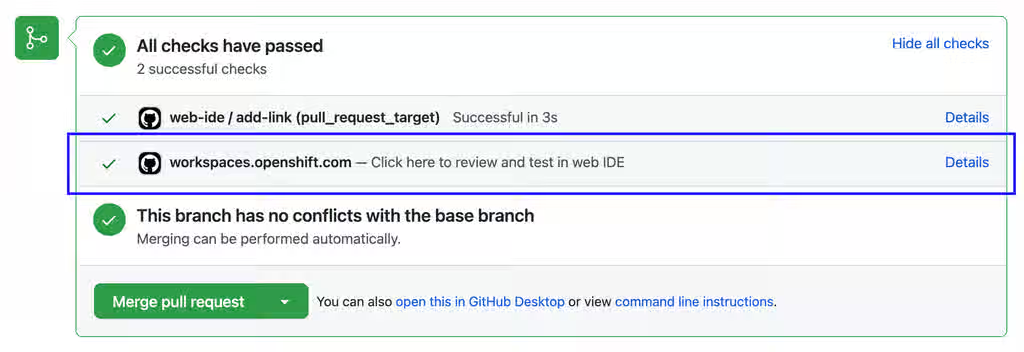
Figure 5.3. Pull request status check created by the Try in Web IDE GitHub action. Clicking the "Details" link opens a new workspace for reviewers to test the pull request.
Providing a devfile in the root directory of the repository is recommended to define the development environment of the workspace created by the factory URL. In this way, the workspace contains everything users need to review pull requests, such as plugins, development commands, and other environment setup.
The Che documentation repository devfile is an example of a well-defined and effective devfile.
Additional resources
- Section 5.4, “Add the action to a GitHub repository workflow”
- Content from github.com is not included.Try in Web IDE GitHub action
- Content from github.com is not included.Che documentation repository
- Content from github.com is not included.Che documentation repository devfile
- Content from devfile.io is not included.Devfile.io
5.4. Add the action to a GitHub repository workflow
Integrate the Try in Web IDE GitHub action into a GitHub repository workflow so that contributors can quickly open pull requests in a ready-to-use cloud workspace.
Prerequisites
- You have a GitHub repository.
- You have a devfile in the root of the GitHub repository.
Procedure
-
In the GitHub repository, create a
.github/workflowsdirectory if it does not exist already. Create an
example.ymlfile in the.github/workflowsdirectory with the following content:name: Try in Web IDE example on: pull_request_target: types: [opened] jobs: add-link: runs-on: ubuntu-20.04 steps: - name: Web IDE Pull Request Check id: try-in-web-ide uses: redhat-actions/try-in-web-ide@v1 with: # GitHub action inputs # required github_token: ${{ secrets.GITHUB_TOKEN }} # optional - defaults to true add_comment: true # optional - defaults to true add_status: trueThis code snippet creates a workflow named
Try in Web IDE example, with a job that runs thev1version of theredhat-actions/try-in-web-idecommunity action. The workflow is triggered on the Content from docs.github.com is not included.pull_request_targetevent, on theopenedactivity type.Optional: Configure the activity types from the
on.pull_request_target.typesfield to customize when the workflow triggers. Activity types such asreopenedandsynchronizecan be useful.For example:
on: pull_request_target: types: [opened, synchronize]-
Optional: Configure the
add_commentandadd_statusGitHub action inputs withinexample.yml. These inputs customize whether comments and status checks are added.
Additional resources
Chapter 6. Customize workspace components
Customize OpenShift Dev Spaces workspace components using devfiles and Integrated Development Environment (IDE) configuration.
6.1. Workspace component customization
OpenShift Dev Spaces provides several options to customize your workspaces to match project requirements and team standards.
You can customize your OpenShift Dev Spaces workspaces in a variety of ways:
- Choose a Git repository for your workspace.
- Use a devfile.
- Configure an IDE.
- Add OpenShift Dev Spaces specific attributes in addition to the generic devfile specification.
6.2. Introduction to devfile in OpenShift Dev Spaces
Devfiles are yaml files used for development environment customization. Share devfiles across workspaces to ensure consistent build, run, and deploy behavior across your team.
Red Hat OpenShift Dev Spaces is expected to work with most of the popular images defined in the components section of devfile. For production purposes, it is recommended to use one of the Universal Base Images (UBI) as a base image for defining the Cloud Development Environment.
Some images can not be used as-is for defining Cloud Development Environment. Visual Studio Code - Open Source ("Code - OSS") can not be started in containers that are missing openssl and libbrotli. Install missing libraries explicitly on the Dockerfile level, for example RUN yum install compat-openssl11 libbrotli.
6.2.1. Devfile and Universal Developer Image
You do not need a devfile to start a workspace. If you do not include a devfile in your project repository, Red Hat OpenShift Dev Spaces automatically loads a default devfile with a Universal Developer Image (UDI).
6.2.2. Devfile Registry
The Devfile Registry contains ready-to-use community-supported devfiles for different languages and technologies. Devfiles included in the registry should be treated as samples rather than templates.
Additional resources
- Content from devfile.io is not included.What is a devfile
- Content from devfile.io is not included.Benefits of devfile
- Content from devfile.io is not included.Devfile customization overview
- Content from devfile.io is not included.Devfile.io
- This content is not included.Universal Base Images
- Content from registry.devfile.io is not included.Devfile Registry
- Content from che.eclipseprojects.io is not included.Customizing Cloud Development Environments
6.3. IDEs in workspaces
OpenShift Dev Spaces supports multiple Integrated Development Environments (IDEs) that can be used in workspaces. The default IDE is Microsoft Visual Studio Code - Open Source.
- Content from github.com is not included.The che-editors.yaml file features the devfiles of all supported IDEs.
6.3.1. Supported IDEs
The default IDE in a new workspace is Microsoft Visual Studio Code - Open Source. Alternatively, you can choose another supported IDE:
Table 6.1. Supported IDEs
| IDE | Status | id | Note |
|---|---|---|---|
| Microsoft Visual Studio Code - Open Source | Available |
|
|
| JetBrains IntelliJ IDEA Ultimate Edition (over JetBrains Gateway) | Available |
|
|
| JetBrains IDEs (over JetBrains Toolbox) | Available |
|
|
6.3.2. Repository-level IDE configuration in OpenShift Dev Spaces
You can store IDE configuration files directly in the remote Git repository that contains your project source code. This way, one common IDE configuration is applied to all new workspaces that feature a clone of that repository. Such IDE configuration files might include the following:
-
The
/.che/che-editor.yamlfile that stores a definition of the chosen IDE. -
IDE-specific configuration files that one would typically store locally for a desktop IDE. For example, the
/.vscode/extensions.jsonfile.
6.3.3. Microsoft Visual Studio Code - Open Source
The OpenShift Dev Spaces build of Microsoft Visual Studio Code - Open Source is the default IDE of a new workspace.
You can automate installation of Microsoft Visual Studio Code extensions from the Open VSX registry at workspace startup. To configure IDE preferences on a per-workspace basis, invoke the Command Palette and select Preferences: Open Workspace Settings.
You might see your organization’s branding in this IDE if your organization customized it through a branded build.
Use Tasks to find and run the commands specified in devfile.yaml. The following Dev Spaces commands are available by clicking Dev Spaces in the Status Bar or through the Command Palette:
- Dev Spaces: Open Dashboard
- Dev Spaces: Open OpenShift Console
- Dev Spaces: Stop Workspace
- Dev Spaces: Restart Workspace
- Dev Spaces: Restart Workspace from Local Devfile
- Dev Spaces: Open Documentation
Additional resources
- Section 6.7, “Automate installation of VS Code extensions at workspace startup”
- Section 6.8, “Define a common IDE”
- Section 6.9, “Parameters for che-editor.yaml”
- Chapter 2, Optional parameters for the URLs for starting a new workspace
- Content from github.com is not included.Microsoft Visual Studio Code - Open Source (che-code) GitHub repository
- Content from github.com is not included.JetBrains Gateway plugin GitHub repository
- Content from github.com is not included.JetBrains Toolbox plugin GitHub repository
- Content from github.com is not included.Microsoft Visual Studio Code GitHub repository
- Extensions for Microsoft Visual Studio Code - Open Source
- Content from code.visualstudio.com is not included.Visual Studio Code: Tasks
- Content from code.visualstudio.com is not included.Visual Studio Code: Status Bar
- Content from code.visualstudio.com is not included.Visual Studio Code: Command Palette
6.4. Connect JetBrains IntelliJ IDEA Ultimate Edition to a new Dev Spaces workspace
Create a OpenShift Dev Spaces workspace and connect your local IntelliJ IDEA Ultimate Edition IDE over JetBrains Gateway.
Integration with the Content from www.jetbrains.com is not included.JetBrains Gateway is currently implemented only for x86 OpenShift clusters.
Prerequisites
- You have Content from www.jetbrains.com is not included.the JetBrains Gateway application installed.
- You have Content from plugins.jetbrains.com is not included.the Gateway provider for OpenShift Dev Spaces installed.
-
You are logged in to your OpenShift server with
oc. Theoc logincommand saves the connection information to the configuration file, which is read by the Gateway provider for OpenShift Dev Spaces. - You have sufficient Persistent Volume Claim (PVC) size to download and unpack the JetBrains IDE. CLion IDE, which is the largest of the IDEs, requires approximately 8.5 GB of disk space. Also consider the recommendations for calculating memory and CPU.
Procedure
Create a workspace on the OpenShift Dev Spaces Dashboard and choose
IntelliJ IDEA Ultimate (desktop)editor: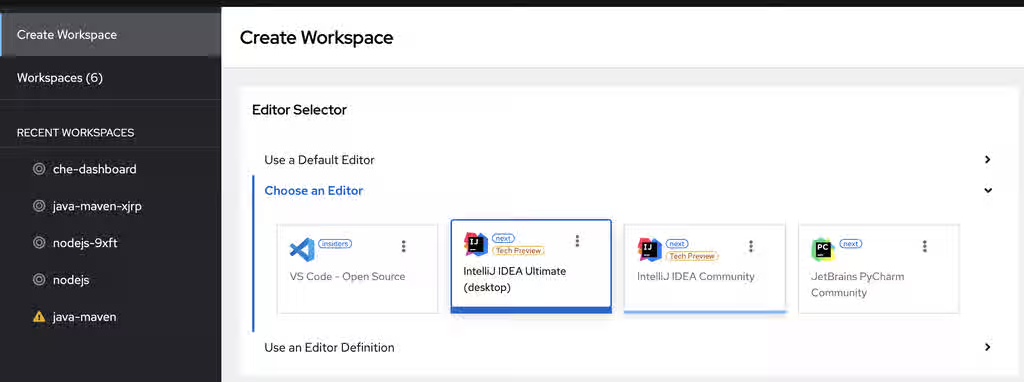
Wait for the prompt to open your local JetBrains Gateway application to appear:
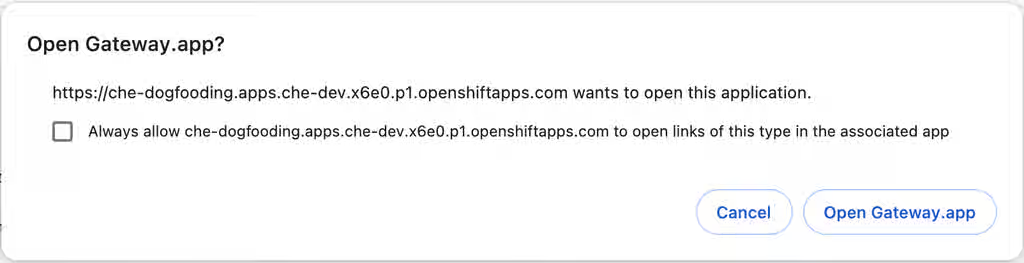
Click the
Open Gatewaybutton to start your local JetBrains Client application connected to your OpenShift Dev Spaces workspace: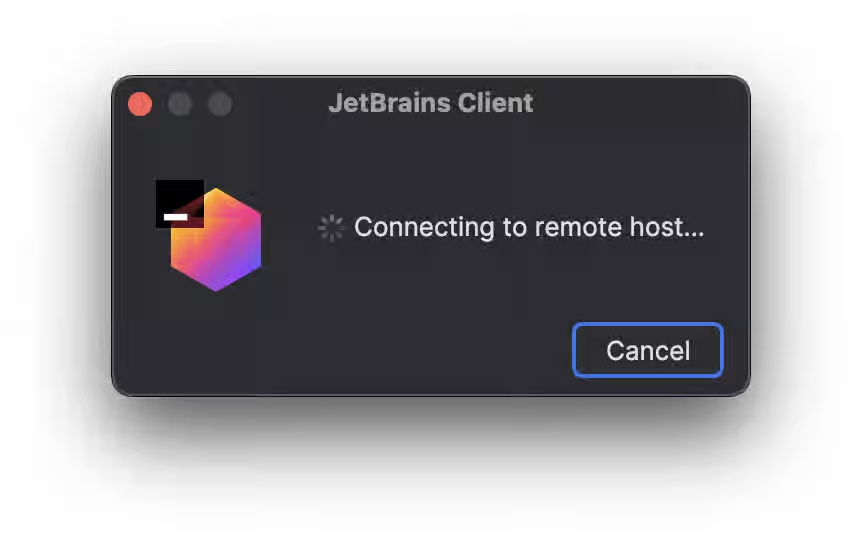
Verification
- Your local Gateway application is running the JetBrains Client and connects to the workspace.
6.5. Connect JetBrains IntelliJ IDEA Ultimate Edition to an existing Dev Spaces workspace
Connect your local IntelliJ IDEA Ultimate Edition IDE to an existing OpenShift Dev Spaces workspace by using the JetBrains Gateway application, without accessing the OpenShift Dev Spaces Dashboard.
Integration with the Content from www.jetbrains.com is not included.JetBrains Gateway is currently implemented only for x86 OpenShift clusters.
Prerequisites
- You have Content from www.jetbrains.com is not included.the JetBrains Gateway application installed.
- You have Content from plugins.jetbrains.com is not included.the Gateway provider for OpenShift Dev Spaces installed.
-
You are logged in to your OpenShift server with
oc. Theoc logincommand saves the connection information to the configuration file, which is read by the Gateway provider for OpenShift Dev Spaces. - You have sufficient Persistent Volume Claim (PVC) size to download and unpack the JetBrains IDE. CLion IDE, which is the largest of the IDEs, requires approximately 8.5 GB of disk space. Also consider the recommendations for calculating memory and CPU.
- You have a running OpenShift Dev Spaces workspace.
Procedure
Open the Gateway app and click
Connect to Dev Spaces: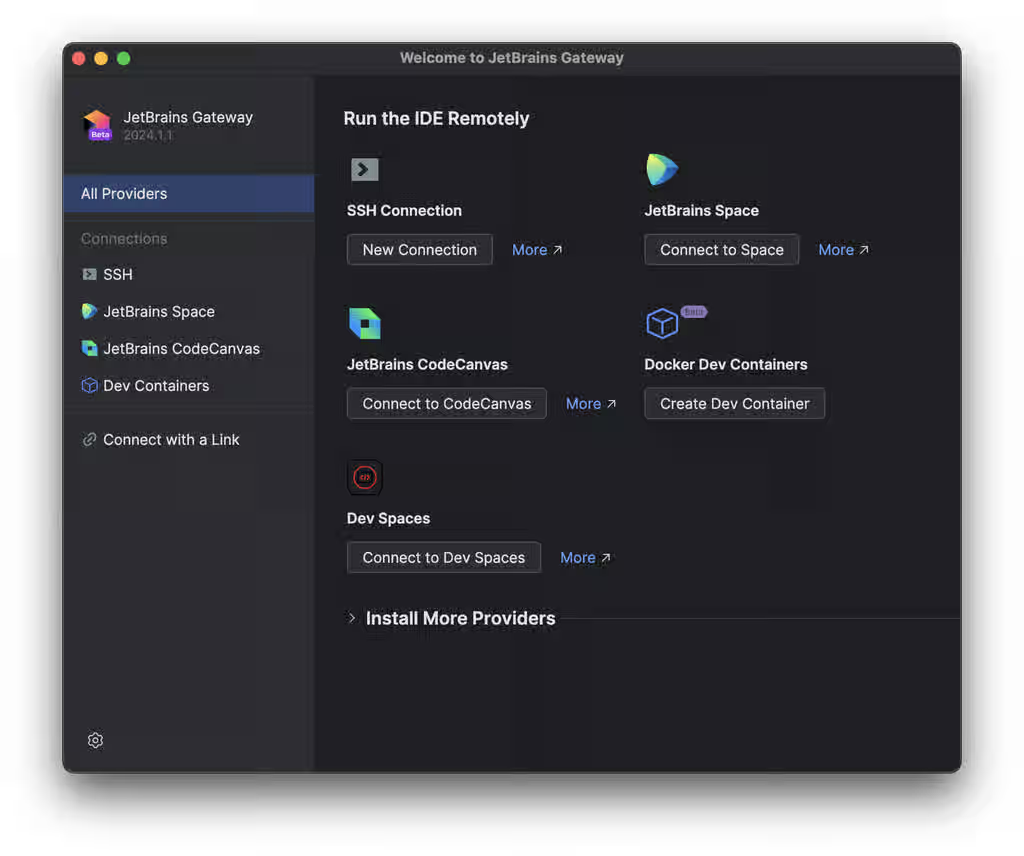
Provide the parameters to connect to the OpenShift Application Programming Interface (API) server and click the
Check Connection and Continuebutton: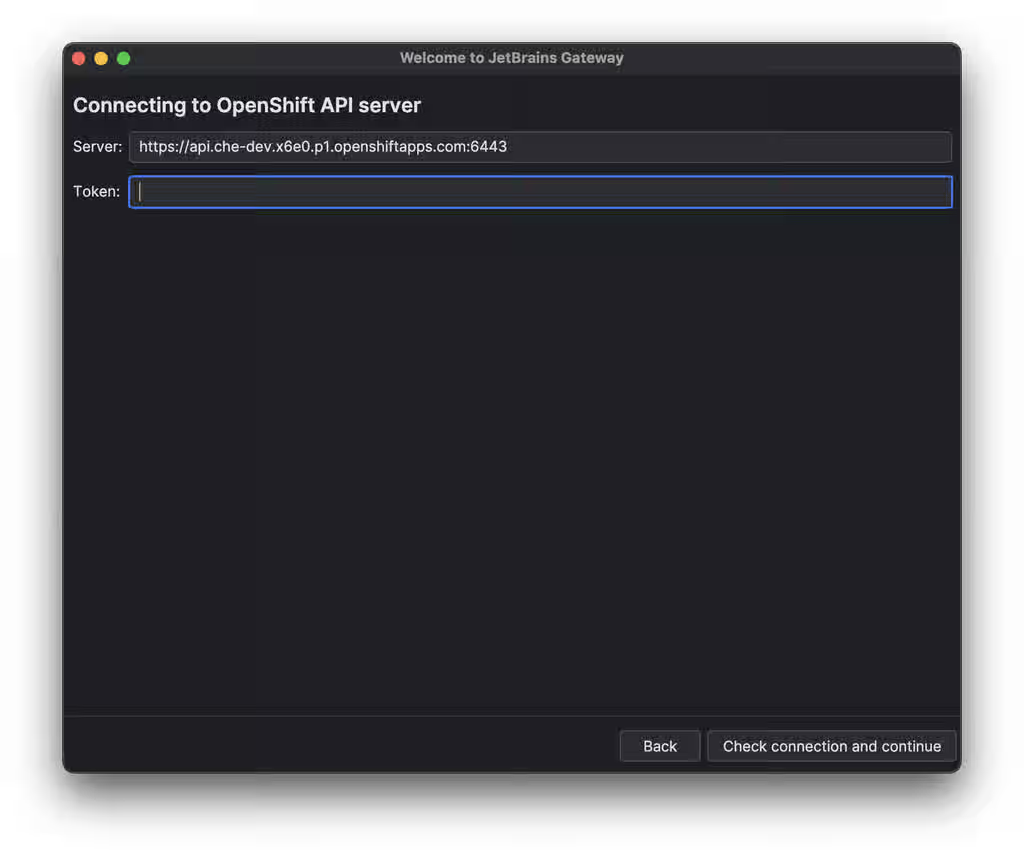
Choose your workspace and click the
Connectbutton: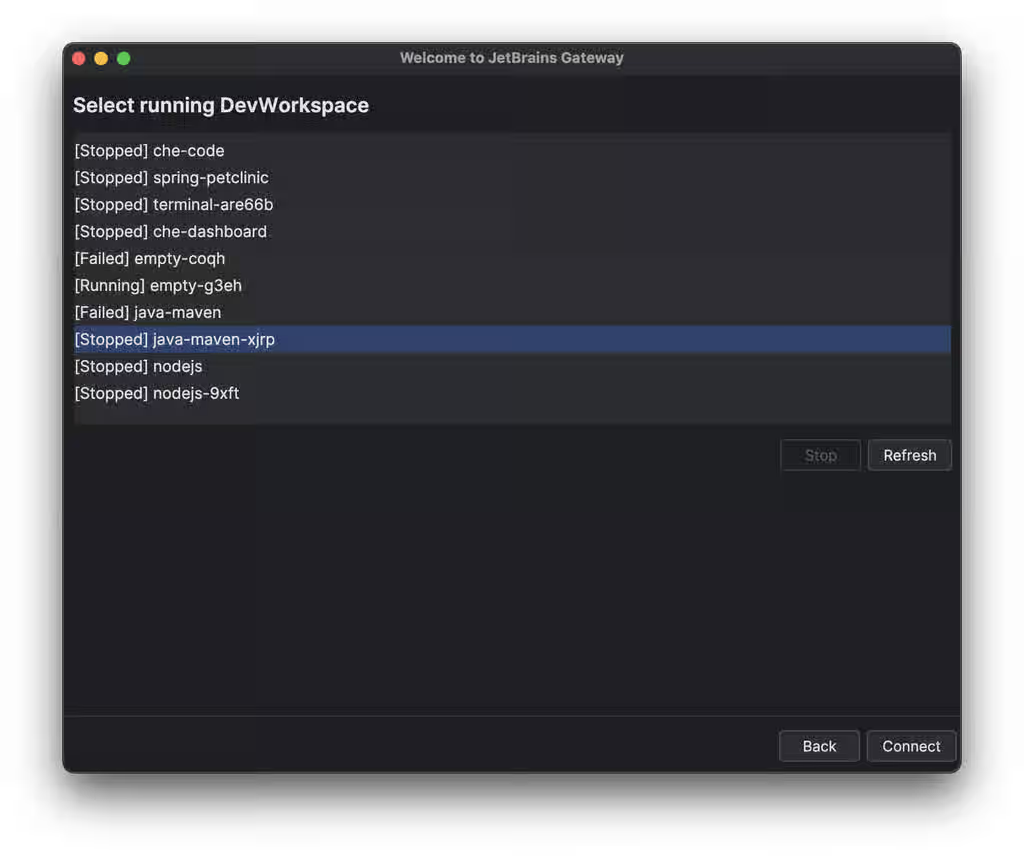
Verification
Your local Gateway application is running the JetBrains Client and connects to the workspace:
6.6. Connect JetBrains Toolbox to an OpenShift Dev Spaces workspace
Connect your local JetBrains IDE to a running OpenShift Dev Spaces workspace by using the JetBrains Toolbox application.
Prerequisites
You have Content from www.jetbrains.com is not included.the JetBrains Toolbox application installed.
The Content from www.jetbrains.com is not included.system requirements for Toolbox are met.
You have the
Red Hat OpenShift Dev Spacesplugin for Toolbox App installed.In Toolbox App, go to Manage plugins and install the plugin. If the plugin is not listed in the Available section, run the following command in your terminal to install it manually:
git clone git@github.com:redhat-developer/devspaces-toolbox-plugin.git && cd devspaces-toolbox-plugin && ./gradlew installPlugin
Restart the Toolbox App to load the plugin.
You are logged in to your OpenShift server with
ocin your local terminal.NoteThe
oc logincommand establishes the authenticated session and saves the connection information to the configuration file, which is read by the Toolbox plugin for OpenShift Dev Spaces.You have sufficient PVC size to download and unpack the JetBrains IDE.
ImportantCLion IDE, which is the largest of the IDEs, requires approximately 8.5 GB of disk space. Also consider the recommendations for calculating memory and CPU.
Procedure
Create a workspace on the OpenShift Dev Spaces Dashboard and choose
JetBrains Toolbox App (desktop)as the editor: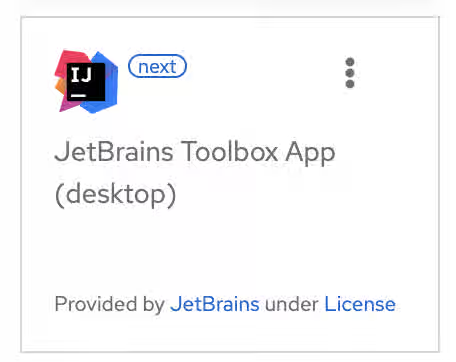
-
After the workspace is started, copy the
oc port-forward …command from the opened page. Run the command in your local terminal to forward the remote SSH port to your local machine. On the workspace page, click the
Open the workspace over Toolboxlink to run the local Toolbox App and initiate the SSH connection to your OpenShift Dev Spaces workspace: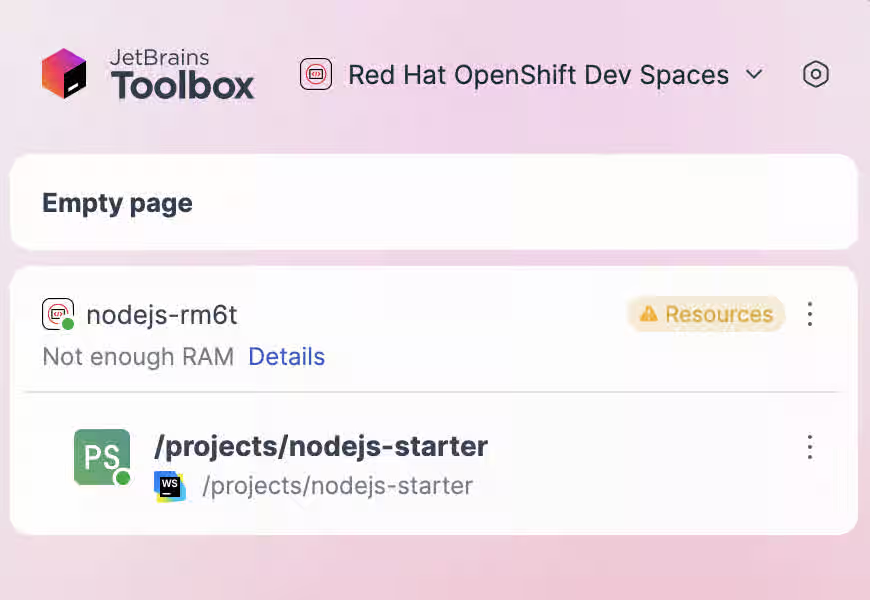
After the connection is established, click the Cloud Development Environment (CDE) name. On the Tools tab, choose an IDE to install in your workspace:
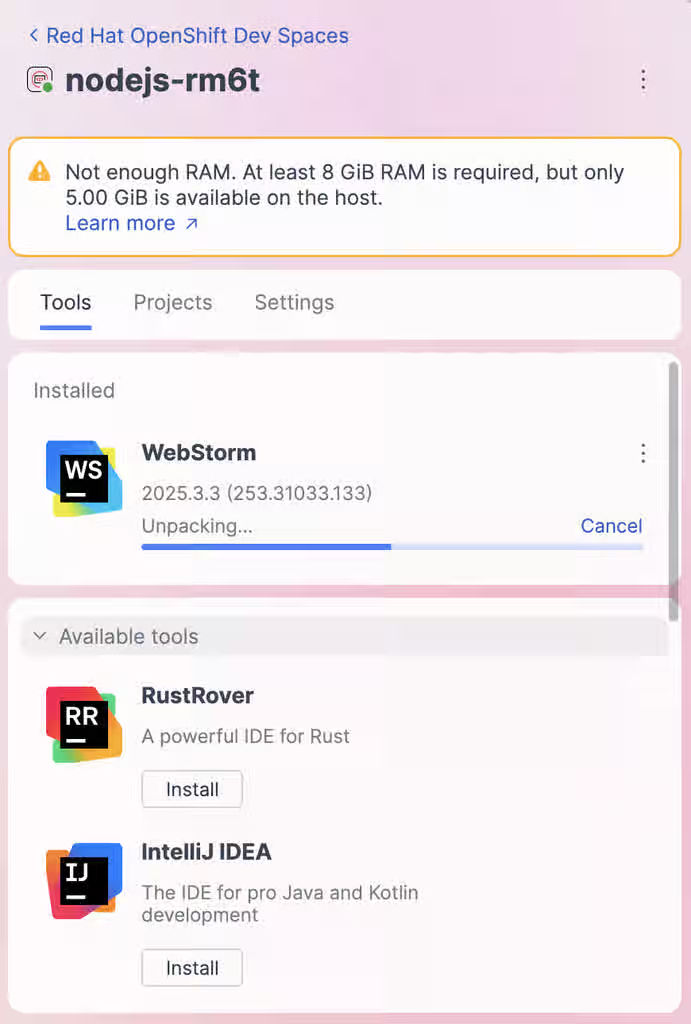
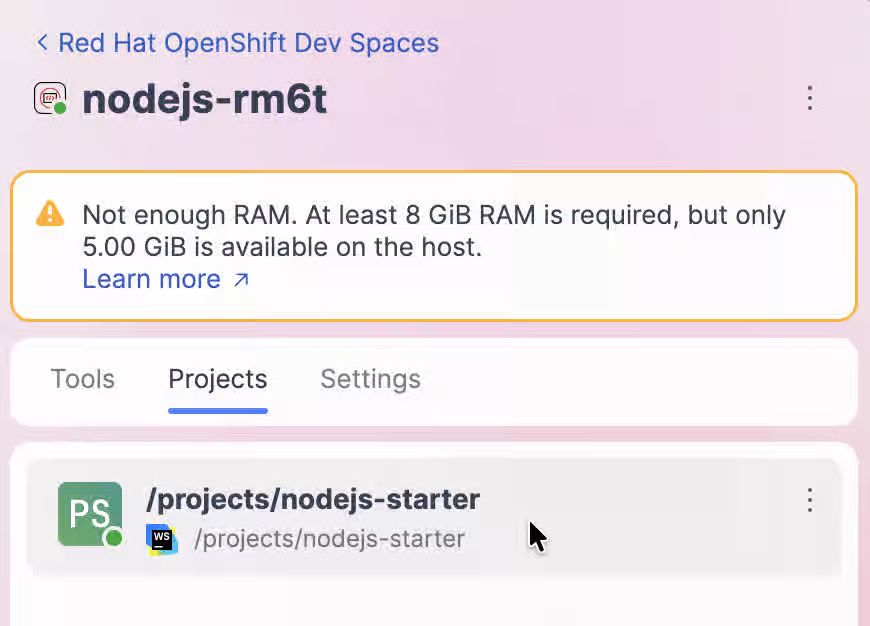
After the IDE is installed, on the Projects tab, click the project name to connect the local Thin Client to the workspace:
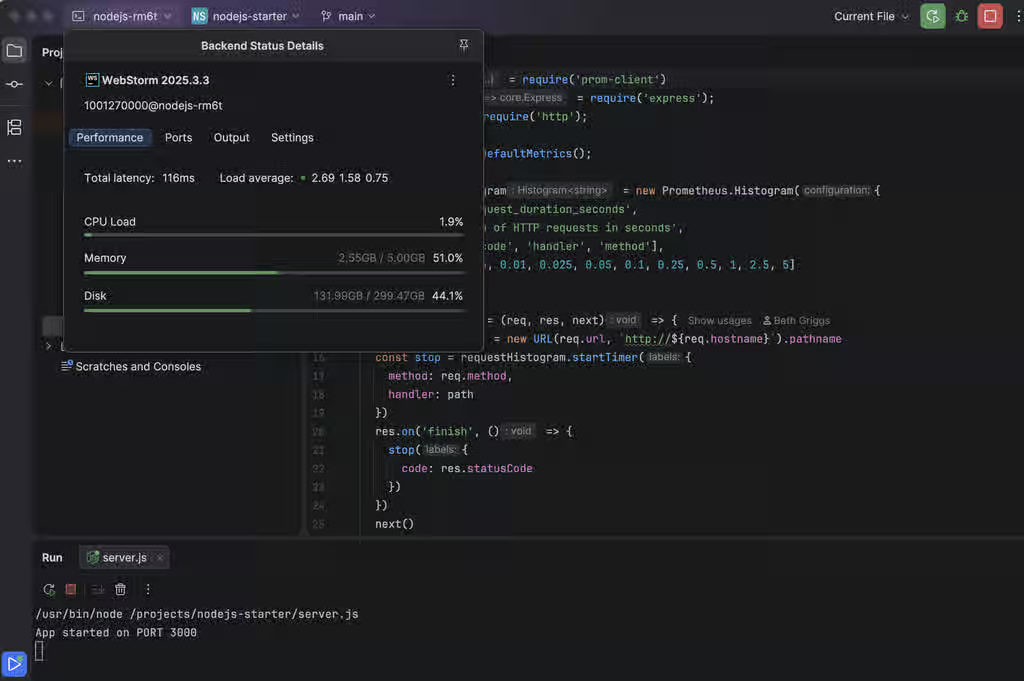
Verification
Your local Toolbox application is running the JetBrains Thin Client and connects to the workspace:
6.7. Automate installation of VS Code extensions at workspace startup
Add an extensions.json file to your project’s remote Git repository so that the Microsoft Visual Studio Code - Open Source IDE automatically installs chosen extensions at workspace startup. This repository contains your project source code and is cloned into workspaces.
Prerequisites
- You have the public OpenVSX registry at Content from open-vsx.org is not included.open-vsx.org selected and accessible over the internet. In a restricted environment, configure a private Open VSX registry, define a common IDE, or install extensions from VSX files instead.
Procedure
Get the publisher and extension names of each chosen extension:
- Find the extension on the Content from www.open-vsx.org is not included.Open VSX registry website and copy the URL of the extension’s listing page.
Extract the <publisher> and <extension> names from the copied URL:
https://www.open-vsx.org/extension/<publisher>/<extension>
-
Create a
.vscode/extensions.jsonfile in the remote Git repository. Add the <publisher> and <extension> names to the
extensions.jsonfile as follows:{ "recommendations": [ "<publisher_A>.<extension_B>", "<publisher_C>.<extension_D>", "<publisher_E>.<extension_F>" ] }
Verification
-
Start a new workspace by using the URL of the remote Git repository that contains the created
extensions.jsonfile. - In the IDE of the workspace, press Ctrl+Shift+X or go to Extensions to find each of the extensions listed in the file.
- The extension has the label This extension is enabled globally.
Additional resources
- Selecting an Open VSX registry instance
- Configuring the Open VSX registry URL to point to your OpenVSX registry
- Section 6.8, “Define a common IDE”
- Content from code.visualstudio.com is not included.Installing extensions from VSX files
- Content from www.open-vsx.org is not included.Open VSX registry - Extensions for Microsoft Visual Studio Code compatible editors
- Content from code.visualstudio.com is not included.Microsoft Visual Studio Code - Workspace recommended extensions
6.8. Define a common IDE
Define a common IDE for all workspaces in a Git repository by using a che-editor.yaml file so that all team members and new contributors use the most suitable IDE for the project. You can also use this file to override the OpenShift Dev Spaces instance default IDE for a particular Git repository.
To use an IDE other than the default Microsoft Visual Studio Code - Open Source for most or all workspaces in your organization, an administrator can set .spec.devEnvironments.defaultEditor in the CheCluster Custom Resource to apply the change at the instance level.
Prerequisites
- You have a project source code repository hosted on a Git provider.
Procedure
In the remote Git repository of your project source code, create a
/.che/che-editor.yamlfile with lines that specify the relevant parameter. For example:id: che-incubator/che-code/latest
Verification
- Start a new workspace with a clone of the Git repository.
- Verify that the specified IDE loads in the browser tab of the started workspace.
6.9. Parameters for che-editor.yaml
Configure the che-editor.yaml file to select and customize the IDE for your workspace, including the editor type, version, and container image.
Table 6.2. Supported IDEs
| IDE | Status | id | Note |
|---|---|---|---|
| Content from github.com is not included.Microsoft Visual Studio Code - Open Source | Available |
|
|
| Available |
|
|
Example 6.1. id selects an IDE from the plugin registry
id: che-incubator/che-idea/latest
As alternatives to the id parameter, the che-editor.yaml file supports two other options. You can use a reference to the URL of another che-editor.yaml file or an inline definition for an IDE outside of a plugin registry:
Example 6.2. reference points to a remote che-editor.yaml file
reference: https://<hostname_and_path_to_a_remote_file>/che-editor.yamlExample 6.3. inline specifies a complete definition for a customized IDE without a plugin registry
inline:
  schemaVersion: 2.1.0
  metadata:
    name: JetBrains IntelliJ IDEA Community IDE
  components:
    - name: intellij
      container:
        image: 'quay.io/che-incubator/che-idea:next'
        volumeMounts:
          - name: projector-user
            path: /home/projector-user
        mountSources: true
        memoryLimit: 2048M
        memoryRequest: 32Mi
        cpuLimit: 1500m
        cpuRequest: 100m
        endpoints:
          - name: intellij
            attributes:
              type: main
              cookiesAuthEnabled: true
              urlRewriteSupported: true
              discoverable: false
              path: /?backgroundColor=434343&wss
            targetPort: 8887
            exposure: public
            secure: false
            protocol: https
      attributes: {}
    - name: projector-user
      volume: {}
For more complex scenarios, the che-editor.yaml file supports the registryUrl and override parameters:
Example 6.4. registryUrl points to a custom plugin registry rather than to the default OpenShift Dev Spaces plugin registry
id: <editor_id>
registryUrl: <url_of_custom_plugin_registry>
+ id:: The id of the IDE in the custom plugin registry.
Example 6.5. override of the default value of one or more defined properties of the IDE
...
override:
  containers:
    - name: che-idea
      memoryLimit: 1280Mi
      cpuLimit: 1510m
      cpuRequest: 102m
    ...
+ The preceding field can be id:, registryUrl:, or reference:.
Chapter 7. Use credentials and configurations in workspaces
Mount Git credentials, SSH keys, image pull secrets, and configuration files into OpenShift Dev Spaces workspaces so that tools authenticate and configure automatically.
7.1. Credentials and configurations in workspaces
Mount credentials and configurations into your workspaces so that tools such as Git, Maven, and cloud CLIs authenticate automatically without manual setup each time you start a workspace.
To do so, mount your credentials and configurations to the Dev Workspace containers in the OpenShift cluster of your organization’s OpenShift Dev Spaces instance:
- Mount your credentials and sensitive configurations as Kubernetes Secrets.
- Mount your non-sensitive configurations as Kubernetes ConfigMaps.
If you need to allow the Dev Workspace Pods in the cluster to access container registries that require authentication, create an image pull Secret for the Dev Workspace Pods.
The mounting process uses the standard Kubernetes mounting mechanism and requires applying additional labels and annotations to your existing resources. Resources are mounted when starting a new workspace or restarting an existing one.
You can create permanent mount points for various components:
-
Maven configuration, such as the user-specific
settings.xmlfile - Secure Shell (SSH) key pairs
- Git-provider access tokens
- Git configuration
- AWS authorization tokens
- Configuration files
- Persistent storage
Additional resources
- Mounting Secrets
- Mounting ConfigMaps
- Creating image pull Secrets
- Using a Git-provider access token
- Mounting Git configuration
- Content from maven.apache.org is not included.Apache Maven Settings reference
- Content from kubernetes.io is not included.Kubernetes Documentation: Secrets
- Content from kubernetes.io is not included.Kubernetes Documentation: ConfigMaps
7.2. Mount Secrets
Mount Kubernetes Secrets into workspace containers to provide sensitive configuration data such as credentials, API keys, and certificates.
Prerequisites
You have an active
ocsession with your project. See This page is not included, but the link has been rewritten to point to the nearest parent document.Getting started with the CLI.WarningApplying or modifying a
Secretwith thecontroller.devfile.io/mount-to-devworkspace: 'true'label restarts all running workspaces in the project. Save your work before you apply these changes.
Procedure
Create a Secret with the required labels and annotations:
kind: Secret apiVersion: v1 metadata: name: my-credentials labels: controller.devfile.io/mount-to-devworkspace: 'true' controller.devfile.io/watch-secret: 'true' annotations: controller.devfile.io/mount-as: file controller.devfile.io/mount-path: /etc/my-credentials type: Opaque data: api-key: <base64_encoded_api_key>where:
- controller.devfile.io/mount-to-devworkspace
- Required label to mount the Secret to all workspaces.
- controller.devfile.io/watch-secret
- Watch the Secret for changes and update mounted files.
- controller.devfile.io/mount-as
-
Mount type:
file,subpath, orenv. - controller.devfile.io/mount-path
- Path where the Secret data is mounted.
Apply the Secret to your project:
$ oc apply -f my-credentials.yaml -n <your_namespace>Optional: Add annotations to the Secret to customize the mounting behavior.
Table 7.1. Secret mounting annotations
Annotation Description controller.devfile.io/mount-path: <path>Overrides the default mount path. The default mount path is
/etc/secret/<Secret_name>.controller.devfile.io/mount-as: fileEach key in the Secret data becomes a file in the mount path directory.
controller.devfile.io/mount-as: subpathSimilar to
file, but uses subPath volumes for better compatibility.controller.devfile.io/mount-as: envEach key-value pair becomes an environment variable in all workspace containers.
For example, to mount Secret data as environment variables:
kind: Secret apiVersion: v1 metadata: name: my-env-secret labels: controller.devfile.io/mount-to-devworkspace: 'true' controller.devfile.io/watch-secret: 'true' annotations: controller.devfile.io/mount-as: env type: Opaque stringData: DATABASE_URL: postgresql://localhost:5432/mydb API_SECRET: my-secret-keyFor example, to mount a Maven
settings.xmlfile to the/home/user/.m2/path usingsubpath:kind: Secret apiVersion: v1 metadata: name: maven-settings labels: controller.devfile.io/mount-to-devworkspace: 'true' controller.devfile.io/watch-secret: 'true' annotations: controller.devfile.io/mount-path: /home/user/.m2/ controller.devfile.io/mount-as: subpath type: Opaque stringData: settings.xml: | <settings xmlns="http://maven.apache.org/SETTINGS/1.0.0" xmlns:xsi="http://www.w3.org/2001/XMLSchema-instance" xsi:schemaLocation="http://maven.apache.org/SETTINGS/1.0.0 https://maven.apache.org/xsd/settings-1.0.0.xsd"> </settings>After the workspace starts, the
/home/user/.m2/settings.xmlfile is available in theDev Workspacecontainers. To use a custom path with Maven, runmvn --settings /home/user/.m2/settings.xml clean install.- Start or restart your workspace to apply the mounted Secret.
Verification
For
fileorsubpathmounts, verify the Secret data is available at the mount path:$ ls /etc/my-credentials
For
envmounts, verify the environment variables are set:$ echo $DATABASE_URL
7.3. Create an image pull Secret with oc
Create an image pull Secret with oc to allow Dev Workspace Pods to access container registries that require authentication.
Prerequisites
-
You have an active
ocsession with administrative permissions to the destination OpenShift cluster. See This page is not included, but the link has been rewritten to point to the nearest parent document.Getting started with the CLI.
Procedure
In your user project, create an image pull Secret with your private container registry details and credentials:
$ oc create secret docker-registry <Secret_name> \
    --docker-server=<registry_server> \
    --docker-username=<username> \
    --docker-password=<password> \
    --docker-email=<email_address>
Add the required labels to the image pull Secret:
$ oc label secret <Secret_name> controller.devfile.io/devworkspace_pullsecret=true controller.devfile.io/watch-secret=true
Verification
Verify the Secret exists and has the required labels:
$ oc get secret <Secret_name> --show-labels
7.4. Create an image pull Secret from a .dockercfg file
Create an image pull Secret from an existing .dockercfg file to allow Dev Workspace Pods to access container registries that require authentication.
Prerequisites
-
You have an active
ocsession with administrative permissions to the destination OpenShift cluster. See This page is not included, but the link has been rewritten to point to the nearest parent document.Getting started with the CLI. -
You have Content from www.gnu.org is not included.
base64command-line tools installed.
Procedure
Encode the
.dockercfgfile to Base64:$ cat .dockercfg | base64 | tr -d '\n'
Create a new OpenShift Secret in your user project:
apiVersion: v1
kind: Secret
metadata:
  name: <Secret_name>
  labels:
    controller.devfile.io/devworkspace_pullsecret: 'true'
    controller.devfile.io/watch-secret: 'true'
data:
  .dockercfg: <Base64_content_of_.dockercfg>
type: kubernetes.io/dockercfg
Apply the Secret:
$ oc apply -f - <<EOF
<Secret_prepared_in_the_previous_step>
EOF
Verification
Verify the Secret exists and has the required labels:
$ oc get secret <Secret_name> --show-labels
7.5. Create an image pull Secret from a config.json file
Create an image pull Secret from an existing $HOME/.docker/config.json file to allow Dev Workspace Pods to access container registries that require authentication.
Prerequisites
-
You have an active
ocsession with administrative permissions to the destination OpenShift cluster. See This page is not included, but the link has been rewritten to point to the nearest parent document.Getting started with the CLI. -
You have Content from www.gnu.org is not included.
base64command-line tools installed.
Procedure
Encode the
$HOME/.docker/config.jsonfile to Base64:$ cat config.json | base64 | tr -d '\n'
Create a new OpenShift Secret in your user project:
apiVersion: v1
kind: Secret
metadata:
  name: <Secret_name>
  labels:
    controller.devfile.io/devworkspace_pullsecret: 'true'
    controller.devfile.io/watch-secret: 'true'
data:
  .dockerconfigjson: <Base64_content_of_config.json>
type: kubernetes.io/dockerconfigjson
Apply the Secret:
$ oc apply -f - <<EOF
<Secret_prepared_in_the_previous_step>
EOF
Verification
Verify the Secret exists and has the required labels:
$ oc get secret <Secret_name> --show-labels
7.6. Use a Git provider access token
Configure a personal access token to authenticate to Git providers for private repository access. This is useful when your administrator has not configured OAuth for your Git provider.
Prerequisites
You have a personal access token from your Git provider:
- Content from docs.github.com is not included.GitHub Personal Access Token
- Content from docs.gitlab.com is not included.GitLab Personal Access Token
- Content from support.atlassian.com is not included.Bitbucket App Password
- Content from docs.microsoft.com is not included.Azure DevOps Personal Access Token
-
You have an active
ocsession with your project. See This page is not included, but the link has been rewritten to point to the nearest parent document.Getting started with the CLI.
Procedure
-
Go to
https://<openshift_dev_spaces_fqdn>/api/user/idin the web browser to get your OpenShift Dev Spaces user ID. Create a Kubernetes Secret with your access token:
kind: Secret
apiVersion: v1
metadata:
  name: personal-access-token-<git_provider>
  labels:
    app.kubernetes.io/component: scm-personal-access-token
    app.kubernetes.io/part-of: che.eclipse.org
  annotations:
    che.eclipse.org/che-userid: <devspaces_user_id>
    che.eclipse.org/scm-personal-access-token-name: <git_provider_name>
    che.eclipse.org/scm-url: <git_provider_endpoint>
    che.eclipse.org/scm-organization: <git_provider_organization>
type: Opaque
stringData:
  token: <your_personal_access_token>
where:
- che.eclipse.org/che-userid
- Your OpenShift Dev Spaces user ID.
- che.eclipse.org/scm-personal-access-token-name
-
The Git provider name (
github,gitlab,bitbucket-server, orazure-devops). - che.eclipse.org/scm-url
-
The Git provider URL endpoint (e.g.,
Content from github.com is not included.https://github.com,Content from gitlab.com is not included.https://gitlab.com). - che.eclipse.org/scm-organization
- Required only for Azure DevOps: your Git provider user organization, or collection if Azure DevOps Server is used.
- token
Your personal access token.
Example for GitHub:
kind: Secret
apiVersion: v1
metadata:
  name: personal-access-token-github
  labels:
    app.kubernetes.io/component: scm-personal-access-token
    app.kubernetes.io/part-of: che.eclipse.org
  annotations:
    che.eclipse.org/che-userid: 1a2b3c4d-5e6f-7g8h-9i0j-1k2l3m4n5o6p
    che.eclipse.org/scm-personal-access-token-name: github
    che.eclipse.org/scm-url: https://github.com
type: Opaque
stringData:
  token: ghp_xxxxxxxxxxxxxxxxxxxxxxxxxxxxxxxxxxxx
-
Visit
https://<openshift_dev_spaces_fqdn>/api/kubernetes/namespaceto get your OpenShift Dev Spaces user namespace asname. Apply the Secret to your OpenShift Dev Spaces user project:
$ oc apply -f personal-access-token.yaml -n <your_user_namespace>ImportantIf you are using Azure DevOps Server, you must also modify the workspace’s gitconfig with the following section:
extraheader = "Authorization: Basic <base64-encoded(:personal-access-token)>"
To generate the key-value pair, use the following command:
echo -n "extraheader = \"Authorization: Basic "$(printf ":%s" <personal access token> | base64)\"
The
extraheaderconfiguration is needed for remote git operations to Azure DevOps Server, for examplegit clone. This authorization method has a higher priority over the git credentials store, and as a result, remote operations to other Git providers will fail.- Start or restart your workspace.
Verification
- Open a terminal in your workspace.
Clone a private repository or push to a repository to verify authentication:
$ git clone https://github.com/<org>/<private-repo>.git
Additional resources
7.7. Mount ConfigMaps
Mount Kubernetes ConfigMaps into workspace containers to provide non-sensitive configuration data.
Prerequisites
You have an active
ocsession with your project. See This page is not included, but the link has been rewritten to point to the nearest parent document.Getting started with the CLI.WarningApplying or modifying a
ConfigMapwith thecontroller.devfile.io/mount-to-devworkspace: 'true'label restarts all running workspaces in the project. Save your work before you apply these changes.
Procedure
Create a ConfigMap with the required labels and annotations:
kind: ConfigMap apiVersion: v1 metadata: name: my-config labels: controller.devfile.io/mount-to-devworkspace: 'true' controller.devfile.io/watch-configmap: 'true' annotations: controller.devfile.io/mount-as: file controller.devfile.io/mount-path: /etc/my-config data: settings.json: | { "editor.fontSize": 14, "editor.tabSize": 2 }where:
- controller.devfile.io/mount-to-devworkspace
- Required label to mount the ConfigMap to all workspaces.
- controller.devfile.io/watch-configmap
- Watch the ConfigMap for changes and update mounted files.
- controller.devfile.io/mount-as
-
Mount type:
file,subpath, orenv. - controller.devfile.io/mount-path
- Path where the ConfigMap data is mounted.
Apply the ConfigMap to your project:
$ oc apply -f my-config.yaml -n <your_namespace>Optional: Add annotations to the ConfigMap to customize the mounting behavior.
Table 7.2. ConfigMap mounting annotations
Annotation Description controller.devfile.io/mount-path: <path>Overrides the default mount path. The default mount path is
/etc/config/<ConfigMap_name>.controller.devfile.io/mount-as: fileEach key in the ConfigMap data becomes a file in the mount path directory.
controller.devfile.io/mount-as: subpathSimilar to
file, but uses subPath volumes for better compatibility.controller.devfile.io/mount-as: envEach key-value pair becomes an environment variable in all workspace containers.
For example, to mount ConfigMap data as environment variables:
kind: ConfigMap apiVersion: v1 metadata: name: my-env-config labels: controller.devfile.io/mount-to-devworkspace: 'true' controller.devfile.io/watch-configmap: 'true' annotations: controller.devfile.io/mount-as: env data: LOG_LEVEL: debug MAX_CONNECTIONS: "100"- Start or restart your workspace to apply the mounted ConfigMap.
Verification
For
fileorsubpathmounts, verify the ConfigMap data is available at the mount path:$ cat /etc/my-config/settings.json
For
envmounts, verify the environment variables are set:$ echo $LOG_LEVEL
7.8. Mount Git configuration
Mount your Git configuration into workspaces to set your Git identity and preferences.
The user.name and user.email fields are set automatically to the gitconfig content from a git provider that is connected to OpenShift Dev Spaces. This connection requires a Git-provider access token or a token generated via OAuth, and you must set the username and email on the provider’s user profile page.
Prerequisites
-
You have an active
ocsession with your project. See This page is not included, but the link has been rewritten to point to the nearest parent document.Getting started with the CLI.
Procedure
Create a ConfigMap with your Git configuration:
kind: ConfigMap apiVersion: v1 metadata: name: workspace-userdata-gitconfig-configmap labels: controller.devfile.io/mount-to-devworkspace: 'true' controller.devfile.io/watch-configmap: 'true' annotations: controller.devfile.io/mount-as: subpath controller.devfile.io/mount-path: /home/user data: .gitconfig: | [user] name = Your Name email = your.email@example.com [core] editor = vim [pull] rebase = trueApply the ConfigMap to your project:
$ oc apply -f gitconfig.yaml -n <your_namespace>- Start or restart your workspace.
Verification
- Open a terminal in your workspace.
Verify the Git configuration:
$ git config --list
7.9. Mount SSH configuration
Mount custom SSH configurations into workspaces by using a ConfigMap. Extend the default SSH settings with additional parameters or host-specific configurations.
The system sets the default SSH configuration automatically from the SSH secret in User Preferences. You can extend it by mounting an additional .conf file to /etc/ssh/ssh_config.d/.
Prerequisites
-
You have an active
ocsession with your project. See This page is not included, but the link has been rewritten to point to the nearest parent document.Getting started with the CLI.
Procedure
Create a ConfigMap with the SSH configuration:
kind: ConfigMap
apiVersion: v1
metadata:
  name: workspace-userdata-sshconfig-configmap
  namespace: <your_namespace>
  labels:
    controller.devfile.io/mount-to-devworkspace: 'true'
    controller.devfile.io/watch-configmap: 'true'
  annotations:
    controller.devfile.io/mount-as: subpath
    controller.devfile.io/mount-path: /etc/ssh/ssh_config.d/
data:
  ssh-config.conf: |
    <ssh_config_content>
where:
<your_namespace>-
Your project name. To find your project, go to
Content from __<openshift_dev_spaces_fqdn>__ is not included.https://__<openshift_dev_spaces_fqdn>__/api/kubernetes/namespace. <ssh_config_content>-
The SSH configuration file content, for example
Host,IdentityFile, orProxyCommanddirectives.
Apply the ConfigMap:
oc apply -f - <<EOF
kind: ConfigMap
apiVersion: v1
metadata:
  name: workspace-userdata-sshconfig-configmap
  namespace: <your_namespace>
  labels:
    controller.devfile.io/mount-to-devworkspace: 'true'
    controller.devfile.io/watch-configmap: 'true'
  annotations:
    controller.devfile.io/mount-as: subpath
    controller.devfile.io/mount-path: /etc/ssh/ssh_config.d/
data:
  ssh-config.conf: |
    <ssh_config_content>
EOF
Verification
Start a workspace and verify the SSH configuration file is mounted:
$ cat /etc/ssh/ssh_config.d/ssh-config.conf
Additional resources
Chapter 8. Enable artifact repositories in a restricted environment
Configure OpenShift Dev Spaces workspaces to download dependencies from in-house artifact repositories that use self-signed TLS certificates.
In a restricted environment, workspaces cannot reach public registries. Configure each language ecosystem to use your organization’s internal repositories by mounting ConfigMaps or Secrets with the appropriate configuration files.
8.1. Enable Maven artifact repositories
Enable a Maven artifact repository in Maven workspaces that run in a restricted environment.
Prerequisites
- You are not running any Maven workspace.
-
You know your user namespace, which is
<username>-devspaceswhere<username>is your OpenShift Dev Spaces username.
Procedure
Create a Secret to store the TLS certificate:
kind: Secret apiVersion: v1 metadata: name: tls-cer annotations: controller.devfile.io/mount-path: /home/user/certs controller.devfile.io/mount-as: file labels: controller.devfile.io/mount-to-devworkspace: 'true' controller.devfile.io/watch-secret: 'true' data: tls.cer: >- <Base64_encoded_content_of_public_cert>where:
<Base64_encoded_content_of_public_cert>- The Base64-encoded content of your Maven artifact repository’s public TLS certificate, with line wrapping disabled.
Apply the Secret to the
<username>-devspacesnamespace:$ oc apply -f tls-cer.yaml -n <username>-devspacesCreate a ConfigMap for the
settings.xmlfile:kind: ConfigMap apiVersion: v1 metadata: name: settings-xml annotations: controller.devfile.io/mount-as: subpath controller.devfile.io/mount-path: /home/user/.m2 labels: controller.devfile.io/mount-to-devworkspace: 'true' controller.devfile.io/watch-configmap: 'true' data: settings.xml: | <settings xmlns="http://maven.apache.org/SETTINGS/1.0.0" xmlns:xsi="http://www.w3.org/2001/XMLSchema-instance" xsi:schemaLocation="http://maven.apache.org/SETTINGS/1.0.0 https://maven.apache.org/xsd/settings-1.0.0.xsd"> <localRepository/> <interactiveMode/> <offline/> <pluginGroups/> <servers/> <mirrors> <mirror> <id>redhat-ga-mirror</id> <name>Red Hat GA</name> <url>https://<maven_artifact_repository_route>/repository/redhat-ga/</url> <mirrorOf>redhat-ga</mirrorOf> </mirror> <mirror> <id>maven-central-mirror</id> <name>Maven Central</name> <url>https://<maven_artifact_repository_route>/repository/maven-central/</url> <mirrorOf>maven-central</mirrorOf> </mirror> <mirror> <id>jboss-public-repository-mirror</id> <name>JBoss Public Maven Repository</name> <url>https://<maven_artifact_repository_route>/repository/jboss-public/</url> <mirrorOf>jboss-public-repository</mirrorOf> </mirror> </mirrors> <proxies/> <profiles/> <activeProfiles/> </settings>where:
<maven_artifact_repository_route>- The hostname and path of your internal Maven artifact repository.
-
Optional: When using JBoss EAP-based devfiles, create a second
settings-xmlConfigMap with a different name and the/home/jboss/.m2mount path. Use the same content as step 3. Create a ConfigMap for the TrustStore initialization script that matches your Java version:
For Java 8:
kind: ConfigMap apiVersion: v1 metadata: name: init-truststore annotations: controller.devfile.io/mount-as: subpath controller.devfile.io/mount-path: /home/user/ labels: controller.devfile.io/mount-to-devworkspace: 'true' controller.devfile.io/watch-configmap: 'true' data: init-java8-truststore.sh: | #!/usr/bin/env bash keytool -importcert -noprompt -file /home/user/certs/tls.cer -trustcacerts -keystore ~/.java/current/jre/lib/security/cacerts -storepass changeitFor Java 11:
kind: ConfigMap apiVersion: v1 metadata: name: init-truststore annotations: controller.devfile.io/mount-as: subpath controller.devfile.io/mount-path: /home/user/ labels: controller.devfile.io/mount-to-devworkspace: 'true' controller.devfile.io/watch-configmap: 'true' data: init-java11-truststore.sh: | #!/usr/bin/env bash keytool -importcert -noprompt -file /home/user/certs/tls.cer -cacerts -storepass changeitApply the Secret,
settings.xmlConfigMap, and TrustStore ConfigMap to the<username>-devspacesnamespace:$ oc apply -f tls-cer.yaml -n <username>-devspaces $ oc apply -f settings-xml.yaml -n <username>-devspaces $ oc apply -f init-truststore.yaml -n <username>-devspaces
- Start a Maven workspace.
-
Open a new terminal in the
toolscontainer. -
Run
~/init-truststore.sh.
Verification
In the workspace terminal, verify the Maven mirror configuration:
$ mvn help:effective-settings
The output includes the mirror URLs from your
settings.xmlConfigMap.Build a Maven project to verify artifact resolution from the mirror:
$ mvn package
8.2. Enable Gradle artifact repositories
Enable a Gradle artifact repository in Gradle workspaces that run in a restricted environment.
Prerequisites
- You are not running any Gradle workspace.
Procedure
Create a Secret to store the TLS certificate:
kind: Secret apiVersion: v1 metadata: name: tls-cer annotations: controller.devfile.io/mount-path: /home/user/certs controller.devfile.io/mount-as: file labels: controller.devfile.io/mount-to-devworkspace: 'true' controller.devfile.io/watch-secret: 'true' data: tls.cer: >- <Base64_encoded_content_of_public_cert>where:
<Base64_encoded_content_of_public_cert>- The Base64-encoded content of your Gradle artifact repository’s public TLS certificate, with line wrapping disabled.
Create a ConfigMap for the TrustStore initialization script:
kind: ConfigMap apiVersion: v1 metadata: name: init-truststore annotations: controller.devfile.io/mount-as: subpath controller.devfile.io/mount-path: /home/user/ labels: controller.devfile.io/mount-to-devworkspace: 'true' controller.devfile.io/watch-configmap: 'true' data: init-truststore.sh: | #!/usr/bin/env bash keytool -importcert -noprompt -file /home/user/certs/tls.cer -cacerts -storepass changeitCreate a ConfigMap for the Gradle init script:
kind: ConfigMap apiVersion: v1 metadata: name: init-gradle annotations: controller.devfile.io/mount-as: subpath controller.devfile.io/mount-path: /home/user/.gradle labels: controller.devfile.io/mount-to-devworkspace: 'true' controller.devfile.io/watch-configmap: 'true' data: init.gradle: | allprojects { repositories { mavenLocal () maven { url "https://<gradle_artifact_repository_route>/repository/maven-public/" credentials { username "admin" password "passwd" } } } }where:
<gradle_artifact_repository_route>- The hostname and path of your internal Gradle artifact repository.
Apply the Secret and both ConfigMaps to your project:
$ oc apply -f tls-cer.yaml -n <your_namespace>
$ oc apply -f init-truststore.yaml -n <your_namespace>
$ oc apply -f init-gradle.yaml -n <your_namespace>
- Start a Gradle workspace.
-
Open a new terminal in the
toolscontainer. -
Run
~/init-truststore.sh.
Verification
In the workspace terminal, build a Gradle project to verify artifact resolution from the mirror:
$ gradle build
8.3. Enable npm artifact repositories
Enable an npm artifact repository in npm workspaces that run in a restricted environment.
Prerequisites
You are not running any npm workspace.
WarningApplying a ConfigMap that sets environment variables might cause a workspace boot loop.
If you encounter this behavior, remove the
ConfigMapand edit the devfile directly.
Procedure
Create a Secret to store the TLS certificate:
kind: Secret apiVersion: v1 metadata: name: tls-cer annotations: controller.devfile.io/mount-path: /public-certs controller.devfile.io/mount-as: file labels: controller.devfile.io/mount-to-devworkspace: 'true' controller.devfile.io/watch-secret: 'true' data: nexus.cer: >- <Base64_encoded_content_of_public_cert>where:
<Base64_encoded_content_of_public_cert>- The Base64-encoded content of your npm artifact repository’s public TLS certificate, with line wrapping disabled.
Apply the Secret to your project:
$ oc apply -f tls-cer.yaml -n <your_namespace>Create a ConfigMap to set the
NPM_CONFIG_REGISTRYenvironment variable:kind: ConfigMap apiVersion: v1 metadata: name: disconnected-env annotations: controller.devfile.io/mount-as: env labels: controller.devfile.io/mount-to-devworkspace: 'true' controller.devfile.io/watch-configmap: 'true' data: NPM_CONFIG_REGISTRY: >- https://<npm_artifact_repository_route>/repository/npm-all/where:
<npm_artifact_repository_route>- The hostname and path of your internal npm artifact repository.
Apply the ConfigMap to your project:
$ oc apply -f disconnected-env.yaml -n <your_namespace>- Start a npm workspace.
Configure the workspace to trust the self-signed certificate by using one of the following options:
Set the
NODE_EXTRA_CA_CERTSenvironment variable to the path of the TLS certificate:$ export NODE_EXTRA_CA_CERTS=/public-certs/nexus.cer $ npm install
Alternatively, disable self-signed certificate validation:
$ npm config set strict-ssl false
WarningDisabling SSL/TLS bypasses the validation of your self-signed certificates. For a more secure solution, use
NODE_EXTRA_CA_CERTS(sub-step a).
Verification
- Open a terminal in your workspace.
Verify the npm registry configuration:
$ npm config get registry
The output shows the artifact repository URL from your ConfigMap.
Install a package to verify artifact resolution from the mirror:
$ npm install express
8.4. Enable Python artifact repositories
Configure pip to use an internal PyPI mirror by mounting a pip.conf file into your workspaces.
Prerequisites
-
You have an active
ocsession with your project. See This page is not included, but the link has been rewritten to point to the nearest parent document.Getting started with the CLI. - You know the URL of your internal PyPI mirror.
Procedure
Create a Secret to store the TLS certificate:
kind: Secret apiVersion: v1 metadata: name: tls-cert labels: controller.devfile.io/mount-to-devworkspace: 'true' controller.devfile.io/watch-secret: 'true' annotations: controller.devfile.io/mount-path: /home/user/certs controller.devfile.io/mount-as: file type: Opaque data: tls.cer: >- <Base64_encoded_TLS_certificate>where:
<Base64_encoded_TLS_certificate>- The Base64-encoded content of your internal PyPI mirror’s TLS certificate.
Apply the Secret to your project:
$ oc apply -f tls-cert.yaml -n <your_namespace>Create a ConfigMap with your pip configuration:
WarningApplying a ConfigMap that sets environment variables might cause a workspace boot loop. If you encounter this behavior, remove the
ConfigMapand edit the devfile directly.kind: ConfigMap apiVersion: v1 metadata: name: pip-config labels: controller.devfile.io/mount-to-devworkspace: 'true' controller.devfile.io/watch-configmap: 'true' annotations: controller.devfile.io/mount-as: subpath controller.devfile.io/mount-path: /home/user/.config/pip data: pip.conf: | [global] index-url = <your_internal_pypi_url> trusted-host = <your_internal_pypi_host> cert = /home/user/certs/tls.cerwhere:
<your_internal_pypi_url>- The URL of your internal PyPI mirror.
<your_internal_pypi_host>- The hostname of your internal PyPI mirror.
Apply the ConfigMap to your project:
$ oc apply -f pip-config.yaml -n <your_namespace>- Start or restart your workspace.
Verification
- Open a terminal in your workspace.
Verify the pip configuration:
$ pip config list
Install a package to verify the configuration:
$ pip install requests
8.5. Enable Go artifact repositories
Configure Go to use a module proxy by setting environment variables in your workspaces.
Prerequisites
-
You have an active
ocsession with your project. See This page is not included, but the link has been rewritten to point to the nearest parent document.Getting started with the CLI. - You know the URL of your Go module proxy.
Procedure
Create a Secret to store the TLS certificate:
kind: Secret apiVersion: v1 metadata: name: tls-cert labels: controller.devfile.io/mount-to-devworkspace: 'true' controller.devfile.io/watch-secret: 'true' annotations: controller.devfile.io/mount-path: /home/user/certs controller.devfile.io/mount-as: file type: Opaque data: tls.cer: >- <Base64_encoded_TLS_certificate>where:
<Base64_encoded_TLS_certificate>- The Base64-encoded content of your Go module proxy’s TLS certificate.
Apply the Secret to your project:
$ oc apply -f tls-cert.yaml -n <your_namespace>Create a ConfigMap with Go environment variables:
WarningApplying a ConfigMap that sets environment variables might cause a workspace boot loop. If you encounter this behavior, remove the
ConfigMapand edit the devfile directly.kind: ConfigMap apiVersion: v1 metadata: name: go-config labels: controller.devfile.io/mount-to-devworkspace: 'true' controller.devfile.io/watch-configmap: 'true' annotations: controller.devfile.io/mount-as: env data: GOPROXY: <your_go_proxy_url> GONOSUMDB: "*" GOPRIVATE: "<your_private_modules>" SSL_CERT_FILE: /home/user/certs/tls.cerwhere:
<your_go_proxy_url>- The URL of your internal Go module proxy.
<your_private_modules>- A comma-separated list of Go module path prefixes for private modules that bypass the proxy and checksum database.
Apply the ConfigMap to your project:
$ oc apply -f go-config.yaml -n <your_namespace>- Start or restart your workspace.
Verification
- Open a terminal in your workspace.
Verify the Go configuration:
$ go env GOPROXY
Download a Go module to verify the configuration:
$ go get github.com/gin-gonic/gin
8.6. Enable NuGet artifact repositories
Enable a NuGet artifact repository in NuGet workspaces that run in a restricted environment.
Prerequisites
You are not running any NuGet workspace.
WarningApplying a ConfigMap that sets environment variables might cause a workspace boot loop.
If you encounter this behavior, remove the
ConfigMapand edit the devfile directly.
Procedure
Create a Secret to store the TLS certificate:
kind: Secret apiVersion: v1 metadata: name: tls-cer annotations: controller.devfile.io/mount-path: /home/user/certs controller.devfile.io/mount-as: file labels: controller.devfile.io/mount-to-devworkspace: 'true' controller.devfile.io/watch-secret: 'true' data: tls.cer: >- <Base64_encoded_content_of_public_cert>where:
<Base64_encoded_content_of_public_cert>- The Base64-encoded content of your NuGet artifact repository’s public TLS certificate, with line wrapping disabled.
Apply the Secret to your project:
$ oc apply -f tls-cer.yaml -n <your_namespace>Create a ConfigMap to set the
SSL_CERT_FILEenvironment variable to the path of the TLS certificate:kind: ConfigMap apiVersion: v1 metadata: name: disconnected-env annotations: controller.devfile.io/mount-as: env labels: controller.devfile.io/mount-to-devworkspace: 'true' controller.devfile.io/watch-configmap: 'true' data: SSL_CERT_FILE: /home/user/certs/tls.cerCreate a ConfigMap for the
nuget.configfile:kind: ConfigMap apiVersion: v1 metadata: name: init-nuget annotations: controller.devfile.io/mount-as: subpath controller.devfile.io/mount-path: /projects labels: controller.devfile.io/mount-to-devworkspace: 'true' controller.devfile.io/watch-configmap: 'true' data: nuget.config: | <?xml version="1.0" encoding="UTF-8"?> <configuration> <packageSources> <add key="nexus2" value="https://<nuget_artifact_repository_route>/repository/nuget-group/"/> </packageSources> <packageSourceCredentials> <nexus2> <add key="Username" value="admin" /> <add key="Password" value="passwd" /> </nexus2> </packageSourceCredentials> </configuration>where:
<nuget_artifact_repository_route>- The hostname and path of your internal NuGet artifact repository.
Apply both ConfigMaps to your project:
$ oc apply -f disconnected-env.yaml -n <your_namespace>
$ oc apply -f init-nuget.yaml -n <your_namespace>
- Start a NuGet workspace.
Verification
- Open a terminal in your workspace.
Verify the NuGet source configuration:
$ dotnet nuget list source
The output includes the artifact repository URL from your
nuget.configConfigMap.Restore packages to verify artifact resolution from the mirror:
$ dotnet restore
Chapter 9. Request persistent storage for workspaces
Configure persistent storage for OpenShift Dev Spaces workspaces to preserve project files, editor settings, and installed dependencies across workspace restarts.
9.1. Persistent storage for workspaces
OpenShift Dev Spaces workspaces and workspace data are ephemeral and are lost when the workspace stops.
To preserve the workspace state in persistent storage while the workspace is stopped, request a Kubernetes PersistentVolume (PV). The PV is requested for the Dev Workspace containers in the OpenShift cluster of your organization’s OpenShift Dev Spaces instance.
You can request a PV by using the devfile or a Kubernetes PersistentVolumeClaim (PVC).
An example of a PV is the /projects/ directory of a workspace, which is mounted by default for non-ephemeral workspaces.
Persistent Volumes come at a cost: attaching a persistent volume slows workspace startup.
Starting another, concurrently running workspace with a ReadWriteOnce PV might fail.
9.2. Request persistent storage in a devfile
When a workspace requires its own persistent storage, request a PersistentVolume (PV) in the devfile, and OpenShift Dev Spaces automatically manages the necessary PersistentVolumeClaims.
Prerequisites
- You have not started the workspace.
Procedure
Add a
volumecomponent in the devfile:... components: ... - name: <chosen_volume_name> volume: size: <requested_volume_size>G ...
Add a
volumeMountfor the relevantcontainerin the devfile:... components: - name: ... container: ... volumeMounts: - name: <chosen_volume_name_from_previous_step> path: <path_where_to_mount_the_PV> ...For example, when a workspace is started with the following devfile, the
cachePV is provisioned to thegolangcontainer in the/.cachecontainer path:schemaVersion: 2.1.0 metadata: name: mydevfile components: - name: golang container: image: golang memoryLimit: 512Mi mountSources: true command: ['sleep', 'infinity'] volumeMounts: - name: cache path: /.cache - name: cache volume: size: 2Gi
9.3. Request persistent storage in a PVC
Apply a PersistentVolumeClaim (PVC) to provision a PersistentVolume (PV) for your workspaces, so that data persists beyond workspace restarts and can be shared across workspaces.
A PVC is useful in the following cases:
- Not all developers of the project need the PV.
- The PV lifecycle goes beyond the lifecycle of a single workspace.
- The data included in the PV are shared across workspaces.
This also applies to ephemeral workspaces with the controller.devfile.io/storage-type: ephemeral attribute.
Prerequisites
- You have not started the workspace.
-
You have an active
ocsession with administrative permissions to the destination OpenShift cluster. See This page is not included, but the link has been rewritten to point to the nearest parent document.Getting started with the CLI. -
You have a PVC created in your user project to mount to all
Dev Workspacecontainers.
Procedure
Add the
controller.devfile.io/mount-to-devworkspace: truelabel to the PVC.$ oc label persistentvolumeclaim <PVC_name> \ controller.devfile.io/mount-to-devworkspace=trueOptional: Use the annotations to configure how the PVC is mounted:
Table 9.1. Optional annotations
Annotation Description controller.devfile.io/mount-path:The mount path for the PVC.
Defaults to
/tmp/<PVC_name>.controller.devfile.io/read-only:Set to
'true'or'false'to specify whether the PVC is to be mounted as read-only.Defaults to
'false', resulting in the PVC mounted as read/write.For example, to mount a read-only PVC:
apiVersion: v1
kind: PersistentVolumeClaim
metadata:
  name: <pvc_name>
  labels:
    controller.devfile.io/mount-to-devworkspace: 'true'
  annotations:
    controller.devfile.io/mount-path: </example/directory>
    controller.devfile.io/read-only: 'true'
spec:
  accessModes:
    - ReadWriteOnce
  resources:
    requests:
      storage: 3Gi
  storageClassName: <storage_class_name>
  volumeMode: Filesystem
where:
</example/directory>- The mounted PV is available at this path in the workspace.
3Gi- Example size value of the requested storage.
<storage_class_name>- The name of the StorageClass required by the claim. Remove this line if you want to use a default StorageClass.
Additional resources
Chapter 10. Restore workspaces from backups
Restore OpenShift Dev Spaces workspaces from backup snapshots to recover uncommitted source code changes or recreate a workspace environment.
When backups are enabled for Dev Workspace instances on your cluster, a cron job backs up workspace data for stopped workspaces. Backup storage, registry access, and schedules are configured cluster-wide by administrators in the Dev Workspace Operator.
Restored workspaces use a minimal devfile rather than the original project devfile. From the OpenShift Dev Spaces dashboard you can:
- Open the list of backups and inspect backup status.
- Restore a workspace from a backup that is already available to you, or from an image reference you provide.
- Choose compute limits and the editor for the new workspace before you start the restore.
When the restored workspace is ready, the dashboard opens it in a new browser tab.
A restored workspace is created from a minimal devfile with the restored source code transferred to the workspace from an init container. The Devfile tab in the workspace does not show the original devfile from the workspace’s Git repository.
10.1. View backups in the dashboard
Inspect the status of your workspace backups by viewing the list of available backups in the OpenShift Dev Spaces dashboard. The dashboard displays backups available in the default registry set by the administrator.
Prerequisites
- You have a running OpenShift Dev Spaces instance.
- You have backups enabled for your cluster.
Procedure
- In the OpenShift Dev Spaces dashboard, click Workspaces.
Select the Backups tab to view available backups.
Figure 10.1. The Backups tab in the Workspace view
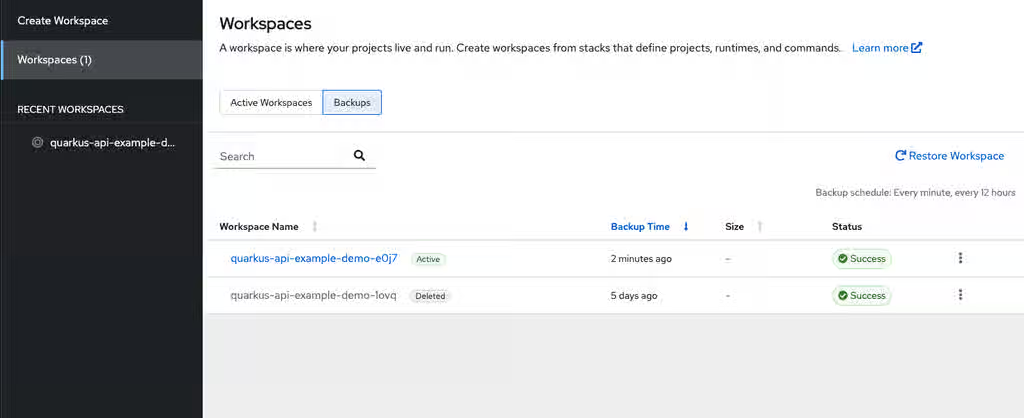
The Active tag represents backups for workspaces that still exist in the current cluster. The Deleted tag represents backups for workspaces that no longer exist in the current cluster.
Additional resources
10.2. Restore a workspace from a backup
Recover uncommitted changes or recreate a workspace environment by restoring from a backup snapshot through the OpenShift Dev Spaces dashboard. When the restoration is complete, the dashboard opens the new workspace in a browser tab.
Prerequisites
- You have backups enabled for your cluster.
- You have identified a default registry or external registry backup image to use.
Procedure
On the Restore page, select the backup source:
- Default registry: Select a backup from the list.
- External registry: Provide a backup image URL.
Figure 10.2. Restore mode and backup source selection
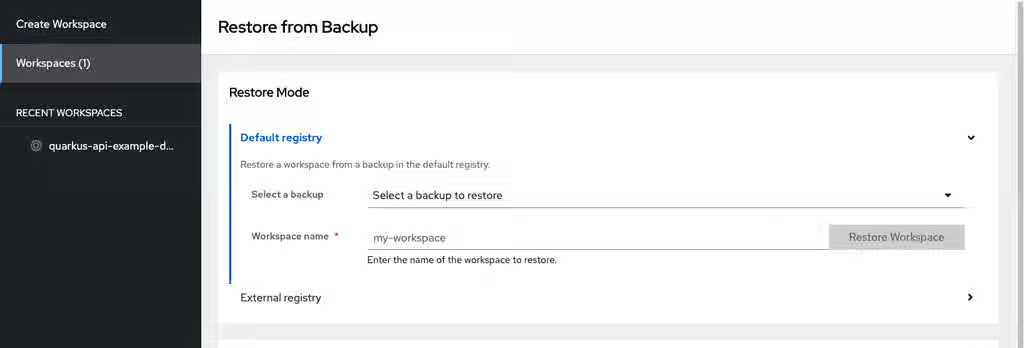
- Enter a name for the restored workspace.
Optional: Configure the memory limits, CPU limits, and the editor.
Figure 10.3. Resource limits and editor selection
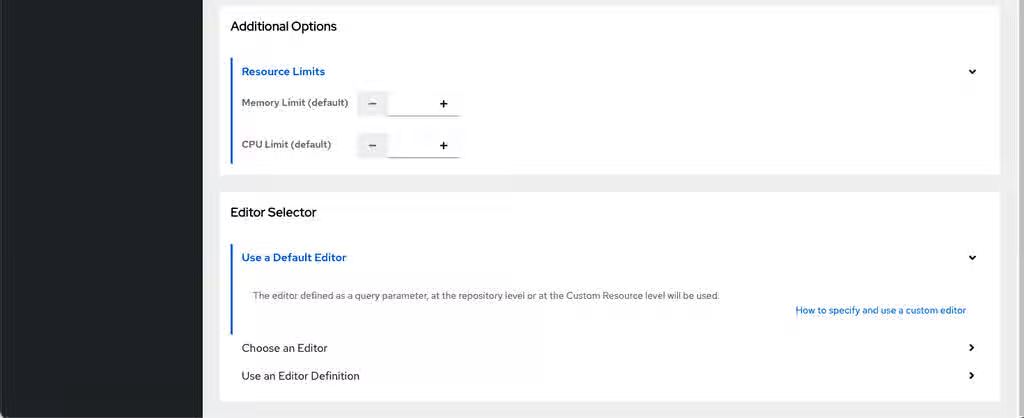
- Click Restore Workspace and wait for the workspace to start.
Verification
- Verify that the restored workspace opens in a new browser tab with the recovered source code.
Additional resources
Additional resources
Chapter 11. Integrate with OpenShift
Manage OpenShift Dev Spaces workspaces by using OpenShift APIs, automatic token injection, and the OpenShift web console.
OpenShift Dev Spaces workspaces run as OpenShift resources. You can create, list, stop, and remove workspaces by using standard OpenShift tools such as oc or the web console. You can also navigate between OpenShift Dev Spaces and the OpenShift Developer perspective.
11.1. OpenShift integration overview
OpenShift Dev Spaces integrates with OpenShift to provide automatic API token injection, direct console access, and seamless navigation between workspaces and cluster resources.
Key integration features include:
- Managing workspaces using Kubernetes APIs
- Automatic token injection for cluster access
- Navigating to OpenShift Dev Spaces from the OpenShift Developer Perspective
- Navigating to the OpenShift Web Console from OpenShift Dev Spaces
On your organization’s OpenShift cluster, each OpenShift Dev Spaces workspace is represented as a DevWorkspace custom resource of the same name. For example, a workspace named my-workspace in the OpenShift Dev Spaces dashboard has a corresponding DevWorkspace custom resource in the user’s project. You can manage OpenShift Dev Spaces workspaces by using OpenShift APIs with clients such as the command-line oc.
Each DevWorkspace custom resource contains details derived from the devfile of the Git repository cloned for the workspace, such as devfile commands and workspace container configurations.
11.2. List all workspaces
List your workspaces from the command line to check their status, identify stopped or failed workspaces, and monitor resource usage across your OpenShift Dev Spaces environment.
Prerequisites
-
You have an active
ocsession with permissions togettheDevWorkspaceresources in your project on the cluster. See This page is not included, but the link has been rewritten to point to the nearest parent document.Getting started with the CLI. -
You know the relevant OpenShift Dev Spaces user namespace on the cluster. Visit
https://<openshift_dev_spaces_fqdn>/api/kubernetes/namespaceto get your OpenShift Dev Spaces user namespace asname. -
You are in the OpenShift Dev Spaces user namespace on the cluster. On OpenShift, use
octo display your current namespace or switch to a namespace.
Procedure
List your workspaces:
$ oc get devworkspaces
Example output:
NAMESPACE   NAME                 DEVWORKSPACE ID             PHASE     INFO
user1-dev   spring-petclinic     workspace6d99e9ffb9784491   Running   https://url-to-workspace.com
user1-dev   golang-example       workspacedf64e4a492cd4701   Stopped   Stopped
user1-dev   python-hello-world   workspace69c26884bbc141f2   Failed    Container tooling has state CrashLoopBackOff
Optional: Add the
--watchflag to show PHASE changes live:$ oc get devworkspaces --watch
Optional: Add the
--all-namespacesflag to list workspaces from all OpenShift Dev Spaces users. This requires administrative permissions on the cluster.$ oc get devworkspaces --all-namespaces
11.3. Create workspaces
If your use case does not permit use of the OpenShift Dev Spaces dashboard, create workspaces with OpenShift APIs by applying custom resources to the cluster.
Creating workspaces through the OpenShift Dev Spaces dashboard provides better user experience and configuration benefits compared to using the command line:
- As a user, you are automatically logged in to the cluster.
- OpenShift clients work automatically.
-
OpenShift Dev Spaces and its components automatically convert the target Git repository’s devfile into the
DevWorkspaceandDevWorkspaceTemplatecustom resources on the cluster. -
Access to the workspace is secured by default with the
routingClass: chein theDevWorkspaceof the workspace. -
Recognition of the
DevWorkspaceOperatorConfigconfiguration is managed by OpenShift Dev Spaces. Recognition of configurations in
spec.devEnvironmentsspecified in theCheClustercustom resource including:-
Persistent storage strategy is specified with
devEnvironments.storage. -
Default IDE is specified with
devEnvironments.defaultEditor. -
Default plugins are specified with
devEnvironments.defaultPlugins. -
Container build configuration is specified with
devEnvironments.containerBuildConfiguration.
-
Persistent storage strategy is specified with
Prerequisites
-
You have an active
ocsession with permissions to createDevWorkspaceresources in your project on the cluster. See This page is not included, but the link has been rewritten to point to the nearest parent document.Getting started with the CLI. -
You know your OpenShift Dev Spaces user namespace on the cluster. To retrieve it, visit
https://<openshift_dev_spaces_fqdn>/api/kubernetes/namespaceand find thenamevalue. You are in your OpenShift Dev Spaces user namespace on the cluster. On OpenShift, use
octo display your current namespace or switch to a namespace.To create workspaces for other users, create the
DevWorkspacecustom resource in the target user namespace. This namespace must be provisioned by OpenShift Dev Spaces or by the administrator. See Configuring a user namespace.
Procedure
Copy the contents of the target Git repository’s devfile to prepare the
DevWorkspacecustom resource.For example:
components: - name: tooling-container container: image: quay.io/devfile/universal-developer-image:ubi9-latestFor more details, see the Content from devfile.io is not included.devfile v2 documentation.
Create a
DevWorkspacecustom resource, pasting the devfile contents from the previous step under thespec.templatefield.For example:
kind: DevWorkspace apiVersion: workspace.devfile.io/v1alpha2 metadata: name: my-devworkspace namespace: user1-dev spec: routingClass: che started: true contributions: - name: ide uri: http://devspaces-dashboard.openshift-devspaces.svc.cluster.local:8080/dashboard/api/editors/devfile?che-editor=che-incubator/che-code/latest template: projects: - name: my-project-name git: remotes: origin: Content from github.com is not included.https://github.com/eclipse-che/che-docs components: - name: tooling-container container: image: quay.io/devfile/universal-developer-image:ubi9-latest env: - name: CHE_DASHBOARD_URL value: https://<openshift_dev_spaces_fqdn>/dashboard/where:
- name
-
Name of the
DevWorkspacecustom resource. This is the name of the new workspace. - namespace
- User namespace, which is the target project for the new workspace.
- started
-
Determines whether the workspace must be started when the
DevWorkspacecustom resource is created. - contributions
- URL reference to the Content from github.com is not included.Microsoft Visual Studio Code - Open Source IDE devfile.
- projects
- Details about the Git repository to clone into the workspace when it starts.
- components
- List of components such as workspace containers and volume components.
- CHE_DASHBOARD_URL
- URL to OpenShift Dev Spaces dashboard.
Apply the
DevWorkspacecustom resource to the cluster.$ oc apply -f <devworkspace>.yaml
Verification
Verify that the workspace is starting by checking the PHASE status of the
DevWorkspace.$ oc get devworkspaces -n <user_project> --watchExample output:
NAMESPACE        NAME                  DEVWORKSPACE ID             PHASE      INFO
user1-dev        my-devworkspace       workspacedf64e4a492cd4701   Starting   Waiting for workspace deployment
When the workspace has successfully started, its PHASE status changes to Running in the output of the
oc get devworkspacescommand.Example output:
NAMESPACE            NAME                  DEVWORKSPACE ID             PHASE      INFO
user1-dev            my-devworkspace       workspacedf64e4a492cd4701   Running    https://url-to-workspace.com
You can then open the workspace by using one of these options:
-
Visit the URL provided in the INFO section of the output of the
oc get devworkspacescommand. - Open the workspace from the OpenShift Dev Spaces dashboard.
-
Visit the URL provided in the INFO section of the output of the
11.4. Stop workspaces
Stop a workspace by setting the spec.started field in the DevWorkspace custom resource to false.
Prerequisites
-
You have an active
ocsession on the cluster. See This page is not included, but the link has been rewritten to point to the nearest parent document.Getting started with the CLI. -
You have the workspace name. Run
oc get devworkspacesto list workspace names. -
You have the relevant OpenShift Dev Spaces user namespace on the cluster. Visit
https://<openshift_dev_spaces_fqdn>/api/kubernetes/namespaceto get your OpenShift Dev Spaces user namespace asname. -
You are in the OpenShift Dev Spaces user namespace on the cluster. On OpenShift, use
octo display your current namespace or switch to a namespace.
Procedure
Run the following command to stop a workspace:
$ oc patch devworkspace <workspace_name> \
-p '{"spec":{"started":false}}' \
--type=merge -n <user_namespace> && \
oc wait --for=jsonpath='{.status.phase}'=Stopped \
dw/<workspace_name> -n <user_namespace>
11.5. Start stopped workspaces
Start a stopped workspace by setting the spec.started field in the DevWorkspace custom resource to true.
Prerequisites
-
You have an active
ocsession on the cluster. See This page is not included, but the link has been rewritten to point to the nearest parent document.Getting started with the CLI. -
You have the workspace name. Run
oc get devworkspacesto list workspace names. -
You have the relevant OpenShift Dev Spaces user namespace on the cluster. Visit
https://<openshift_dev_spaces_fqdn>/api/kubernetes/namespaceto get your OpenShift Dev Spaces user namespace asname. -
You are in the OpenShift Dev Spaces user namespace on the cluster. On OpenShift, use
octo display your current namespace or switch to a namespace.
Procedure
Run the following command to start a stopped workspace:
$ oc patch devworkspace <workspace_name> \
-p '{"spec":{"started":true}}' \
--type=merge -n <user_namespace> && \
oc wait --for=jsonpath='{.status.phase}'=Running \
dw/<workspace_name> -n <user_namespace>
11.6. Remove workspaces
Remove a workspace from the command line by deleting its DevWorkspace custom resource. The OpenShift Dev Spaces dashboard is the recommended method for routine operations.
Deleting the DevWorkspace custom resource also deletes other workspace resources if they were created by OpenShift Dev Spaces: for example, the referenced DevWorkspaceTemplate and per-workspace PersistentVolumeClaims.
Prerequisites
-
You have an active
ocsession on the cluster. See This page is not included, but the link has been rewritten to point to the nearest parent document.Getting started with the CLI. -
You know the workspace name. Run
oc get devworkspacesto list workspace names. -
You know the relevant OpenShift Dev Spaces user namespace on the cluster. Visit
https://<openshift_dev_spaces_fqdn>/api/kubernetes/namespaceto get your OpenShift Dev Spaces user namespace asname. On OpenShift, useocto display your current namespace or switch to a namespace. - You are in the OpenShift Dev Spaces user namespace on the cluster.
Procedure
Run the following command to remove a workspace:
$ oc delete devworkspace <workspace_name> -n <user_namespace>
11.7. Use automatic OpenShift token injection
Use the OpenShift user token that is automatically injected into workspace containers to run oc and kubectl commands against the OpenShift cluster without explicit login.
Automatic token injection works only on the OpenShift infrastructure.
Prerequisites
- You have a running instance of Red Hat OpenShift Dev Spaces.
Procedure
- Open the OpenShift Dev Spaces dashboard and start a workspace.
- After the workspace starts, open a terminal in the workspace container.
Run
ocorkubectlcommands to deploy applications, inspect and manage cluster resources, or view logs. The injected OpenShift user token authenticates these commands automatically.$ oc get pods
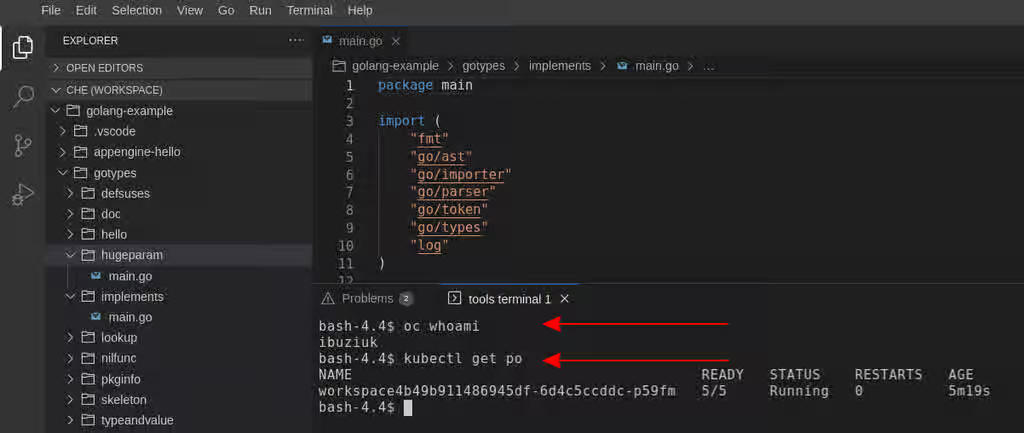
11.9. Edit application code from the OpenShift Developer Perspective
Edit the source code of applications running on OpenShift directly from the Developer Perspective to fix and iterate on deployed components without switching tools.
Prerequisites
- You have OpenShift Dev Spaces deployed on the same OpenShift 4 cluster.
Procedure
- Open the Topology view to list all projects.
-
In the Select an Application search field, type
workspaceto list all workspaces. Click the workspace to edit.
The deployments are displayed as graphical circles surrounded by circular buttons. One of these buttons is Edit Source Code.
- Click the Edit Source Code button. This redirects to a workspace with the cloned source code of the application component.
11.10. Access OpenShift Dev Spaces from Red Hat Applications menu
Open OpenShift Dev Spaces directly from the Red Hat Applications menu on OpenShift Container Platform to reach the Dashboard without navigating away from your current OpenShift context.
Prerequisites
- You have the OpenShift Dev Spaces Operator available in OpenShift 4.
Procedure
Open the Red Hat Applications menu by using the three-by-three matrix icon in the upper right corner of the main screen.
The drop-down menu displays the available applications.
- Click the OpenShift Dev Spaces link to open the Red Hat OpenShift Dev Spaces Dashboard.
11.11. Navigate to OpenShift web console from Dev Spaces
Navigate to the OpenShift web console from the OpenShift Dev Spaces dashboard to manage cluster resources, inspect pods, and troubleshoot workspace issues without leaving your workflow.
Prerequisites
- You have the OpenShift Dev Spaces Operator available in OpenShift Container Platform 4.
Procedure
Open the OpenShift Dev Spaces dashboard and click the three-by-three matrix icon in the upper right corner of the main screen.
The drop-down menu displays the available applications.
- Click the OpenShift console link to open the OpenShift web console.
Chapter 12. Troubleshoot OpenShift Dev Spaces
Diagnose and resolve common OpenShift Dev Spaces workspace issues by collecting logs and applying targeted fixes.
When a workspace fails to start, runs slowly, or displays unexpected errors, start by reviewing logs from the workspace pod, the OpenShift Dev Spaces operator, and the language server.
12.1. OpenShift Dev Spaces workspace logs
OpenShift Dev Spaces workspace logs capture IDE extension activity, container memory events, and process errors. Review these logs to diagnose workspace failures, debug misbehaving extensions, and identify memory issues.
- An IDE extension misbehaves or needs debugging
- The logs list the plugins that have been loaded by the editor.
- The container runs out of memory
-
The logs contain an
OOMKillederror message. Processes running in the container attempted to request more memory than is configured to be available to the container. - A process runs out of memory
-
The logs contain an error message such as
OutOfMemoryException. A process inside the container ran out of memory without the container noticing.
Additional resources
12.1.1. View workspace logs in CLI
Use the OpenShift command-line interface (CLI) to observe OpenShift Dev Spaces workspace logs to troubleshoot startup failures and runtime errors.
Prerequisites
- You have the OpenShift Dev Spaces workspace <workspace_name> running.
- You have an OpenShift CLI session with access to the OpenShift project <namespace_name> containing this workspace.
Procedure
Get the logs from the pod running the <workspace_name> workspace in the <namespace_name> project:
$ oc logs --follow --namespace='<workspace_namespace>' \
  --selector='controller.devfile.io/devworkspace_name=<workspace_name>'
12.1.2. View workspace logs in OpenShift console
Use the OpenShift console to observe OpenShift Dev Spaces workspace logs.
Prerequisites
- You have a running OpenShift Dev Spaces workspace.
- You have access to the OpenShift web console.
Procedure
- In the OpenShift Dev Spaces dashboard, go to Workspaces.
- Click a workspace name to display the workspace overview page. This page displays the OpenShift project name <project_name>.
- Click the upper right Applications menu, and click the OpenShift console link.
- Run the next steps in the OpenShift console, in the Administrator perspective.
- Click Workloads > Pods to see a list of all the active workspaces.
- In the Project drop-down menu, select the <project_name> project to narrow the search.
- Click the name of the running pod that runs the workspace. The Details tab contains the list of all containers with additional information.
- Go to the Logs tab.
12.1.3. View language server and debug adapter logs in the editor
In the Microsoft Visual Studio Code - Open Source editor running in your workspace, configure the installed language server and debug adapter extensions to view their logs.
Prerequisites
- You have a running OpenShift Dev Spaces workspace with Microsoft Visual Studio Code - Open Source as the editor.
- You have a language server or debug adapter extension installed in the editor.
Procedure
-
Configure the extension: click File > Preferences > Settings, expand the Extensions section, search for your extension, and set the
trace.serveror similar configuration toverbose, if such configuration exists. Refer to the extension documentation for further configuration. - View your language server logs by clicking View > Output, and selecting your language server in the drop-down list for the Output view.
Additional resources
12.2. Slow workspace troubleshooting
Identify configuration changes that reduce OpenShift Dev Spaces workspace startup time and improve runtime performance, including image pre-pulling, storage strategy tuning, and resource adjustments.
12.2.1. Improving workspace start time
- Caching images with Image Puller
Role: Administrator
When starting a workspace, OpenShift pulls the images from the registry. A workspace can include many containers meaning that OpenShift pulls Pod’s images (one per container). Depending on the size of the image and the bandwidth, it can take a long time.
Image Puller is a tool that can cache images on each of OpenShift nodes. As such, pre-pulling images can improve start times.
- Choosing better storage type
Role: Administrator and user
Every workspace has a shared volume attached. This volume stores the project files, so that when restarting a workspace, changes are still available. Depending on the storage, attach time can take up to a few minutes, and I/O can be slow.
- Installing offline
Role: Administrator
Components of OpenShift Dev Spaces are OCI images. Configure Red Hat OpenShift Dev Spaces in offline mode to reduce any extra download at runtime because everything needs to be available from the beginning.
- Reducing the number of public endpoints
Role: Administrator
For each endpoint, OpenShift is creating OpenShift Route objects. Depending on the underlying configuration, this creation can be slow.
To avoid this problem, reduce the exposure. For example, Microsoft Visual Code - Open Source has three optional routes. These routes automatically detect a new port listening inside containers and redirect traffic for processes using a local IP address (
127.0.0.1).By reducing the number of endpoints and checking endpoints of all plugins, workspace start can be faster.
12.2.2. Improving workspace runtime performance
- Providing enough CPU resources
Plugins consume CPU resources. For example, when a plugin provides IntelliSense features, adding more CPU resources can improve performance.
Ensure the CPU settings in the devfile definition,
devfile.yaml, are correct:components: - name: tools container: image: quay.io/devfile/universal-developer-image:ubi8-latest cpuLimit: 4000m cpuRequest: 1000m- cpuLimit
- Specifies the CPU limit.
- cpuRequest
- Specifies the CPU request.
- Providing enough memory
Plug-ins consume CPU and memory resources. For example, when a plugin provides IntelliSense features, collecting data can consume all the memory allocated to the container.
Providing more memory to the container can increase performance. Ensure that memory settings in the devfile definition
devfile.yamlfile are correct.components: - name: tools container: image: quay.io/devfile/universal-developer-image:ubi8-latest memoryLimit: 6G memoryRequest: 512Mi- memoryLimit
- Specifies the memory limit.
- memoryRequest
- Specifies the memory request.
12.3. Troubleshoot network problems
Diagnose and resolve OpenShift Dev Spaces network connectivity issues including WebSocket failures, proxy configuration problems, and Domain Name System (DNS) resolution errors.
Prerequisites
- You have an active workspace URL or the OpenShift Dev Spaces dashboard URL.
Procedure
Verify that the browser supports WebSocket connections by opening the browser developer tools (F12), navigating to the Console tab, and running:
var ws = new WebSocket('wss://echo.websocket.org'); ws.onopen = function() { console.log('WebSocket OK'); ws.close(); }; ws.onerror = function() { console.log('WebSocket FAILED'); };If the output is
WebSocket FAILED, WebSocket connections are blocked. Contact your network administrator to allow WSS connections on port 443.- Verify that firewall rules allow WebSocket Secure (WSS) connections on port 443 to the OpenShift Dev Spaces hostname.
- If your network uses a proxy server, verify that the proxy allows WebSocket upgrade requests. Some proxies block HTTP upgrade headers by default.
Verify DNS resolution from a workspace terminal:
nslookup <devspaces_hostname>If the DNS lookup fails, the workspace Pod cannot resolve the OpenShift Dev Spaces hostname. Verify the cluster DNS configuration and any custom DNS settings in the workspace namespace.
If you encounter
x509: certificate signed by unknown authorityerrors when connecting to an HTTPS endpoint from inside a workspace, the workspace does not trust the TLS certificate.Contact your administrator to import the required Certificate Authority (CA) certificates.
Verification
- Open a workspace and verify that the IDE loads without connection errors.
- Verify that Git operations (clone, push, pull) complete without network timeouts.
12.4. Webview loading error troubleshooting
If you use Microsoft Visual Studio Code - Open Source in a private browsing window, you might encounter an error message. The error is: Error loading webview: Error: Could not register service workers.
This is a known issue affecting the following browsers:
- Google Chrome in Incognito mode
- Mozilla Firefox in Private Browsing mode
Table 12.1. Dealing with the webview error in a private browsing window
| Browser | Workarounds |
|---|---|
| Google Chrome | Go to Settings → Privacy and security → Cookies and other site data → Allow all cookies. |
| Mozilla Firefox | Webviews are not supported in Private Browsing mode. See the Mozilla bug report for details. |
12.5. Troubleshooting devfile issues
Diagnose and resolve common devfile issues that prevent workspaces from starting or operating correctly. Issues include syntax errors, component failures, lifecycle command problems, and volume or endpoint misconfigurations.
12.5.1. Devfile syntax and validation errors
Table 12.2. Devfile syntax and validation error symptoms and resolutions
| Symptom | Resolution |
|---|---|
|
Workspace fails to start with | The devfile contains a syntax error. Validate the devfile YAML against the Content from devfile.io is not included.devfile schema. Check for incorrect indentation, missing required fields, or unsupported properties. |
| Workspace starts but ignores devfile changes. | OpenShift Dev Spaces caches devfile content. Delete the workspace and create a new one from the updated repository URL to apply devfile changes. |
|
Error: |
The devfile is missing the |
12.5.2. Component and container errors
Table 12.3. Component and container error symptoms and resolutions
| Symptom | Resolution |
|---|---|
|
Workspace Pod shows | The container image specified in the devfile component fails to start. Verify that the image exists and runs correctly outside of OpenShift Dev Spaces. Check container logs for details. |
|
|
The container image is missing libraries required by VS Code. Add |
|
Devfile component does not have enough memory and is |
The default memory limit is insufficient for the workload. Add or increase |
12.5.3. Command and lifecycle errors
Table 12.4. Command and lifecycle error symptoms and resolutions
| Symptom | Resolution |
|---|---|
|
A | The command exits with a non-zero code. Check workspace logs for the command output. Verify the command path and syntax. Ensure the command is executable inside the container. |
|
Multiple |
The devfile specification allows only one |
12.5.4. Volume and endpoint errors
Table 12.5. Volume and endpoint error symptoms and resolutions
| Symptom | Resolution |
|---|---|
| Source code changes are lost after workspace restart. |
The |
|
Endpoint URL returns |
The application inside the workspace is not listening on the port declared in the devfile endpoint. Verify the |
| Endpoint is not accessible from outside the workspace. |
By default, endpoints use |
Additional resources
Revised on 2026-06-02 08:20:33 UTC