Upgrade Red Hat Quay
Preface
To upgrade Red Hat Quay, follow the procedure that matches your installation type. You can use the Operator with the Operator Lifecycle Manager (OLM) for Operator-based installations, or the standalone procedure for proof of concept or highly available setups.
Chapter 1. Upgrading the Red Hat Quay Operator Overview
The Red Hat Quay Operator uses synchronized versioning: each Operator version deploys a single, matching version of Red Hat Quay and its components. You can use this scheme to plan upgrades and keep components compatible.
There is no field on the QuayRegistry custom resource which sets the version of Red Hat Quay to deploy; the Operator can only deploy a single version of all components. This scheme was chosen to ensure that all components work well together and to reduce the complexity of the Operator needing to know how to manage the lifecycles of many different versions of Red Hat Quay on Kubernetes.
1.1. Operator Lifecycle Manager
Operator Lifecycle Manager (OLM) installs and upgrades the Red Hat Quay Operator. You can use automatic or manual approval in the Subscription to control when new Operator versions are applied.
When the Red Hat Quay Operator is installed by Operator Lifecycle Manager, it might be configured to support automatic or manual upgrades. This option is shown on the OperatorHub page for the Red Hat Quay Operator during installation. It can also be found in the Red Hat Quay Operator Subscription object by the approvalStrategy field. Choosing Automatic means that your Red Hat Quay Operator will automatically be upgraded whenever a new Operator version is released. If this is not desirable, then the Manual approval strategy should be selected.
1.2. Upgrading the Red Hat Quay Operator
To upgrade the Red Hat Quay Operator, use the standard OpenShift Container Platform process for installed Operators and follow N-1 minor version paths.
In general, Red Hat Quay supports upgrades from a prior (N-1) minor version only. For example, upgrading directly from Red Hat Quay 3.9 to the latest version of 3.17 is not supported. Instead, users would have to upgrade as follows:
- 3.9.z → 3.10.z
- 3.10.z → 3.11.z
- 3.11.z → 3.14.z
- 3.14.z → 3.16.z
This is required to ensure that any necessary database migrations are done correctly and in the right order during the upgrade.
In some cases, Red Hat Quay supports direct, single-step upgrades from prior (N-2, N-3) minor versions. This simplifies the upgrade procedure for customers on older releases. The following upgrade paths are supported for Red Hat Quay 3.17.4:
- 3.14.z → 3.17.4
- 3.15.z → 3.17.4
- 3.16.z → 3.17.4
1.3. Upgrading Red Hat Quay to version 3.17.4
To upgrade Red Hat Quay to the next version, change the Operator update channel in the OpenShift Container Platform Web Console and wait for the upgrade pods to complete. You can then verify the database images and access your registry.
Procedure
- In the OpenShift Container Platform Web Console, navigate to Operators → Installed Operators.
- Click on the Red Hat Quay Operator.
- Navigate to the Subscription tab.
- Under Subscription details click Update channel.
- Select stable-3.17 → Save.
- Check the progress of the new installation under Upgrade status. Wait until the upgrade status changes to 1 installed before proceeding.
- In your OpenShift Container Platform cluster, navigate to Workloads → Pods. Existing pods should be terminated, or in the process of being terminated.
-
Wait for the following pods, which are responsible for upgrading the database and alembic migration of existing data, to spin up:
clair-postgres-upgrade,quay-postgres-upgrade, andquay-app-upgrade. -
After the
clair-postgres-upgrade,quay-postgres-upgrade, andquay-app-upgradepods are marked as Completed, the remaining pods for your Red Hat Quay deployment spin up. This takes approximately ten minutes. -
Verify that the
quay-databaseuses thepostgresql-13image, andclair-postgrespods now uses thepostgresql-15image. -
After the
quay-apppod is marked as Running, you can reach your Red Hat Quay registry.
1.4. Upgrading to the next minor release version
Z-stream upgrades, for example, 3.13.1 → 3.13.2, for Red Hat Quay use your existing channel and approval strategy. With Automatic approval, the Operator applies new z-stream updates with little or no downtime; with Manual approval, you approve each update first.
1.5. Manually approving a pending Operator upgrade
To approve a pending Red Hat Quay Operator upgrade when using Manual approval, open the Subscription tab, review the install plan and resources, and click Approve. You can then monitor the upgrade progress on the Installed Operators page.
The following image shows the Subscription tab in the UI, including the update Channel, the Approval strategy, the Upgrade status and the InstallPlan:
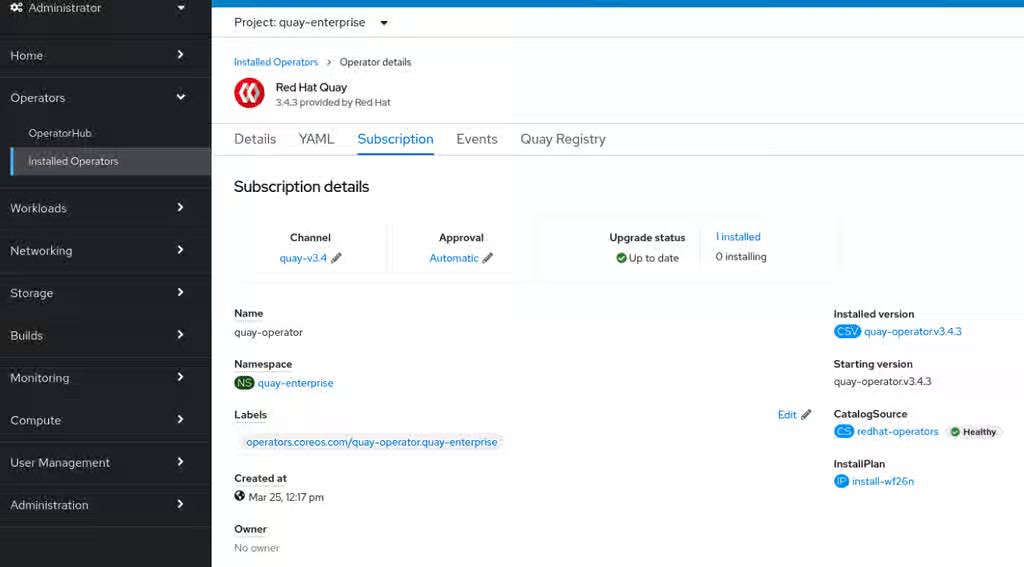
The list of Installed Operators provides a high-level summary of the current Quay installation:

1.6. Upgrading a QuayRegistry resource
The Red Hat Quay Operator reconciles QuayRegistry resources and upgrades them when the Operator version differs from the current version. When an upgrade is supported, the Operator applies it and updates status; when not, it returns an error and leaves the QuayRegistry unchanged.
The following logic is used:
-
If
status.currentVersionis unset, reconcile as normal. -
If
status.currentVersionequals the Operator version, reconcile as normal. -
If
status.currentVersiondoes not equal the Operator version, check if it can be upgraded. If it can, perform upgrade tasks and set thestatus.currentVersionto the Operator’s version once complete. If it cannot be upgraded, return an error and leave theQuayRegistryand its deployed Kubernetes objects alone.
1.7. Upgrading a QuayEcosystem
To migrate an existing QuayEcosystem to a QuayRegistry managed by the Red Hat Quay Operator, add the migration label to the QuayEcosystem custom resource and wait for the new QuayRegistry to start. You can then verify the migration and delete the old QuayEcosystem.
Procedure
Add
"quay-operator/migrate": "true"to themetadata.labelsof theQuayEcosystem.$ oc edit quayecosystem <quayecosystem_name>
metadata: labels: quay-operator/migrate: "true"-
Wait for a
QuayRegistryCR to be created with the samemetadata.nameas yourQuayEcosystem. TheQuayEcosystemCR is marked with the label"quay-operator/migration-complete": "true". -
After the
status.registryEndpointof the newQuayRegistryis set, access Red Hat Quay and confirm that all data and settings were migrated successfully. -
If everything works correctly, you can delete the
QuayEcosystem. Kubernetes garbage collection cleans up all old resources.
1.8. Reverting QuayEcosystem Upgrade
To revert to the QuayEcosystem when an upgrade to QuayRegistry fails or causes issues, delete the QuayRegistry and restore the Route to the original Service. You can then use the Red Hat Quay deployment managed by the QuayEcosystem.
If your QuayEcosystem was managing the PostgreSQL database, the upgrade process migrates your data to a new PostgreSQL database managed by the upgraded Operator. Your old database is not changed or removed but Red Hat Quay will no longer use it once the migration is complete. If there are issues during the data migration, the upgrade process exits and it is recommended that you continue with your database as an unmanaged component.
Procedure
Delete the
QuayRegistryusing either the UI orkubectl:$ kubectl delete -n <namespace> quayregistry <quayecosystem-name>
-
If external access was provided using a
Route, change theRouteto point back to the originalServiceusing the UI orkubectl.
1.9. Supported QuayEcosystem Configurations for Upgrades
The Red Hat Quay Operator reports errors in its logs and in status.conditions if migrating a QuayEcosystem component fails or is unsupported.
All unmanaged components should migrate successfully because no Kubernetes resources need to be adopted and all the necessary values are already provided in Red Hat Quay’s config.yaml file.
- Database
-
Ephemeral database not supported (
volumeSizefield must be set). - Redis
- Nothing special needed.
- External Access
Only passthrough
Routeaccess is supported for automatic migration. Manual migration required for other methods.-
LoadBalancerwithout custom hostname: After theQuayEcosystemis marked with label"quay-operator/migration-complete": "true", delete themetadata.ownerReferencesfield from existingServicebefore deleting theQuayEcosystemto prevent Kubernetes from garbage collecting theServiceand removing the load balancer. A newServicewill be created withmetadata.nameformat<QuayEcosystem-name>-quay-app. Edit thespec.selectorof the existingServiceto match thespec.selectorof the newServiceso traffic to the old load balancer endpoint will now be directed to the new pods. You are now responsible for the oldService; the Quay Operator will not manage it. -
LoadBalancer/NodePort/Ingresswith custom hostname: A newServiceof typeLoadBalancerwill be created withmetadata.nameformat<QuayEcosystem-name>-quay-app. Change your DNS settings to point to thestatus.loadBalancerendpoint provided by the newService.
-
- Clair
- Nothing special needed.
- Object Storage
-
QuayEcosystemdid not have a managed object storage component, so object storage will always be marked as unmanaged. Local storage is not supported. - Repository Mirroring
- Nothing special needed.
Chapter 2. Standalone Red Hat Quay upgrade
To upgrade a standalone Red Hat Quay and Clair deployment, follow the procedure for your current version in sequential order. You stop the containers, back up the database and storage, then start the new Clair and Red Hat Quay images.
In general, single-step upgrades from prior (N-2, N-3) minor versions. This helps simplify the upgrade procedure for customers on older releases. The following upgrade paths are supported for Red Hat Quay 3.17.4:
- 3.14.z → 3.17.4
- 3.15.z → 3.17.4
- 3.16.z → 3.17.4
Upgrading to 3.17 from releases older than those listed above is unsupported. This helps ensure that any necessary database migrations are done correctly and in the right order during the upgrade.
For users wanting to upgrade the Red Hat Quay Operator, see Upgrading the Red Hat Quay Operator Overview.
This document describes the steps needed to perform each individual upgrade. Determine your current version and then follow the steps in sequential order, starting with your current version and working up to your desired target version.
See the Red Hat Quay Release Notes for information on features for individual releases.
The general procedure for a manual upgrade consists of the following steps:
-
Stop the
QuayandClaircontainers. - Backup the database and image storage (optional but recommended).
- Start Clair using the new version of the image.
- Wait until Clair is ready to accept connections before starting the new version of Red Hat Quay.
2.1. Accessing images
To access Red Hat Quay and Clair images for standalone upgrades, pull from registry.redhat.io or registry.access.redhat.com and configure authentication as described in Red Hat Container Registry Authentication.
Red Hat Quay image from version 3.4.0 and later are available from Content from registry.redhat.io is not included.registry.redhat.io and This content is not included.registry.access.redhat.com, with authentication set up as described in Red Hat Container Registry Authentication.
2.1.1. Upgrade to v3.17.4 from 3.16.z
- Quay: registry.redhat.io/quay/quay-rhel9:v3.17.4
- Clair: registry.redhat.io/quay/clair-rhel9:v3.17.4
- PostgreSQL: registry.redhat.io/rhel9/postgresql-15
- Redis: registry.redhat.io/rhel9/redis-6:latest
- Clair-PosgreSQL: registry.redhat.io/rhel9/postgresql-15
2.1.2. Upgrade to v3.17.4 from 3.15.z
- Quay: registry.redhat.io/quay/quay-rhel9:v3.17.4
- Clair: registry.redhat.io/quay/clair-rhel9:v3.17.4
- PostgreSQL: registry.redhat.io/rhel9/postgresql-15
- Redis: registry.redhat.io/rhel9/redis-6:latest
- Clair-PosgreSQL: registry.redhat.io/rhel9/postgresql-15
2.1.3. Upgrade to v3.17.4 from 3.14.z
- Quay: registry.redhat.io/quay/quay-rhel9:v3.17.4
- Clair: registry.redhat.io/quay/clair-rhel9:v3.17.4
- PostgreSQL: registry.redhat.io/rhel9/postgresql-15
- Redis: registry.redhat.io/rhel9/redis-6:latest
- Clair-PosgreSQL: registry.redhat.io/rhel9/postgresql-155
Chapter 3. Upgrading a geo-replication deployment of standalone Red Hat Quay
To upgrade a geo-replication deployment of standalone Red Hat Quay, stop operations on all instances, back up the deployment, then follow the procedure to upgrade each system. Expect intermittent downtime when upgrading to the next y-stream release.
- When upgrading geo-replication Red Hat Quay deployments to the next y-stream release (for example, Red Hat Quay 3.7 → Red Hat Quay 3.8), or geo-replication deployments, you must stop operations before upgrading.
- There is intermittent downtime down upgrading from one y-stream release to the next.
- It is highly recommended to back up your Red Hat Quay deployment before upgrading.
This procedure assumes that you are running Red Hat Quay services on three (or more) systems. For more information, see Preparing for Red Hat Quay high availability.
Prerequisites
-
You have logged into
registry.redhat.io
Procedure
Obtain a list of all Red Hat Quay instances on each system running a Red Hat Quay instance.
Enter the following command on System A to reveal the Red Hat Quay instances:
$ sudo podman ps
Example output
CONTAINER ID IMAGE COMMAND CREATED STATUS PORTS NAMES ec16ece208c0 registry.redhat.io/quay/quay-rhel8:v{producty-n1} registry 6 minutes ago Up 6 minutes ago 0.0.0.0:80->8080/tcp, 0.0.0.0:443->8443/tcp quay01Enter the following command on System B to reveal the Red Hat Quay instances:
$ sudo podman ps
Example output
CONTAINER ID IMAGE COMMAND CREATED STATUS PORTS NAMES 7ae0c9a8b37d registry.redhat.io/quay/quay-rhel8:v{producty-n1} registry 5 minutes ago Up 2 seconds ago 0.0.0.0:82->8080/tcp, 0.0.0.0:445->8443/tcp quay02Enter the following command on System C to reveal the Red Hat Quay instances:
$ sudo podman ps
Example output
CONTAINER ID  IMAGE                                      COMMAND         CREATED        STATUS            PORTS                                        NAMES
e75c4aebfee9  registry.redhat.io/quay/quay-rhel8:v{producty-n1}  registry        4 seconds ago   Up 4 seconds ago   0.0.0.0:84->8080/tcp, 0.0.0.0:447->8443/tcp  quay03
Temporarily shut down all Red Hat Quay instances on each system.
Enter the following command on System A to shut down the Red Hat Quay instance:
$ sudo podman stop ec16ece208c0
Enter the following command on System B to shut down the Red Hat Quay instance:
$ sudo podman stop 7ae0c9a8b37d
Enter the following command on System C to shut down the Red Hat Quay instance:
$ sudo podman stop e75c4aebfee9
Obtain the latest Red Hat Quay version, for example, Red Hat Quay 3.17, on each system.
Enter the following command on System A to obtain the latest Red Hat Quay version:
$ sudo podman pull registry.redhat.io/quay/quay-rhel8:{productminv}Enter the following command on System B to obtain the latest Red Hat Quay version:
$ sudo podman pull registry.redhat.io/quay/quay-rhel8:v{producty}Enter the following command on System C to obtain the latest Red Hat Quay version:
$ sudo podman pull registry.redhat.io/quay/quay-rhel8:{productminv}
On System A of your highly available Red Hat Quay deployment, run the new image version, for example, Red Hat Quay 3.17:
# sudo podman run --restart=always -p 443:8443 -p 80:8080 \ --sysctl net.core.somaxconn=4096 \ --name=quay01 \ -v /mnt/quay/config:/conf/stack:Z \ -v /mnt/quay/storage:/datastorage:Z \ -d registry.redhat.io/quay/quay-rhel8:{productminv}Wait for the new Red Hat Quay container to become fully operational on System A. You can check the status of the container by entering the following command:
$ sudo podman ps
Example output
CONTAINER ID IMAGE COMMAND CREATED STATUS PORTS NAMES 70b9f38c3fb4 registry.redhat.io/quay/quay-rhel8:v{producty} registry 2 seconds ago Up 2 seconds ago 0.0.0.0:82->8080/tcp, 0.0.0.0:445->8443/tcp quay01- Optional: Ensure that Red Hat Quay is fully operation by navigating to the Red Hat Quay UI.
After ensuring that Red Hat Quay on System A is fully operational, run the new image versions on System B and on System C.
On System B of your highly available Red Hat Quay deployment, run the new image version, for example, Red Hat Quay 3.17:
# sudo podman run --restart=always -p 443:8443 -p 80:8080 \ --sysctl net.core.somaxconn=4096 \ --name=quay02 \ -v /mnt/quay/config:/conf/stack:Z \ -v /mnt/quay/storage:/datastorage:Z \ -d registry.redhat.io/quay/quay-rhel8:{productminv}On System C of your highly available Red Hat Quay deployment, run the new image version, for example, Red Hat Quay 3.17:
# sudo podman run --restart=always -p 443:8443 -p 80:8080 \
   --sysctl net.core.somaxconn=4096 \
   --name=quay03 \
   -v /mnt/quay/config:/conf/stack:Z \
   -v /mnt/quay/storage:/datastorage:Z \
   -d registry.redhat.io/quay/quay-rhel8:{productminv}
You can check the status of the containers on System B and on System C by entering the following command:
$ sudo podman ps
Chapter 4. Upgrading a geo-replication deployment of Red Hat Quay on OpenShift Container Platform
To upgrade your geo-replicated Red Hat Quay on OpenShift Container Platform deployment, you must stop operations, scale down secondary systems, upgrade the primary system, then upgrade secondary systems. This ensures a safe upgrade process with minimal downtime across your geo-replicated registry.
- When upgrading geo-replicated Red Hat Quay on OpenShift Container Platform deployment to the next y-stream release (for example, Red Hat Quay 3.16 → Red Hat Quay 3.17), you must stop operations before upgrading.
- There is intermittent downtime down upgrading from one y-stream release to the next.
- It is highly recommended to back up your Red Hat Quay on OpenShift Container Platform deployment before upgrading.
The following procedure assumes that you are running the Red Hat Quay registry on three or more systems. For this procedure, three systems named System A, System B, and System C are used. System A serves as the primary system in which the Red Hat Quay Operator is deployed.
Procedure
On System B and System C, scale down your Red Hat Quay registry. This is done by disabling auto scaling and overriding the replica county for Red Hat Quay, mirror workers, and Clair if it is managed. Use the following
quayregistry.yamlfile as a reference:apiVersion: quay.redhat.com/v1 kind: QuayRegistry metadata: name: registry namespace: ns spec: components: … - kind: horizontalpodautoscaler managed: false - kind: quay managed: true overrides: replicas: 0 - kind: clair managed: true overrides: replicas: 0 - kind: mirror managed: true overrides: replicas: 0 …where:
managed: false::Disables auto scaling ofQuay,ClairandMirroringworkersoverrides::Sets the replica count to 0 for components accessing the database and objectstorageNoteYou must keep the Red Hat Quay registry running on System A. Do not update the
quayregistry.yamlfile on System A.Wait for the
registry-quay-app,registry-quay-mirror, andregistry-clair-apppods to disappear. Enter the following command to check their status:oc get pods -n <quay-namespace>
Example output
quay-operator.v3.7.1-6f9d859bd-p5ftc               1/1     Running     0             12m
quayregistry-clair-postgres-7487f5bd86-xnxpr       1/1     Running     1 (12m ago)   12m
quayregistry-quay-app-upgrade-xq2v6                0/1     Completed   0             12m
quayregistry-quay-redis-84f888776f-hhgms           1/1     Running     0             12m
- On System A, initiate a Red Hat Quay upgrade to the latest y-stream version. This is a manual process. For more information about upgrading installed Operators, see Upgrading installed Operators. For more information about Red Hat Quay upgrade paths, see Upgrading the Red Hat Quay Operator.
-
After the new Red Hat Quay registry is installed, the necessary upgrades on the cluster are automatically completed. Afterwards, new Red Hat Quay pods are started with the latest y-stream version. Additionally, new
Quaypods are scheduled and started. Confirm that the update has properly worked by navigating to the Red Hat Quay UI:
In the OpenShift console, navigate to Operators → Installed Operators, and click the Registry Endpoint link.
ImportantDo not execute the following step until the Red Hat Quay UI is available. Do not upgrade the Red Hat Quay registry on System B and on System C until the UI is available on System A.
Confirm that the update has properly worked on System A, initiate the Red Hat Quay upgrade on System B and on System C. The Operator upgrade results in an upgraded Red Hat Quay installation, and the pods are restarted.
NoteBecause the database schema is correct for the new y-stream installation, the new pods on System B and on System C should quickly start.
After updating, revert the changes made in step 1 of this procedure by removing
overridesfor the components. For example:apiVersion: quay.redhat.com/v1 kind: QuayRegistry metadata: name: registry namespace: ns spec: components: … - kind: horizontalpodautoscaler managed: true - kind: quay managed: true - kind: clair managed: true - kind: mirror managed: true …where:
kind: horizontalpodautoscaler::Set this resource toTrueif thehorizontalpodautoscalerresource was set toTruebefore the upgrade procedure, or if you want Red Hat Quay to scale in case of a resource shortage.
Chapter 5. Upgrading the Quay Bridge Operator
To receive the latest Red Hat Quay upgrades and features, you can upgrade the Quay Bridge Operator by changing the update channel in the operator subscription.
Prerequisites
- You have installed Red Hat Quay.
- You are logged in to OpenShift Container Platform as a cluster administrator.
Procedure
- On the OpenShift Container Platform web console, click Operators → Installed Operators → Quay Bridge Operator.
- Click the Subscription tab.
- Under Update channel, click stable-3.15 → Save.
Chapter 6. Downgrading Red Hat Quay
Red Hat Quay only supports rolling back, or downgrading, to previous z-stream versions, for example, 3.12.3 → 3.12.2. Rolling back to previous y-stream versions (3.17 → 3.16) is not supported. This is because Red Hat Quay updates might contain database schema upgrades that are applied when upgrading to a new version of Red Hat Quay. Database schema upgrades are not considered backwards compatible.
Downgrading to previous z-streams is neither recommended nor supported by either Operator based deployments or virtual machine based deployments. Downgrading should only be done in extreme circumstances. The decision to rollback your Red Hat Quay deployment must be made in conjunction with the Red Hat Quay support and development teams. For more information, contact Red Hat Quay support.