How do I upgrade from Red Hat Enterprise Linux 6 to Red Hat Enterprise Linux 7 with SAP HANA
Environment
SAP HANA hosts:
- Red Hat Enterprise Linux 6.10 with or without the ELS subscription
- running on physical infrastructure or in a virtual environment, only on x86_64
- not using cloud platform
If not SAP HANA: see "Planning an Upgrade" to verify your architecture is supported, and then the rest of the "Upgrading from RHEL 6 to RHEL 7" document.
Issue
- How do I perform an in-place upgrade from Red Hat Enterprise Linux 6 to Red Hat Enterprise Linux 7?
- How do I use the Preupgrade Assistant and Red Hat Upgrade Tool to upgrade Red Hat Enterprise Linux 6 to Red Hat Enterprise Linux 7?
Resolution
Overview
Red Hat Enterprise Linux 7 (RHEL 7) is the first major release of RHEL that allows in-place upgrades from the previous RHEL major release (RHEL 6). An in-place upgrade offers upgrading a system to a later major release of RHEL by replacing the existing operating system.
The in-place upgrade of RHEL 6 with SAP HANA can be performed from RHEL 6.10 to RHEL 7.9 only, and only on x86_64, running on physical infrastructure or in a virtual environment.
Note: This procedure is not applicable for upgrading Amazon Web Services (AWS) instances or Amazon Machine Image or Microsoft Azure. One can update from one minor version (i.e. RHEL 6.9 to RHEL 6.10 or RHEL 7.3 to RHEL 7.9) using the yum update command.
Note: This process is not supported for UEFI systems. This content is not included.Bugzilla 1498186
The upgrade procedure consists of the following basic steps:
- Prepare the system
Update the system to RHEL 6.10 and install the required tools. Update your SAP HANA to a version which is supported on both the source 6.10 and destination 7.9 RHEL minor releases. - Perform the system assessment
Let the Preupgrade Assistant assess the system to identify possible upgrade problems before performing the actual upgrade. No changes are made to the system, and you can repeat this step until you solve all the problems. - Perform the upgrade
Back up your system, and use the Red Hat Upgrade Tool to perform the upgrade. - Provide the feedback
Let Red Hat know in case you encounter any problems.
Step 1: Prepare the system
As always on production systems, run all the steps below, including the preparation and pre-upgrade steps, on a test system first until you have verified that the upgrade can be performed successfully in your environment.
-
Get the latest packages
Make sure all previously released errata relevant to your system have been applied. Before you start the update, ensure that SAP HANA is stopped (you can do that as a SAP HANA administrative user <sid>adm with theHDB stopcommand).# yum clean metadata expire-cache # yum update -y # reboot
-
Update your SAP HANA
If the installed SAP HANA version is not on the minimum revision which is supported on both the source and destination RHEL minor releases, HANA 1.0 SPS12 Rev 122.33+, your SAP HANA software must be upgraded to this level first. SAP HANA must have been installed using /hana/shared as the installation path.Never perform more than one update or upgrade (e.g. HANA to 1.0 SPS12 Rev 122.33+ and RHEL from 6.10 to 7.9) without sufficient testing and verification after each step. Otherwise, solving any problem might get very complex and might take a long time.
Prepare for the verification of your SAP HANA system so that you can quickly check and confirm if your SAP HANA system is fully operational again after the upgrade to RHEL 7.9. This should include functional as well as performance testing of your most important business transactions.
-
Enable the needed repositories
Enable the repositories that contain the preupgrade-assistant, preupgrade-assistant-ui, preupgrade-assistant-el6toel7-sap, preupgrade-assistant-el6toel7-data-sap, and redhat-upgrade-tool packages and their dependencies. The repositories can be enabled through Red Hat Subscription Management:If you don't have the ELS subscription, run:
# subscription-manager repos --disable=* --enable rhel-6-server-rpms --enable rhel-6-server-extras-rpms --enable rhel-6-server-optional-rpms --enable rhel-sap-hana-for-rhel-6-server-rpms
If you have the ELS subscription, run:
# subscription-manager repos --disable=* --enable rhel-6-server-els-rpms --enable rhel-6-server-extras-rpms --enable rhel-6-server-els-optional-rpms --enable rhel-sap-hana-for-rhel-6-server-rpms
-
Install the required packages
To install the packages required for the upgrade, type:# yum -y install preupgrade-assistant preupgrade-assistant-el6toel7-sap redhat-upgrade-tool
-
Ensure that the SAP Host Agent is running
For the correct assessment of the system, the SAP Host Agent has to be running. Otherwise, the upgrade of the system will be disabled.
Step 2: Perform the system assessment
The Preupgrade Assistant (the preupg command) assesses your system for any potential problems you might encounter with the RHEL 6 to RHEL 7 upgrade before any changes to your system are made. This will help you determine your chances of successfully upgrading to RHEL 7.9 before the actual upgrade process begins.
NOTE: You can (and should) run the Preupgrade Assistant multiple times to address anything that could cause problems before running the actual upgrade. The Preupgrade Assistant will not harm your installed system. However, once you perform an in-place upgrade on your system, it is not possible to get the previous system back.
The Preupgrade Assistant does the following:
-
Assesses the system for possible in-place upgrade limitations, such as package removals, incompatible obsoletes, name changes, or deficiencies in some configuration file compatibilities.
-
Provides a report with the assessment result.
-
Provides some postupgrade scripts to finish more complex issues after the in-place upgrade.
-
Leaves your system unchanged except for storing information or logs. It does not modify the assessed system.
Because the Preupgrade Assistant is based on a module system, new checks and upgrade actions can be added relatively easily.
With the Preupgrade Assistant packages installed, you have the option of reviewing the system assessment results locally on the assessed system, or of submitting the report over the network to a remote server that may gather results from multiple systems. These two options are described below.
Option 1: Run the Preupgrade Assistant to view the report locally
-
Run the
preupgcommand to perform the assessment of the system# preupg With no options, produces result.html and tar.gz results files The Preupgrade Assistant is a diagnostics tool and does not perform the actual upgrade. Do you want to continue? [Y/n] Y Gathering logs used by the Preupgrade Assistant: All installed packages : 01/10 ...finished (time 00:01s) ... |Removed rpms |needs_inspection | |Content for enabling and disabling services based on RHEL 6 system |needs_inspection | |Python 2.7.5 |needs_inspection | |Check for usage of dangerous range of UID/GIDs |needs_inspection | |Packages not signed by Red Hat |needs_action | -------------------------------------------------------------------------------------------------------- The tarball with results is stored in '/root/preupgrade-results/preupg_results-170629152543.tar.gz' . The latest assessment is stored in the '/root/preupgrade' directory. Summary information: We have found some potential risks. Read the full report file '/root/preupgrade/result.html' for more details. Please ensure you have backed up your system and/or data before doing a system upgrade to prevent loss of data in case the upgrade fails and full re-install of the system from installation media is needed. Upload results to UI by the command: e.g. preupg -u http://example.com:8099/submit/ -r /root/preupgrade-results/preupg_results-170629152543.tar.gz . -
View the assessment result
When the Preupgrade Assistant scans your system, each performed test is printed to the command line standard output, followed by its result. The tool also produces an assessment report file with detailed information.-
Command line: The result keyword of each test and the assessment summary is displayed on the screen. Scroll back through the results to get a sense of how the assessment finished. You can see the result keywords only, so open the assessment HTML report for more details.
-
Assessment report file: The /root/preupgrade/result.html file can be opened with any Web browser. An example of viewing the file by using a Firefox browser:
# firefox file:///root/preupgrade/result.html
-
-
Review each test result
Each of the dozens of tests performed during the assessment has its result keyword. A table listing all the possible test result keywords together with their explanations follows:Result keyword | Explanation
-|-
PASS | Everything is fine. You should be able to proceed to the upgrade when all exit codes are listed as PASS.
FAIL | Extreme upgrade risk. In-place upgrade is not possible.
NEEDS_ACTION | High upgrade risk. Some administrator action is needed before running the Red Hat Upgrade Tool.
NEEDS_INSPECTION | Lower or medium risks. This exit code does not necessarily mean the upgrade will fail, but it might result in a system that is not fully functional. Some parts of the system need to be checked and, if needed, fixed by the administrator.
FIXED | Changes required for the upgrade were fixed automatically. You do not need to review them further.
INFORMATIONAL | Useful, but not critical, information.
NOT_APPLICABLE | The package you asked to test is not on your system.
ERROR | This usually indicates errors in the tools themselves. Report this type of problem to Red Hat Support.
notchecked | The respective module has not been checked. See Known Issues for more details. -
View the README file
There is also a README file in the output directory (/root/preupgrade/). See the file for more information about the output directory structure, exit codes, and risk explanations associated with the preupg tool. -
Fix found issues
Resolve the issues found by the Preupgrade Assistant during the assessment. There is a Solution text for each issue in the report, which should help you resolve the issue. Then, run the assessment again, and if there are no new issues to be resolved, continue with Step 3 to upgrade the system.
Option 2: Run the Preupgrade Assistant to view the report remotely
If you have installed the preupgrade-assistant-ui package, you can interact with the Preupgrade Assistant browser-based interface, which is able to collect the assessment reports from multiple systems and provides convenient filtering of the results. Because the upgrade procedure does not support upgrading the GNOME desktop, this procedure displays the Preupgrade Assistant results on a remote GUI desktop.
WARNING: Installing and using the Preupgrade Assistant Web UI changes the content of the system you are upgrading by adding files to the /etc/httpd/conf.d/ directory and running an httpd service on that system to serve the content. You should not use this procedure in an environment if you are concerned about exposing the data about your system to the network, or if you want to avoid adding content to the system you are upgrading. A safer way to view the Preupgrade Assistant assessment output graphically is to copy the result.html file to a remote system, and open it in a Web browser there.
Do the following procedure if you want to use the Preupgrade Assistant Web UI to access the assessment results from a browser over the network:
-
Install the httpd and preupgrade-assistant-ui packages
If it is not already installed on the RHEL 6 system you are upgrading, type:# yum -y install httpd preupgrade-assistant-ui
-
Configure the conf.d file
By default, the Preupgrade Assistant Web UI is only available to the local system (127.0.0.1). To make it available to all network interfaces on the local system (TCP port 8099, by default), type:# cd /etc/httpd/conf.d # cp 99-preup-httpd.conf.public 99-preup-httpd.conf
-
Edit the new .conf file
The 99-preup-httpd.conf file, which you created in the previous step, makes the Preupgrade Assistant UI available through an IP address on the host. If you want to access this service using a hostname instead of an IP address, you can also change the "NameVirtualHost" line in this file. For example, the lineNameVirtualHost preupg-ui.example.com:8099could be used to access the service if you had a DNS CNAME record pointing the name preupg-ui.example.com to the system you are upgrading. -
Open the firewall and SELinux
If you have a firewall running and SELinux in enforcing mode, use the following commands to allow access to the port needed by the Preupgrade Assistant Web UI service:# setsebool httpd_run_preupgrade on # iptables -I INPUT -m state --state NEW -p tcp --dport 8099 -j ACCEPT
-
Restart the httpd service to load the new configuration
# service httpd restart
-
Access the Preupgrade Assistant Web UI from a Web browser
From a Web browser on another system, access the Preupgrade Assistant Web UI service by using either an IP address (for example http://192.168.99.1:8099) or a hostname (for example http://preupg-ui.example.com:8099). -
Add Web UI authentication information
The first time you access the Preupgrade Assistant Web UI, you are offered to add a user account, which can be used to gain access to the service, or disable the authentication feature.- With authentication
Use either the existing user account or create a new one. If you select "Submit" to create a new user, it will automatically enable the authentication system if it has been disabled. Later, if you would like to edit users, navigate to the User Management tab in the UI. - No authentication
If you do not want to authenticate, click on "Disable Authentication", and you can start using the graphical Interface.
- With authentication
-
Run the
preupgcommand
Return back to the system you plan to upgrade. To perform the system assessment with an automatic submission of the result to the Preupgrade Assistant Web UI server, type:# preupg -u http://localhost:8099/submit/ The Preupgrade Assistant is a diagnostics tool and does not perform the actual upgrade. Do you want to continue? [Y/n] y Gathering logs used by the Preupgrade Assistant: All installed packages : 01/10 ...finished ... ... Report submitted successfully. You can inspect it at http://localhost:8099/1/detail/
-
View the assessment report from the Web UI
Return to your Web browser on the remote system and access the Web UI again, or reload the page. An example of the Preupgrade Assistant Web UI: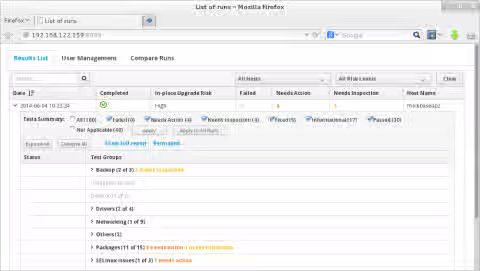
-
Fix the reported issues
In the Web UI, find and expand the correct assessment report. Go through each item in the report and perform changes necessary to fix the reported issues. Then runpreupgto assess the system again, upload the report to the Web UI, and if there are no new issues to resolve, proceed to Step 3.
Step 3: Perform the upgrade
With the Preupgrade Assistant assessment completed and all issues addressed, the next step is to use the Red Hat Upgrade Tool to perform the actual system upgrade.
IMPORTANT: Running the Red Hat Upgrade Tool requires you to run the Preupgrade Assistant tool as a prerequisite. If you try to run the Red Hat Upgrade Tool on your system without running the Preupgrade Assistant first, it will exit with the following error: preupgrade-assistant has not been run. This error is possible to be overridden by the --force option, but in that case the upgraded system will not be supported.
-
Back up the system
Before performing the upgrade by using the Red Hat Upgrade Tool on a system, back up all of your data to avoid potential data loss. Perform a restore test of the backup to another system, to make sure that the backup can be used for a successful restore. A restore test is also useful for getting used to the required restore activities so that you can get a working system back as quickly as possible if necessary. -
Test first
Do not attempt to perform an upgrade of a production system. Clone your system first and test the upgrade procedure in a safe environment. -
Disable the SAP HANA autostart (recommended)
Starting a SAP HANA system can take a very long time. In the situation where you would need to reboot the upgraded system again, it prevents you from longer downtime made by unwanted starts of SAP HANA before you finish the setup of the upgraded system. In such case, start SAP HANA manually after reboot. Profiles of all SAP software are listed in the /usr/sap/sapservices file, e.g.:# cat /usr/sap/sapservices LD_LIBRARY_PATH=/usr/sap/RH2/HDB02/exe:$LD_LIBRARY_PATH;export LD_LIBRARY_PATH;/usr/sap/RH2/HDB02/exe/sapstartsrv pf=/usr/sap/RH2/SYS/profile/RH2_HDB02_myhostname -D -u rh2adm
In this example, set Autostart = 0 inside the /usr/sap/RH2/SYS/profile/RH2_HDB02_myhostname file.
-
Run
redhat-upgrade-toolto download the packages needed to upgrade to Red Hat Enterprise Linux 7.9, and prepare the package installation. You can use several options to indicate the location of the Red Hat Enterprise Linux 7.9 packages:-
Installation repository
To indicate the location of a repository that holds Red Hat Enterprise Linux 7.9 packages, use the--instrepooption. You need to create this repository by yourself, as Red Hat does not provide that. In this example, we use an FTP server, on which the contents of the RHEL 7.9 DVD is copied to the rhel79/ directory. You can also use an HTTP or HTTPS site that contains the Red Hat Enterprise Linux 7.9 packages.# redhat-upgrade-tool --network 7.9 --instrepo <ftp-url>
example:
# redhat-upgrade-tool --network 7.9 --instrepo ftp://ftp.example.com/pub/rhel79/If an invalid Red Hat Enterprise Linux 7 minor version is specified, the upgrade will fail after attempting to contact non-existing repositories.
-
Mounted installation media
To upgrade the system through installation media mounted on your system, for example from a DVD or USB drive available from the /dev/sdb device, run the following command as root:
# redhat-upgrade-tool --device /dev/sdb
If this option is specified without a device, the tool scans all currently mounted removable devices.
- ISO image
To upgrade the system using an ISO image, provide the path to the ISO image after the--isooption. For example, if the RHEL 7.9 installation DVD was located at /var/isos/rhel7dvd.iso on the local system, the command would look as follows:
# redhat-upgrade-tool --iso /var/isos/rhel7dvd.iso
NOTE: For the upgrade to work properly, you might need an access to software repositories beyond what is offered from the basic packages on the RHEL 7 DVD. In particular, the Extras repository in RHEL 7 contains some packages (mostly related to software development) that were in the RHEL 6 base system, but are not present on the DVD. If you know that your upgrade requires packages to meet dependencies that are not in the RHEL 7 Base repository, you can install a separate RHEL 7 system to act as a yum repository to serve the packages you need over FTP or HTTP. Use createrepo or reposync to create a local repository for updates to set up a repository that you can use during your upgrade. To inform Red Hat Upgrade Tool about the additional repository, use the
--addrepooption. The command may look as follows:# redhat-upgrade-tool --device /dev/sdb --addrepo optional=http://host/repo
NOTE: You can use the
--cleanup-postoption to clean obsolete RHEL 6 native packages after the upgrade automatically. -
-
Reboot
To complete the installation, reboot the system. After rebooting, depending on how many packages are being upgraded, it could take some time to complete. If everything goes as expected, the system will reboot to Red Hat Enterprise Linux 7.9, and you can begin checking if the system works properly. -
Perform post-upgrade tasks
The scripts that have been created by the Preupgrade Assistant for theFIXEDitems will run automatically after the upgrade. Any other post-upgrade tasks that the administrator should run manually are identified in the Preupgrade Assistant report. -
Verify the system version
To make sure that the system was upgraded to RHEL 7.9, type:# cat /etc/redhat-release Red Hat Enterprise Linux Server release 7.9 (Maipo)
-
Check the proper subscription
If your system had been properly registered and subscribed for RHEL 6, the upgrade process should have automatically resubscribed it for RHEL 7. You must see the "unversioned" RHEL 7 repository. To verify the system is properly subscribed, type:# yum repolist Loaded plugins: product-id, subscription-manager repo id repo name status rhel-7-server-rpms/7Server/x86_64 Red Hat Enterprise Linux 7 Server (RPMs) 23,676
If the repository list determined above does not contain RHEL 7 repositories, unsubscribe the system, resubscribe it as a RHEL 7 system, and add the repositories you need.
# subscription-manager remove --all
 # subscription-manager unregister
 # subscription-manager register
 # subscription-manager attach --pool=poolID
 # subscription-manager repos --enable=repoID
Ensure your RHEL 7.9 system is subscribed to all SAP HANA required repositories as per RHEL for SAP Repositories and How to Enable Them.
-
Upgrade GRUB Legacy to GRUB 2
Red Hat Enterprise Linux 7 does not include GRUB Legacy any more. Instead, it includes GRUB 2 only. However, because the configuration has been completely overhauled, the upgrade tooling is not capable of upgrading the GRUB Legacy configuration to GRUB 2 automatically.
Since GRUB Legacy is not a supported solution on Red Hat Enterprise Linux 7, you need to upgrade it to GRUB 2 manually. You can find the procedure for upgrading GRUB Legacy to GRUB 2 in the System Administrators Guide. -
Run
yum update
If the upgrade appears to be successful, upgrade all your new RHEL 7.9 packages to their latest version:# yum clean metadata expire-cache # yum update -y
If a new kernel version is installed in the previous step, reboot your system.
In case you did not set the
--cleanup-postoption for redhat-upgrade-tool or you have installed non-native packages, the issues with dependencies may occur. In that case, use a prepared script that will try to remove conflicting el6 packages and install missing dependencies (it can be run multiple times). See:# bash /root/preupgrade/noauto_postupgrade.d/rpmfix/postupgrade_cleanup.sh --help
-
Configuring the system for SAP HANA
After you have verified that the upgrade was successful, ensure your system is configured for SAP HANA according to the applicable SAP notes for RHEL 7:Content from launchpad.support.sap.com is not included.SAP note 2002167 - Red Hat Enterprise Linux 7.x: Installation and Upgrade
Content from launchpad.support.sap.com is not included.SAP note 2292690 - SAP HANA DB: Recommended OS settings for RHEL 7 -
Verifying your SAP HANA system
After you have configured your RHEL 7.9 system for SAP HANA, you can start your SAP HANA software and run any necessary verification steps to ensure that your SAP HANA system is fully operational again. As mentioned before, this should include functional as well as performance testing of your most important business transactions.
Step 4: Provide the feedback
Provide the feedback to Red Hat that is related to any problems you encounter during the upgrade process. We would appreciate you entering This content is not included.bug reports or opening This content is not included.support cases, so that we can address any problems you might encounter.
Feel free to submit a debug log, which is located on the upgraded system in the /var/log/upgrade.log file.
General Updates
A new rollback capability for in-place upgrades has been added. Please see the RHEL 6.10 Release Notes or the Red Hat Upgrade Tool - rollbacks and cleanup after upgrading RHEL 6 to RHEL 7 KBase.
Known Issues
- In-place upgrade from a RHEL 6 system to RHEL 7 is impossible with FIPS mode enabled
- In-place upgrade on IBM Z fails and causes a data loss if the LDL format is used
- This content is not included.In-place upgrade fails to boot the server while upgrading from Red Hat Enterprise Linux 6 to 7 (UEFI)
- The Preupgrade Assistant reports
notcheckedif certain packages are missing on the system
Related information
To perform an in-place upgrade from RHEL 7 to RHEL 8 with SAP HANA, contact your Technical Account Manager or raise a support ticket for assistance. Note that because SAP HANA 1.0 is not supported on RHEL 8, you must first upgrade to SAP HANA 2.0.
This solution is part of Red Hat’s fast-track publication program, providing a huge library of solutions that Red Hat engineers have created while supporting our customers. To give you the knowledge you need the instant it becomes available, these articles may be presented in a raw and unedited form.