After update, kernel panic at boot with error: Unable to mount root fs on unknown-block(0,0)
Environment
- Red Hat Enterprise Linux 5
- Red Hat Enterprise Linux 6
- Red Hat Enterprise Linux 7
- Red Hat Enterprise Linux 8
- Red Hat Enterprise Linux 9
- IBM Z(s390x)
Issue
-
After a fresh install and reboot, or after a kernel update, the system fails to boot with the following message:
VFS: Cannot open root device XXX or unknown-block(0,0) Please append a correct "root=" boot option; here are the available partitions: Kernel panic - not syncing: VFS: Unable to mount root fs on unknown-block(0,0) ... Call Trace: [<ffffffff81527213>] ? panic+0xa7/0x16f [<ffffffff81c27432>] ? mount_block_root+0x216/0x2cb [<ffffffff81002930>] ? bstat+0x2b0/0x980 [<ffffffff81c2753d>] ? mount_root0x56/0x5a -
OS unable to boot after kernel upgrade on RHEL 7
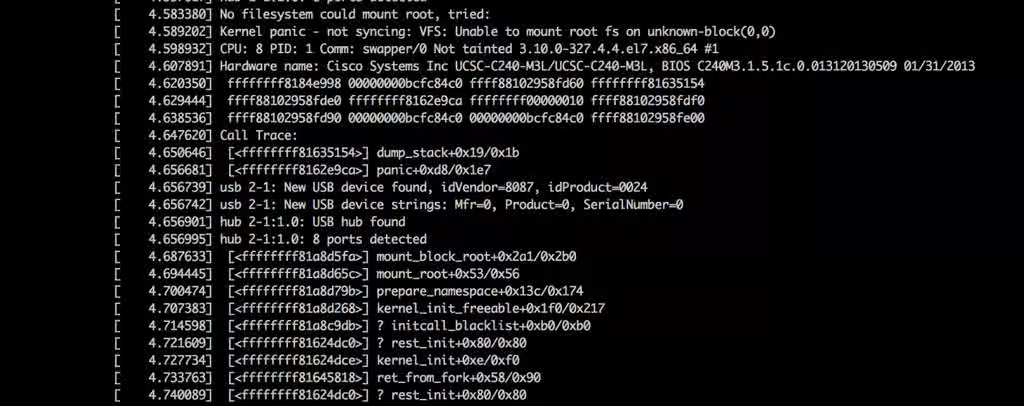
- After upgrading the system (including the kernel package), the server fails to boot.
Resolution
-
Use the GRUB menu to boot into an older kernel:
- Wait for the
Booting Red Hat Enterprise Linux Server in X secondscountdown to begin and press any key. - On the next screen, using the arrow keys, select a different kernel to boot from other than the top selected kernel. Once a kernel has been highlighted press 'Enter' to boot the selected kernel.
- Note: If no older kernels are available, boot into rescue mode and then chroot into the root filesystem and proceed with Step 2.
- Wait for the
-
Ensure the filesystem mounted at
/bootand/tmp/have free space (In case of RHEL 7 and RHEL 8, check/bootand/var/tmp/)# df -h /boot /tmpIf it's virtually full, inspect it and remove any files that shouldn't be there
If unsure what to remove, use the following to inspect the installed kernel versions# rpm --last -q kernel{,-xen,-PAE,-core} Note: kernel-core is only available in RHEL 8 and aboveThen, use
yum removeagainst the oldest one to free up some space -
Remove and then reinstall the newest kernel as shown by the previous
rpmcommand
For example:For RHEL 6 & 7 # yum remove kernel-<newversion>-<release>.<arch> # yum install kernel-<newversion>-<release>.<arch> For RHEL 8 & 9 # yum remove kernel-core-<newversion>-<release>.<arch> kernel-<newversion>-<release>.<arch> # yum install kernel-core-<newversion>-<release>.<arch> kernel-<newversion>-<release>.<arch>Warning: When removing and reinstalling kernels, it's always a good idea to keep at least one known-good kernel installed and available as a fall-back.
-
After the kernel reinstall, ensure that an initrd/initramfs file was created in
/bootfor the kernel in question.# ls -l /boot -
Check the title statement for the newly-reinstalled kernel to ensure that said initrd/initramfs file is mentioned:
- For RHEL 6 and below:
/boot/grub/grub.conffile. - For RHEL 7: For BIOS based
/boot/grub2/grub.cfgfile and for UEFI based/boot/efi/EFI/redhat/grub.cfgfile. - For RHEL 8 and above: Check
/boot/loader/entries/<machine_id>-<new_kernel_version>-<release>.<arch>.conffile.
- For RHEL 6 and below:
-
If the initrd/initramfs file was not created in
/boot, please rebuild by manually, for more see: How to rebuild the initial ramdisk image in Red Hat Enterprise Linux -
If the
/boot/loader/entries/<machine_id>-<newversion>.conffile for RHEL 8 and above is not updated with initramfs entry then follow How to generate BLS configuration files under /boot/loader/entries in Red Hat Enterprise Linux?
Root Cause
- Either the initrd declaration is missing from boot loader configuration, or the initrd/initramfs file itself is missing from the
/bootdirectory. - Either of these could happen due to an incomplete install of a kernel package -- perhaps due to a system hang/crash or perhaps due to the
/bootor/tmp/filesystem running out of space. - Check any third party modules present in initrd/initramfs , sometimes third party modules can cause such kind of issue.
Diagnostic Steps
-
Boot the system from an older kernel version or from rescue mode
-
Verify whether initrd/initramfs is present in
/bootdirectory -
Verify whether initrd statement is present below files
- For RHEL 6 and below:
/boot/grub/grub.conffile. - For RHEL 7: For BIOS based
/boot/grub2/grub.cfgfile and for UEFI based/boot/efi/EFI/redhat/grub.cfgfile. - For RHEL 8 and above: Check
/boot/loader/entries/<machine_id>-<new_kernel_version>-<release>.<arch>.conffile.
- For RHEL 6 and below:
-
Use
df /boot /tmpto verify the/bootand/tmppartitions are not ~100% full
This solution is part of Red Hat’s fast-track publication program, providing a huge library of solutions that Red Hat engineers have created while supporting our customers. To give you the knowledge you need the instant it becomes available, these articles may be presented in a raw and unedited form.